
A loud fan or a warm case is often the first sign that a PC is running hot, yet Windows does not make the number easy to find. Readings vary by tool and by what the PC is doing, which makes them easy to misread. The steps for how to check CPU temperature in Windows 11 below cover three methods, along with which reading to trust and what counts as normal for your chip.
Table of Contents
Check CPU Temperature in BIOS/UEFI
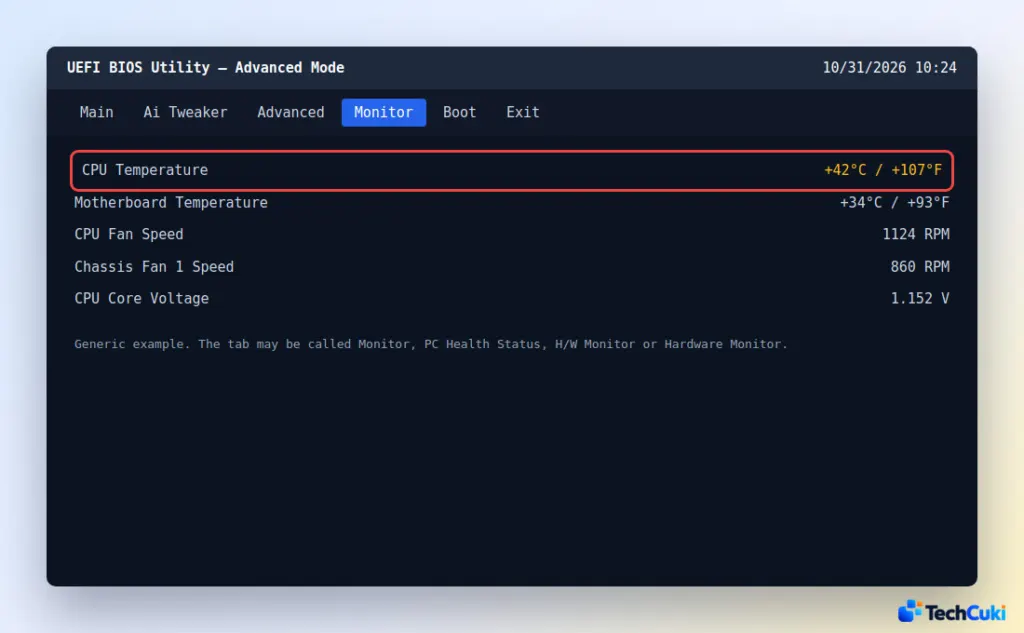
The setup screen needs no install, but nothing else is running there, so it shows an idle temperature only. Not every motherboard lists it. If you’re unsure how to get in, see how to get to BIOS on Windows 11.
- Restart the PC and press the setup key as it starts, usually Del, F2 or F10.
- Open the Monitor, PC Health Status or Hardware Monitor page. The name varies by board.
- Find CPU Temperature and note the reading.
Check CPU Temperature in Windows 11 With a Free App
An app reads the CPU’s own sensors while Windows runs, so it is the only method that shows temperature under load. HWMonitor, Core Temp and HWiNFO are the usual picks.
- Download the app from its official website only, then install and open it.
- Find the CPU rows. Each core shows its current, minimum and maximum temperature.
- Leave it open while you work or play to watch how the numbers move.
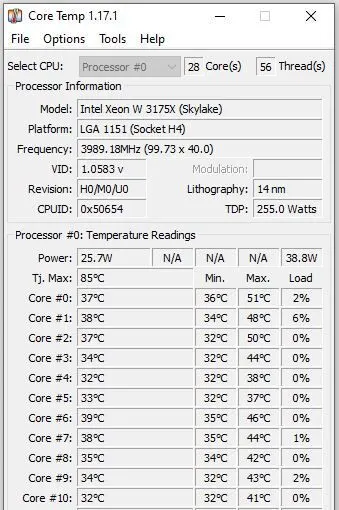
Two details save confusion. Apps that list both Core and Package temperatures show individual cores and the whole processor respectively, and Package is the figure to watch for overall heat. Also read each installer screen before clicking through, because Core Temp’s setup has a preselected bundled-software checkbox that some users complained about on Reddit.
Can Task Manager Show CPU Temperature?
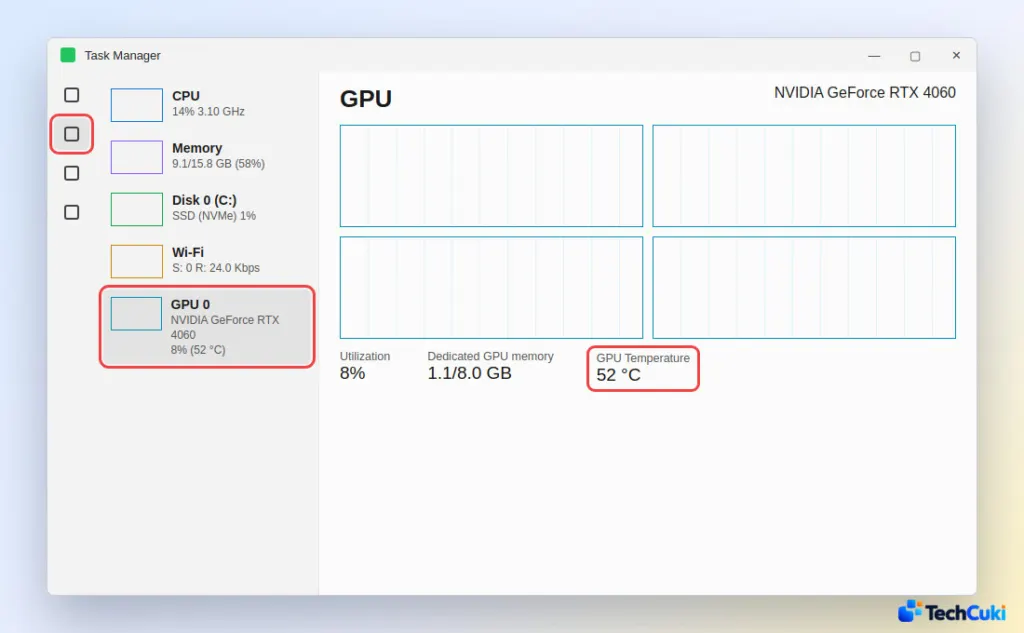
No. Task Manager omits CPU temperature, but it does show GPU Temperature for supported dedicated graphics cards.
- Press
Ctrl + Shift + Esc. - Select Performance, then GPU 0 or GPU 1 in the left pane.
- Look for GPU Temperature. If it is missing, the card is not a supported dedicated GPU.
Check CPU Temperature With PowerShell
PowerShell reads an ACPI thermal zone on the motherboard, not the CPU cores, so treat the result as a rough hint. Reports from Windows 11 users include readings far too low, such as about 10 °C on a hot laptop.
- Search for PowerShell in the Start menu, then select Run as administrator.
- Type
Get-CimInstance -Namespace root/wmi -ClassName MSAcpi_ThermalZoneTemperature | Select-Object InstanceName, CurrentTemperatureand press Enter.
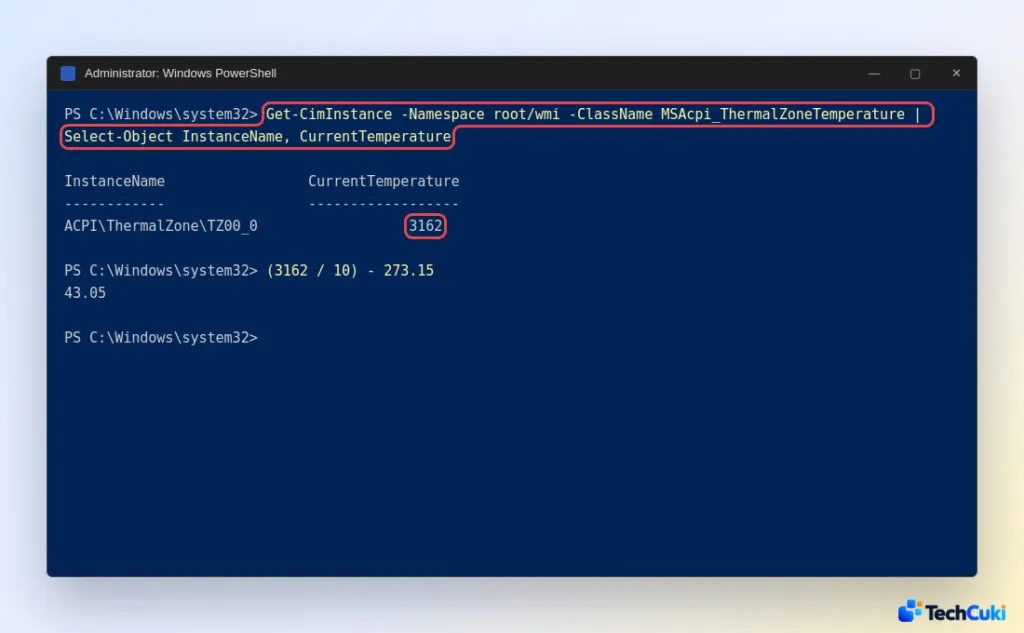
- Read CurrentTemperature, which is in tenths of a Kelvin. Divide by 10, then subtract 273.15, so 3162 becomes 43.05 °C.
If you get an error or the same fixed value every time, skip this method and use an app. Older scripts built on wmic fail on Windows 11 with “‘wmic’ is not recognized”.
What Is a Normal CPU Temperature?
For most chips, about 30–50 °C at idle and up to roughly 80–85 °C under load is normal, but the real limit depends on the model.
- Idle: under or around 50 °C at the desktop.
- Heavy load: 70–85 °C is expected during demanding tasks like gaming. Laptops often sustain 90–95 °C when pushed hard.
- Limit (TJMax): the chip slows itself down (thermal throttling) when it reaches this ceiling instead of burning out. It is about 95 °C for Ryzen and 105 °C for Intel Core in general, but some models differ: Ryzen 5000 and 7000 are built to run at 95 °C, the Ryzen 9 7950X3D at 89 °C, and the top 12th to 14th-gen Intel Core i9 chips can reach 100 °C in normal use.
A short spike when you open a program is normal, since the CPU boosts before the fans catch up. What matters is whether it settles back within seconds. For a real check, play for an hour and read the maximum value your app recorded: staying below 95 °C is the floor, and anything from 80 to 95 °C leaves room to improve cooling. Your CPU maker’s spec page lists the exact TJMax for your model.
What to Do If Your CPU Runs Hot
Fix cooling and airflow first, before spending money on parts.
- Clean dust from the vents, heatsink and fans, and confirm the fans spin under load.
- Keep a laptop on a hard, flat surface, not a bed or couch.
- Close heavy apps. If one keeps the processor busy, see how to fix high CPU usage in Windows 11.
- If you overclocked, return to stock speeds. Undervolting also lowers heat but suits people comfortable changing hardware settings.
- On a desktop, replace thermal paste older than about three years, or upgrade a weak stock cooler. An idle temperature that climbs 10 °C or more points at dried-out paste.
Most healthy PCs sit well inside the normal range, so one high reading is rarely cause for alarm. Regular checks help you catch a cooling problem early, before it affects performance or the hardware.


