
A PC that feels sluggish, or a laptop that runs out of battery too soon, can often be traced to a single setting that balances the two. When that setting won’t respond or looks greyed out, the cause is usually something configured elsewhere on the PC. The sections below cover how to change power mode in Windows 11, which of the three modes suits what you are doing, and what to try when the option refuses to move.
Table of Contents
How to change power mode in Windows 11 from Settings
Laptops show two drop-downs (Plugged in and On battery), while desktops show one.
- Select Start, then Settings.
- Go to System > Power & battery.
- Under Power mode, open the drop-down you want to change.
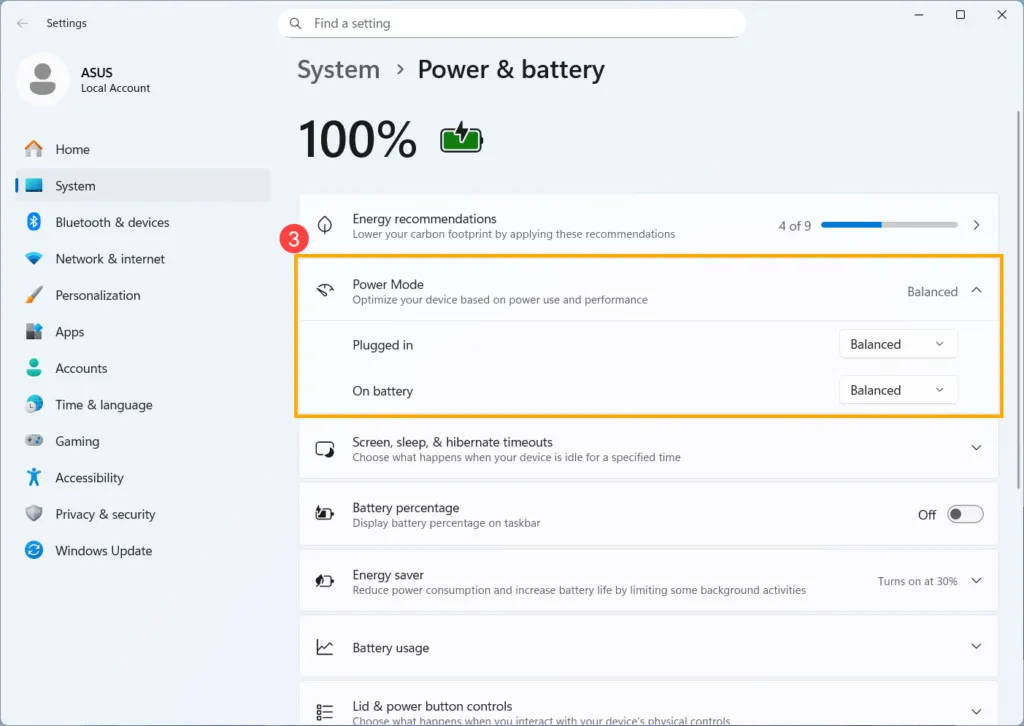
- Pick Best power efficiency, Balanced or Best performance. The change applies immediately, with no restart.
Which power mode to pick
| Mode | What it does | Use it for |
|---|---|---|
| Best power efficiency | Limits background activity, plugged in or on battery | Battery days, or a cooler, quieter laptop |
| Balanced (default) | Trades performance and battery life evenly | Browsing, email, documents |
| Best performance | Maximizes speed at the cost of power | Gaming and video editing while plugged in |
Best performance draws more power and produces more heat and fan noise, so avoid it on battery. If the PC still feels slow on Balanced, our guide to speed up Windows 11 covers other settings to check.
Fix a power mode that is greyed out or won’t change
When you see the message “power mode can’t be set while the high performance power plan is used”, or the drop-down does nothing, a plan chosen in Control Panel is overriding the Settings page. Both places offer the same three names, but the Control Panel plan wins, so switching back to Balanced there hands control to Settings again.
- Select Start, type
Control Panel, then open it. You can also pressWindows + Rand runpowercfg.cplto land on the same page. - Select Hardware and Sound (or System and Security), then Power Options.
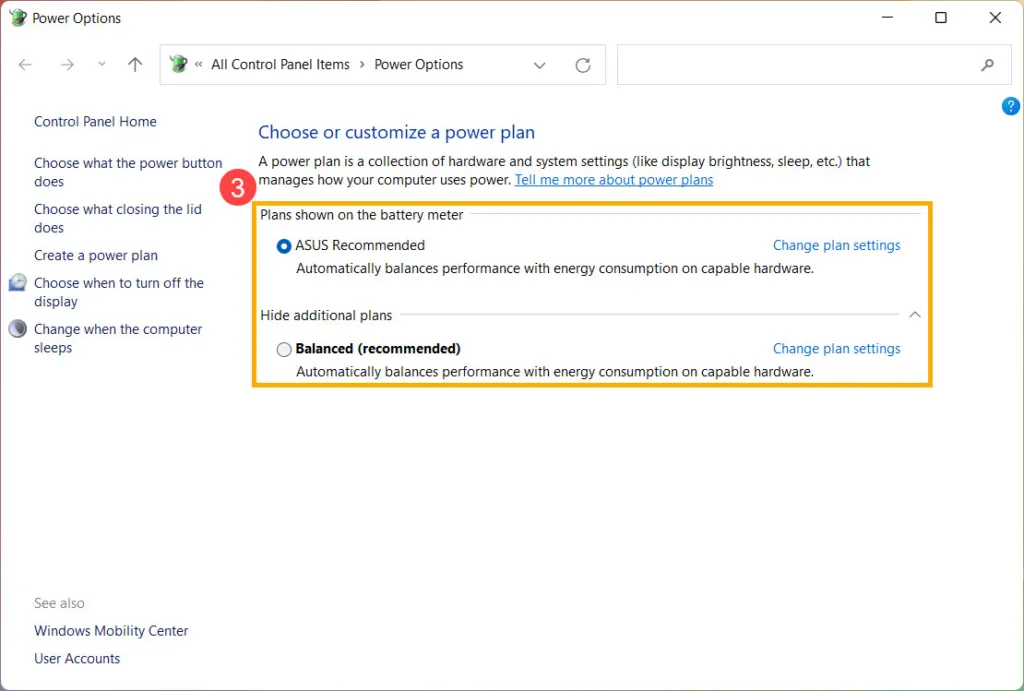
- Select Balanced. If you don’t see it, expand the section for additional plans.
Go back to Settings > System > Power & battery and the drop-downs should work. Some users report the plan flipping back to High performance each time they unplug and re-plug the charger, which happens when a manufacturer utility or custom plan keeps reapplying itself. If that is your case, a plan you create yourself from the Power Options page is one fix users have reported working.
Turn on Energy saver for a longer battery
Energy saver is separate from power mode: it limits some notifications and background activity, and it can dim the screen when the battery runs low. It is available in Windows 11 24H2 and later, where it replaced Battery saver.
- Go to System > Power & battery, then select Energy saver.
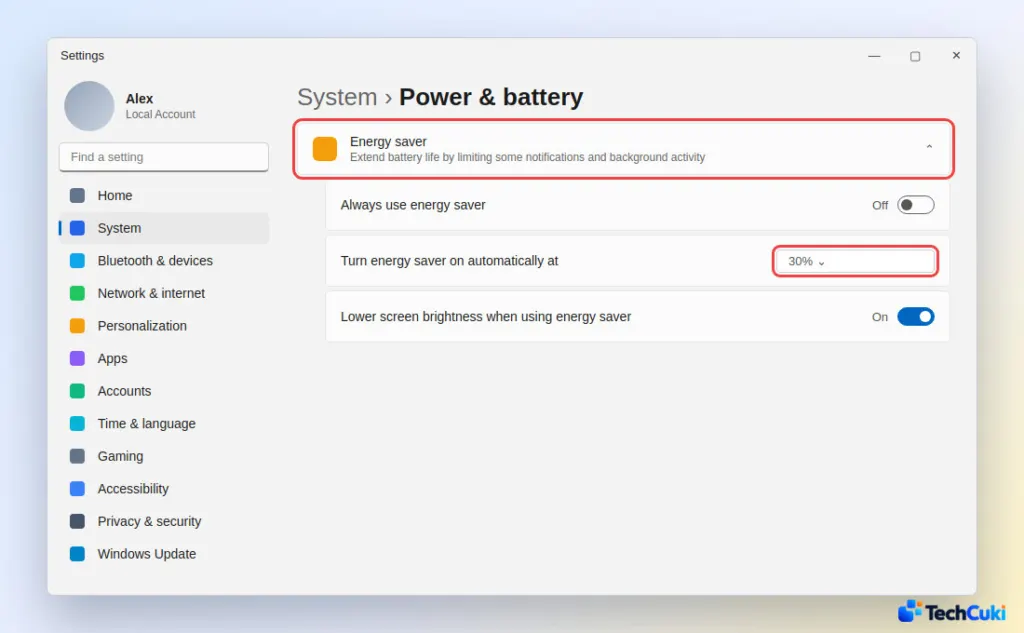
- Turn on Always use energy saver, or turn on Turn energy saver on automatically at and pick a battery percentage, such as 30%.
- Optionally, turn on Lower screen brightness when using energy saver.
If the battery drains faster than these settings explain, checking battery health in Windows 11 shows whether the battery itself is worn.
Most people are best served by a sensible everyday choice, with the more demanding one saved for jobs that need it while plugged in. If a plugged-in PC still crawls, high CPU usage in Windows 11 is the next thing to rule out.


