
Pop-ups that break your focus or buzz at the wrong moment are easy to quiet once you know how much control Windows gives you. There are different levels of quiet, from silencing everything to calming only the apps that nag, and they behave quite differently. The sections below show how to turn off notifications in Windows 11, plus how to handle tips that appear on their own and alerts that come from websites.
Table of Contents
Which Option Fits Your Problem?
Do Not Disturb is usually the better pick over the master switch. With it on, you still get banners for alarms, reminders and the apps you allow, and everything else waits quietly in the notification center.
1. Turn Off Notifications in Windows 11 for Everything
One toggle silences every app and sender at once.
- Open Start and select Settings.
- Select System, then select Notifications.
- Switch Notifications to Off.
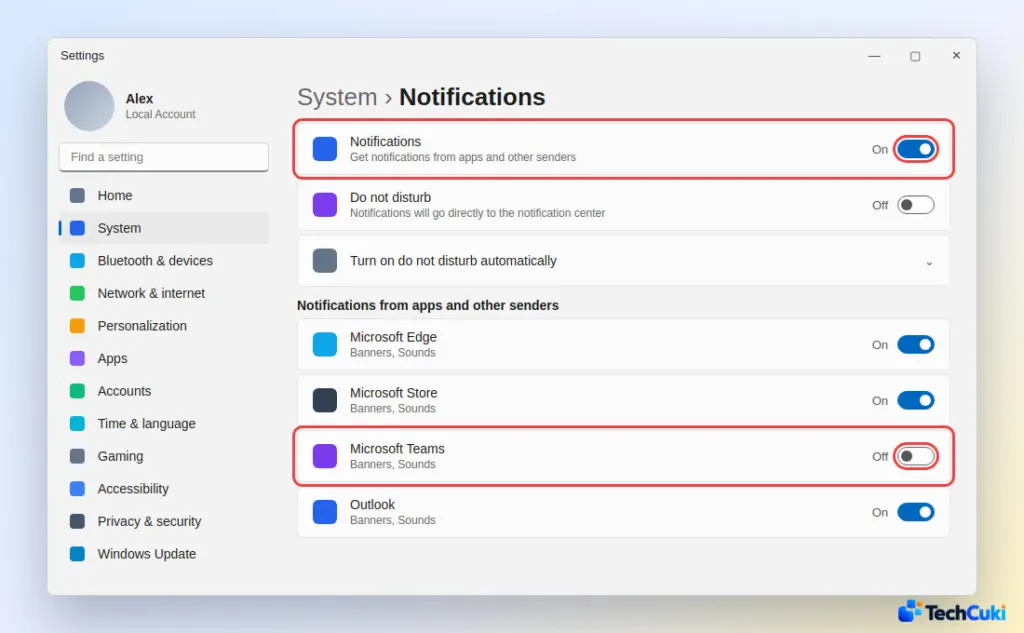
Flip the same switch back to On to undo it. Your per-app choices are kept.
2. Turn Off Notifications for Specific Apps
If only one or two apps are the problem, block them and leave the rest alone. An app that is not worth keeping can be uninstalled in Windows 11 or cleared out with preinstalled bloatware removal.
- Go to Settings > System > Notifications.
- Under Notifications from apps and other senders, switch the app you want to silence to Off.
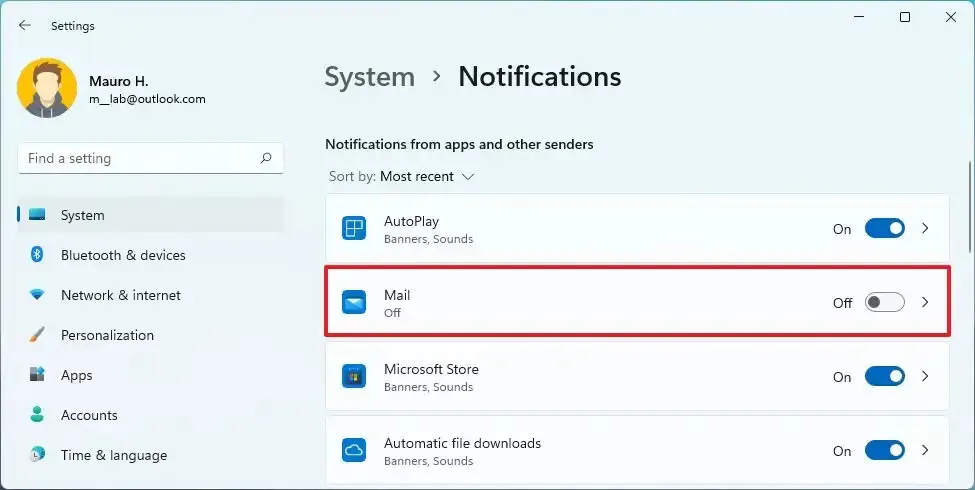
- To keep an app but tame it, click its name. You can then turn off Show notification banners, keep it out of the notification center, hide its content on the lock screen, or switch off Play a sound.
You can also do this from the notification itself: open the notification center, click the more button next to an app’s group, and choose Turn off all notifications.
3. Use Do Not Disturb to Hold Notifications Back
Do Not Disturb sends notifications straight to the notification center without banners or sounds, so you can read them when you choose to.
- Go to Settings > System > Notifications.
- Turn on Do not disturb.
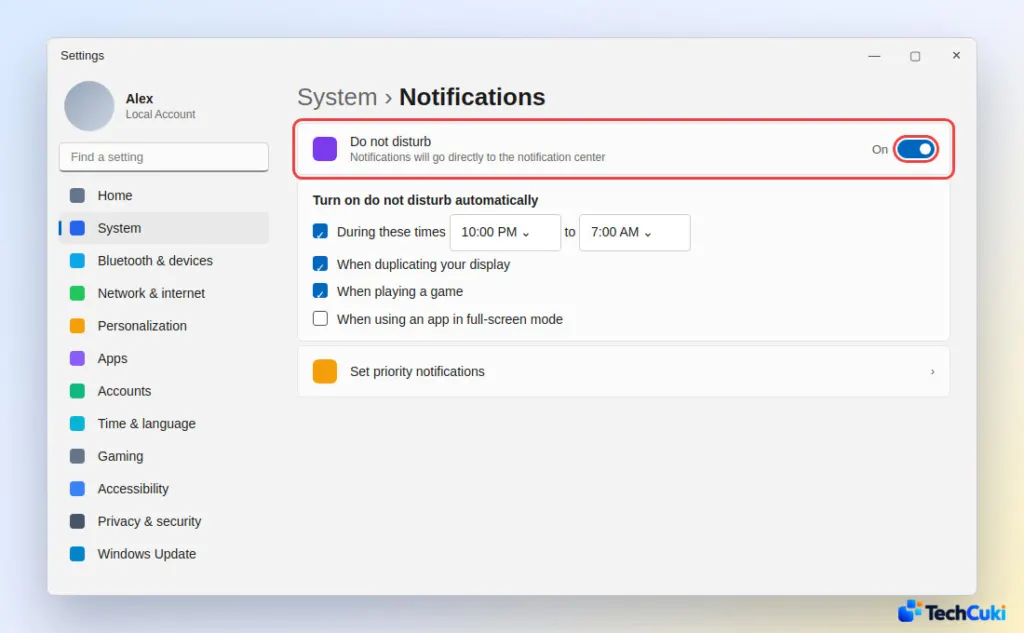
- Expand Turn on do not disturb automatically and set a time range such as 10:00 PM to 7:00 AM.
- Tick the situations that should trigger it: duplicating your display, using an app in full-screen mode, or the first hour after a Windows feature update.
- Under Set priority notifications, tick whether calls and reminders may break through, and use Add apps for apps that always may.
For a quick manual toggle, open the notification center from the bell icon or the date and time on the taskbar and select the bell with zZ on it. It stays on until you select it again, and the notifications you missed are waiting there.
4. Stop Windows Tips and Suggestions
Those “finish setting up your device” pop-ups come from Windows itself, and they are controlled at the bottom of the same page.
- Go to Settings > System > Notifications.
- Scroll down and expand Additional settings.
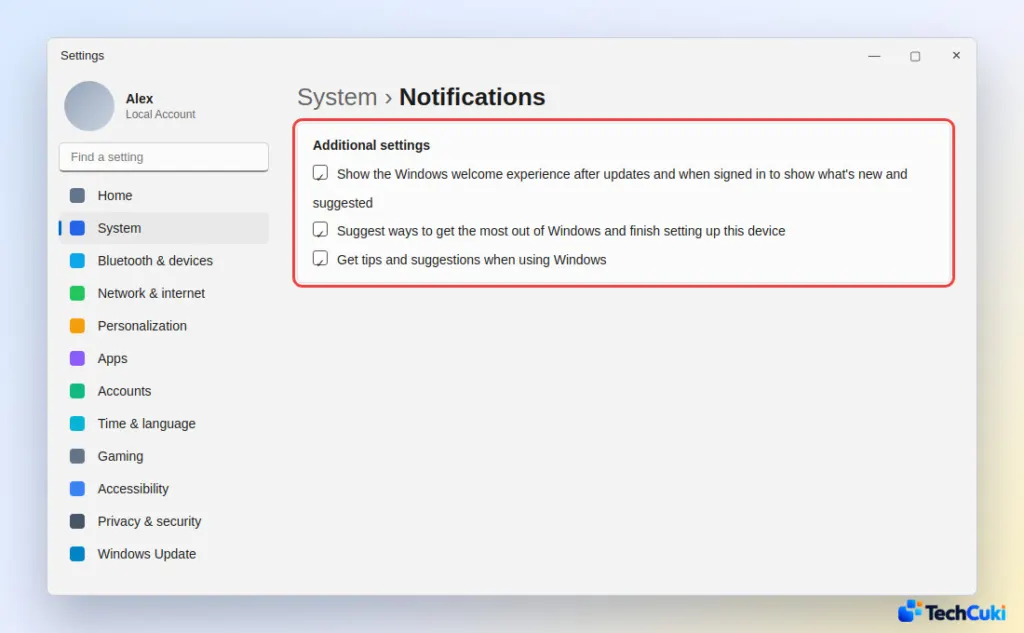
- Untick Show the Windows welcome experience…
- Untick Suggest ways to get the most out of Windows and finish setting up this device.
- Untick Get tips and suggestions when using Windows.
Stop Website Notifications in Chrome or Edge
Sites ask for permission through the browser, so Windows settings will not silence them. Open the browser settings, find Site permissions, and open Notifications. Block the sites you do not want, or remove the ones you no longer visit.
Quiet does not have to mean missing something important, so a targeted setup usually beats switching everything off. Every change can be reversed whenever your needs shift. If the desktop still feels busy, disable startup apps or turn off widgets in Windows 11 next.


