
A PC that runs hot, loud and slow while you are barely using it is a frustrating thing to live with. Windows 11 high CPU usage usually comes down to one process, a setting or a background task rather than a broken machine. Seven fixes follow, ordered from quick checks to deeper ones, so you can narrow down the cause and get the system calm again.
Table of Contents
Is It Normal or a Problem?
Opening an app, installing an update or gaming can push the CPU to 100% for a while, and that is normal. It becomes a problem when usage stays high with nothing demanding open, which points to a background process, a power setting, malware or a buggy driver.
Pick a starting point by what you see in Task Manager:
| What tops the CPU column | Go to |
|---|---|
| A browser, game or app you recognize | Fix 2 |
| Antimalware Service Executable | Fix 5 (a scan in progress is normal) |
| Runtime Broker or other Windows processes | Fix 6, then 7 |
| A process name you do not know | Fix 5 |
| Nothing stands out but the fans are loud | Fix 4, then 7 |
1. Find the Process Behind Windows 11 High CPU Usage
Sorting Task Manager by CPU shows which process is using the processor right now. If you need other ways in, see how to open Task Manager in Windows 11.
- Press
Ctrl + Shift + Escto open Task Manager. - Click the Processes tab (select More details first if you only see a short list).
- Click the CPU column header so the highest usage sits at the top.
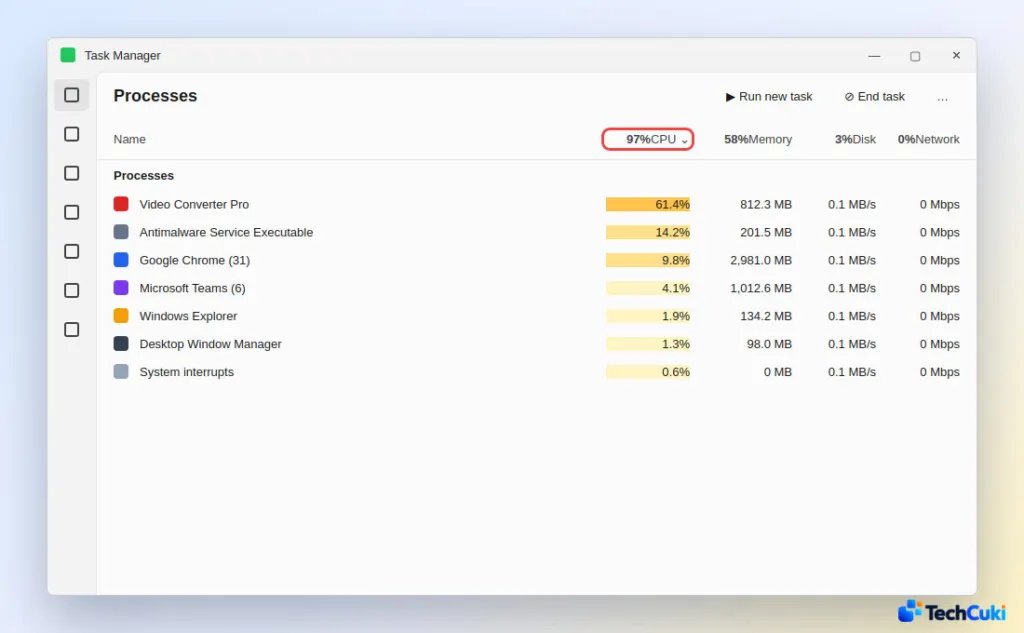
A full-screen game can hide Task Manager behind it. Open Options in its menu bar and choose Always on top, or drag the window to a second monitor.
2. End the App Using Too Much CPU
Ending a runaway app frees the processor immediately.
- Save your work, then select the app in the Processes list.
- Click End task, or right-click the app and choose End task.
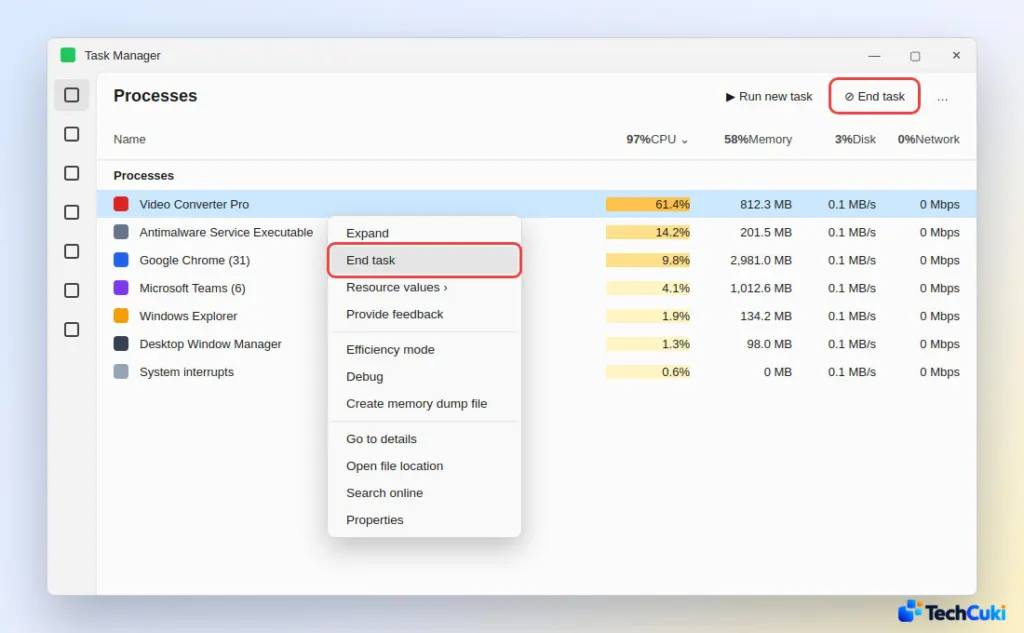
Leave Windows processes you do not recognize alone. Ending explorer.exe or winlogon.exe breaks the desktop and sign-in, so end only apps you can reopen. For an unfamiliar name, search for it online before touching it.
3. Restart the PC
If the high usage began after an update, a restart finishes any pending install and clears processes that have been looping since the last boot. Save your work and restart before trying anything deeper.
4. Check the Power Mode
The power mode sets how hard Windows lets the CPU run, so Best performance can keep usage and fan noise up. Balanced is the usual default.
- Go to Start > Settings > System > Power & battery.
- Under Power mode, choose Balanced if it is on Best performance. There is more detail in changing the power mode in Windows 11.
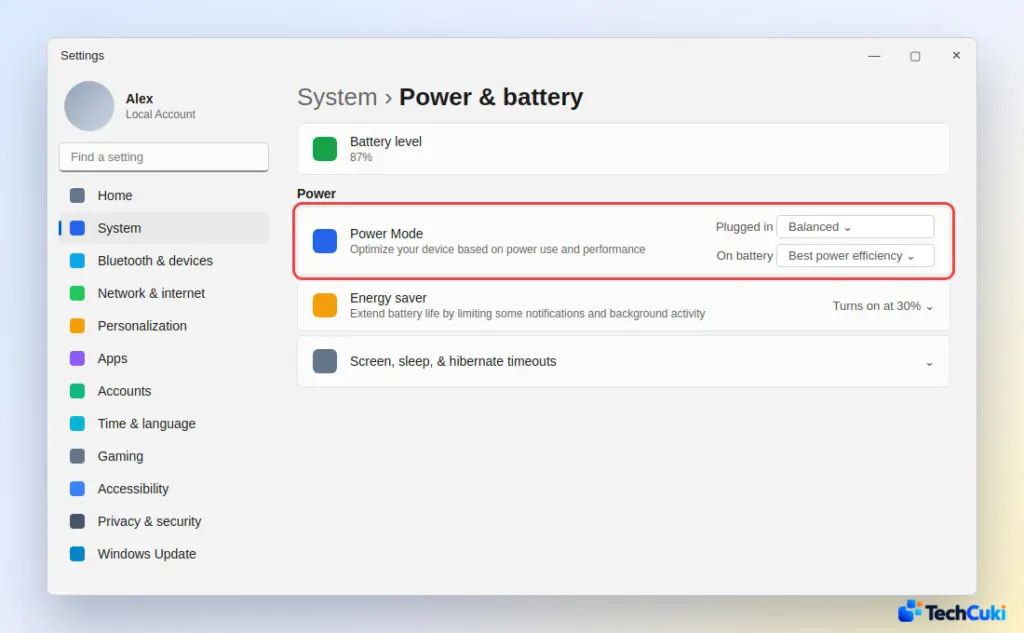
- If the setting is locked, a custom power plan is probably active. Go to Control Panel > System and Security > Power Options and select Balanced.
5. Scan for Malware
Some malware, such as cryptocurrency miners, runs under a familiar name like Runtime Broker so it blends into the list. Usage that stays high even when you are idle, from a process you cannot place, is the case for a scan.
- Open Windows Security and go to Virus & threat protection.
- Click Quick scan.
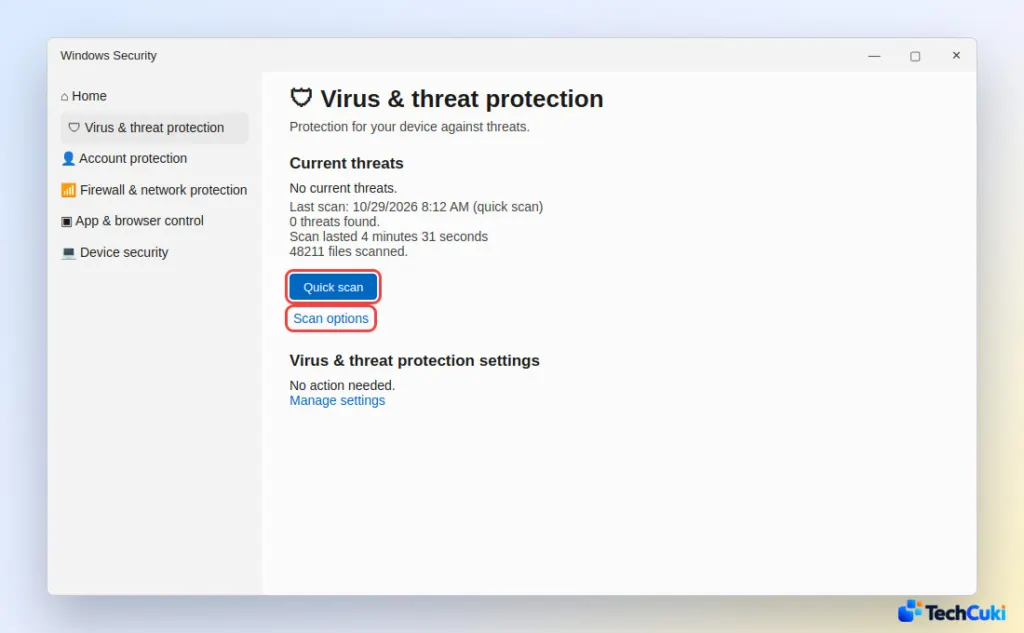
If Antimalware Service Executable is the one using CPU, that is Microsoft Defender scanning, and it settles once the scan ends. If a quick scan finds nothing and the problem remains, run a full scan.
6. Trim Startup Apps and Windows Tips
Apps that launch at sign-in and keep running in the background hold CPU all day. Follow how to disable startup apps in Windows 11, then close background apps you do not use.
When Runtime Broker is the heavy process, tips are a known trigger. Go to Settings > System > Notifications, expand Additional settings, and untick Get tips and suggestions when using Windows, then restart.
7. Install Windows and Driver Updates
A bug in Windows or a driver can keep the CPU busy, and the fix usually ships in a later update.
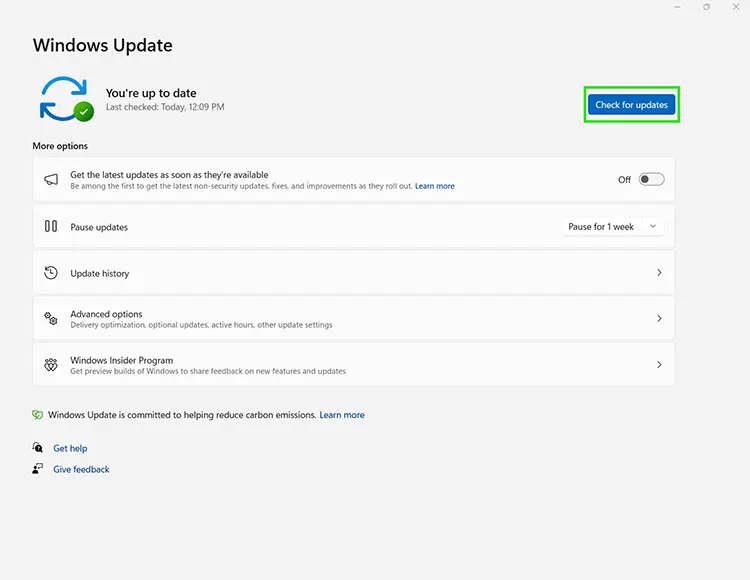
- Go to Settings > Windows Update and click Check for updates.
- Install anything that appears.
- Click Advanced options > Optional updates and install the driver updates listed there.
Stick to Windows Update or your PC maker for drivers, because free driver-updater tools are redundant and some carry malware.
If Nothing Brings the CPU Down
When one third-party process keeps the CPU high, search its exact name from Task Manager together with your CPU model to find the developer’s fix. Update the BIOS only if you have found a BIOS release that names this specific bug, since it rarely helps on its own and can introduce new problems. Create a restore point before any registry change, and if a restore point from before the trouble began exists, restoring it is safer than a reinstall of Windows.
Most cases trace back to something small, so working through the causes one at a time usually settles it. If the fans stay loud afterward, check your CPU temperature in Windows 11 to see if heat is part of the picture.


