
A laptop that dies sooner than it used to is usually showing battery wear, but Windows 11 does not make the number easy to find. The figure does exist, and it shows how much capacity the battery has lost over time. The sections below show how to check battery health in Windows 11, what the results mean, and when a replacement makes sense.
Table of Contents
1. Check Battery Health in Windows 11 With a Battery Report
The battery report reads the figures stored in the battery itself, so it is the most reliable check without installing anything, and it takes about a minute.
- Right-click the Start button and select Terminal (or search for Command Prompt and open it).
- Type
powercfg /batteryreportand press Enter.
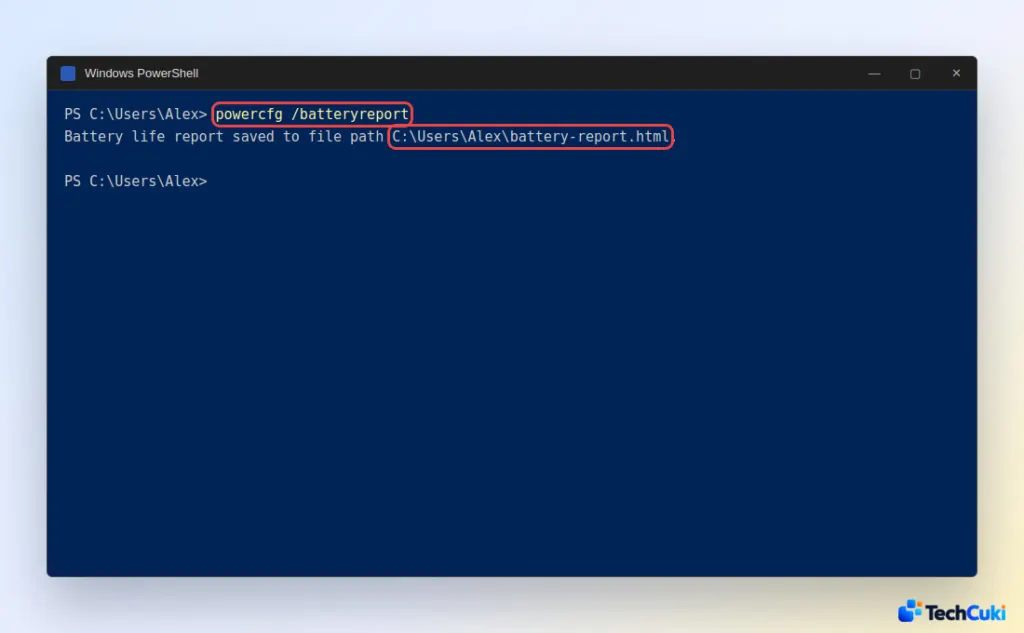
- Windows saves
battery-report.htmland prints its location, usuallyC:\Users\<your name>\battery-report.html. Open that file in your web browser. - Scroll to Installed batteries and compare DESIGN CAPACITY (what the battery held when new) with FULL CHARGE CAPACITY (what it holds now). CYCLE COUNT shows the number of full charge cycles, though some laptops don’t report it.
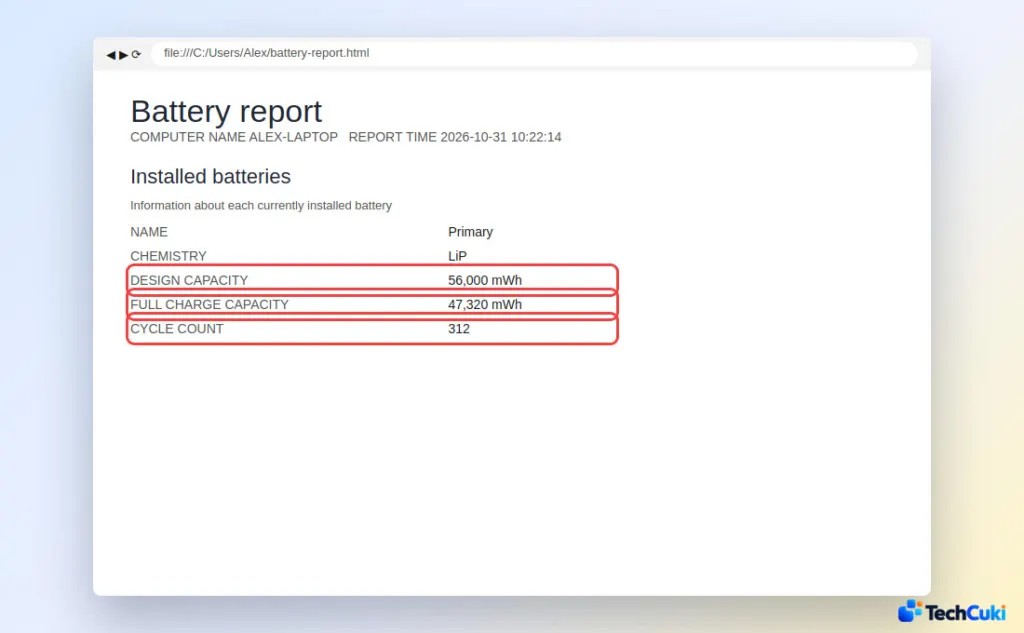
If you can’t find the file, run powercfg /batteryreport /output "C:\battery-report.html" instead. The last part of the command picks the save location, so the report lands in the root of the C: drive.
Further down, Battery capacity history shows how capacity has dropped over time, and Battery life estimates lists the runtime at design capacity beside the runtime you actually get. That second comparison is easier to feel than a percentage.
How to Calculate Battery Health From the Report
Battery health is the full charge capacity divided by the design capacity, times 100.
Battery health % = Full Charge Capacity ÷ Design Capacity × 100
For example, a full charge capacity of 47,320 and a design capacity of 56,000 gives 47,320 ÷ 56,000 × 100, which is about 84%. This battery holds roughly 84% of the charge it held when new.
What Is a Good Battery Health Percentage?
- 80% or higher: healthy for daily use.
- Below 80%: shorter battery life becomes noticeable.
- Around 60 to 70%: many laptop makers consider the battery worn, especially when Windows or the maker’s app shows a replace warning.
A swollen battery, sudden shutdowns at high charge levels, or severe heat are a different matter. Stop using the laptop and have it serviced, because a swollen cell can be a safety risk and should not be pressed or punctured.
2. Check Battery Usage in Settings
Settings shows what is draining the battery, not how worn it is, so use it to find power-hungry apps after the report tells you the battery itself is fine.
- Click Start, then select Settings.
- Click System, then select Power & battery.
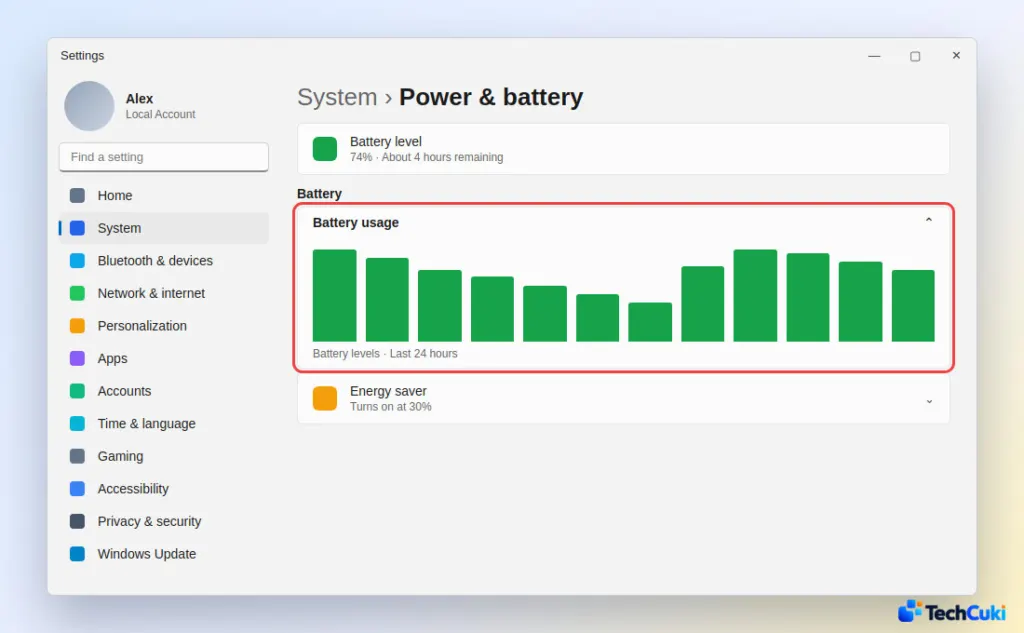
- Open Battery usage and switch between the last 24 hours and the last 7 days. The per-app list shows which apps use the most power.
3. Use Your Laptop Maker’s App
Many brands ship a support app with a battery test and its own health readout, which can flag a failing cell the Windows report doesn’t. Common examples are Lenovo Vantage, MyASUS, HP Support Assistant and Dell SupportAssist. Search the Start menu for your brand’s name, find the battery section, and run the test if one is offered.
How to Slow Battery Wear
Heat and frequent deep discharges age a lithium-ion battery fastest. Microsoft recommends keeping the charge roughly between 20% and 80% when you can, and turning on Smart charging if your device offers it, since it holds the recommended level even while plugged in.
- Avoid heat: don’t use the laptop on a bed or pillow, where vents get blocked.
- Use Energy saver on battery: it limits power use when unplugged. Our guide on changing the power mode in Windows 11 explains the options.
- Set a charge limit: if your maker’s app offers one, such as stopping at 80%, turn it on when you’re mostly plugged in.
- Storing the laptop: leave it at around 40 to 60%, not full and not empty, in a cool, dry place.
Battery wear is permanent, but a lot of what feels like a dying battery is software. If an app keeps draining power, you can close background apps on Windows 11 first. Checking again every few months shows how quickly the battery is aging, and the laptop maker is the right place to ask about a replacement.


