
A bad driver or buggy update can leave Windows 11 crashing or refusing to load, and that is when a stripped-down startup mode earns its place. It runs with only the essentials, which makes it easier to track down what is causing the trouble. Four ways to boot into Safe Mode on Windows 11 are covered here, for a PC that still starts and for one that won’t.
Table of Contents
- Boot Into Safe Mode on Windows 11 From Settings
- Hold Shift and Click Restart
- Start Windows 11 in Safe Mode With System Configuration (msconfig)
- Boot Into Safe Mode When Windows 11 Won’t Start
- Does F8 Boot Into Safe Mode on Windows 11?
- Can You Boot Into Safe Mode From BIOS?
- How to Exit Safe Mode in Windows 11
1. Boot Into Safe Mode on Windows 11 From Settings
Use this method when Windows starts normally and you can sign in.
- Click Start and open Settings, or press
Windows + I.
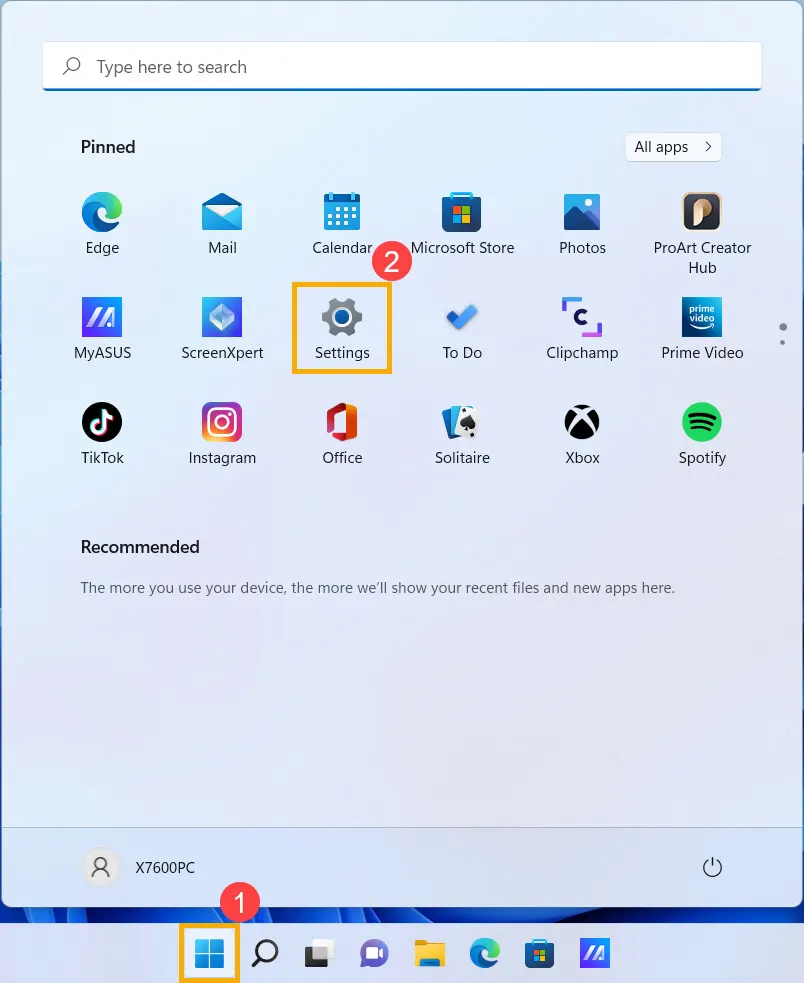
- Under System, select Recovery.
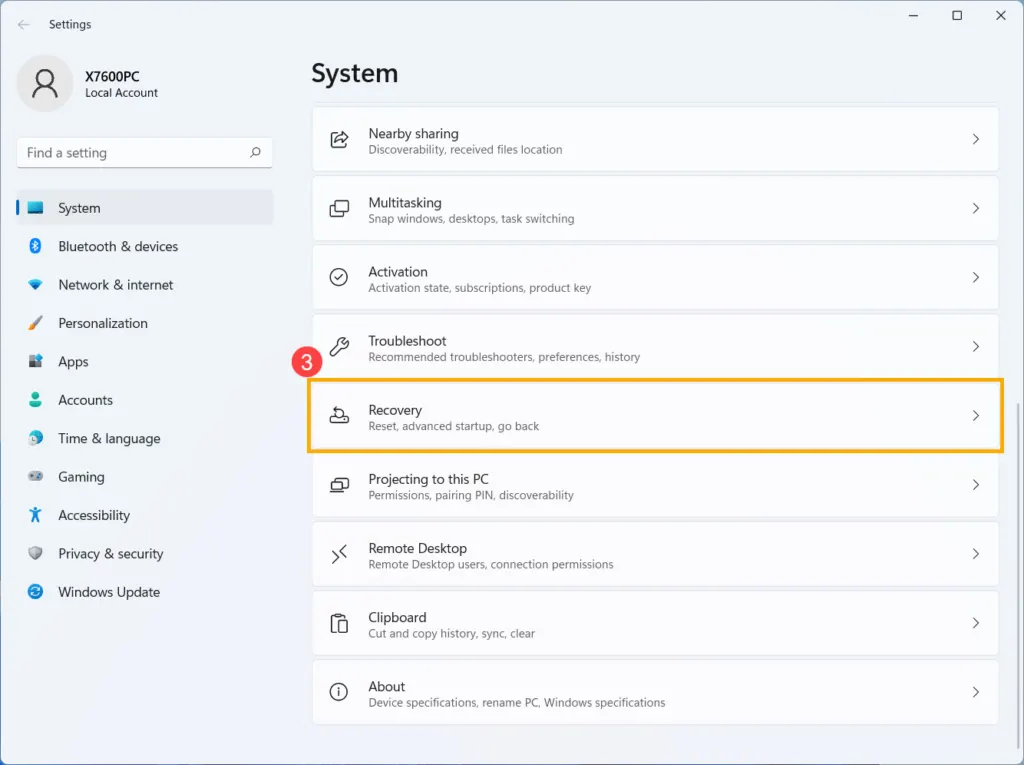
- Next to Advanced startup, click Restart now.
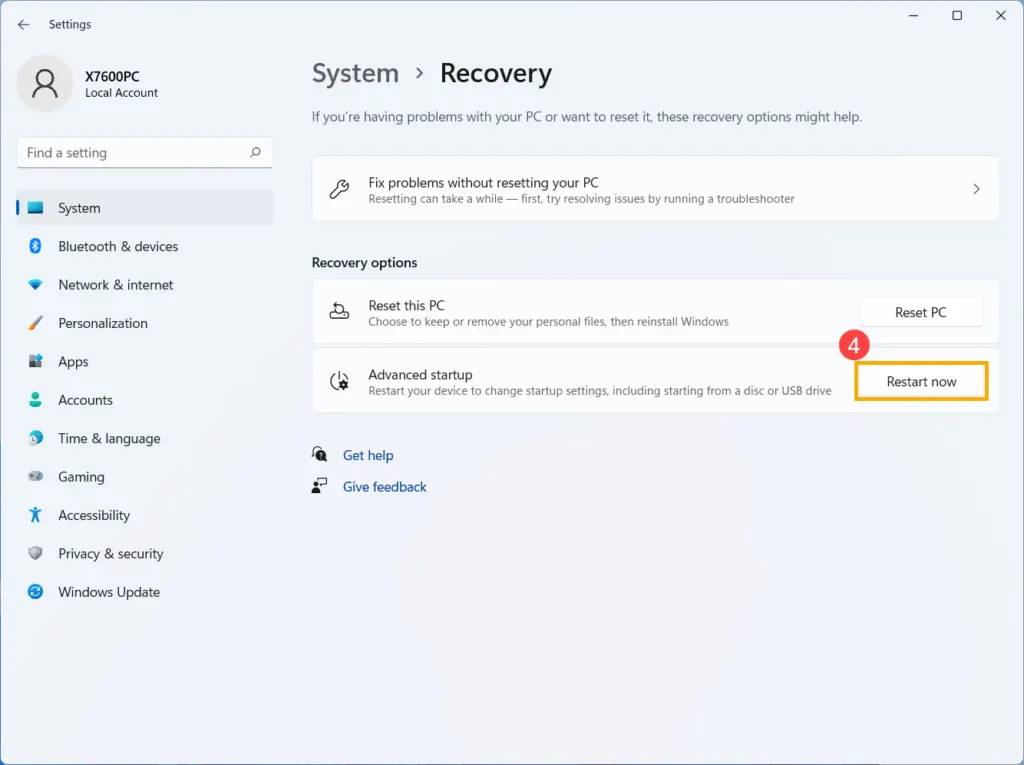
- Save your work, then click Restart now again to confirm.
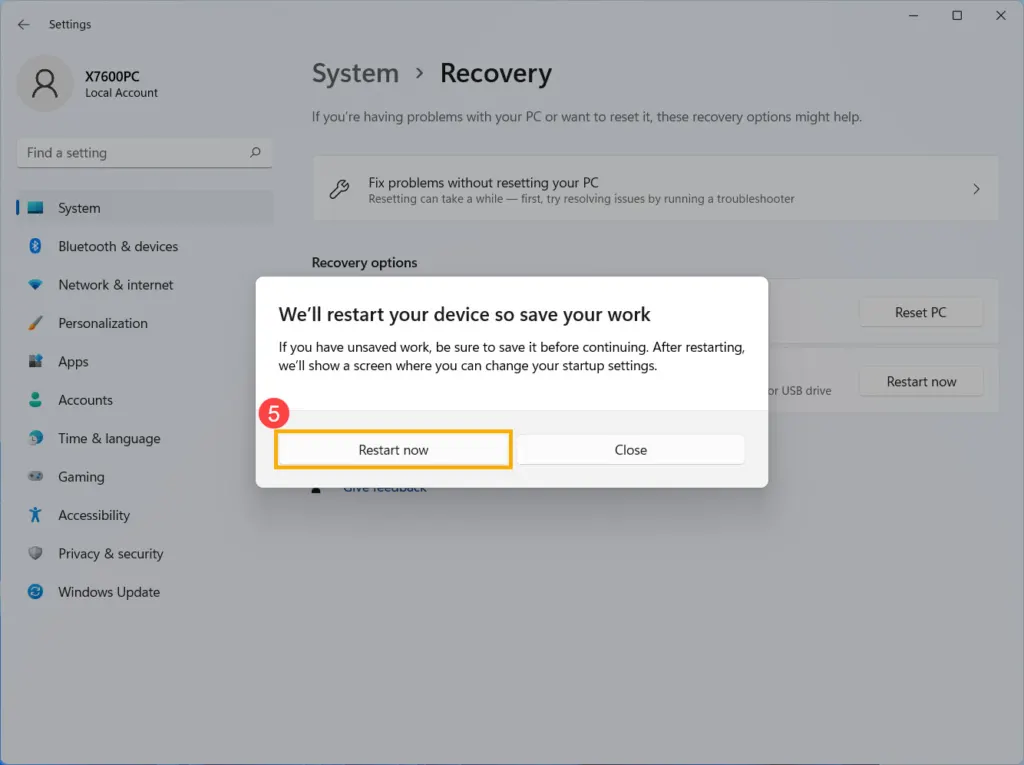
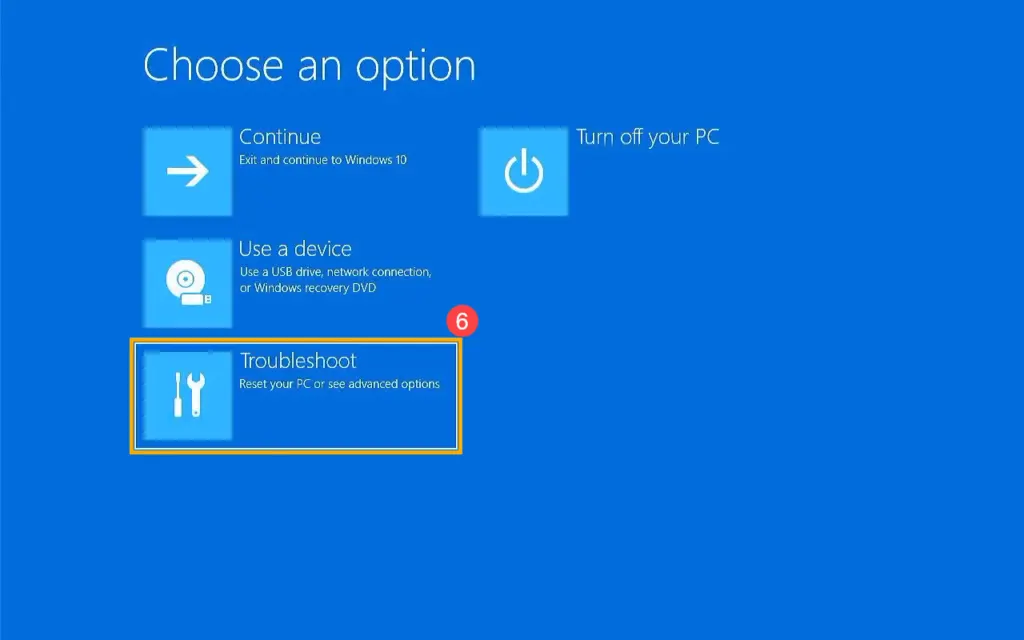
- Your PC restarts to the blue Choose an option screen. Select Troubleshoot.
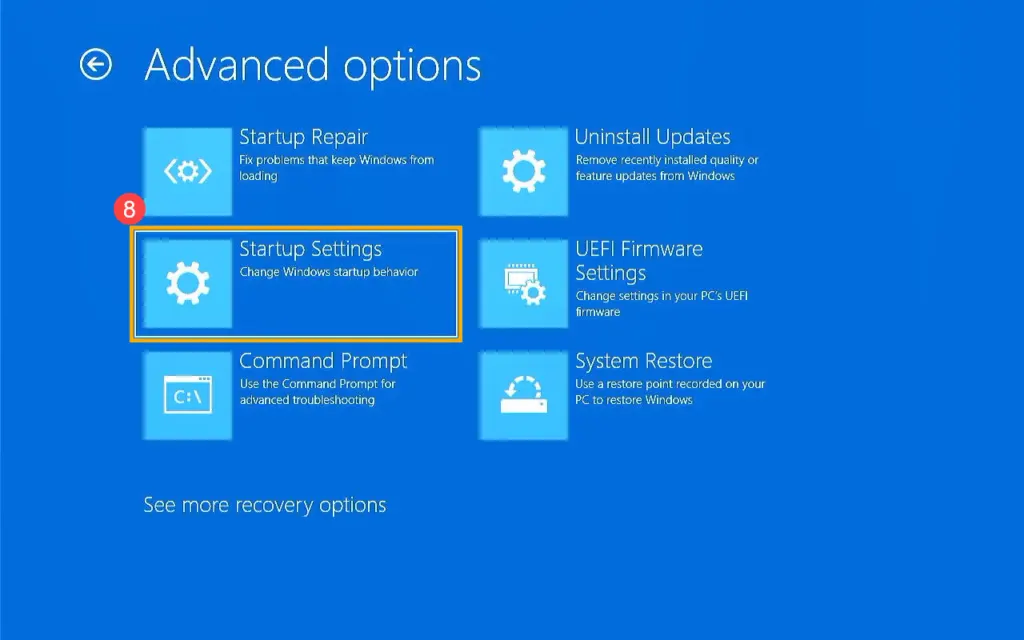
- Select Advanced options.

- Select Startup Settings.
- Click Restart.
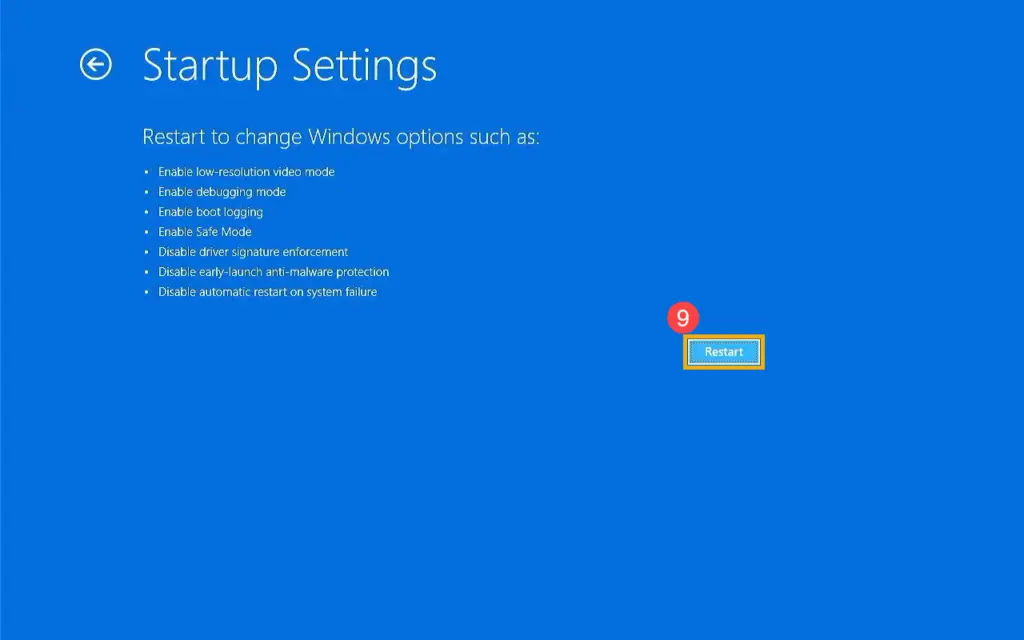
- After the restart, press 4 or F4 to Enable Safe Mode. Press 5 or F5 for Safe Mode with Networking if you need internet access, for example to download a driver or run an online malware scan.

Windows starts with a black background and the words Safe Mode in each corner of the screen, so you know it worked.
Note: If your drive is encrypted with BitLocker, you may be asked for your BitLocker recovery key. You can find it at account.microsoft.com/devices/recoverykey.
2. Hold Shift and Click Restart
This is the quickest way to reach the recovery screen. It works from the Start menu and from the sign-in screen, so you can use it even if you can’t log in.
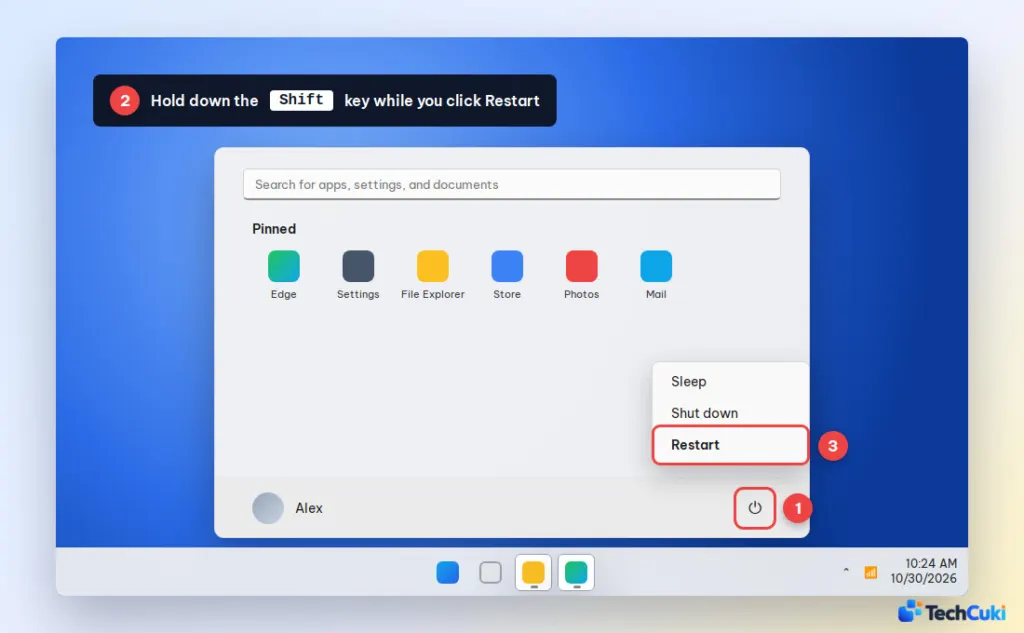
- Click Start (or go to the sign-in screen) and click the Power button.
- Hold down the Shift key.
- Keep holding Shift and click Restart.
When the Choose an option screen appears, follow steps 5 to 9 from Method 1: Troubleshoot > Advanced options > Startup Settings > Restart, then press 4.
3. Start Windows 11 in Safe Mode With System Configuration (msconfig)
System Configuration makes your PC start in Safe Mode every time until you turn it off. It’s useful when you need to restart several times while troubleshooting.
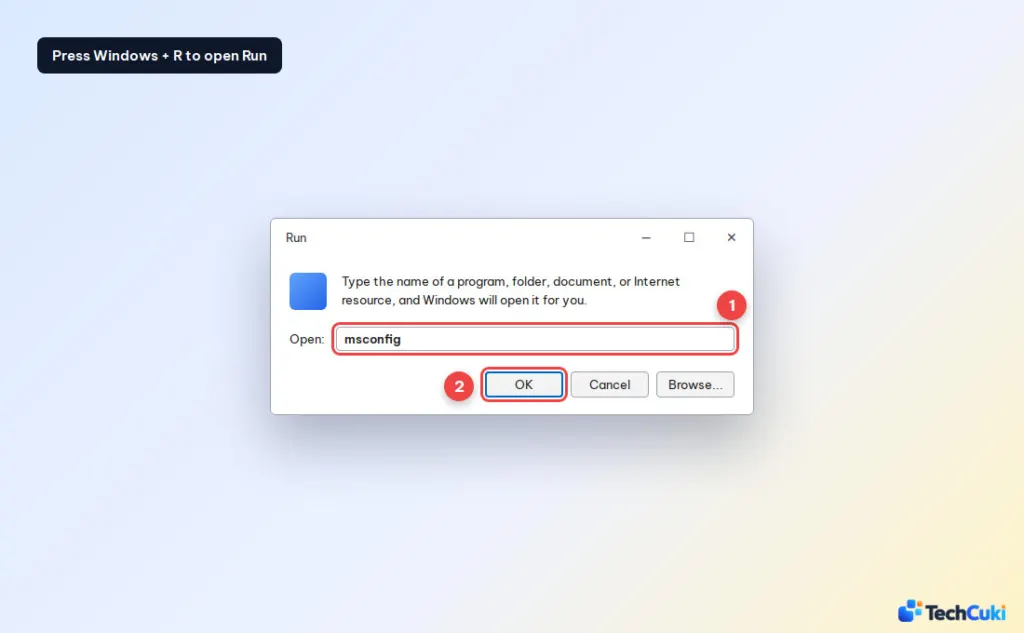
- Press
Windows + R, typemsconfigand click OK.
- Open the Boot tab, check Safe boot and leave Minimal selected (choose Network for Safe Mode with Networking). Click OK, then click Restart.
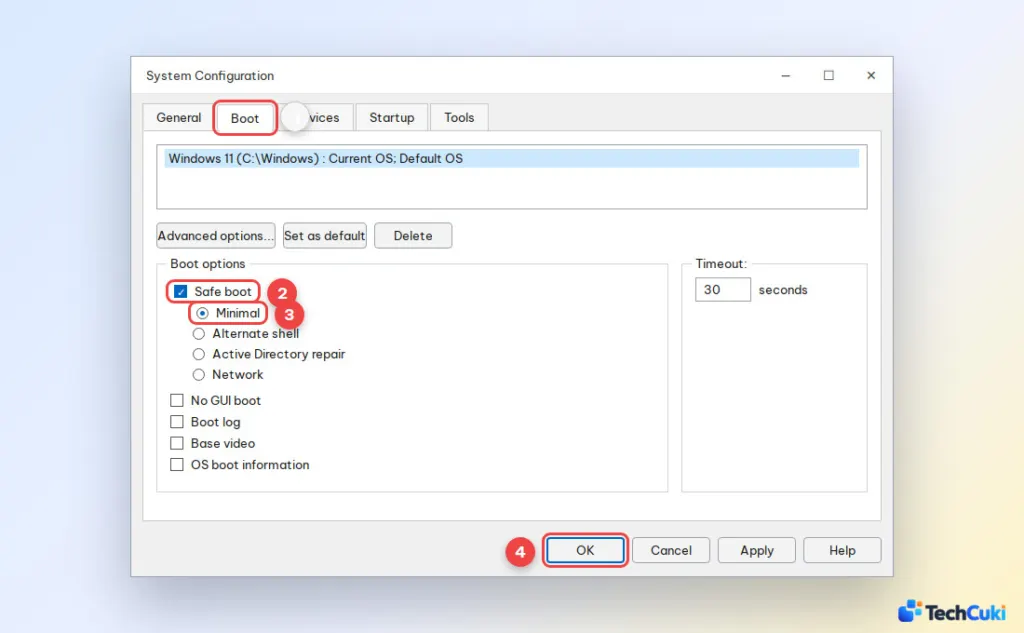
Important: When you’re done, open msconfig again and uncheck Safe boot. Otherwise, your PC will keep starting in Safe Mode.
4. Boot Into Safe Mode When Windows 11 Won’t Start
If Windows won’t load or you’re stuck on a black screen, you can force your PC into the recovery environment from a powered-off state.
- Press the power button to turn on your PC. As soon as you see the manufacturer logo or the Windows loading dots, press and hold the power button for about 10 seconds to force it off.
- Repeat this 2 more times. On the third start, Windows shows Preparing Automatic Repair.
- On the Automatic Repair screen, click Advanced options.
- Follow steps 5 to 9 from Method 1: Troubleshoot > Advanced options > Startup Settings > Restart, then press 4 or 5.
If this doesn’t work, boot from a Windows installation USB, click Next on the language screen, then choose Repair your computer to reach the same recovery menu. See our guide on how to reinstall Windows 11 to create the USB.
Does F8 Boot Into Safe Mode on Windows 11?
No, not by default. Windows 11 starts too fast for the F8 key to work. You can bring back the old F8 boot menu with one command:
- Search for Command Prompt, right-click it and choose Run as administrator.
- Type
bcdedit /set {default} bootmenupolicy legacyand press Enter.
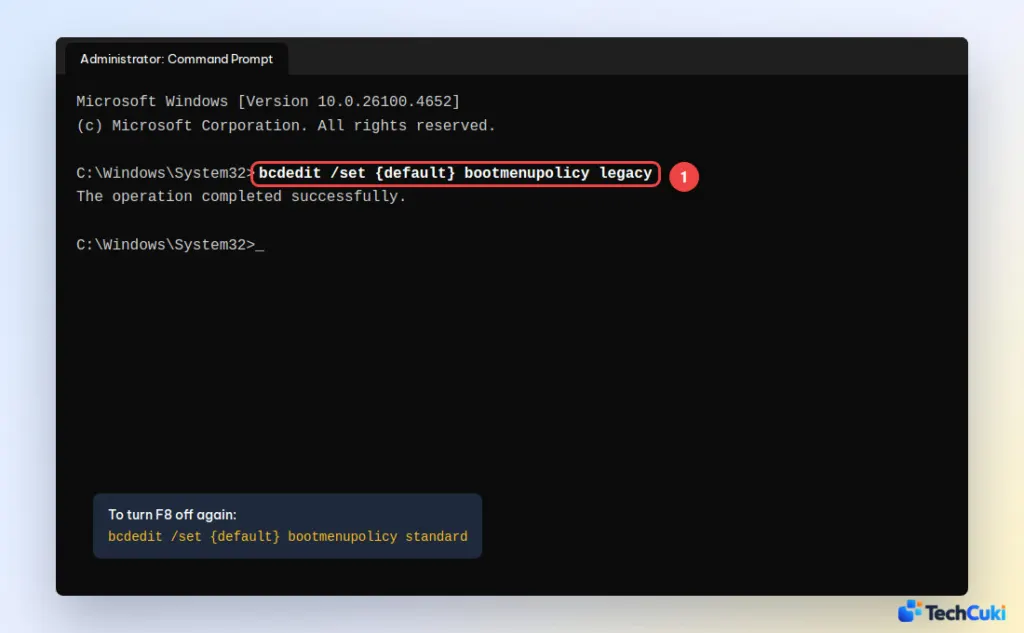
Now restart and press F8 repeatedly before the Windows logo appears to open Advanced Boot Options. To undo it, run bcdedit /set {default} bootmenupolicy standard. Keep in mind this can make startup slightly slower.
Can You Boot Into Safe Mode From BIOS?
No. BIOS/UEFI settings can’t start Windows in Safe Mode directly, because Safe Mode is a Windows feature. If you can’t get into Windows, use Method 4 or boot from a Windows installation USB to open the recovery menu.
How to Exit Safe Mode in Windows 11
Simply restart your PC. Windows starts normally again. If it keeps booting into Safe Mode, press Windows + R, type msconfig, open the Boot tab, uncheck Safe boot, click OK and restart.
Safe Mode is a short-lived tool for troubleshooting, and getting back to a normal startup afterward matters as much as getting in. Take your time with the steps so the PC returns to normal once the problem is sorted.


