
Watching an update bar refuse to move is frustrating, and it is hard to know when to wait and when to step in. A Windows 11 update stuck at 0%, 46%, 99% or 100% often comes down to a slow install, a download problem or a conflict, and the right move depends on what the screen shows. Below you will find how long to wait, seven fixes in a sensible order and what to do if Windows no longer starts.
Table of Contents
- Windows 11 Update Stuck: How Long to Wait Before You Step In
- Restart and Retry the Update
- Run the Windows Update Troubleshooter
- Check Space, Connection and Attached Hardware
- Clear the Windows Update Cache
- Correct the Date and Time
- Repair Damaged System Files With DISM and SFC
- Windows 11 Update Stuck and Won’t Start: Remove the Update
- Windows 11 Update Error Codes and What They Mean
Windows 11 Update Stuck: How Long to Wait Before You Step In
On the restart screen, give the PC around two hours before forcing anything. Users on Microsoft’s forums report installs that sat on “Updates are underway. Please keep your computer on.” for 45 minutes to three hours and then finished by themselves, while a forced shutdown during the write phase is what can leave Windows needing recovery.
Inside Settings > Windows Update, the same rule applies, but a download stuck at 0% or “pending download” for an hour or more is usually a network or cache problem, not a slow install. Pick your fix from the symptom:
| What you see | Try first |
|---|---|
| Download at 0% or pending, in Settings | Fix 1, then 3 and 4 |
| Stuck at a middle percentage such as 46% | Fix 2, then 4 |
| Restart screen at 99% or 100% for hours | Fix 1 (hard shutdown), then 6 and 7 |
| Error code on the update page | The error code list at the end |
If updates keep landing at bad times while you troubleshoot, you can pause Windows 11 updates for up to five weeks.
1. Restart and Retry the Update
A restart reloads the Windows Update service, which is often enough to un-stick a stalled download.
- Select Start > Power, then select Restart (or Update and restart).
- After Windows loads, go to Settings > Windows Update and select Check for updates.
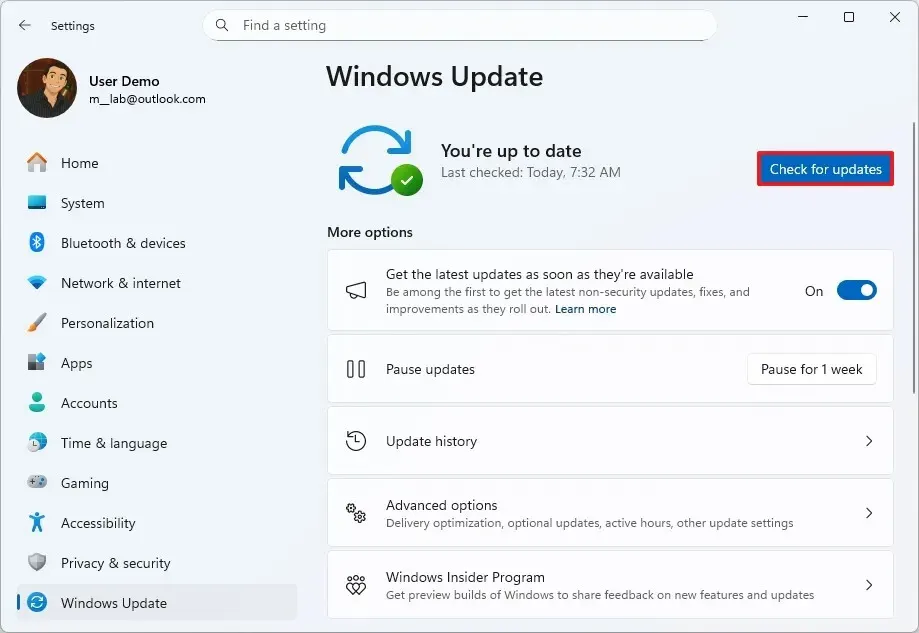
If the restart screen has not changed for hours, hold the power button for 5 to 10 seconds until the PC turns off. Unplug the power cable and any peripherals, plug the cable back in, and turn the PC on. Windows then either finishes the install or rolls it back to the previous version.
2. Run the Windows Update Troubleshooter
This is the first thing Microsoft’s own troubleshooting page asks you to run, because it resets common service and permission problems for you.
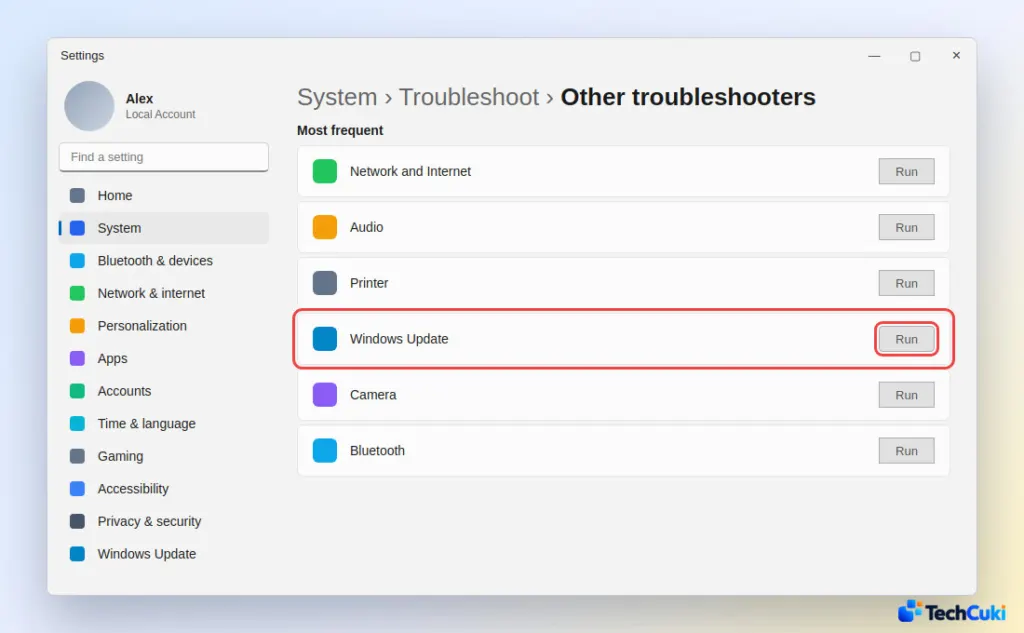
- Select Start > Settings > System > Troubleshoot.
- Select Other troubleshooters, then select Run next to Windows Update.
- Follow the prompts on screen.
3. Check Space, Connection and Attached Hardware
Low disk space and a flaky connection are the two most common reasons a download freezes, and they take a minute to rule out.
- Confirm the PC is online and plugged in. Check Settings > Network & internet, and turn off any VPN, which Microsoft lists as a cause of the 0x800f0922 error.
- Unplug external drives, docks and anything else you do not need. Reconnect them one at a time after the update works.
- Sign in with an administrator account, since some updates fail without one.
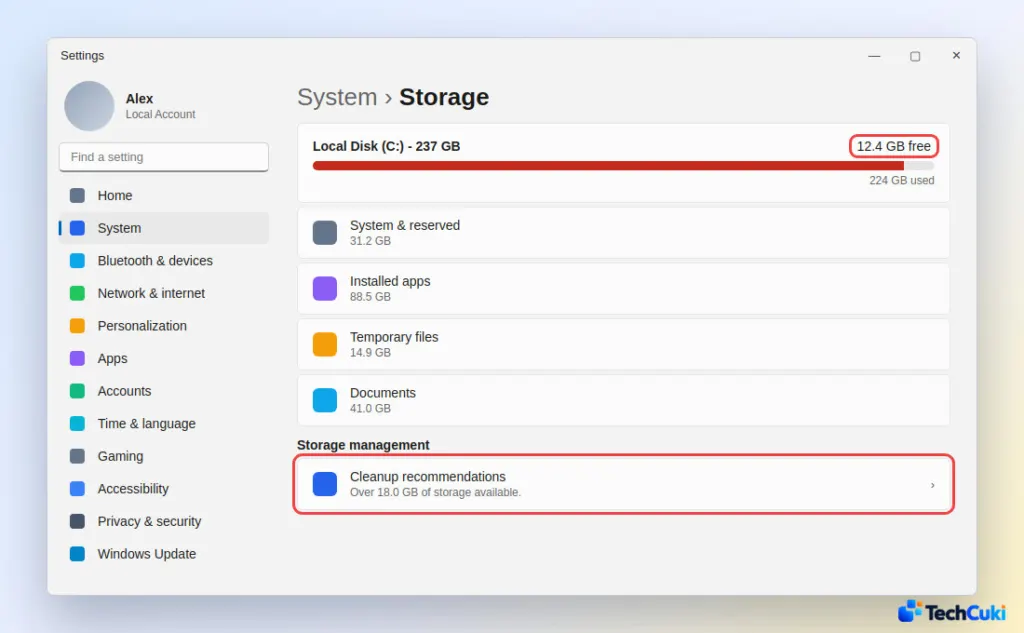
- Free up disk space. A 64-bit upgrade needs at least 20 GB free (16 GB for 32-bit). Go to Settings > System > Storage and review the Cleanup recommendations.
4. Clear the Windows Update Cache
Damaged files in the download cache can freeze an update at the same percentage on every retry. Clearing the cache makes Windows download everything again.
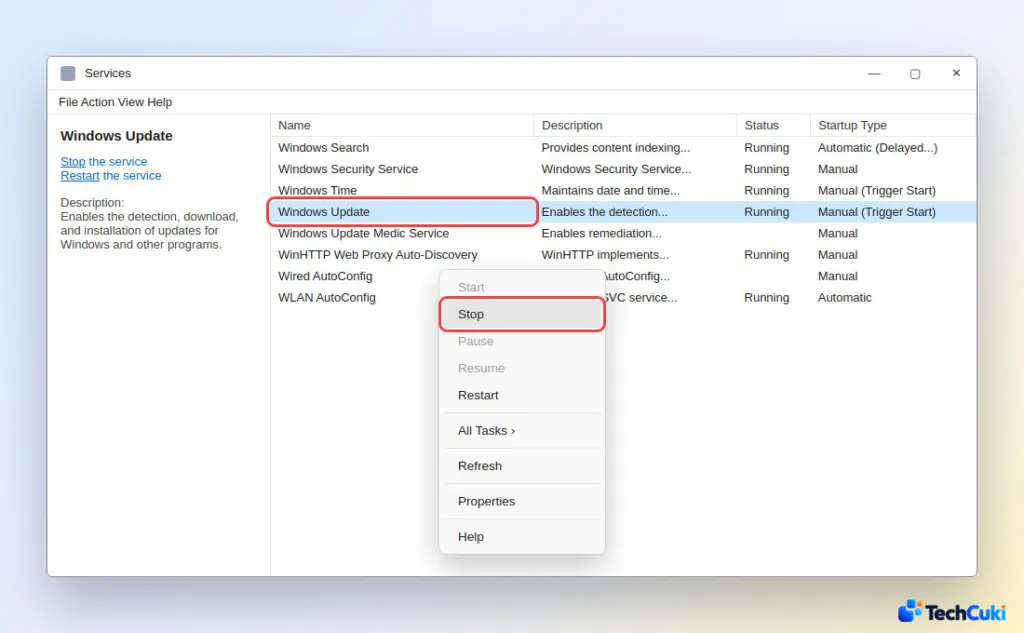
- Press
Windows + R, typeservices.msc, and press Enter. - Right-click Windows Update and select Stop.
- Open File Explorer and go to
C:\Windows\SoftwareDistribution. - Delete everything inside the SoftwareDistribution folder. Keep the folder itself.
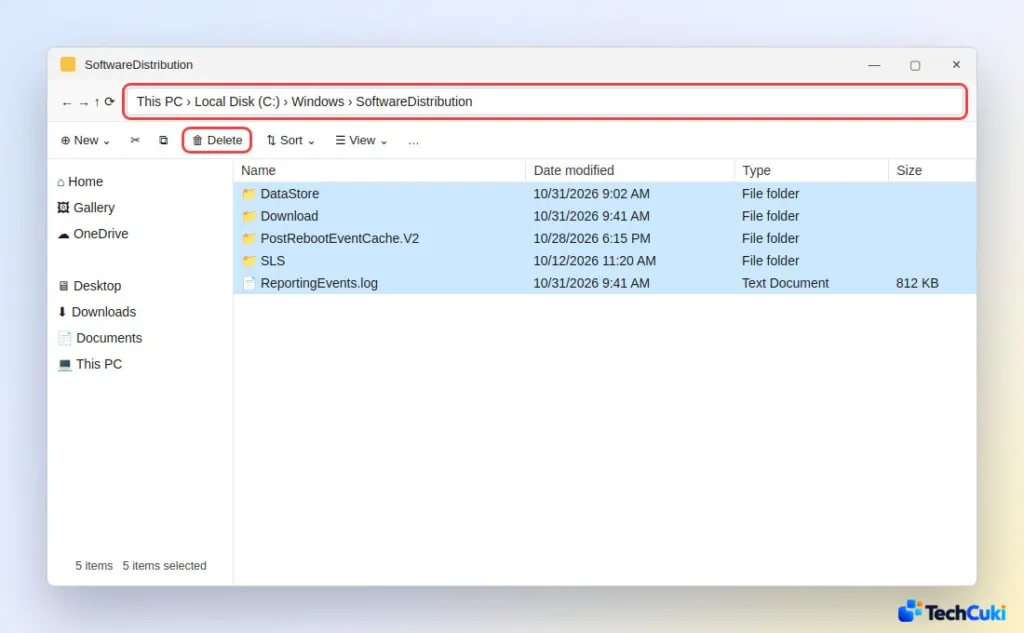
- Return to Services, right-click Windows Update, and select Start.
- Go to Settings > Windows Update and check for updates again.
If you would rather keep a way back, Microsoft’s advanced option renames the folders instead of deleting them. In a Command Prompt opened with Run as administrator, run these two commands one at a time, then restart:
ren %systemroot%\softwaredistribution softwaredistribution.bak
ren %systemroot%\system32\catroot2 catroot2.bak
Windows builds fresh copies of both folders on the next update check.
5. Correct the Date and Time
A wrong clock makes Windows Update’s secure connection fail, so let Windows set it.
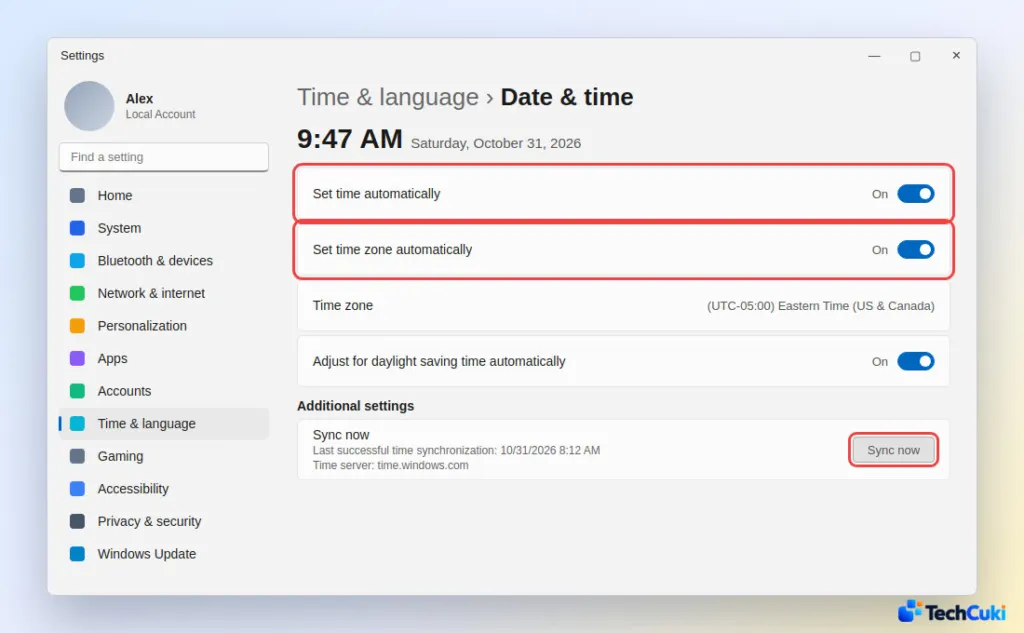
- Go to Settings > Time & language > Date & time.
- Turn on Set time automatically and Set time zone automatically.
- Select Sync now.
6. Repair Damaged System Files With DISM and SFC
DISM repairs the component store that Windows Update pulls from, and SFC then checks the live system files against it, so run them in this order.
- Search for command prompt, right-click it, and select Run as administrator.
- Type
DISM.exe /Online /Cleanup-image /Restorehealthand press Enter. Wait for “The restore operation completed successfully.” If you see no confirmation, retype the command and run it again. - Type
sfc /scannowand press Enter. Wait until the scan reaches 100%.
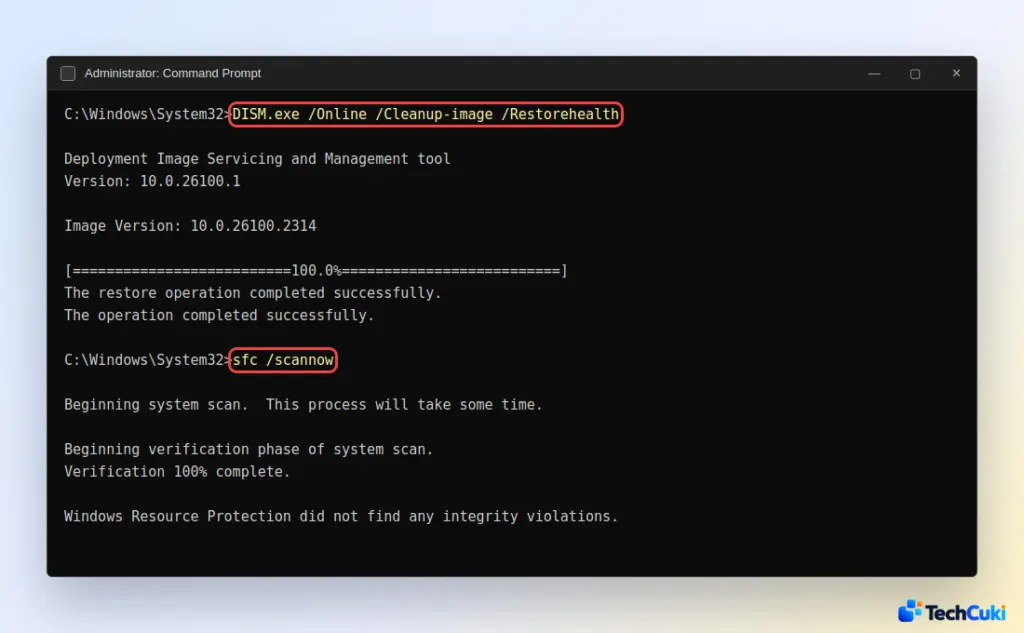
- Try Windows Update again.
If third-party antivirus is installed, Microsoft also suggests uninstalling it temporarily, since it can block an update. Make sure you can reinstall it afterward.
7. Windows 11 Update Stuck and Won’t Start: Remove the Update
If the PC fails to boot after an update, the recovery environment can uninstall the update without a full reinstall.
Windows opens it on its own after two or three failed starts. You can also hold Shift while selecting Restart on the sign-in screen. For help reaching these screens, see how to boot into Safe Mode on Windows 11.
- Select Troubleshoot > Advanced options > Uninstall Updates.
- Choose Uninstall latest quality update (the monthly update) or Uninstall latest feature update (the big yearly version update).
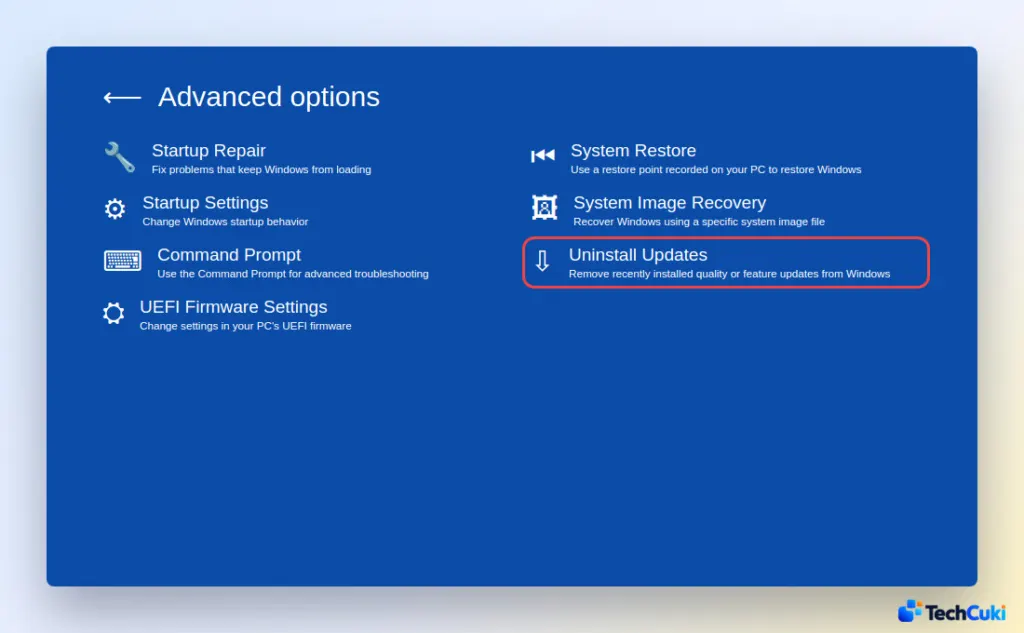
The same screen offers Startup Repair and System Restore. As a last resort when none of this works, Microsoft’s page points to a clean installation with its download tool, so copy your files to a USB drive or OneDrive first.
Windows 11 Update Error Codes and What They Mean
0x80240034: an incomplete update or a connection issue.0x800705b4: the update took too long or was interrupted.0x800f0922: not enough disk space, a VPN, or a .NET Framework issue.0x80070057or0x80080005: corrupted files, so run fix 6.0x80070005: access denied. Use an administrator account and pause third-party antivirus or firewall for a short time.0x80248014: the update database or service. Check in Services that Windows Update is running.0xC1900101: an incompatible driver. Update your drivers from your PC maker’s website. Microsoft also suggests removing the network or display driver in Device Manager and reinstalling it, or doing a clean boot.
Most stuck updates can be cleared without losing anything, and patience is sometimes the right call. Back up anything important before trying the bigger steps, and contact Microsoft support if the update keeps failing.


