
A device that misbehaves, a game that stutters or a feature that suddenly stops working can all come down to an out-of-date driver. Windows 11 handles many drivers by itself, so the real question is when to step in and how to do it without making things worse. The sections below cover how to update drivers in Windows 11 the safe way, what to avoid, and how to undo an update that causes new problems.
Table of Contents
1. Update Drivers in Windows 11 With Windows Update
Recommended drivers arrive on their own, while optional ones wait until you pick them. Everything here has passed Microsoft’s validation, so it is the lowest-risk source, even if it trails the maker’s newest release.
- Open Start and select Settings.
- Select Windows Update, then Advanced options.
- Switch Receive updates for other Microsoft products to On.
- Under Additional options, select Optional updates, then open Driver updates.
- Tick the drivers you want and click Download & install.
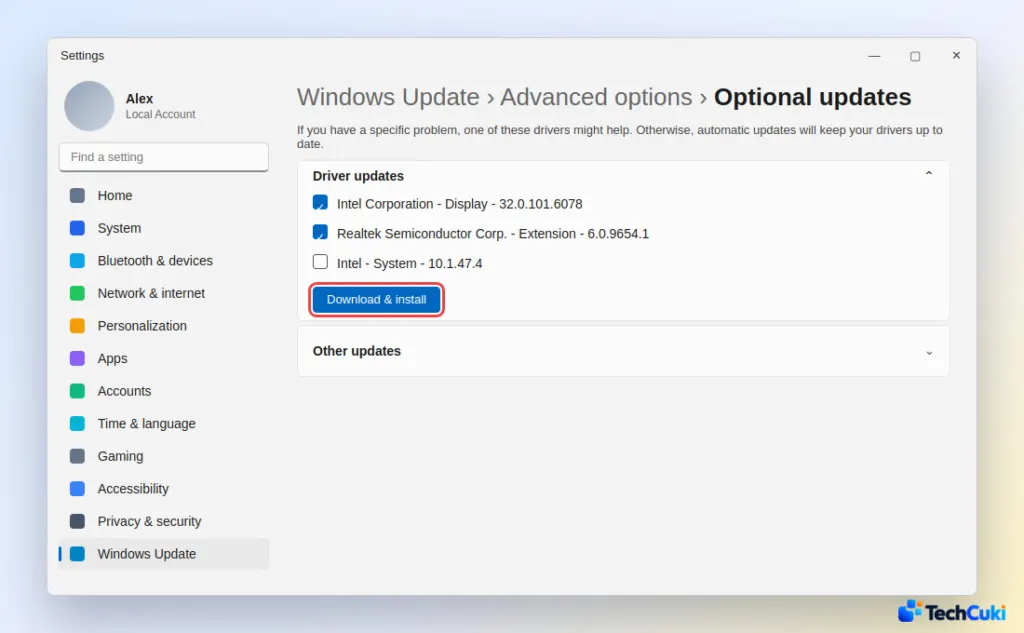
Restart afterward even if Windows doesn’t ask, since some drivers only load on the next boot. If no driver updates are listed, Windows has nothing newer for your hardware.
2. Update a Driver in Device Manager
This route works on a single device, which suits a flaky graphics card or Wi-Fi adapter. Some actions need an administrator account.
- Right-click Start and open Device Manager.
- Expand the device’s category, for example Display adapters.
- Right-click the device, then pick Update driver.
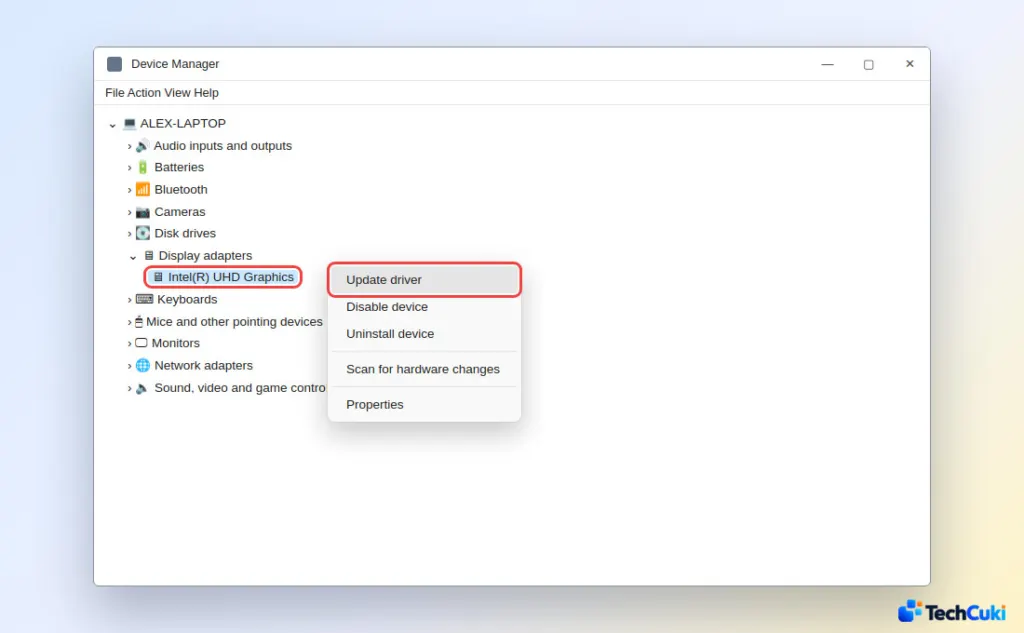
- Choose Search automatically for drivers. With a driver already downloaded, choose Browse my computer for drivers and point to the unzipped folder.
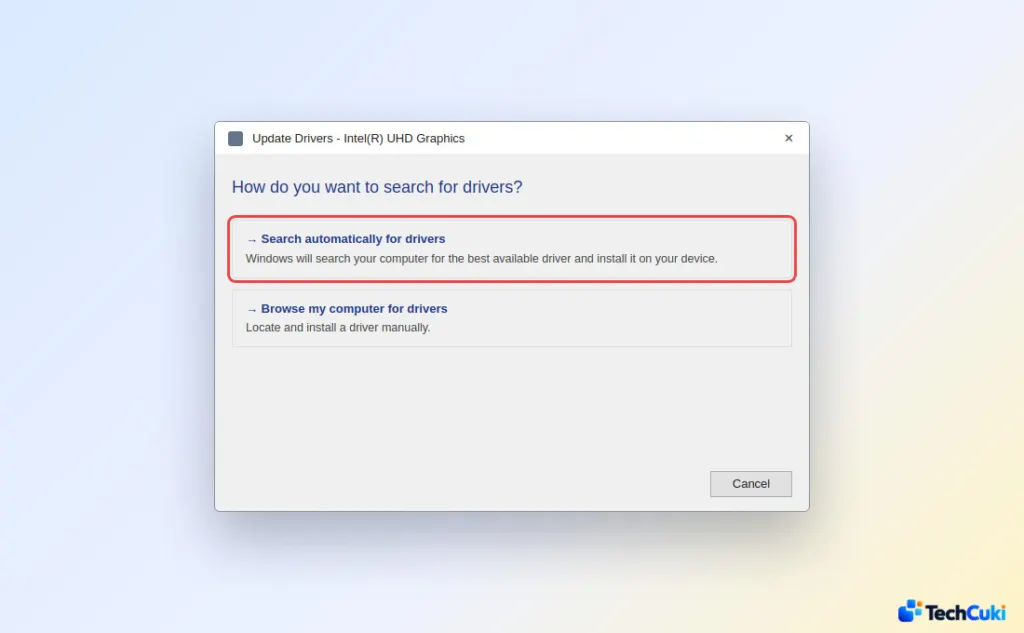
The message “The best drivers for your device are already installed” means Windows found nothing newer locally. The window may also offer Search for updated drivers on Windows Update, which sends you back to Method 1. To note the current version first, open the device’s Properties and look at the Driver tab.
3. Download Drivers From Your PC or Graphics Card Maker
Windows Update only offers drivers the vendor has submitted and Microsoft has validated, so a newer release or a laptop-specific build can be missing. For those, go straight to the source.
- Open your PC maker’s support page and download drivers for your exact model. If you aren’t sure of the model, type
msinfoin the Start menu search to see it in System Information. - For graphics, use the maker’s app: the NVIDIA app, AMD Software: Adrenalin Edition or Intel Driver & Support Assistant.
Pick the build for 64-bit Windows 11. Skip third-party “driver updater” utilities, including the “unstable driver” alerts some antivirus suites show, since those tools can flag drivers that are fine and install ones that crash the PC.
4. Roll Back a Driver That Causes Problems
Rolling back restores the driver that the update replaced, which usually cures trouble that began right after installing it.
- In Device Manager, right-click the affected device and open Properties.
- On the Driver tab, click Roll Back Driver.
- Pick a reason when asked, and restart if prompted.
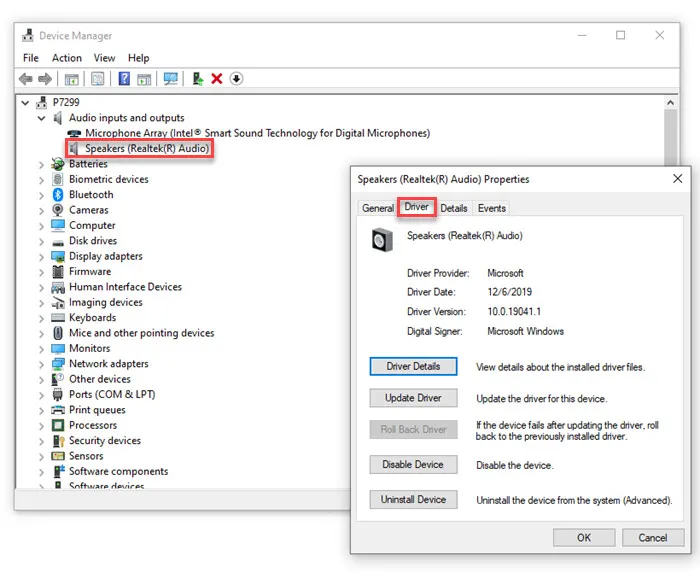
Only an administrator can do this. A greyed-out Roll Back Driver means no earlier driver is stored, so try the reinstall below. If a bad driver keeps Windows from starting, boot into Safe Mode on Windows 11 and roll back from there.
Reinstall a Driver From Scratch
Removing the device makes Windows detect it again and fetch a clean driver, which helps when the installed one is corrupted.
- In Device Manager, right-click the device and choose Uninstall device.
- Confirm with Uninstall, then restart the PC.
Windows normally detects the hardware and reinstalls its driver after the restart. Printers and a few other devices need a manual install, so keep the maker’s download handy.
Updating drivers only pays off when there is a real reason, so a system that works well is best left alone. A bad update can be undone if it causes trouble. If Windows Update itself keeps failing, see how to fix a stuck Windows 11 update before trying again.


