
Few things are more annoying than a program you trust being blocked on your own PC, with no obvious way past it. Windows 11 has a built-in protection feature that can do exactly that, and it behaves differently from most security settings. The sections below explain how to turn off Smart App Control, what to check first, and what to do if the setting won’t change.
Table of Contents
Switch It Off in Windows Security on Windows 11
You need to be signed in as an administrator, and the switch lives on the Smart App Control settings page.
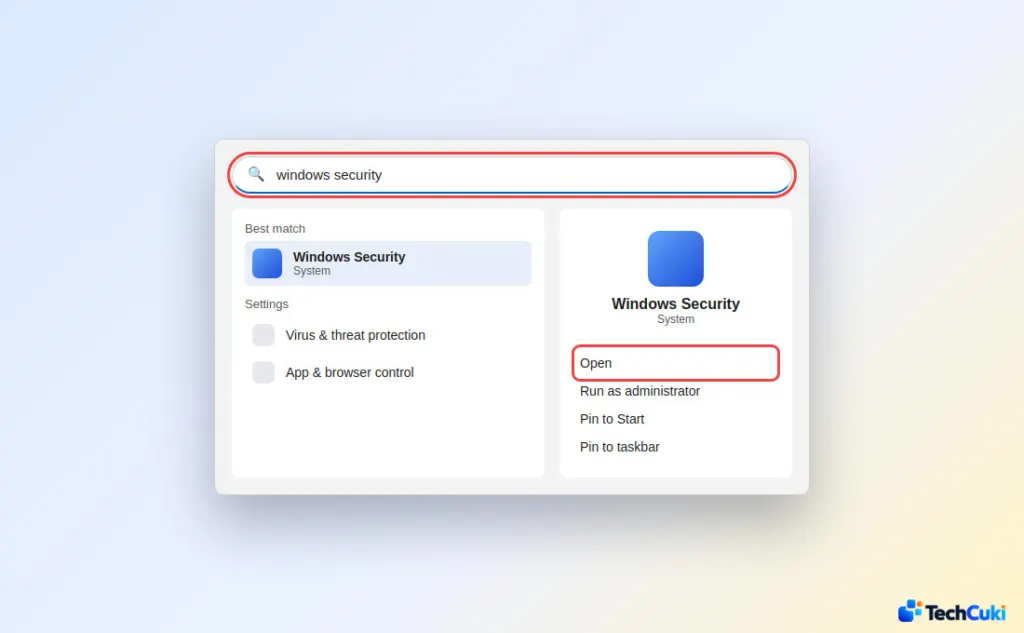
- Search the Start menu for
windows securityand open it, or click the shield icon in the taskbar.
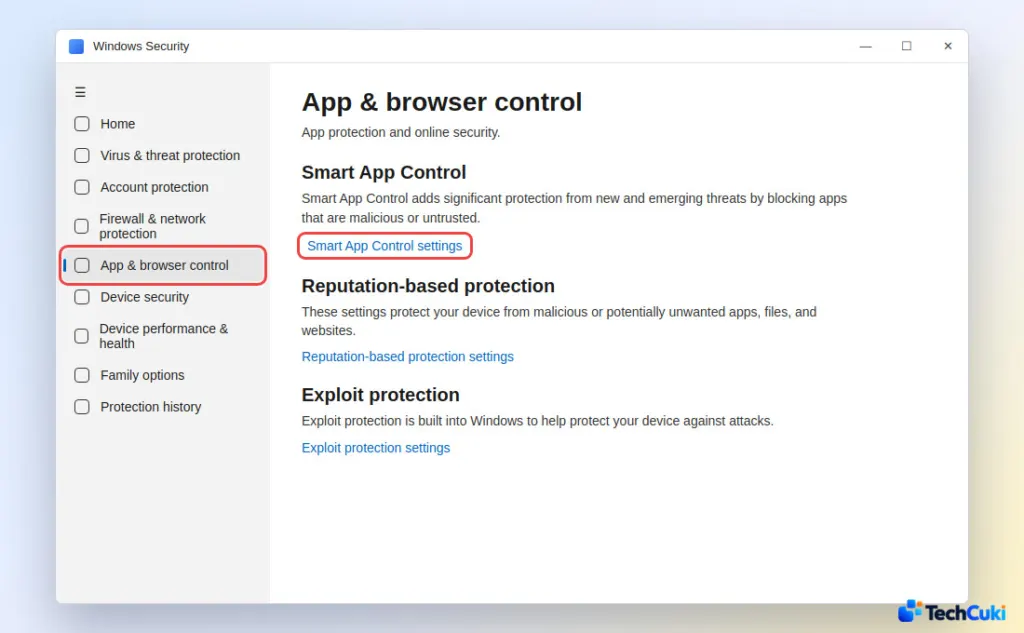
- Select App & browser control, then Smart App Control settings.
- Choose Off and approve the admin prompt if Windows shows one.
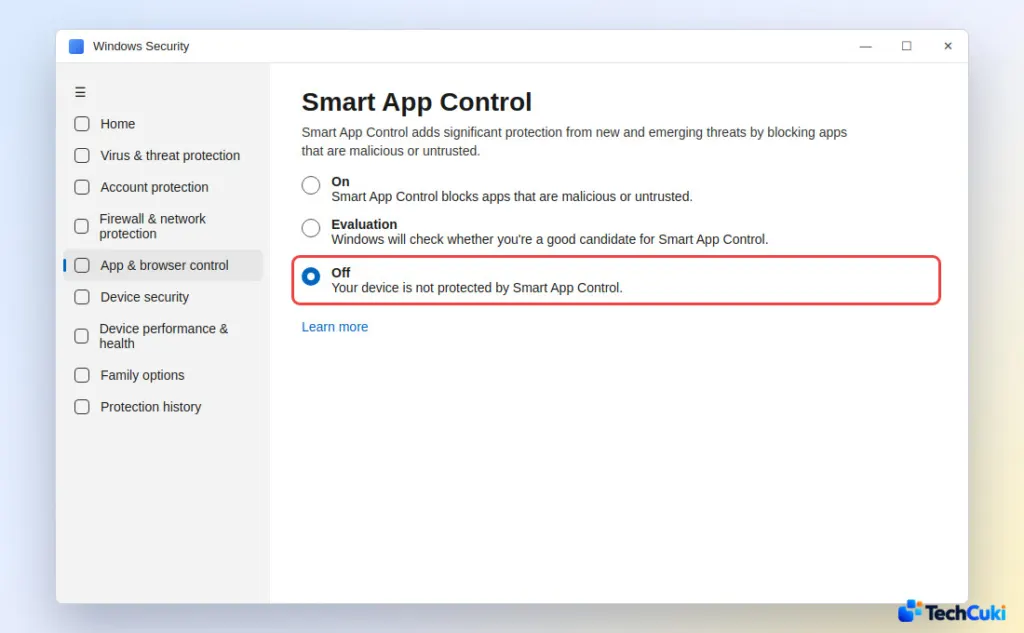
The page should now read Off, and blocked apps launch normally. It’s all or nothing. Windows has no way to allow a single app, so the alternative is asking the developer to sign it with a valid certificate. Many people use the switch as a short-term tool: turn it off, run the installer or script that was blocked, then flip it back on.
What Smart App Control Checks Before Blocking
When you launch a program, Microsoft’s cloud security service tries to predict whether it is safe. A safe prediction lets it run, and a malicious or potentially unwanted one gets blocked. If the service can’t decide, Windows looks for a valid signature, and an unsigned app or one with a broken signature counts as untrusted and is blocked.
The feature sits beside Microsoft Defender or your other antivirus rather than replacing it. It has three states:
- On: blocking untrusted apps.
- Evaluation: Windows is judging whether it suits how you use the PC, and nothing is blocked yet. It then turns itself on or off.
- Off: no checking.
Windows may also switch it off on its own if your habits look like a developer’s or a corporate user’s. Small tools, unsigned game mods and script loaders are typical triggers, and even widely used software bundled with a PC maker’s utilities has been flagged before.
Can You Turn Smart App Control Back On?
Yes, on recent builds. Windows 11 versions 24H2 and 25H2 gained a toggle that works without a clean install starting at builds 26100.8116 and 26200.8116, which is why it’s worth updating Windows 11 before you flip the switch.
On an older build, Off is permanent until you reset or reinstall, and you’d have to reset Windows 11 to factory settings to get the feature back. Once you’ve left Evaluation, by either path, you can’t return to it without a reset either.
See What It Blocked Before You Turn Off Smart App Control
Open Event Viewer and browse to Microsoft > Windows > CodeIntegrity. Event ID 3077 marks something Smart App Control actually blocked, and 3076 marks something it would have blocked during Evaluation. A single flagged installer is a different decision from a list of programs you run every day.
Why the Setting Is Greyed Out or Missing
These are the reasons Windows gives for the control being unavailable or already off:
- The PC is managed by an organization, or developer mode is set up.
- You or another signed-in user already turned it off.
- Windows is running in S mode. Switch S mode off, then reset the PC.
- Optional diagnostic data is off. Microsoft’s guidance is to reset or reinstall and pick Send optional diagnostic data during setup, although recent updates let you enable it from Windows Security.
Is It Safe to Turn Off Smart App Control?
It’s a reasonable call if it keeps blocking software you trust and you keep the rest of your protection running, since Microsoft Defender stays active. Download only from each developer’s official site. While you’re reviewing protections, enabling Secure Boot in Windows 11 is worth a look too.
Turning off a protection feature is a trade-off, so it helps to be sure about the app first. Keep an eye on what you install afterward, and look at the developer’s site for a newer release before you decide.


