
Seeing a message that no security chip can be found is an unwelcome surprise, especially on a newer PC that should meet the Windows 11 requirements. The chip is rarely dead; more often something in the PC’s configuration is hiding it. When TPM not detected appears, the fixes below go step by step from the simplest checks to the more involved ones.
Table of Contents
- Check What Windows 11 Actually Sees
- Turn On TPM in the BIOS When It Is Not Detected
- Check Device Manager and the Driver
- Read the Message in Windows Security
- Update the BIOS or Firmware
- Prepare the TPM When It Is Not Ready
- Roll Back a Recent Update or Look for TPM Errors
- Clear the TPM Only as a Last Resort
- TPM Not Detected After a CPU Swap
- If the Windows 11 TPM Is Still Not Detected
Check What Windows 11 Actually Sees
Start with tpm.msc, because its wording tells you which fix to jump to.
- Press
Win + R, typetpm.msc, and pressEnter. - Read the status panel. Compatible TPM cannot be found means Windows sees no TPM at all.
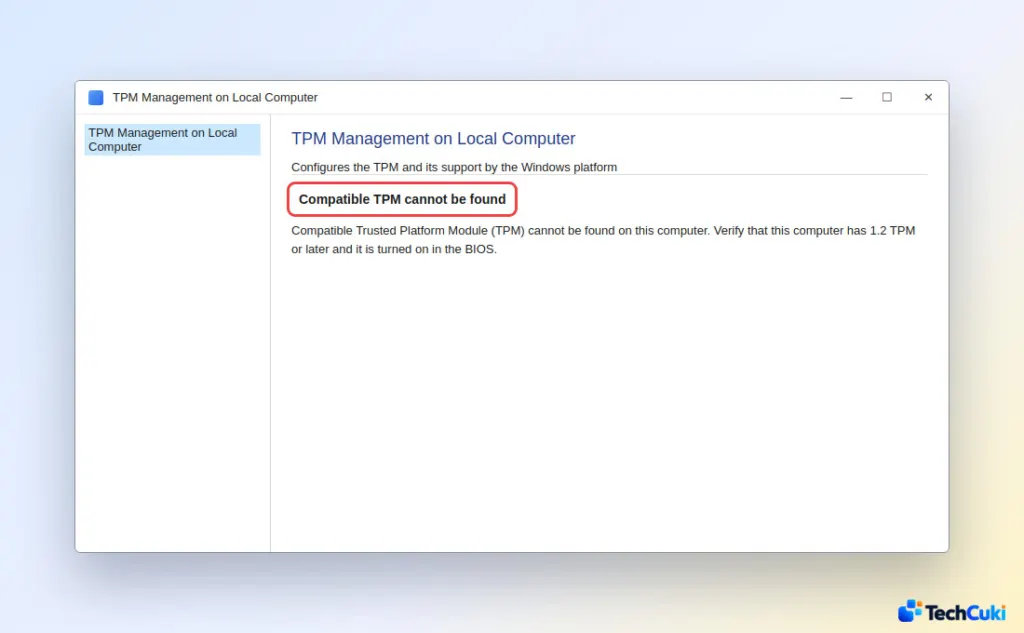
If it does show a TPM, check the Specification Version: below 2.0 fails the Windows 11 requirement, and the Manufacturer field shows the type. INTC is Intel PTT and AMD is AMD fTPM (both firmware TPMs), while Infineon, Nuvoton or STMicro is a separate chip.
| What you see | Go to |
|---|---|
| “Compatible TPM cannot be found” | Fix 1 |
| TPM enabled in BIOS, still missing in Windows | Fix 2, then Fix 4 |
| TPM found but “not ready” | Fix 5 |
| Boot screen: “Alert! TPM device is not detected” | Fix 1, then the hardware check at the end |
| Started after a CPU swap | The CPU swap section |
1. Turn On TPM in the BIOS When It Is Not Detected
A TPM that is off in firmware is invisible to Windows, so this is the first thing to fix.
- Restart into BIOS or UEFI. Our guide to getting to BIOS on Windows 11 covers the keys. From Windows, Settings > System > Recovery > Restart now, then Troubleshoot > Advanced options > UEFI Firmware Settings also works.
- Look in Security, Advanced or Trusted Computing.
- Find the TPM option. Names include TPM Device, TPM State, Security Device Support, Intel PTT, AMD fTPM and AMD PSP fTPM.
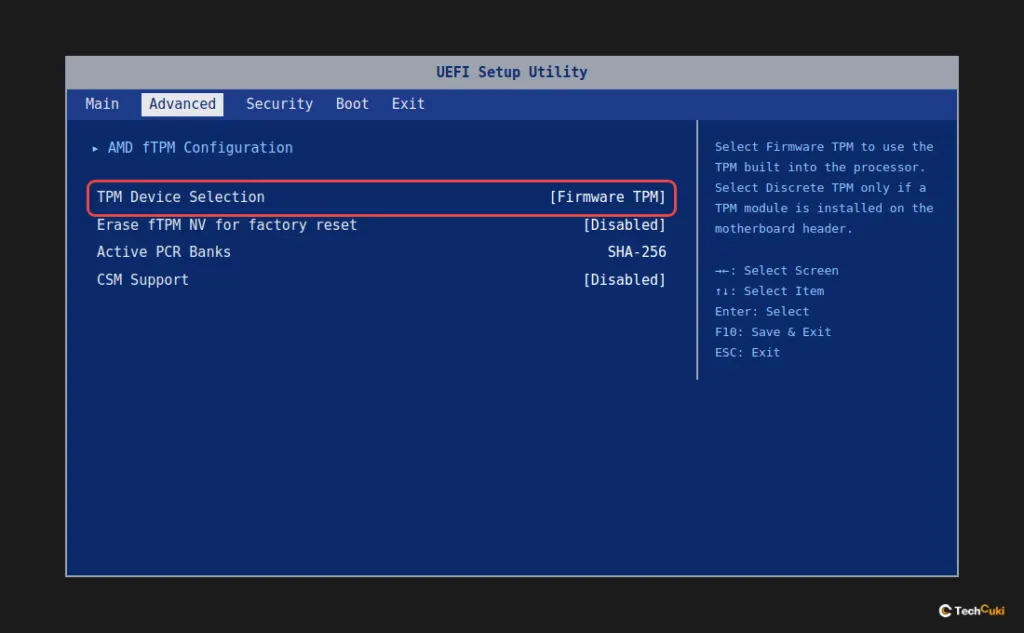
- If you see TPM Device Selection, pick Firmware TPM on a board without a separate TPM module.
- Set the option to Enabled. On HP systems, set TPM Device to Available and TPM State to Enabled. Also set the boot mode to UEFI and turn off CSM Support, since on some boards the TPM option stays hidden until CSM is off.
- Save, exit, and open
tpm.mscagain. It should now show that the TPM is ready to use.
If no TPM option exists anywhere, the board may predate TPM support, so update the BIOS (Fix 4) or ask the maker. Our guide to enabling TPM 2.0 in Windows 11 has the full walkthrough.
On Dell PCs the same problem appears at startup as “Alert! TPM device is not detected,” with F1 to continue and F2 for setup. A user on a Windows 11 forum who got it after cleaning the case was told to check whether a plug-in module had been knocked loose, and to disable the option in BIOS only if the PC truly has no TPM.
2. Check Device Manager and the Driver
Device Manager shows whether Windows has loaded the TPM, which separates a firmware problem from a driver problem.
- Press
Win + Xand select Device Manager. - Expand Security devices and look for Trusted Platform Module 2.0.
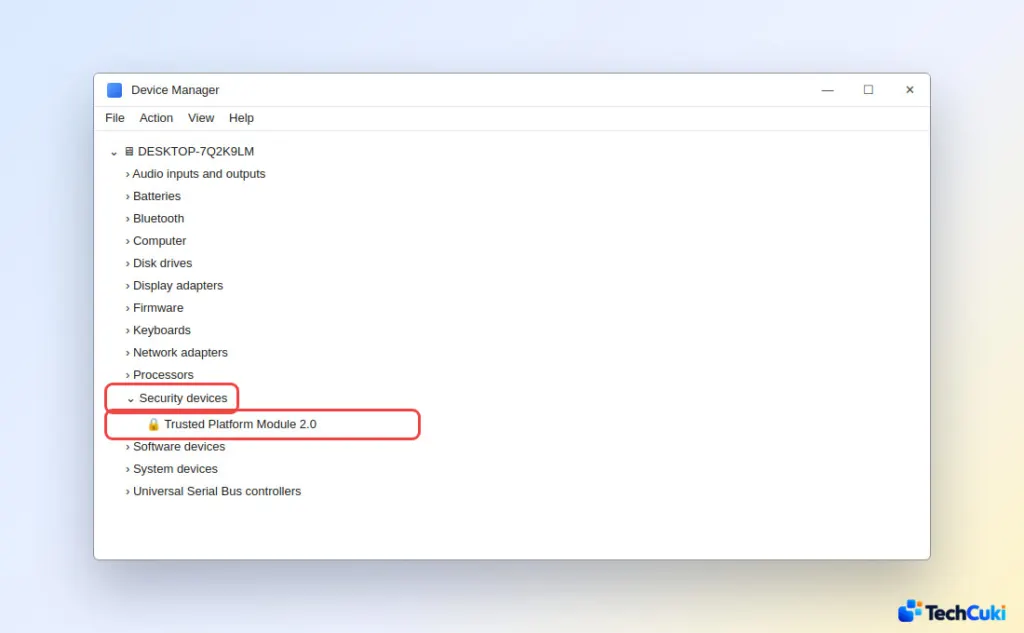
- If the entry is missing, Windows doesn’t see the TPM, so go back to Fix 1.
- If it has a yellow warning icon, right-click it, select Update driver, then Search automatically for drivers.
- If that fails, install the chipset and platform drivers from the PC or board maker. Intel systems need the Intel Management Engine driver, and AMD systems need the chipset package that includes the PSP/fTPM driver. Press
Win + R, runmsinfo32and read BaseBoard Product to find the exact board.
3. Read the Message in Windows Security
Windows Security names the problem, so the wording picks the fix.
- Open Windows Security, select Device security, then Security processor details.
- Select Security processor troubleshooting to see the current message.
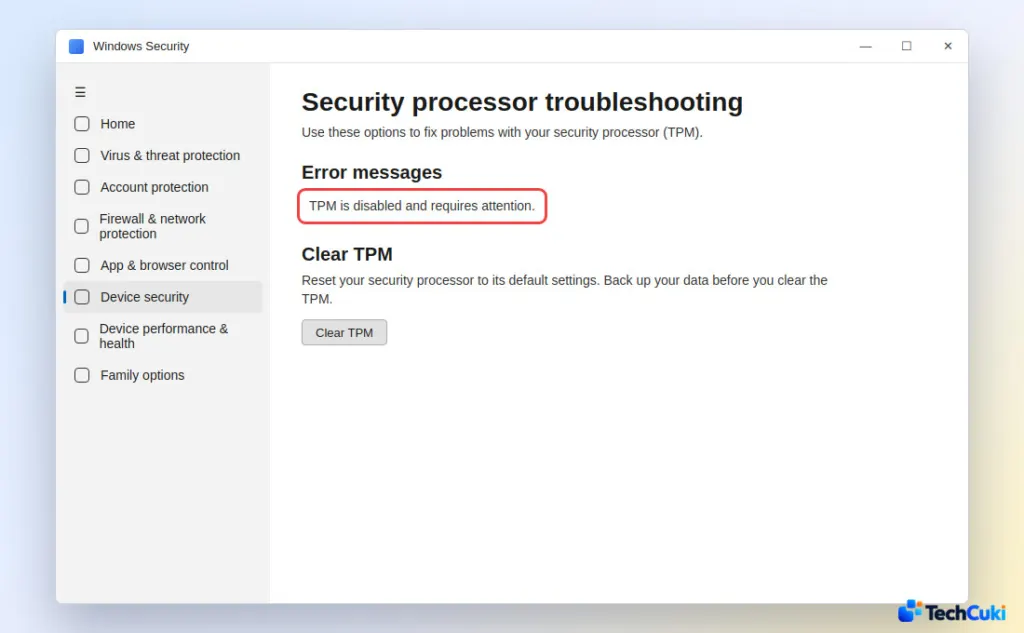
- TPM is disabled and requires attention: the TPM is off in BIOS. Go to Fix 1.
- A firmware update is needed for your security processor (TPM) or Your TPM isn’t compatible with your firmware: update from your maker (usually free). Go to Fix 4.
- TPM measured boot log is missing. Try restarting your device.: restart and check again.
4. Update the BIOS or Firmware
When Windows asks for a firmware update or the BIOS has no TPM entry, only the PC or board maker can supply the fix.
- Check the current version with our guide to checking the BIOS version on Windows 11.
- Download the newest BIOS or firmware for your exact model from the maker’s support page.
- Install it following the maker’s instructions, and don’t interrupt it, because a cut-off update can leave the board unable to start.
5. Prepare the TPM When It Is Not Ready
If tpm.msc finds a TPM but reports it isn’t ready, initializing it sets up its ownership.
- Open
tpm.msc. - In the Actions pane, select Prepare the TPM.
- Follow the prompts. You may need to restart and confirm a firmware prompt.
6. Roll Back a Recent Update or Look for TPM Errors
If the TPM vanished right after a Windows update, remove that update through Settings > Windows Update > Update history > Uninstall updates, then restart and test.
For a clue, open Event Viewer and go to Applications and Services Logs > Microsoft > Windows > TPM-WMI. Event IDs 14 and 15 are driver or hardware errors that stop TPM services, and 17 records failed TPM commands. A healthy TPM usually writes nothing, so an empty log proves little.
7. Clear the TPM Only as a Last Resort
Clearing resets the TPM, and it erases its keys, including BitLocker protectors, Windows Hello PIN and face data, and certificates. Save your files and your BitLocker key first with our guide to finding your BitLocker recovery key.
- Open Windows Security > Device security > Security processor details.
- Select Security processor troubleshooting, then Clear TPM. (
tpm.mschas the same button in its Actions pane.) - Follow the prompts. The PC restarts into firmware, where you confirm the clear with the key it shows.
TPM Not Detected After a CPU Swap
After an AMD CPU swap, the boot screen asks whether to reset the fTPM, and your answer decides whether it comes back.
- Before you restart, save your BitLocker recovery key and suspend BitLocker if it’s on.
- At New CPU installed. fTPM/PSP NV corrupted or fTPM/PSP NV structure changed, press
Yto reset the fTPM. PressingNkeeps the old record, and the fTPM stays off. - If you pressed
Ywithout suspending BitLocker, Windows asks for the recovery key at the next start.
If the Windows 11 TPM Is Still Not Detected
Once the latest BIOS is installed, the TPM option is on and the log shows persistent errors, suspect hardware. On a board with a separate TPM module, power down, unplug everything, and check that it is fully seated on its header. A firmware TPM is part of the chipset, so a fault there means the maker’s support, or a board replacement, which is costly out of warranty.
Once the chip is recognized, the Windows 11 requirement is met and the upgrade check should pass. Changes to the PC’s low-level settings can affect encrypted drives, so it is worth securing your recovery information first with the recovery key guide. If the chip still does not show up, the PC or motherboard maker can confirm what is supported.


