
A blue screen asking for a long recovery key can appear without warning after an update or a hardware change, and it blocks everything until you enter it. It happens because Windows protects the drive and wants proof of ownership after something changes. The sections below show where to find your BitLocker recovery key, how to back it up and what to do if it cannot be found.
Table of Contents
1. Note the Recovery Key ID First
An account can hold several keys, and the start of the ID is what tells them apart. Write it down before you search.
- Copy the first 8 characters of the Recovery key ID shown on the blue screen. The screen’s reason line, such as “Secure Boot policy has unexpectedly changed”, also tells you what triggered it.
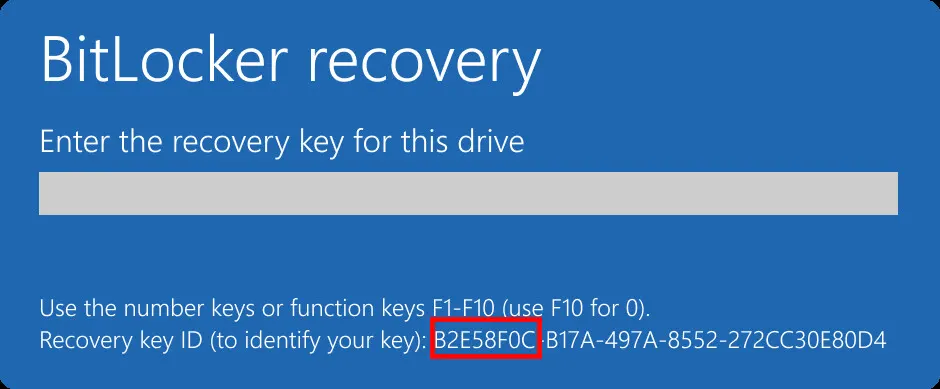
The ID is only a label. You never type it anywhere on the Microsoft site, you compare it with the Key ID there.
2. Find the BitLocker Recovery Key in Your Microsoft Account
This is where most home PCs keep it. Windows uploads the key when you sign in to the PC with a Microsoft account, so check this first.
- On a phone or another computer, go to aka.ms/myrecoverykey and sign in.
- Find the entry whose Key ID matches your 8 characters, then use the 48-digit recovery key listed with it.
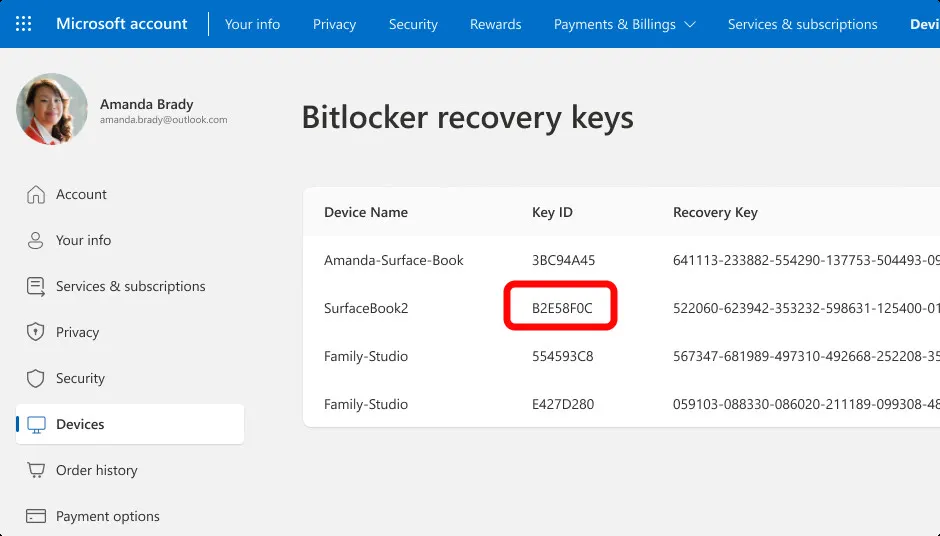
If the page shows keys only for your other devices, the key probably sits in a different account. Try any other Microsoft account you may have used to set up the PC, and the one belonging to whoever set it up or turned on BitLocker. On Windows 11 24H2 and later, the recovery screen shows a hint of the account the key belongs to. If the page has no key for this PC at all, then it was never saved there.
3. Check Your Work or School Account
If the PC ever signed in to an organization, the key may be stored with that organization instead of a personal account. You may need to ask your IT support to look it up.
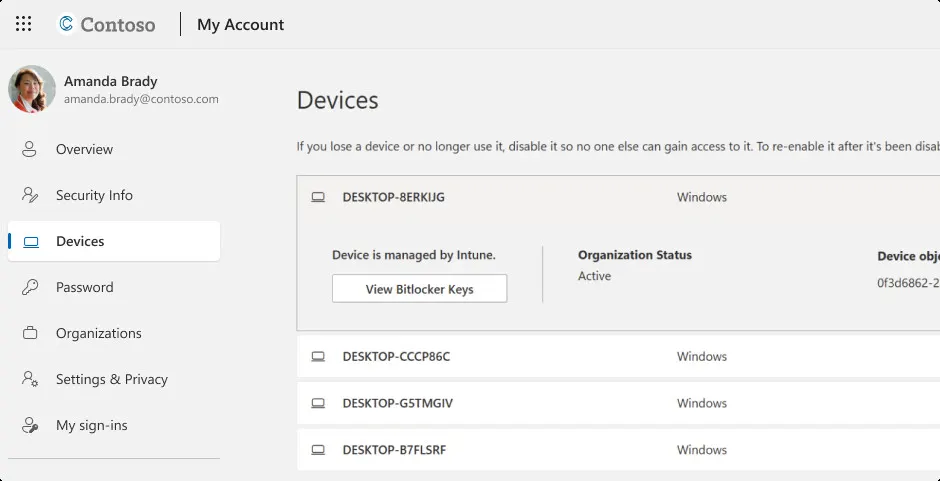
- On another device, go to aka.ms/aadrecoverykey and sign in with your work or school account.
- Select Devices, expand your device, then select View BitLocker Keys.
- Pick the entry with the same Key ID.
4. Find a Printout, USB Drive or Text File
If you chose to print or save the key when BitLocker was set up, it can be in a drawer instead of online.
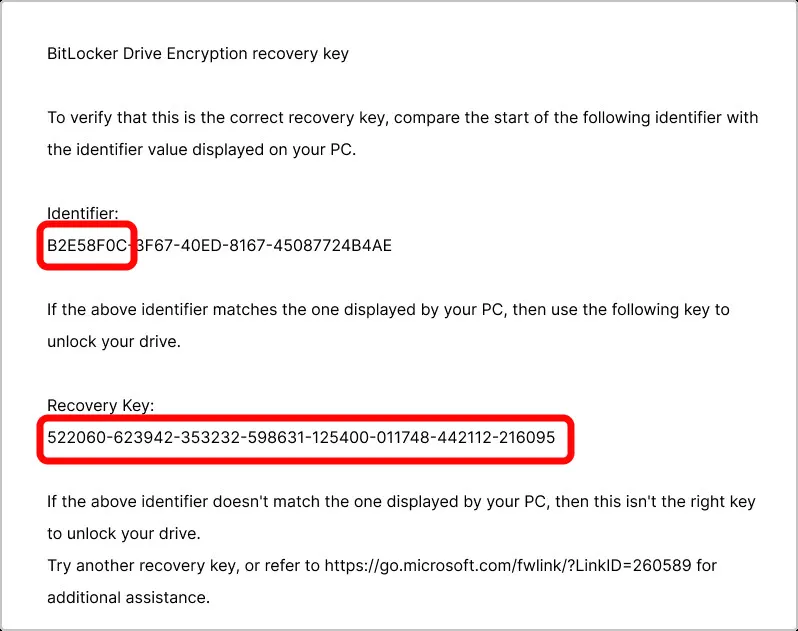
- Look through your device paperwork for a printout. It shows an Identifier and a Recovery Key, so match the Identifier to the Key ID on screen.
- For a USB flash drive, plug it into the locked PC and follow the on-screen instructions.
- If the key went into a text file on that drive, open the file on a different device and type the number in.
5. Back Up the Key While Windows Still Starts
Once you are back in, save the key somewhere other than the PC, so the next recovery screen costs you two minutes instead of an afternoon.
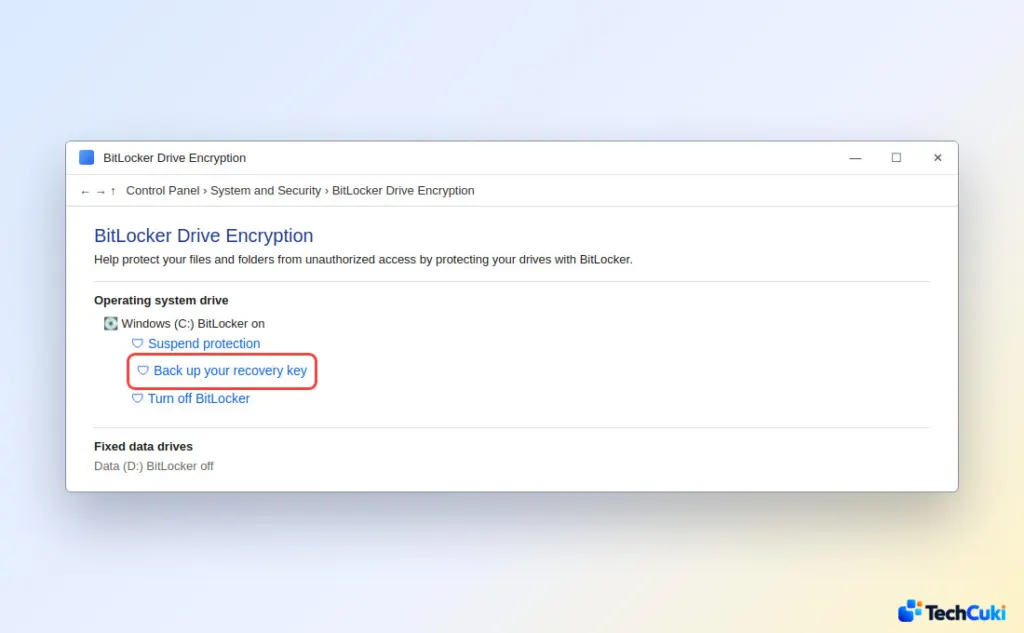
- Open Control Panel, go to System and Security, then select BitLocker Drive Encryption.
- Select Back up your recovery key, then save it to your Microsoft account, to a file, or print it.
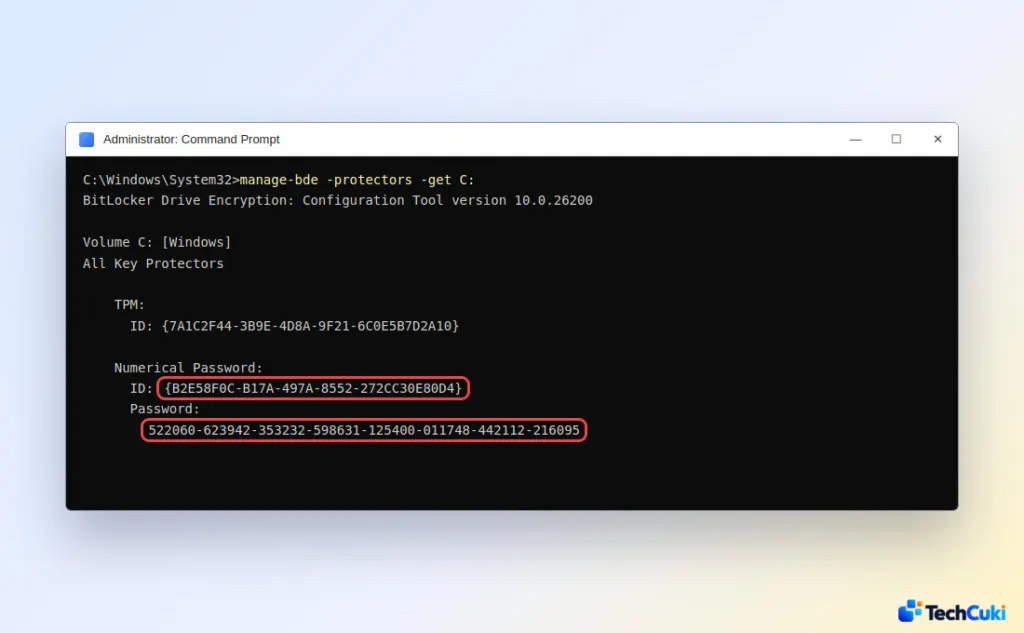
- To read the key directly, open an admin Command Prompt and run
manage-bde -protectors -get C:. The output lists the Numerical Password ID and the 48-digit password for the drive.
Firmware changes are a common trigger, so if you plan a BIOS update, you can suspend BitLocker first. Our guide to turning off BitLocker in Windows 11 covers that.
What If You Can’t Find the BitLocker Recovery Key?
Without the key, there is no supported way into the drive, and Microsoft Support can’t retrieve or recreate it. On a managed device, ask your IT team. Otherwise, first undo whatever triggered the screen, for example by reverting a changed Secure Boot or BIOS setting. If that doesn’t clear it, the last resort is a Windows recovery option that resets the PC, which removes all your files. A Windows 11 factory reset guide shows what that involves.
A recovery key is easy to overlook until the moment it is needed, so a little preparation saves a lot of stress. Keeping a copy somewhere separate from the PC is a habit worth forming. If every option fails, Microsoft support can explain what is possible for your account.


