
A call that fails, or drops onto weak cellular service while your router is a room away, is a frustrating moment. When your iPhone WiFi calling not working issue shows up, the cause usually sits with the network, a carrier setting or the line itself. Nine fixes follow, starting with the quickest checks and ending with what to ask your carrier.
Table of Contents
- How to Tell Whether Wi-Fi Calling Is Active
- Check the Wi-Fi Connection
- Turn Wi-Fi Calling Off and On for the Right Line
- Confirm the Emergency Address
- Cycle Airplane Mode, Then Restart
- Update Carrier Settings and iOS
- Keep VoLTE On
- Set Date and Time Automatically
- Turn Off the VPN and Try a Different Network
- Reset Network Settings
- Can You Force Wi-Fi Calling Over Weak Cell Signal?
- iPhone WiFi Calling Not Working After Every Fix? Call Your Carrier
How to Tell Whether Wi-Fi Calling Is Active
Swipe down to open Control Center. If Wi-Fi Calling is available, the word “Wi-Fi” appears in the status bar next to your carrier name, and calls will use it. If the feature is still off, start with our guide to turning on Wi-Fi Calling on iPhone.
After each fix below, wait about two minutes and check that label before you move on. The label can take a moment to appear after a change, so stacking fixes too quickly hides which one worked.
1. Check the Wi-Fi Connection
Wi-Fi Calling needs a network with working internet, and not every Wi-Fi network allows it, so a failing router can look exactly like a phone fault.
- Open Settings and tap Wi-Fi.
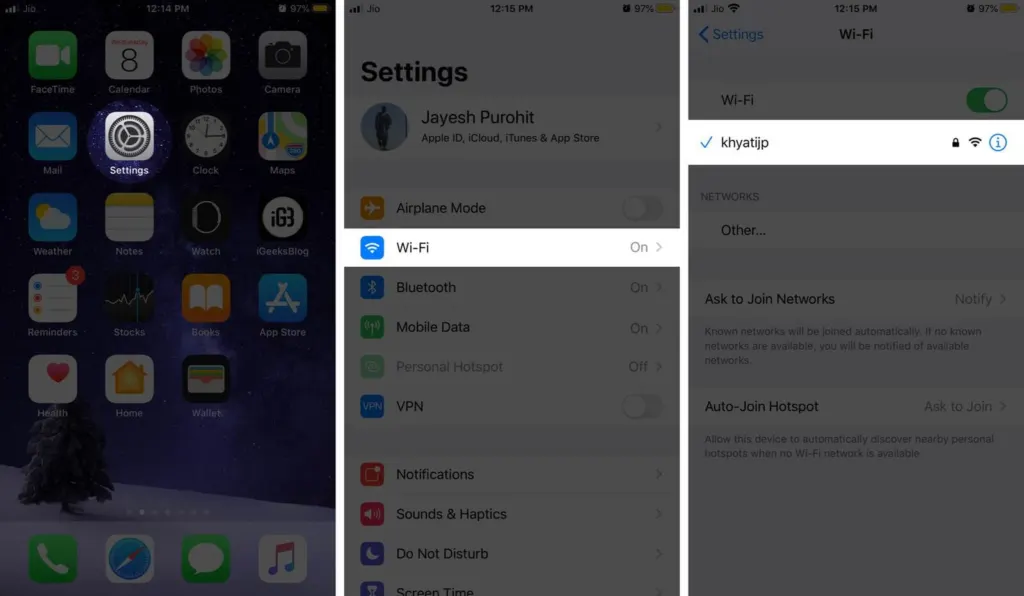
- Confirm a checkmark sits next to your network’s name.
- Open any website in Safari. If it won’t load, the network is the problem, so jump to section 8 and try another one.
2. Turn Wi-Fi Calling Off and On for the Right Line
Re-registering with the carrier clears a stuck connection, and on a dual-SIM or eSIM phone the switch belongs to each line separately.
- Open Settings and tap Cellular (Mobile Service in some regions). With more than one SIM, tap the line you actually use for calls.
- Tap Wi-Fi Calling.
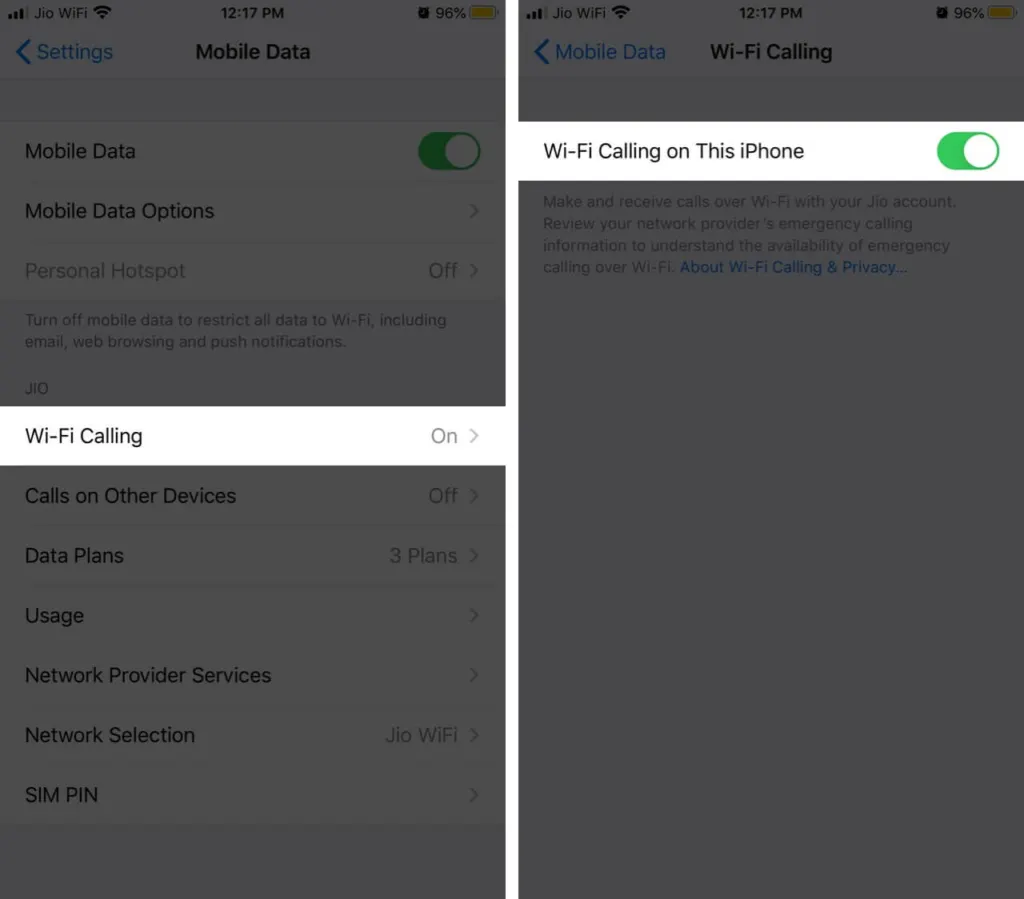
- Turn off Wi-Fi Calling on This iPhone, wait about 10 seconds, then turn it back on and tap Enable if asked.
3. Confirm the Emergency Address
Wi-Fi Calling may require an emergency address, and it can stay inactive until you confirm one.
- Go back to Settings > Cellular > Wi-Fi Calling.
- Tap Update Emergency Address and enter or confirm your address.
4. Cycle Airplane Mode, Then Restart
This forces the phone to register with the carrier again from scratch.
- Open Control Center and tap the Airplane Mode icon.
- Wait a few seconds, tap it again, and make sure Wi-Fi is on.
- Restart the iPhone and check the status bar for “Wi-Fi” next to the carrier name.
5. Update Carrier Settings and iOS
Carrier settings carry the Wi-Fi Calling configuration for your network, so an outdated file can leave the feature half-working.
- Open Settings > General > About.
- If a Carrier Settings Update prompt appears, tap Update. No prompt means your carrier settings are current.
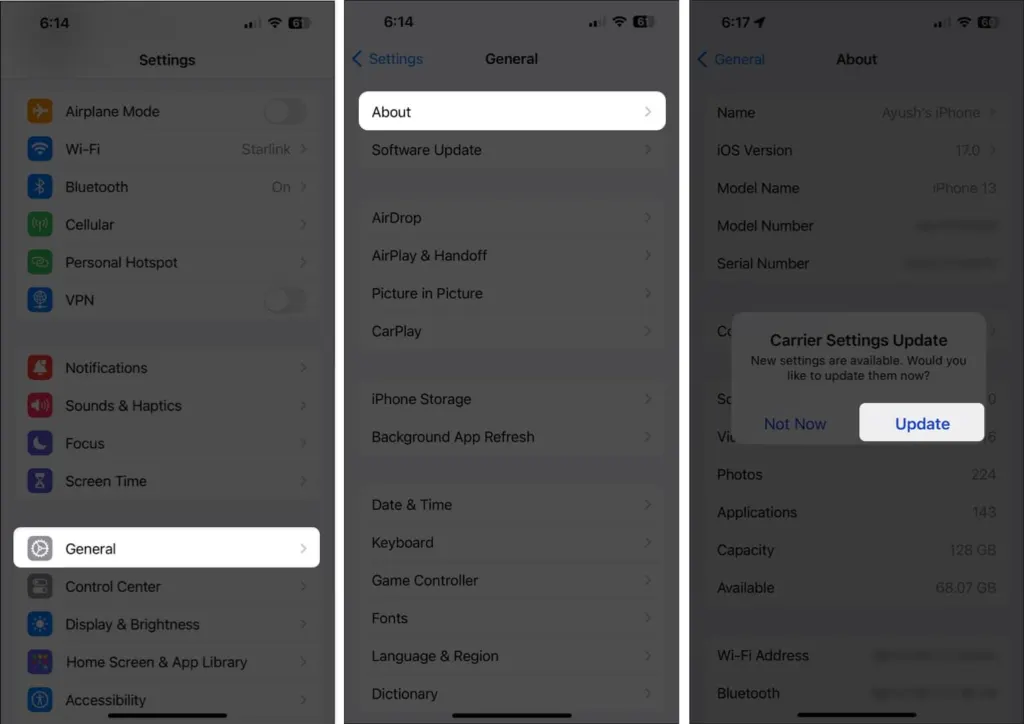
- Go to Settings > General > Software Update and install anything available. Our guide to updating your iPhone covers the full process.
6. Keep VoLTE On
Some carriers need Voice over LTE (VoLTE) enabled before Wi-Fi Calling will register, so leave it on if your carrier offers it.
- Open Settings > Cellular > Cellular Data Options.
- Tap Voice & Data.
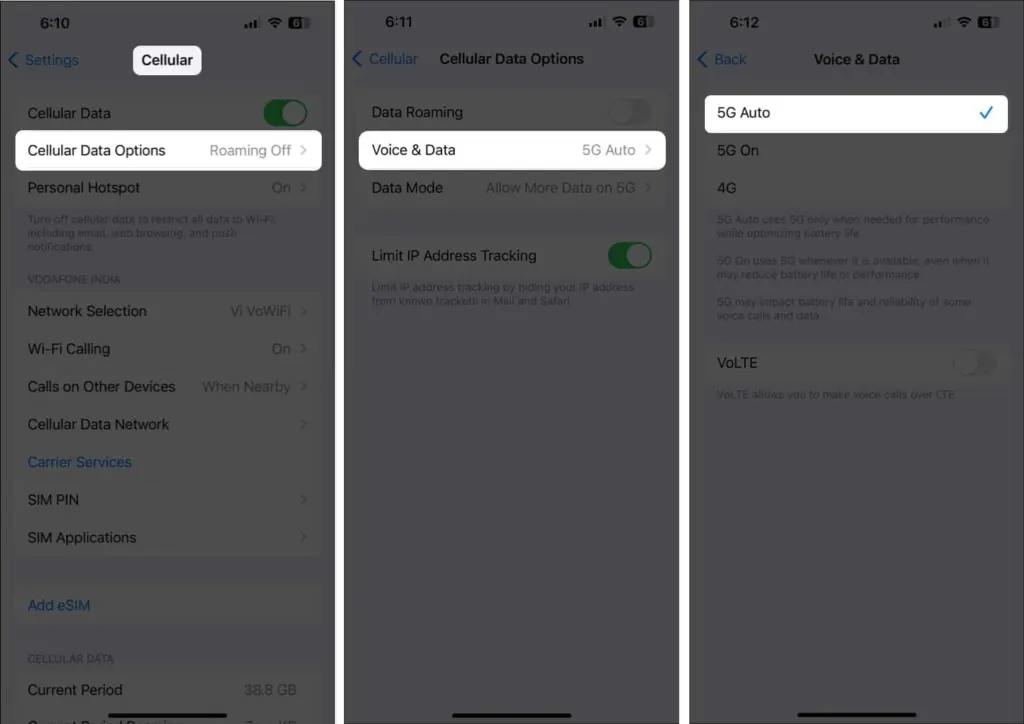
- Make sure VoLTE is selected for your line.
7. Set Date and Time Automatically
A wrong clock can break the secure connection the feature relies on.
- Open Settings > General > Date & Time.
- Turn on Set Automatically.
8. Turn Off the VPN and Try a Different Network
A VPN can block the traffic Wi-Fi Calling uses, and some routers or public networks block it outright. Testing on a second network tells you which side is at fault.
- Open Settings, tap VPN, and turn off any active connection.
- Join a different Wi-Fi network, such as a phone hotspot from another device or a friend’s router, and look for “Wi-Fi” next to the carrier name.
- If it works there but not at home, restart your router, then test again.
9. Reset Network Settings
This is the last fix on the phone itself. It erases saved Wi-Fi passwords, cellular settings and VPN configurations, so note down the passwords you need first. Our guide to resetting network settings on iPhone shows the exact path. Expect the phone to restart, then reconnect to Wi-Fi and wait two minutes before judging the result.
Can You Force Wi-Fi Calling Over Weak Cell Signal?
There’s no switch for it. The iPhone decides which path to use. A workaround that helps some people with weak LTE at home is to turn on Airplane Mode and then turn Wi-Fi back on, which leaves Wi-Fi as the only connection, provided Wi-Fi Calling is enabled and your carrier allows it. Some users instead get a “can’t call with Airplane Mode on” message, which means the phone isn’t registered for Wi-Fi Calling and sections 2 to 6 still need attention. Turn Airplane Mode off afterward, because it also blocks cell service.
iPhone WiFi Calling Not Working After Every Fix? Call Your Carrier
Wi-Fi Calling has to be supported by your carrier and provisioned on your account. A new phone, a SIM or eSIM change, or a plan change can leave it unprovisioned. Ask the carrier to confirm it is active on your line and that there is no outage or billing block. If the problem began after an iOS update and persists on every network, even after a network reset, it points to the carrier side rather than your phone.
Most Wi-Fi Calling problems have simple causes outside the phone, so it is rarely a sign of damage. Once calls work reliably over Wi-Fi, weak signal at home or the office matters far less. See also fixing iPhone calls that keep dropping.


