
Music cutting out mid-song or a car kit that drops every few minutes makes a wireless accessory feel more like a gamble than a convenience. When you find your iPhone Bluetooth keeps disconnecting, the cause is usually something small that can be sorted out at home, and only occasionally a fault in the hardware. The steps below cover the common causes and the fixes, from quick resets to deeper ones, plus when it points to hardware.
Table of Contents
- Why iPhone Bluetooth Keeps Disconnecting
- Turn Bluetooth Off and On, and Restart the iPhone
- Check Battery, Distance and Interference
- Forget the Device and Pair It Again
- Stop AirPods Jumping to Another Device
- Update iOS if iPhone Bluetooth Keeps Disconnecting After an Update
- Reset Network Settings, Then All Settings
- When It Is a Hardware Problem
Why iPhone Bluetooth Keeps Disconnecting
Most drops trace back to one of a handful of causes, and knowing which one fits your situation saves time.
- Interference: Wi-Fi routers, microwaves, a crowded 2.4 GHz band, walls, or a phone sitting in a back pocket can all weaken the link.
- Range: About 10 m (33 ft) is typical in open space, and less through walls or your body.
- Low battery: Either the iPhone or the accessory running low can cause drops.
- An iOS bug: drops that began right after iOS 26 and 26.1 are a common complaint.
- A stale pairing, AirPods switching automatically to another Apple device, or another device grabbing the accessory.
A quick test helps narrow it down: pair the accessory with another phone or a computer. If it drops there too, the accessory is the problem; if it stays connected, look at the iPhone. If the accessory never connects at all, see our guide to Bluetooth not working on an iPhone.
Turn Bluetooth Off and On, and Restart the iPhone
Toggling Bluetooth and restarting clears most temporary glitches in a minute or two.
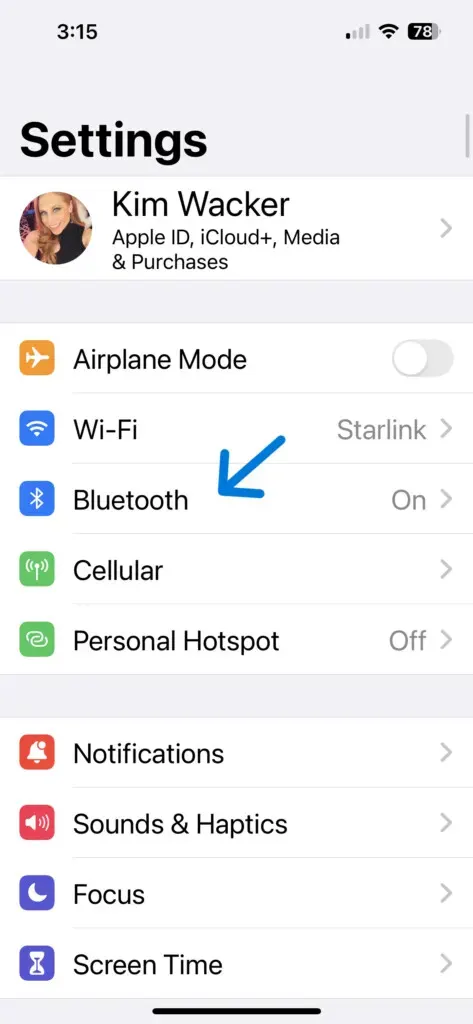
- Open Settings > Bluetooth and switch it off. Use the Settings switch rather than Control Center, because Control Center only disconnects accessories while Bluetooth stays on.
- Wait about 10 seconds, then switch it back on.
If it still drops, force restart an iPhone 8 or later: press and release Volume Up, press and release Volume Down, then hold the Side button until the Apple logo appears.
Check Battery, Distance and Interference
Charge both the iPhone and the accessory, then keep them close with nothing dense in between. Move the iPhone out of a back pocket, and step away from routers or microwaves to see if the drops stop. If they only happen in one spot, interference is the likely culprit.
Forget the Device and Pair It Again
Removing a stale pairing and starting fresh fixes many repeat drops.
- Go to Settings > Bluetooth and tap the (i) next to the accessory under My Devices.
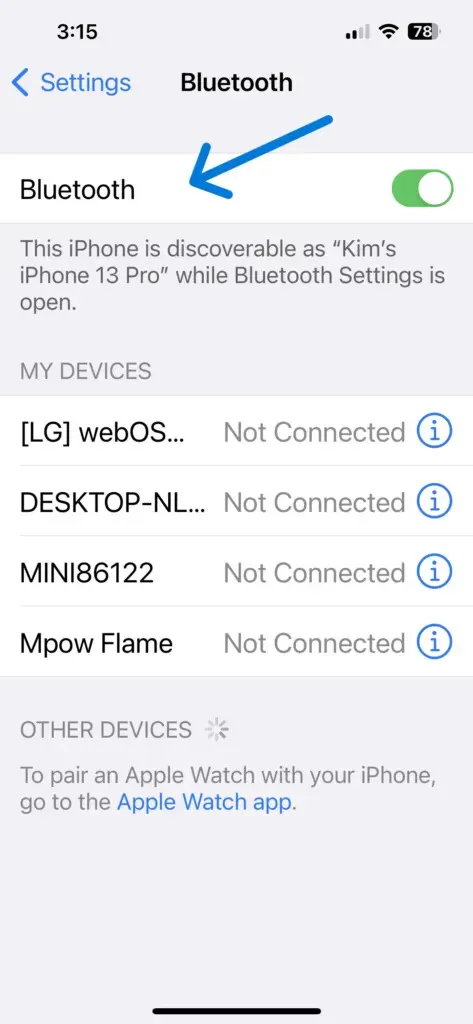
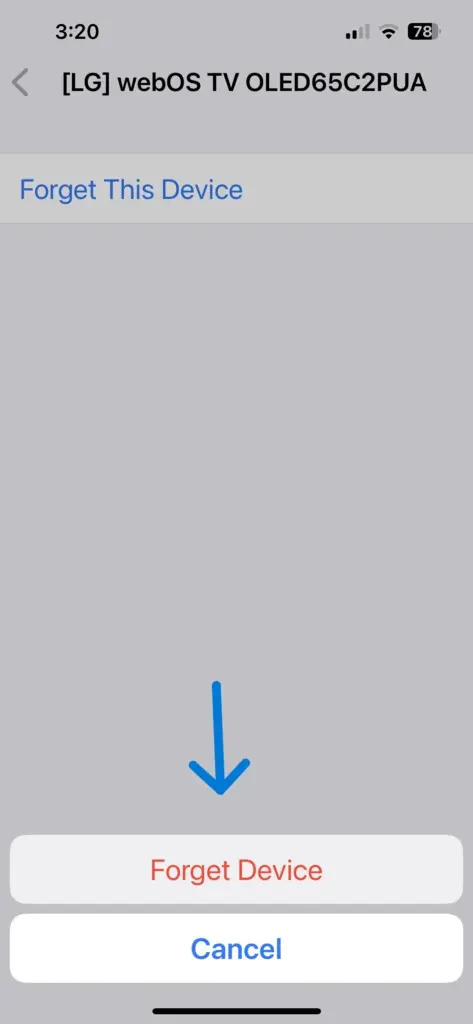
- Tap Forget This Device.

- Confirm with Forget Device.
- Put the accessory in pairing mode and reconnect it.
Also unpair the accessory from any other phones or computers nearby that may grab it.
Stop AirPods Jumping to Another Device
If AirPods drop while an iPad or Mac signed into the same Apple Account is nearby, automatic switching may be moving them away.
- Open Settings and tap your AirPods.
- Tap Connect to This iPhone.
- Choose When Last Connected to This iPhone instead of Automatically.
A computer or app paired with the iPhone can cause the same thing. Windows Phone Link on a PC is a known example: it can keep pulling AirPods, CarPlay and other accessories away, so unpair any such link to test. If the drops happen in a car, our guide on an iPhone that won’t connect to CarPlay covers that setup.
Update iOS if iPhone Bluetooth Keeps Disconnecting After an Update
Bugs that appear after a big update are often fixed in later point releases. Go to Settings > General > Software Update and install anything waiting. Our guide on how to update an iPhone has the full steps.
Reset Network Settings, Then All Settings
If nothing above holds, a reset clears corrupted connection data. Start with network settings.
- Open Settings > General > Transfer or Reset iPhone > Reset.
- Tap Reset Network Settings.
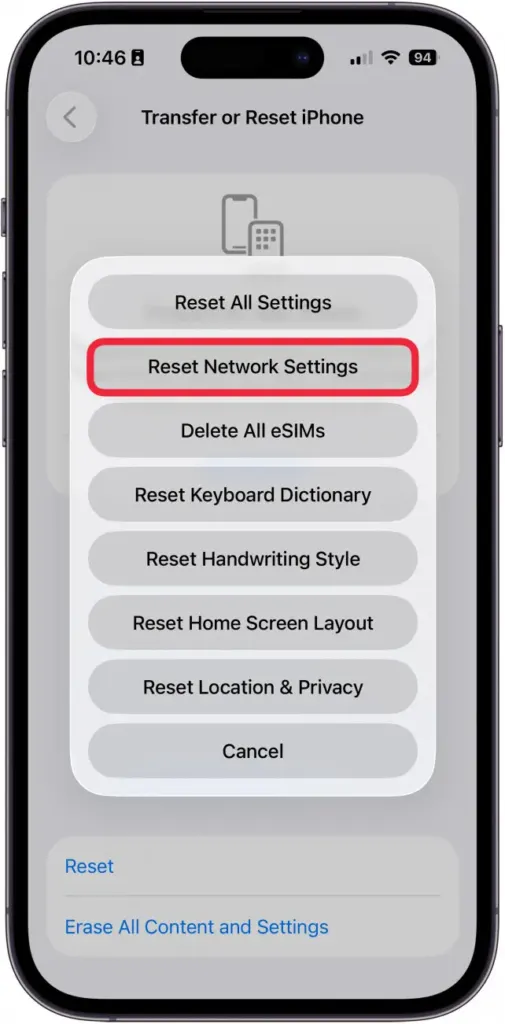
This erases Bluetooth pairings, Wi-Fi networks and passwords, VPN and cellular settings, while apps and photos stay. More detail is in our guide to resetting network settings on an iPhone. If the drops continue, use the same Reset menu and choose Reset All Settings, which returns system settings such as network, privacy, location and the keyboard dictionary to defaults and keeps your photos, apps and data.
When It Is a Hardware Problem
If every accessory drops on this iPhone after all of the above, contact Apple Support or visit an Apple Store, since the Bluetooth antenna may be at fault. If only one accessory drops on every device, contact its maker and update its firmware; AirPods update automatically while charging near the iPhone.
A stable wireless connection is worth a few minutes of troubleshooting, and most drops turn out to be fixable without a repair. If a problem persists with just one accessory, its maker is the best next stop.


