
A pair of headphones, a car stereo or a speaker that will not connect is a small problem that ruins a commute or a workout. The cause may be the phone, the accessory or a setting that does not work the way it looks. The steps below cover seven fixes for an iPhone Bluetooth not working problem, from simple checks to bigger ones.
Table of Contents
- Check the accessory first
- Fix iPhone Bluetooth not working by toggling it in Settings
- Check app permissions for Bluetooth
- Forget the device and pair it again
- Unpair it from your other devices
- Restart your iPhone and update iOS
- Reset network settings as a deeper fix
- When iPhone Bluetooth not working means a repair
Check the accessory first
Most failures start on the accessory side, and range matters: Bluetooth reaches about 30 feet, and metal, concrete or brick in between can block it.
- Keep the accessory close to the iPhone. If it has never been paired, put it in pairing mode first and check its manual for how.
- Turn the accessory off and on, and make sure it is charged or powered. Replace the batteries if it uses them.
Fix iPhone Bluetooth not working by toggling it in Settings
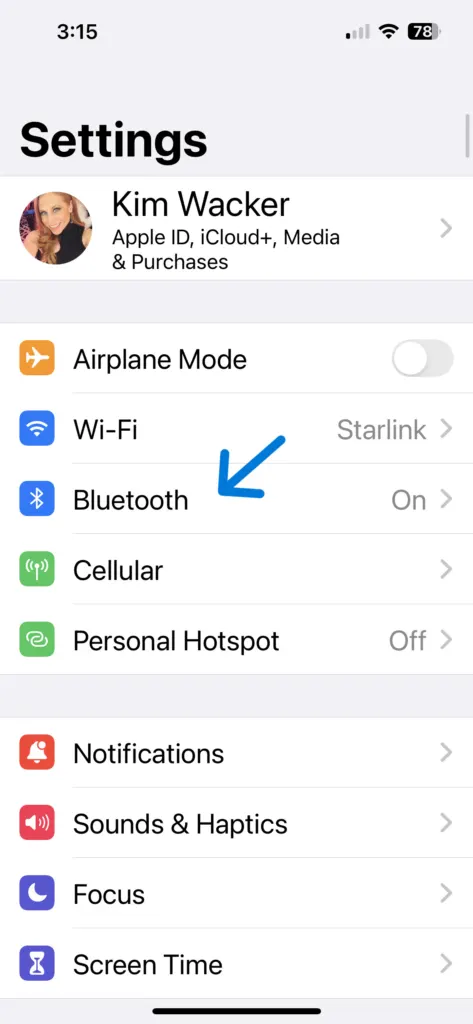
Switching Bluetooth off and on in Settings fully cycles the feature, and you can reconnect from the same screen.
- Open Settings and tap Bluetooth.
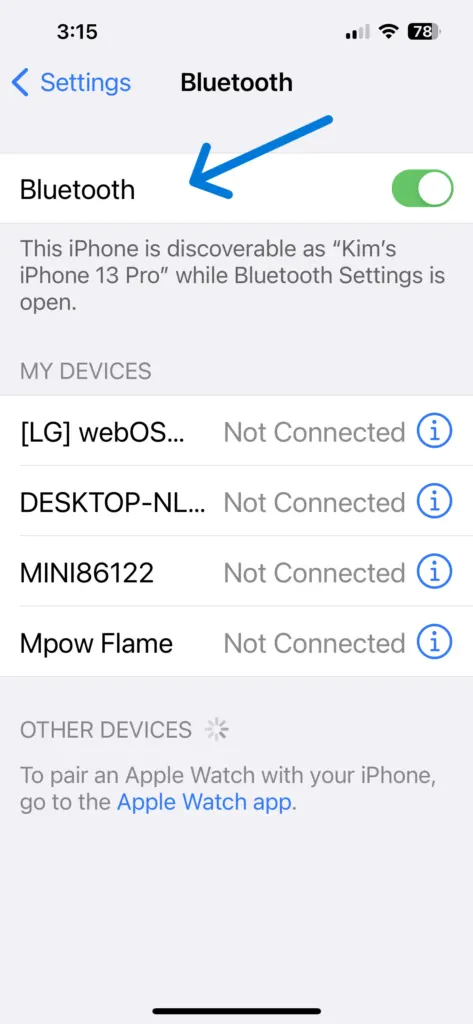
- Turn the Bluetooth switch off, wait a few seconds, then turn it back on.
- Under My Devices, tap your accessory. Connected appears next to its name once it works.
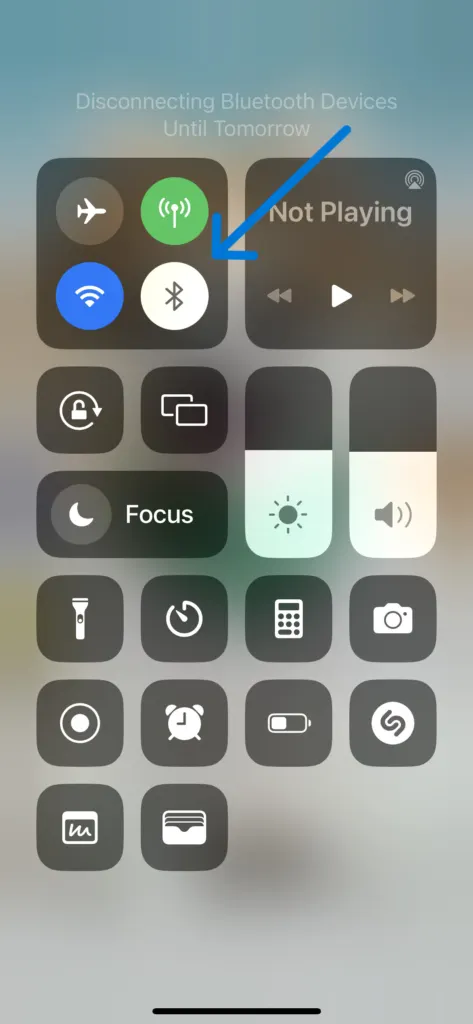
Skip the Control Center button for this step, since it only disconnects nearby devices until tomorrow. Turning Airplane Mode on for a few seconds and off again can also reset the wireless radios.
Check app permissions for Bluetooth
If an app controls the accessory, the app itself needs Bluetooth permission, even when the iPhone’s Bluetooth is on.
- Open Settings and tap Privacy & Security.
- Tap Bluetooth.
- Make sure the app is turned on in the list.
Forget the device and pair it again
Forgetting the device deletes the stored pairing, which fixes accessories that were connected before and now fail silently.
- Go to Settings > Bluetooth, then tap the (i) icon next to the device.
- Tap Forget This Device.
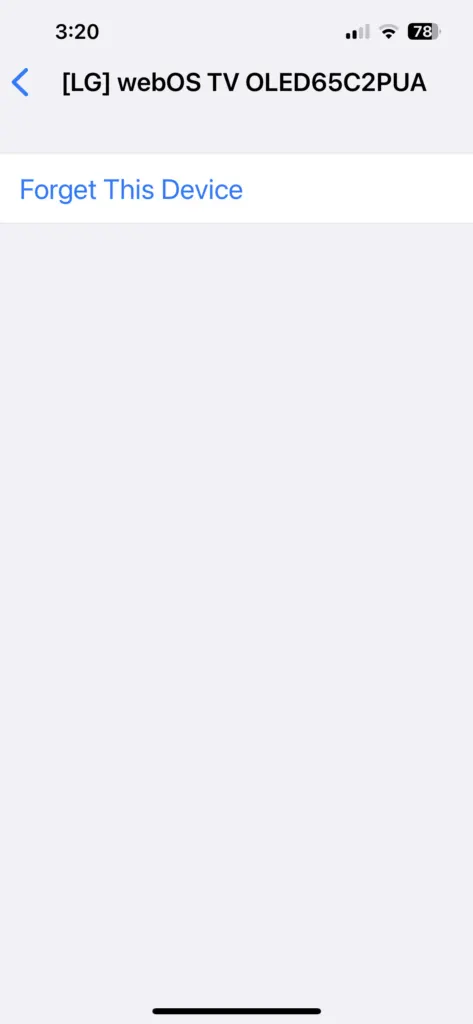
- Tap Forget Device to confirm.
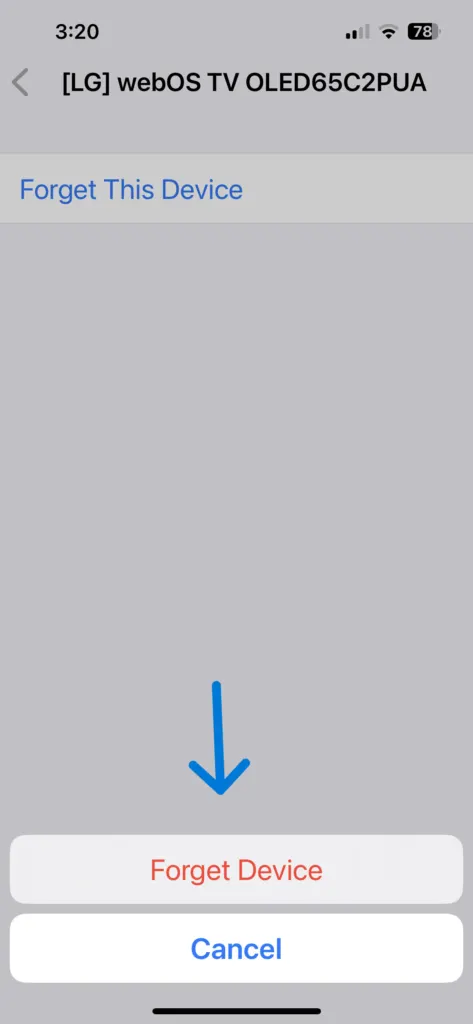
- Put the accessory back in pairing mode, then tap it when it shows up on the Bluetooth screen.
- For a car, also forget your iPhone in the car’s Bluetooth menu, then pair the two again. A stale entry on either side blocks the new pairing.
Unpair it from your other devices
If the accessory pairs with some devices but not your iPhone, it is often still tied to another one.
- On your other phone, laptop or tablet, remove the accessory from its Bluetooth list.
- Try pairing it with your iPhone again.
- Remove old devices you no longer use from your iPhone’s Bluetooth list, so the phone isn’t choosing between stale entries.
If it still refuses, check with the accessory’s maker that it supports your iPhone model and iOS version.
Restart your iPhone and update iOS
A restart and the latest iOS clear software faults that no setting change fixes.
- Restart your iPhone, then restart the accessory too.
- Open Settings, tap General, then tap Software Update and install any update. Our guide to updating your iPhone covers the full process.
Reset network settings as a deeper fix
This is the deepest reset here: it removes saved Wi-Fi networks and passwords plus cellular, VPN and APN settings, and it makes the iPhone forget its Bluetooth devices, so you will re-pair them afterward. Have your Wi-Fi passwords ready. For the full walkthrough, see our guide to resetting network settings on iPhone.
- Open Settings, tap General, then tap Transfer or Reset iPhone.
- Tap Reset.
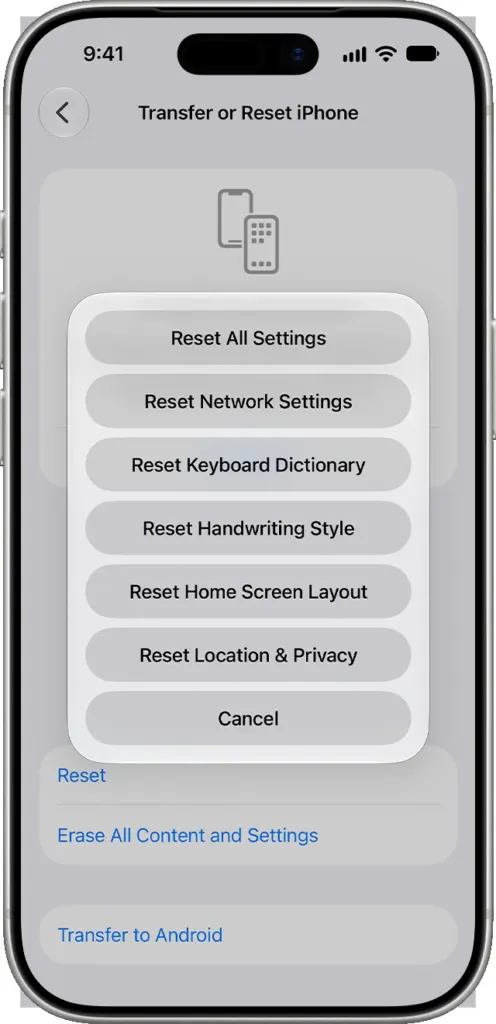
- Tap Reset Network Settings and confirm when prompted.
When iPhone Bluetooth not working means a repair
Contact Apple Support if the Bluetooth switch is greyed out or won’t turn on, if no accessory at all will connect, or if the accessory’s maker confirms it works. A switch that flickers on for a second and shuts off again can point to a fault that settings cannot fix. AirDrop also relies on Bluetooth, so if it fails too, see our AirDrop troubleshooting guide.
Most Bluetooth problems are easy to clear once you work through them in a sensible order, and nothing here puts your data at risk. If the trouble follows the phone to every accessory, Apple Support is the place to go.


