
Getting into the car and finding the screen stays blank is a frustrating start to a drive. The cause is usually on the phone, the cable or the pairing rather than the car itself, and wired and wireless setups tend to fail in different ways. When your iPhone won’t connect to CarPlay, the sections below offer 9 fixes, from quick checks to deeper ones.
Table of Contents
- Restart Both Devices When Your iPhone Won’t Connect to CarPlay
- Swap the Cable and the USB Port
- Check Bluetooth, Wi-Fi and the “USB Only” Choice
- Turn On Siri
- Make Sure Screen Time Isn’t Blocking CarPlay
- Let CarPlay Start While the iPhone Is Locked
- Forget the Car and Pair It Again
- Update iOS and the Car Stereo if Your iPhone Won’t Connect to CarPlay
- Turn Off Your VPN
- Reset Network Settings as a Last Software Step
- If Nothing Worked
Restart Both Devices When Your iPhone Won’t Connect to CarPlay
Restart the iPhone, turn the car off and on, and look for the CarPlay logo on the display, because some cars don’t open it by themselves. If you’ve never had it working, confirm that your country or region and your car or stereo support CarPlay, and that the iPhone has the latest iOS under Settings > General > Software Update.
If a plain restart does nothing in a GM vehicle, Chevrolet’s support page describes a full power cycle: turn the car off, open and close the driver’s door, wait for the OnStar light on the overhead console to go out (5 to 15 minutes depending on the vehicle), open and close the door again, then let it run for 15 to 20 seconds before reconnecting.
1. Swap the Cable and the USB Port
A bad cable is the most common reason wired CarPlay fails, and the symptom is often a connection that only holds when the cable sits at one angle.
- Use the cable that came with the phone or an MFi-certified one. Charge-only cables don’t carry data, so CarPlay can’t see the phone through them.
- Try a different USB port. Some cars mark one port for CarPlay in the manual.
- Look inside the phone’s port and the car’s port for lint or dust and gently clean it out.
- If you use a USB-C to Lightning Adapter, switch to one direct cable. The adapter works in most cars, but some adapter, cable and car combinations disrupt wired CarPlay, and cars that only support wired CarPlay are the likeliest to object.
Cables wear out from heat and twisting in a car, so replace one that is bent, frayed or fussy about position.
2. Check Bluetooth, Wi-Fi and the “USB Only” Choice
Wireless CarPlay uses Bluetooth to find the car and Wi-Fi to carry the screen, so both must be on.
- Open Settings and make sure Bluetooth is on.
- Go to Settings > Wi-Fi, tap the CarPlay network and make sure Auto-Join is on.
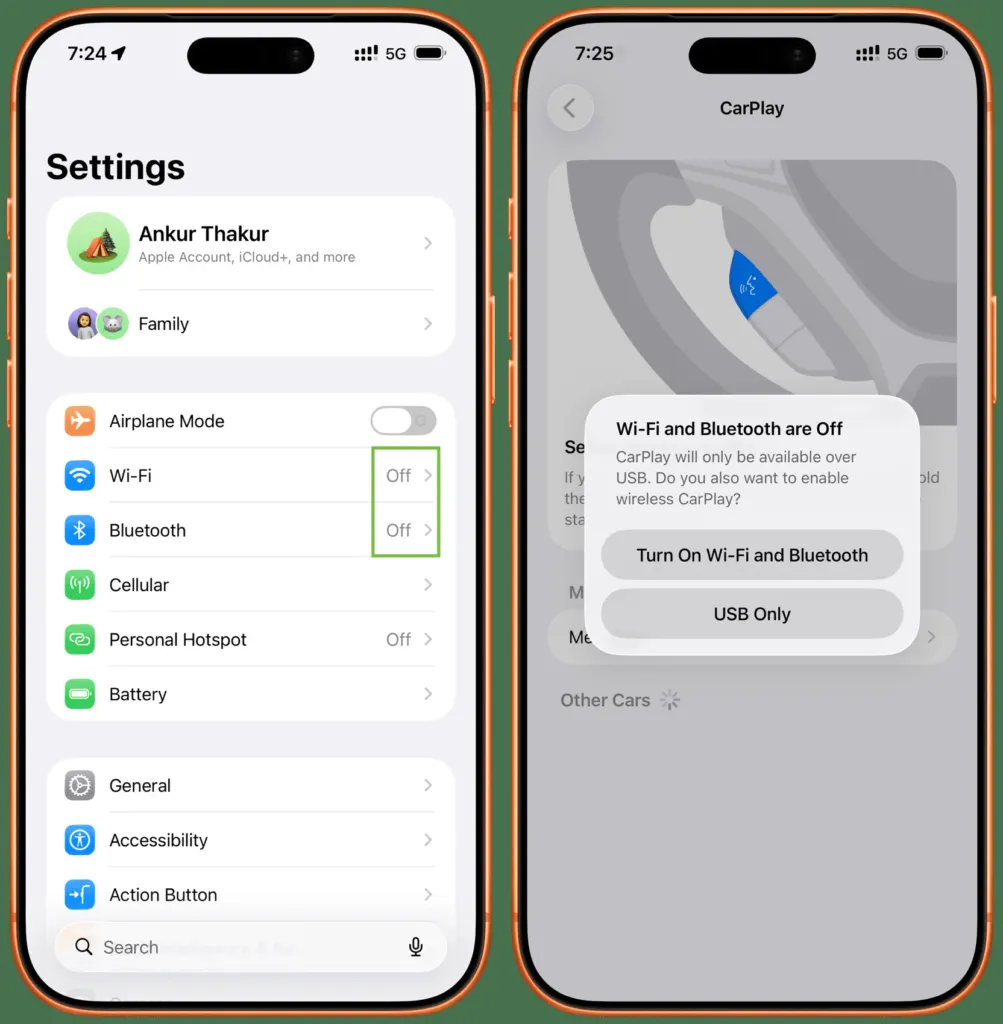
- If either radio is off, the iPhone shows a “Wi-Fi and Bluetooth are Off” prompt. Tap Turn On Wi-Fi and Bluetooth.
If the car connects only with a cable, you may have tapped USB Only on that prompt at some point. That choice sticks. To undo it, forget the phone in the car’s own device menu, forget the car under Bluetooth on the iPhone, then use Settings > General > CarPlay > your car > Forget This Car (Fix 6 shows that screen). When you reconnect, pick Wireless CarPlay at the prompt.
If Bluetooth itself won’t stay on, read our guide on fixing iPhone Bluetooth that isn’t working.
3. Turn On Siri
CarPlay depends on Siri, so a disabled Siri can stop it before it starts. Open Settings and tap Apple Intelligence & Siri (just Siri on iPhones without Apple Intelligence), then turn on Talk to Siri or Press Side Button for Siri.
4. Make Sure Screen Time Isn’t Blocking CarPlay
If the phone isn’t detected at all, a parental-control restriction is a likely cause, and it takes a minute to check.
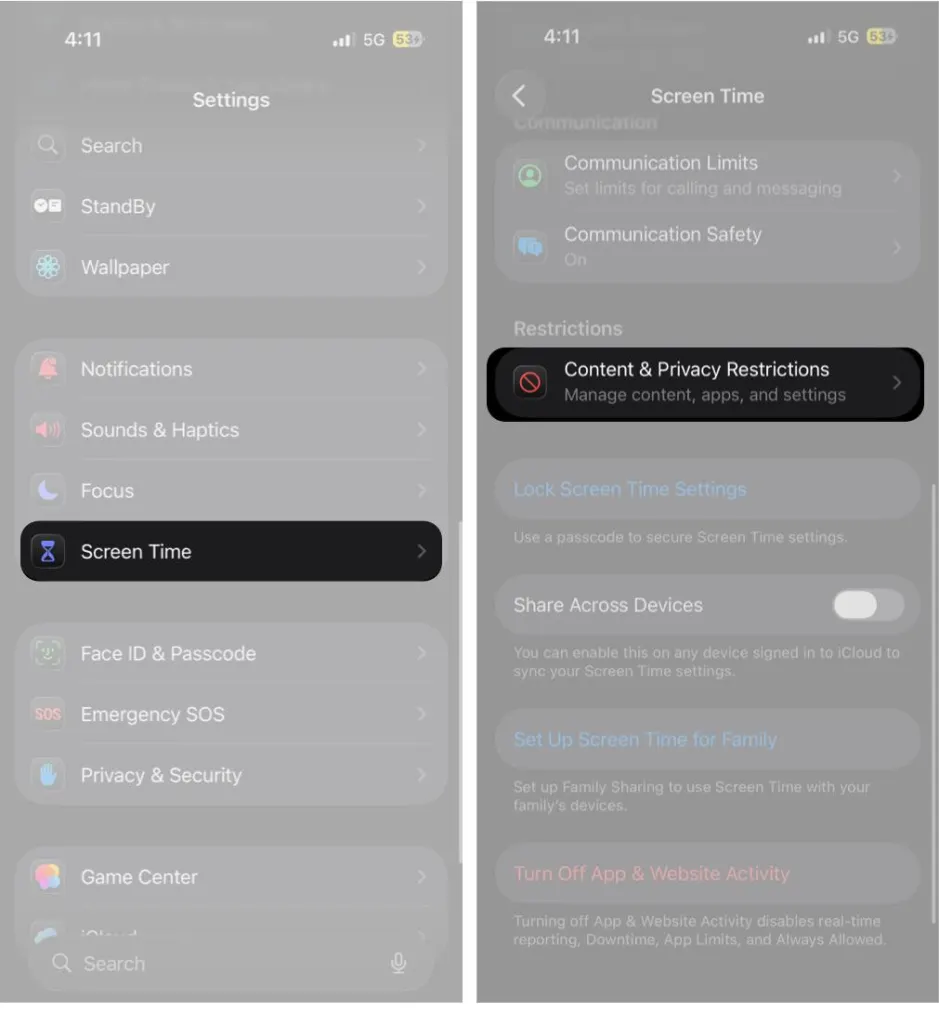
- Open Settings > Screen Time > Content & Privacy Restrictions. If you set a Screen Time passcode, enter it.
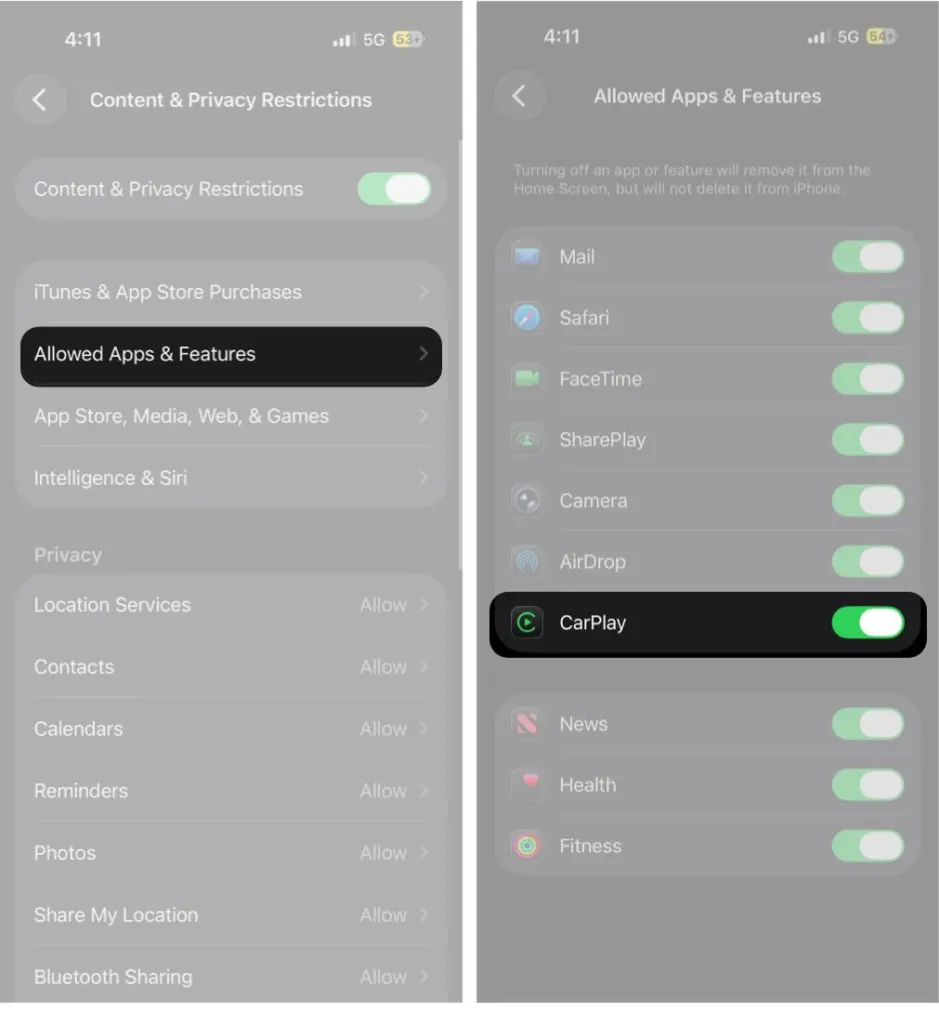
- Tap Allowed Apps & Features and switch on CarPlay. If the toggle was already green, restrictions aren’t your problem.
The car has its own switch too. Look in its Connections or Devices menu and confirm CarPlay isn’t turned off or the phone isn’t listed as disconnected.
5. Let CarPlay Start While the iPhone Is Locked
Unless you change it, the iPhone must be unlocked once per drive before CarPlay appears, so a phone left locked in a pocket looks like a failed connection. If that was the cause, change the setting:
- Open Settings > General > CarPlay, then tap your car.
- Turn on Allow CarPlay While Locked.
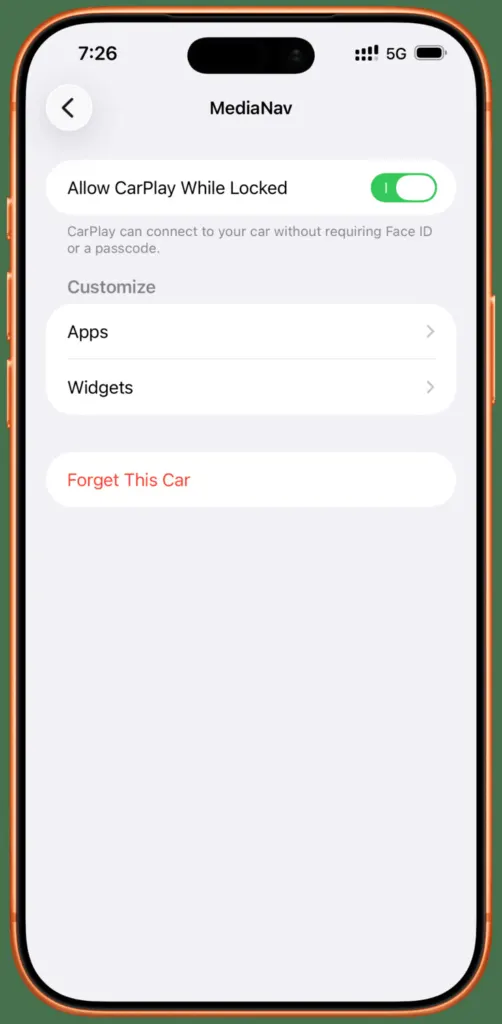
Anyone with your car and phone could then make calls and send messages without your passcode, so turn it off again for cars that aren’t yours.
6. Forget the Car and Pair It Again
This clears a stale or corrupted pairing, which is the usual cause when wireless CarPlay stops after an iOS update. It also resets your CarPlay layout, so open Apps and Widgets on this screen and screenshot each first.
- Open Settings > General > CarPlay, tap your car, then tap Forget This Car.
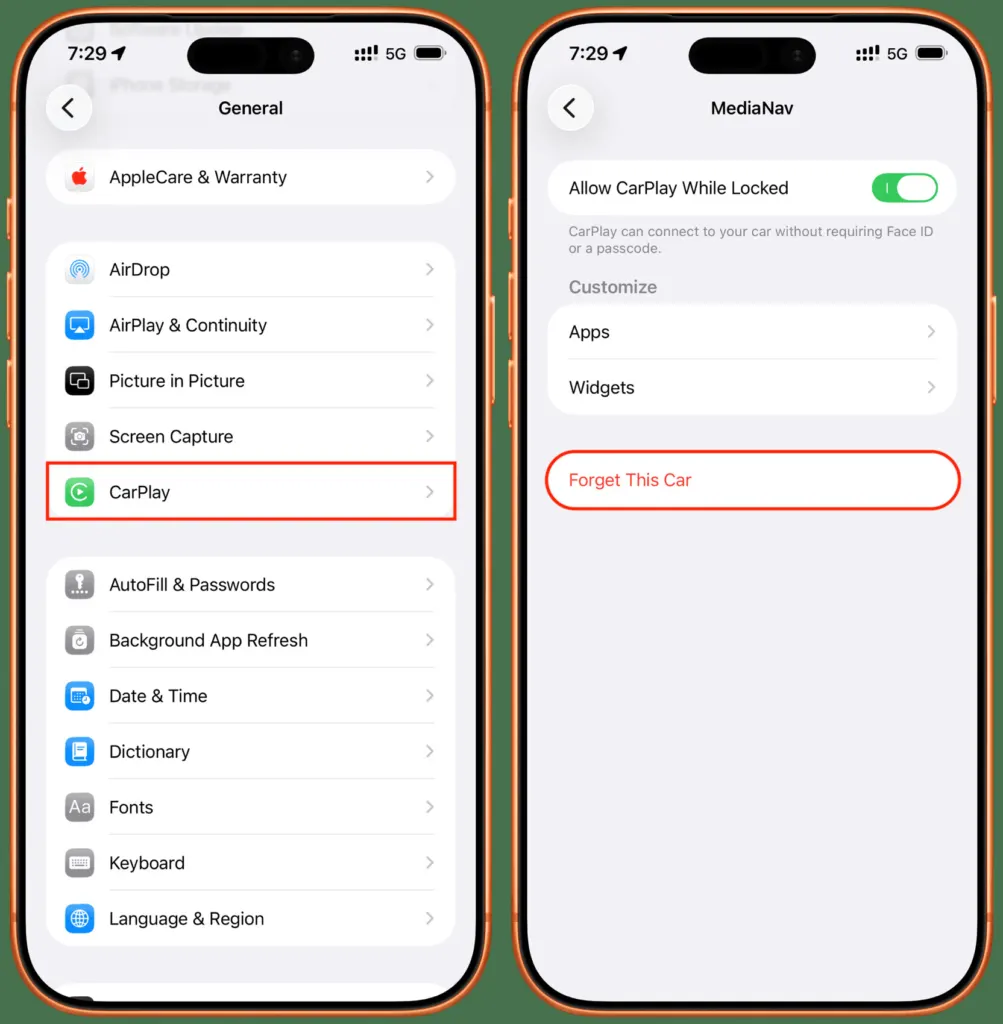
- Also forget the car’s Wi-Fi network in Settings > Wi-Fi and the car under Bluetooth, and delete the phone from the car’s device list. Owners on a Reddit thread fixed a wireless-only failure this way, followed by a reboot of the car’s infotainment system.
- Pair again. For wired CarPlay, plug in the phone. For wireless, hold the voice command button on the steering wheel or open the car’s pairing menu, then pick the car under Settings > General > CarPlay.
Once the logo appears on the display, walk through the setup prompts and rebuild your layout from the screenshots.
7. Update iOS and the Car Stereo if Your iPhone Won’t Connect to CarPlay
Install any iOS update under Settings > General > Software Update; our guide to updating your iPhone has the full steps. The stereo can need firmware too, so check the car maker’s website or the manual. Some cars update from the Settings > System menu on the display.
8. Turn Off Your VPN
A VPN can interfere with wireless CarPlay. Switch it off, reconnect and see whether CarPlay stays up.
9. Reset Network Settings as a Last Software Step
This is the last software step, because it erases saved Wi-Fi passwords and Bluetooth pairings, and you’ll have to rejoin networks and re-pair devices afterward.
- Open Settings > General > Transfer or Reset iPhone, then tap Reset.
- Tap Reset Network Settings and confirm.
Our guide to resetting network settings on iPhone lists exactly what each reset option removes.
If Nothing Worked
Try the phone in a different CarPlay car, or another iPhone in yours, to see which side is at fault. As a last resort on the car side, factory-reset the head unit, which wipes its saved settings, so photograph the options first. If that fails too, contact the car maker or Apple Support.
Most CarPlay problems are small and fixable without a trip to a dealer. Work in order, since the later steps change more on the phone. If everything on the phone checks out, the car maker or Apple Support can look at the car’s side.


