A setting buried in Windows Security can quietly shave a few frames off a game, and plenty of gamers ask if the protection is worth that cost. The answer depends on your CPU, the games you play and how the PC is used the rest of the time. The sections below explain what it does and what it costs, and they help you settle on core isolation on or off for gaming for your setup.
Table of Contents
- What Core Isolation and Memory Integrity Do
- How Much FPS Core Isolation Costs in Games
- Core Isolation On or Off for Gaming: Who Should Choose Which
- The Security Trade-Off
- Test Before You Decide
- How to Check and Turn Off Core Isolation in Windows
- Verify the Setting With msinfo32
- If Windows Lists Incompatible Drivers
What Core Isolation and Memory Integrity Do
Core isolation is a group of Windows Security features, and Memory integrity is the main switch inside it.
Memory integrity (also called HVCI, hypervisor-protected code integrity) uses virtualization-based security (VBS) to run kernel code checks in an isolated region of memory. Only verified kernel-mode drivers get to load, which blocks driver-based kernel attacks and rootkits. It is on by default on clean Windows 11 installs on supported hardware and on Secured-core PCs, but it is often off on PCs upgraded from Windows 10. Big Windows updates can also turn it on for eligible PCs, so it is worth re-checking after one.
How Much FPS Core Isolation Costs in Games
Published tests show a real but usually small hit, and it varies a lot with the CPU.
- Benchmarks with an RTX 3090 at 1080p put the average loss with HVCI at about 3-6%, depending on the CPU.
- In an RTX 4090 test, disabling VBS improved performance by around 10%, with 1% lows up to 15% better. The average loss there was about 5%, and the “up to 15%” figures are worst cases in CPU-bound situations.
- Most people with less extreme hardware are likely to see low single-digit losses, and newer CPUs with MBEC (Mode Based Execution Control) lose much less.
Average FPS often barely changes. The difference people notice is in the 1% lows, which show up as stutter.
Microsoft acknowledged in 2022 that Memory integrity and Virtual Machine Platform could affect gaming performance on some configurations. It said gamers who prioritize performance could turn them off while playing and turn them back on afterward.
Core Isolation On or Off for Gaming: Who Should Choose Which
The gain only matters when the CPU is the bottleneck.
Might turn it off:
- Players of CPU-bound competitive games at very high frame rates.
- Owners of older CPUs without MBEC.
- Users of undervolting tools such as ThrottleStop or Intel XTU, which reportedly conflict with it.
Should leave it on:
- Anyone playing GPU-limited games at 1440p or 4K, where there is probably no noticeable difference.
- Anyone who also uses the PC for banking or work.
The Security Trade-Off
Turning it off removes kernel-level protection against malicious or vulnerable drivers, and a Secured-core PC leaves the Secured-core state. The risk is lower on a PC used only for gaming with trusted software. It is real on a PC that also handles banking or work accounts.
Test Before You Decide
A quick benchmark tells you whether the change is worth making on your own hardware.
- Pick one game, one scene, one resolution and one graphics preset, and keep them identical for every run.
- Record three runs with the feature on and three with it off, using a frame-time tool such as CapFrameX or PresentMon.
- Compare average FPS and 1% lows.
A gain under roughly 3-5% usually isn’t worth giving up the protection, so leave it on in that case.
How to Check and Turn Off Core Isolation in Windows
You can reach the switch from the Start menu or from Windows Security.
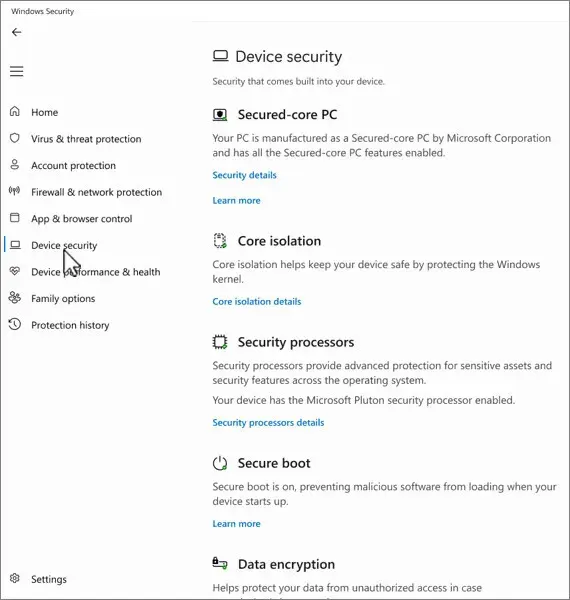
- Click Start and type Core isolation, then open the result. Alternatively, go to Windows Security > Device security > Core isolation details.
- Switch Memory integrity to Off and approve the UAC prompt.
- Restart the PC, because the change doesn’t apply until then.
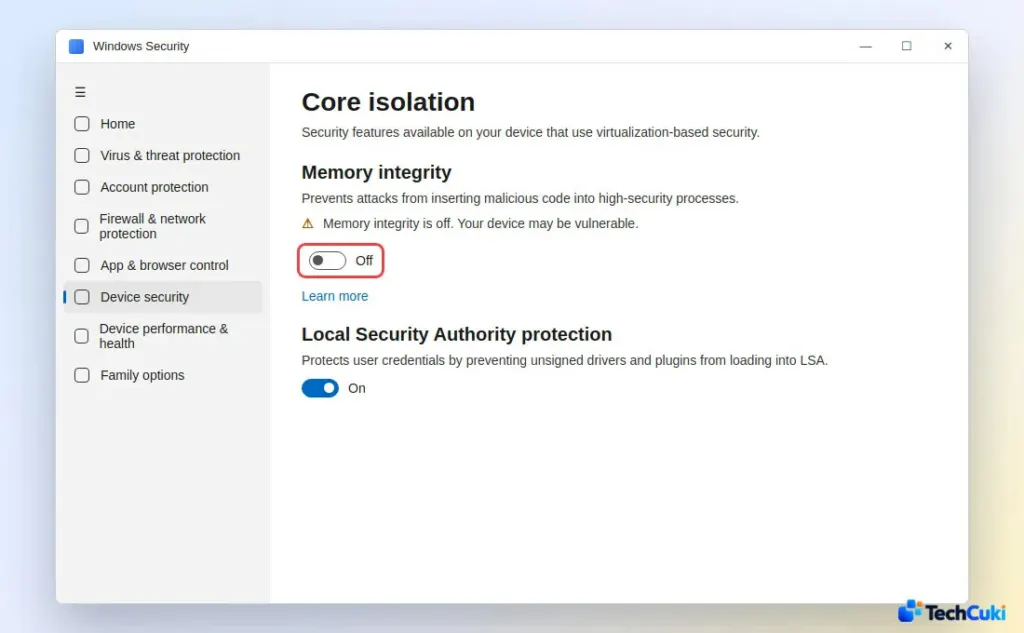
To turn it back on, follow the same path and flip the switch to On. If it refuses to switch on, see our guide to enabling Memory integrity in Windows 11. If the page itself is missing, see Core isolation page not available.
Verify the Setting With msinfo32
System Information shows whether virtualization-based security is actually running.
- Press
Win + R, typemsinfo32and press Enter. - In System Summary, scroll to the bottom and read Virtualization-based security. It says Running when the feature is active and Not enabled when it is off.
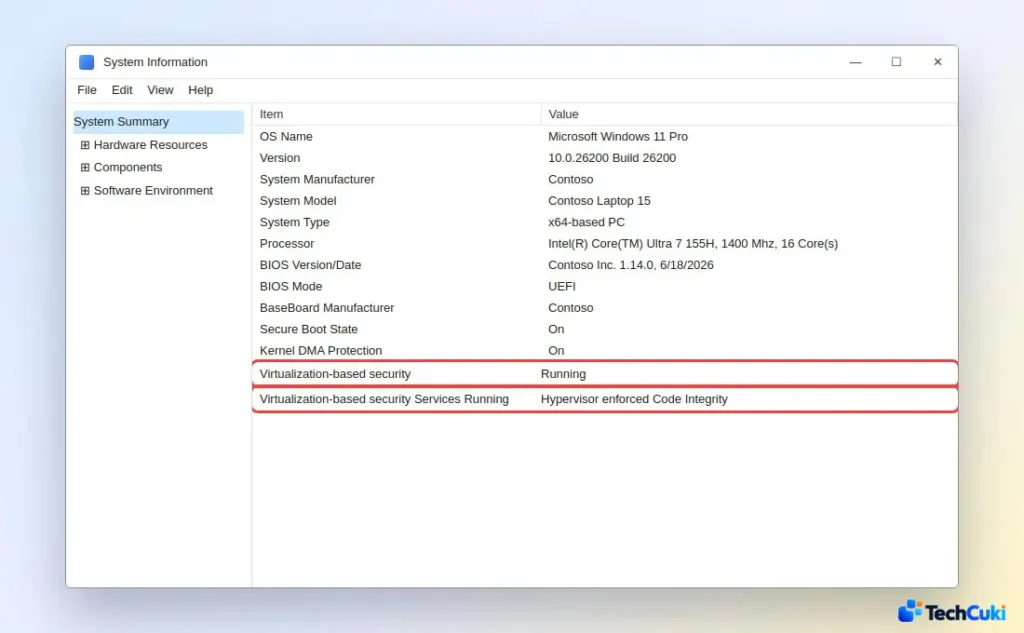
If it still says Not enabled when you expect it to run, virtualization may be disabled in firmware; our guide to enabling virtualization in Windows 11 covers that.
If Windows Lists Incompatible Drivers
Some anti-cheat software, older RGB utilities and hardware drivers are incompatible with Memory integrity. Windows lists them under Review incompatible drivers when you try to switch it on.
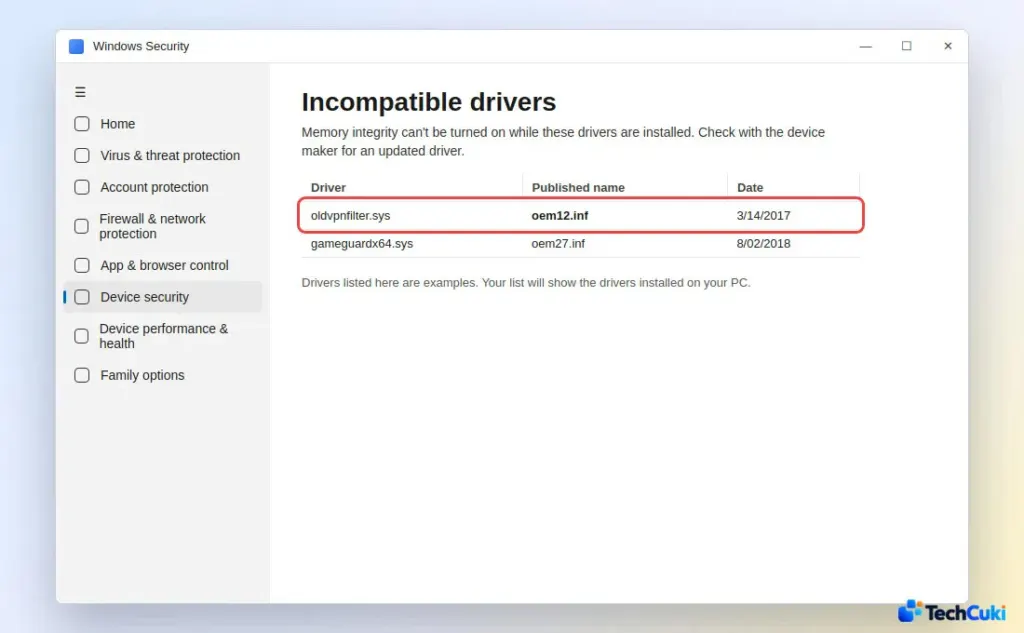
Update the listed driver from its maker first, since that is the proper fix rather than turning the feature off.
For most gaming PCs, the safest setup is the one that keeps the protection unless a benchmark shows a clear gain. It is a switch you can flip either way in a minute, so changing your mind later costs nothing.