Swapping in a new SIM or eSIM should take a minute, so an alert that stops you halfway is frustrating, especially when the card itself is fine. When you see your iPhone SIM not supported message, the cause usually comes down to how the phone was sold, a software hiccup, or the line you are trying to use. The steps below cover what the alert means, how to check your phone, and what to do next.
Table of Contents
What the “SIM Not Supported” Message Means
The alert means your iPhone is tied to a carrier and is refusing a SIM or eSIM from a different one. It is not a sign of a broken SIM or damaged hardware.
The full message says the SIM comes from a provider that the activation policy does not support, and it asks you to insert a SIM from a supported provider or have the iPhone unlocked by your service provider. Some iPhones title it “SIM Not Valid”, but the meaning is the same.
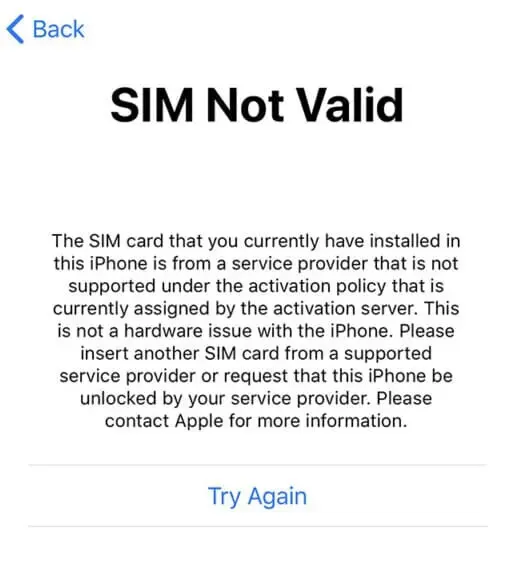
This lock is common on phones bought on a contract or installment plan, on carrier prepaid phones, and on used phones that were never unlocked.
Check Whether Your iPhone Is Locked to a Carrier
Your iPhone shows its lock status in the About screen.
- Open Settings and tap General, then About.
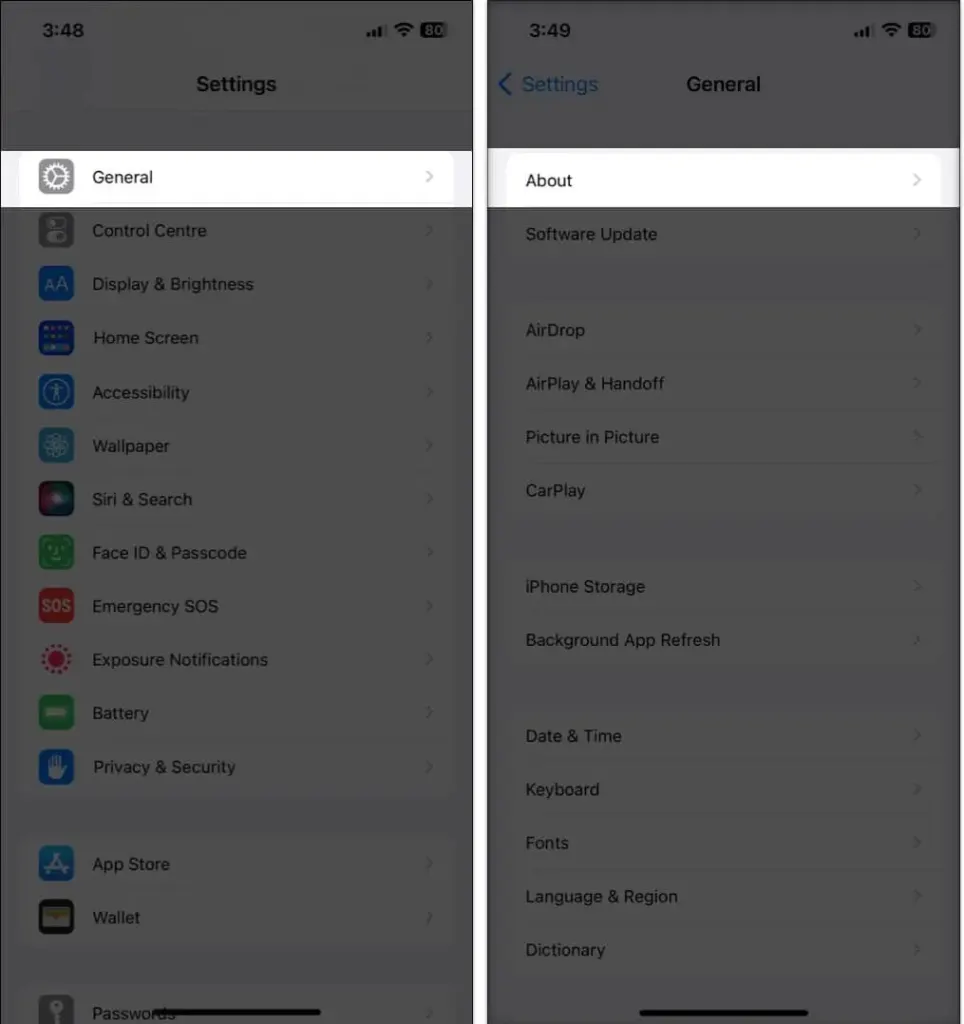
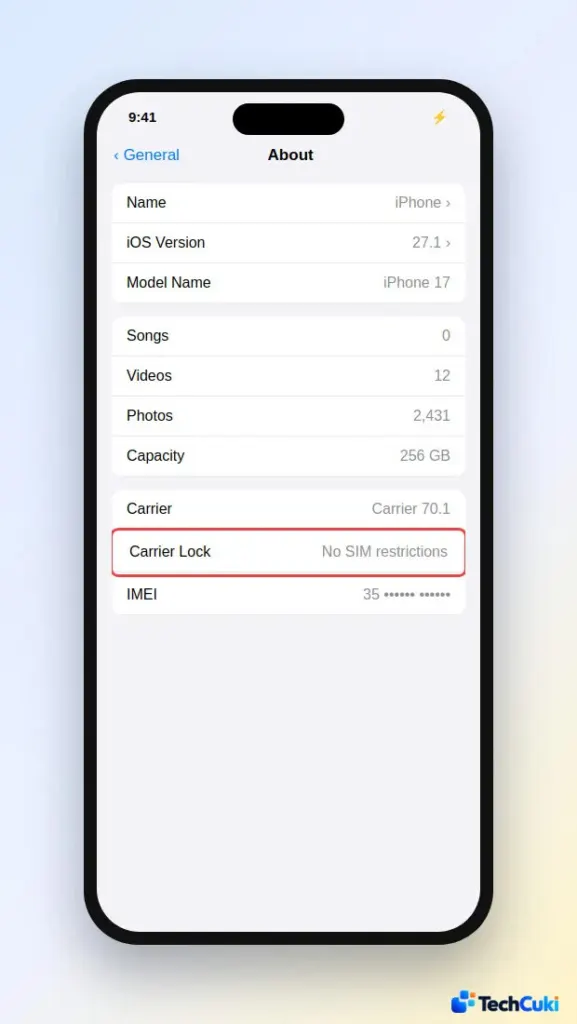
- Scroll down to Carrier Lock. If it says No SIM restrictions, the phone is unlocked. Any other text, such as SIM locked, means it is locked to a carrier.
On a US iPhone 14 or later there is no SIM tray, so “SIM” in this alert refers to the eSIM.
Get Your iPhone Unlocked by the Carrier
If the phone is locked, the fix is to ask the carrier it is locked to, not the new one, to unlock it.
Each carrier sets its own rules. Usually the phone must be fully paid off, the account must be in good standing, and the line must have been active for a minimum period. A phone reported lost or stolen, or one with an unpaid balance, will not be unlocked.
Once the carrier confirms the unlock, you have two paths:
- If you already have the new SIM, remove the old one, insert the new one and finish setup.
- If you do not have another SIM yet, back up the iPhone, erase it and restore it from the backup so the unlock applies.
- For an eSIM, add the new carrier’s eSIM after the unlock. Our guide on how to transfer an eSIM to a new iPhone covers that part.
Buying a Used iPhone or Traveling Abroad
Only the original carrier can unlock a secondhand iPhone, and it often needs the original account holder to ask. If you are buying one, have the seller request the unlock before you pay.
Avoid third-party “unlock services” and SIM adapter tricks. They are unreliable and not covered by Apple or the carrier.
The same alert appears if you put a local SIM from another country into a locked iPhone. Get it unlocked before the trip, or stay on your own carrier’s roaming plan.
iPhone SIM Not Supported on an Unlocked Phone
When Carrier Lock shows no restrictions, a software glitch is the likely cause, and Apple has fixed false alerts like this before. In October 2022, some iPhone 14 models showed it right after setup, and the right move then was not to restore the phone but to contact Apple support until an update fixed it.
- Restart the iPhone.
- Open Settings > General > About and accept a carrier settings update if one is offered.
- Go to Settings > General > Software Update and install any update. Our guide to updating an iPhone has more detail.
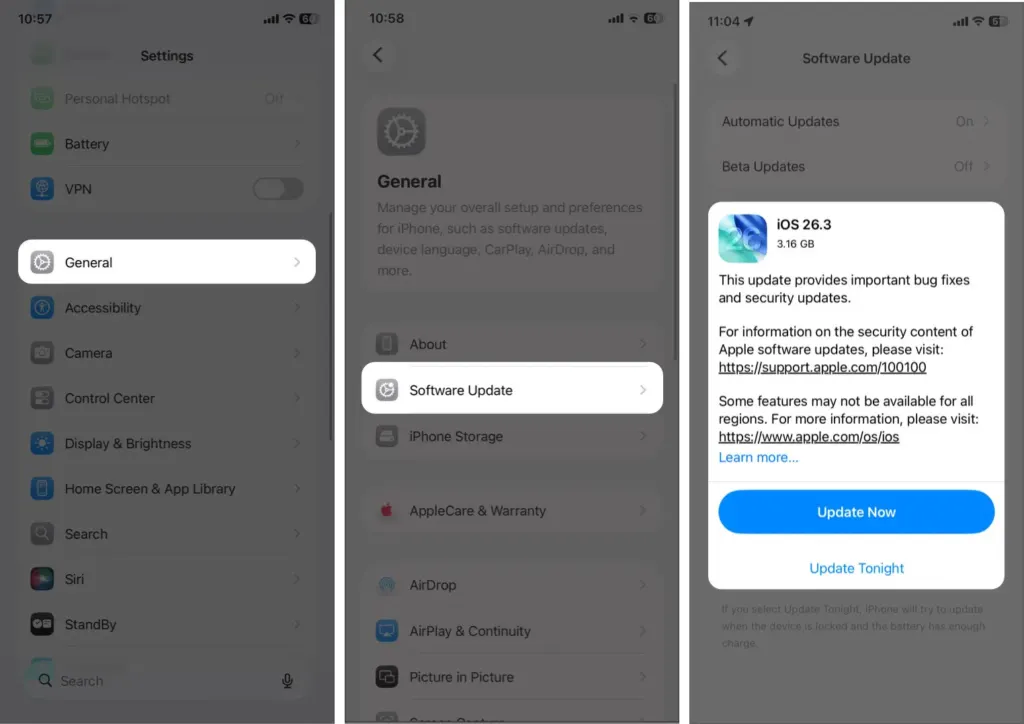
- If your phone has a SIM tray, take the tray out and put it back in.
- Go to Settings > General > Transfer or Reset iPhone > Reset > Reset Network Settings. This erases saved Wi-Fi passwords, VPN and APN settings, as our network reset guide explains.
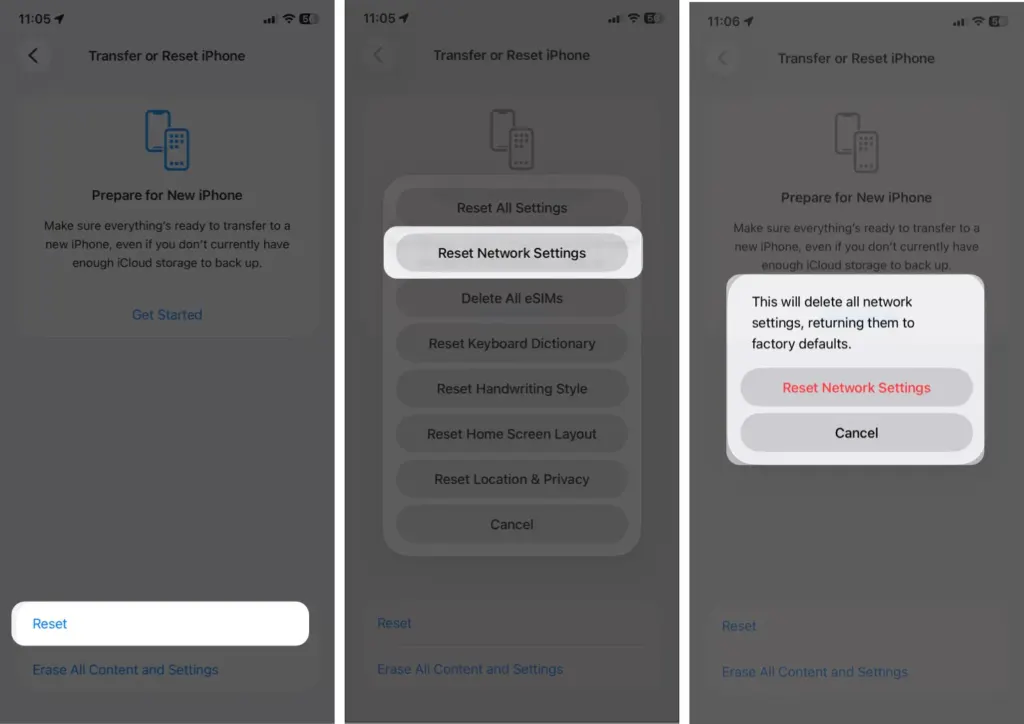
If the alert still shows, contact the new carrier, then Apple. For other SIM messages such as No SIM or Invalid SIM, see our guide to an iPhone SIM card that is not working, or the one on SIM failure.
A carrier lock is a small rule with a big effect, but it is one that can be lifted once the account meets the conditions. Check the lock status first and you will know quickly which kind of problem you have.