
Your apps keep freezing, an update fails again, and you’re tempted to wipe everything and start over. You may not need to go that far, since the right approach depends on what you want to keep. Three ways to reinstall Windows 11 are covered below, from the gentlest to a completely fresh start.
Table of Contents
Before you start
- Back up your files. Copy your Desktop, Documents, Pictures and Downloads folders to an external drive or OneDrive. Methods 2 and 3 can erase everything on your PC.
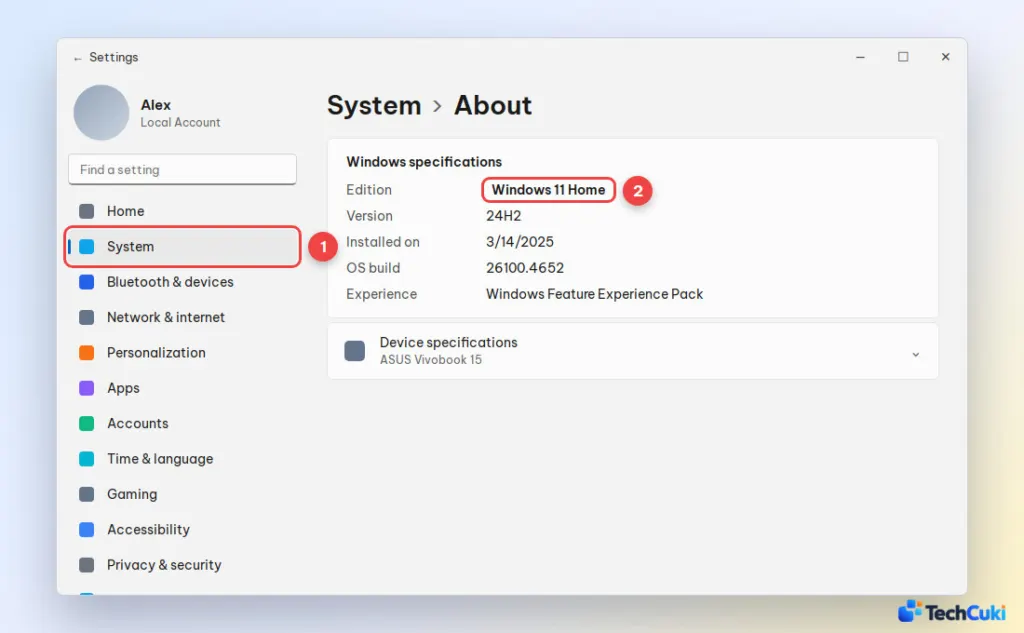
- Check your Windows edition. Go to Settings > System > About and look at Edition (Home or Pro). You need to reinstall the same edition so Windows activates automatically.
- Sign in with your Microsoft account so your digital license is linked to it. Windows will reactivate itself after the reinstall, and you won’t need a product key.
- Plug in your laptop and make sure you have a stable internet connection.
Which method should you use?
- Method 1 (Reinstall now): Windows is buggy, but you want to keep your files, apps and settings.
- Method 2 (Reset this PC): you want a fresh, clean Windows without needing a USB drive. It also works when Windows won’t start.
- Method 3 (USB clean install): your PC won’t boot at all, you installed a new SSD, or you want the cleanest possible install.
Method 1: Reinstall Windows 11 Without Losing Files or Apps
This option downloads a fresh copy of your current Windows 11 version through Windows Update and reinstalls it over the existing one. Your files, apps and settings stay exactly where they are. It’s available on Windows 11 version 23H2 and later.
- Press
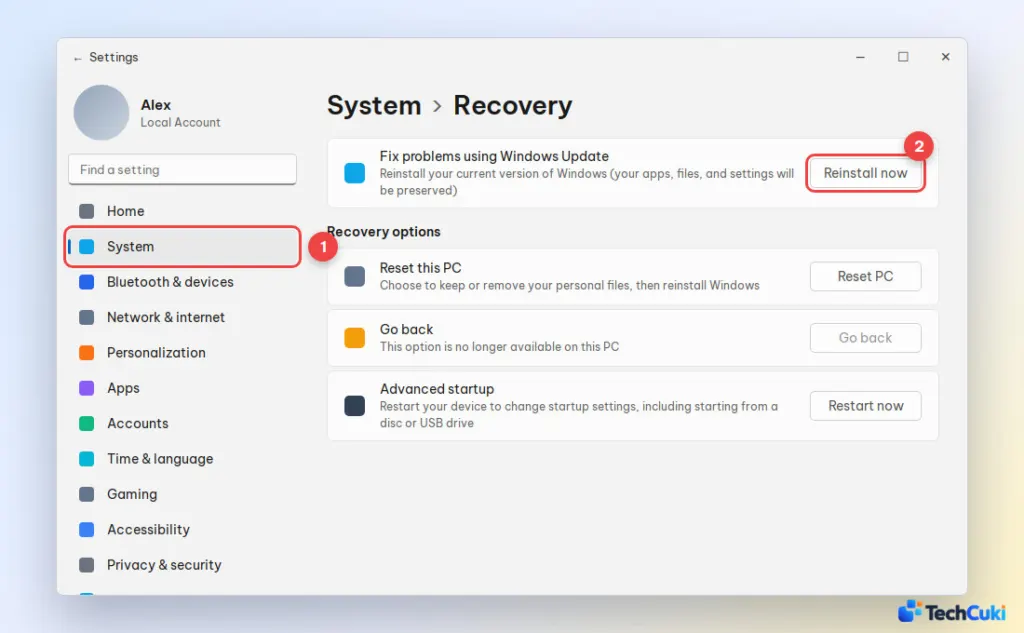
Windows + Ito open Settings and go to System > Recovery. Next to Fix problems using Windows Update, click Reinstall now.
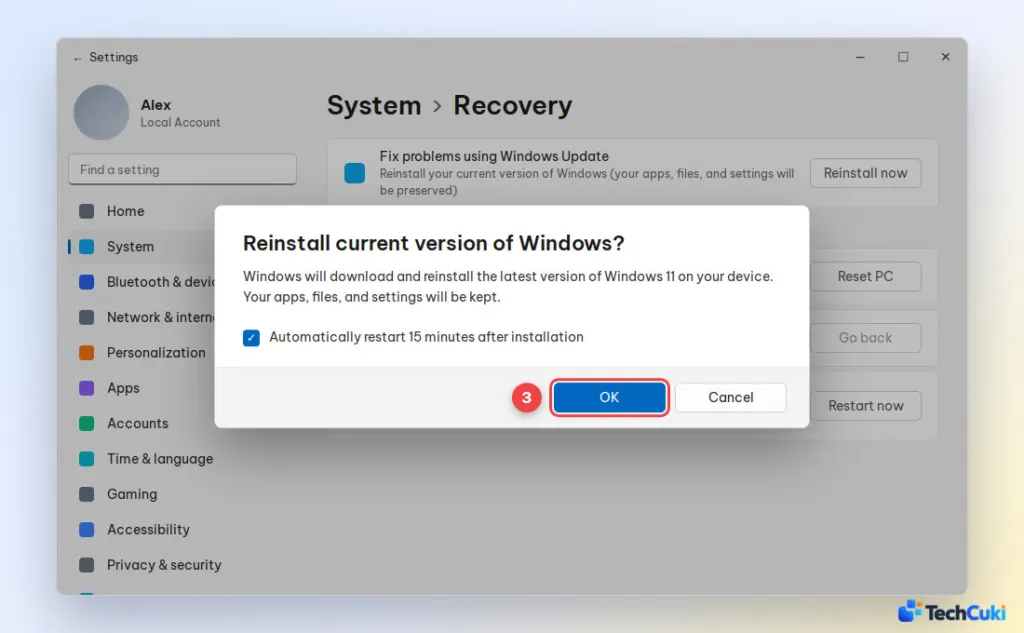
- Click OK to confirm. Windows downloads the files in the background and restarts to finish the reinstall.
If you don’t see this option, update Windows first or use Method 2 and choose Keep my files.
Method 2: Reinstall Windows 11 With Reset This PC
Reset this PC reinstalls Windows 11 from scratch without a USB drive. You can keep your personal files or remove everything for a completely clean PC. Either way, your installed apps are removed.
From Settings
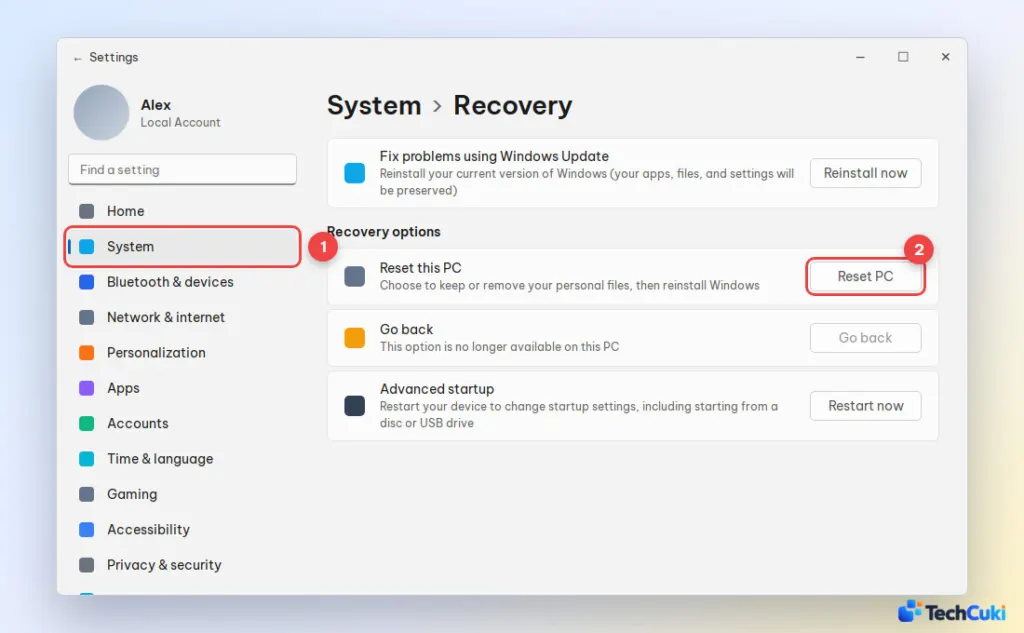
- Open Settings, go to System > Recovery and click Reset PC.
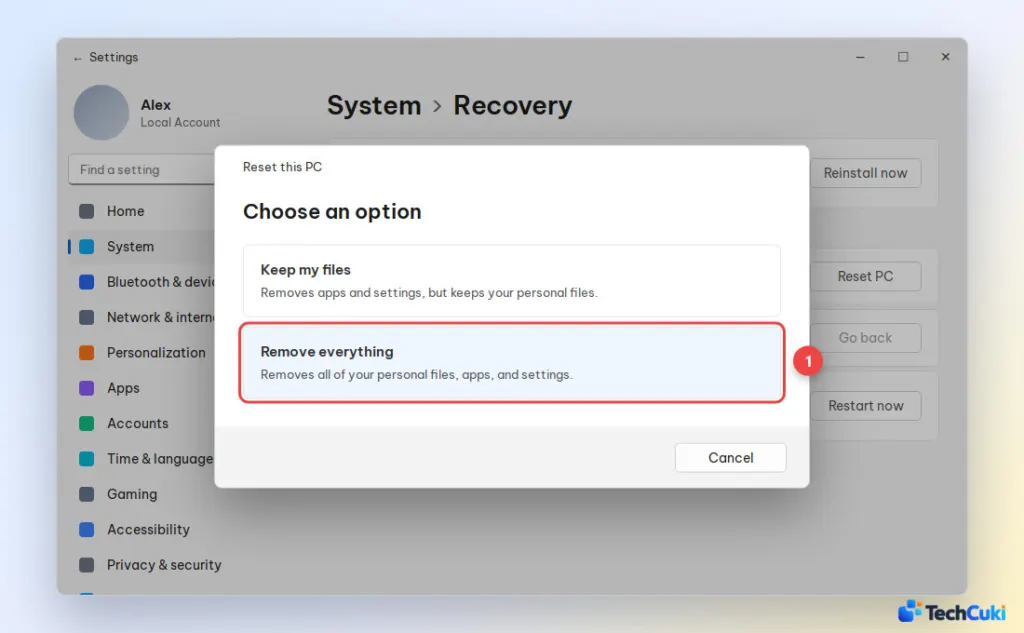
- Choose Keep my files to save your personal files, or Remove everything for a full clean reinstall.
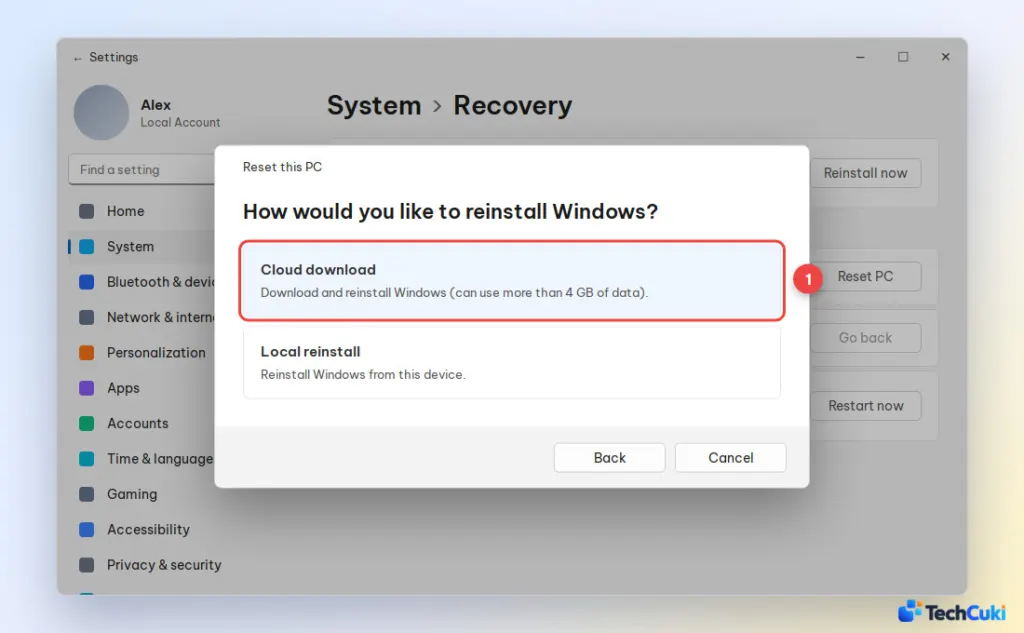
- Choose Cloud download to get a fresh copy of Windows 11 from Microsoft (recommended, needs about 4 GB of data). Choose Local reinstall to use the files already on your PC.
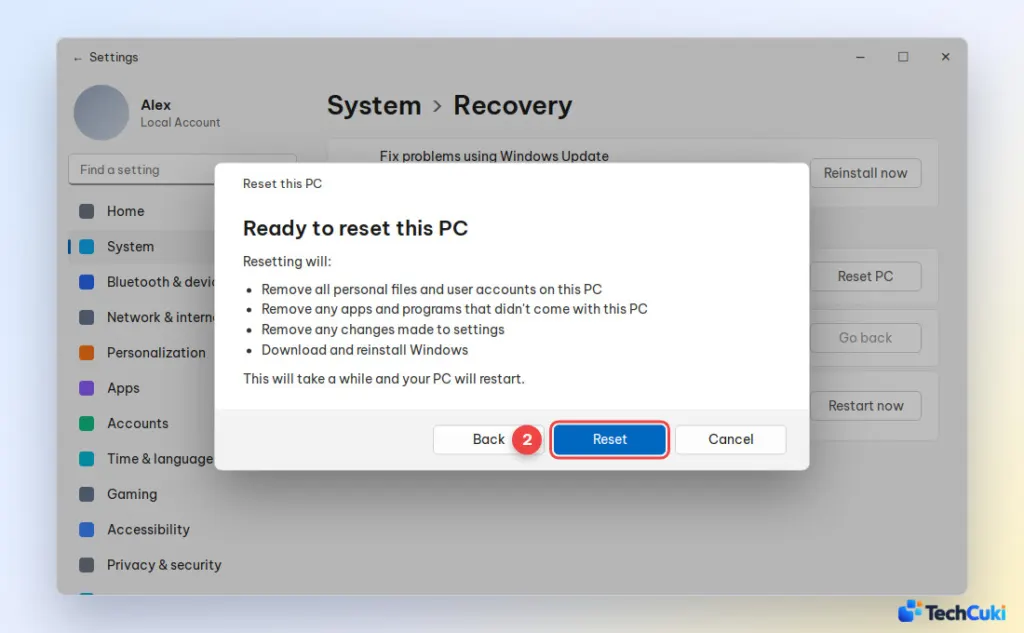
- Review the summary, click Next on the Additional settings screen, then click Reset. Your PC restarts and reinstalls Windows 11. This usually takes 30 to 90 minutes.
When Windows 11 won’t start
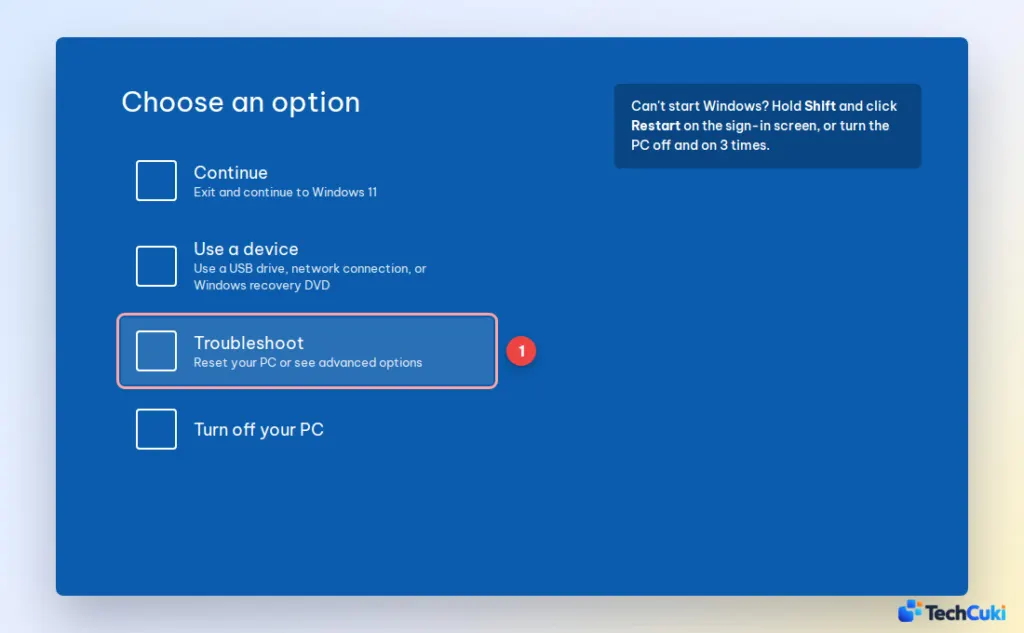
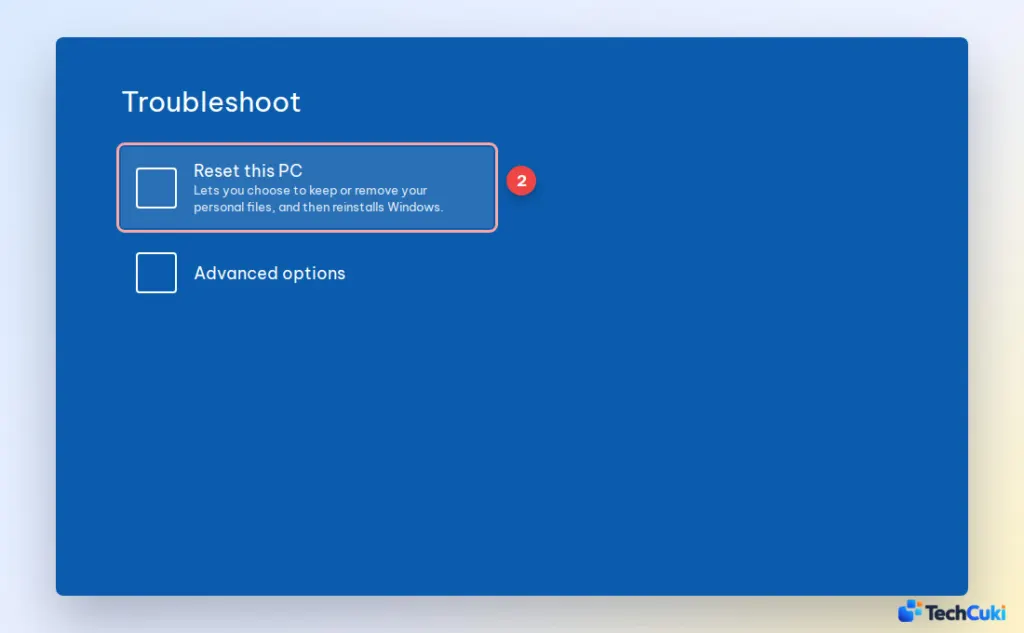
- On the sign-in screen, hold Shift and click Power > Restart. If you can’t reach the sign-in screen, turn your PC off and on 3 times in a row to open the recovery screen automatically. Then select Troubleshoot.
- Select Reset this PC, then follow the same choices as above: Keep my files or Remove everything, then Cloud download or Local reinstall.
Method 3: Clean Install Windows 11 From a USB Drive
A clean install wipes your drive and installs a brand-new copy of Windows 11. You need a USB flash drive with at least 8 GB (everything on it will be deleted) and a working PC to create it.
Step 1: Create a Windows 11 installation USB
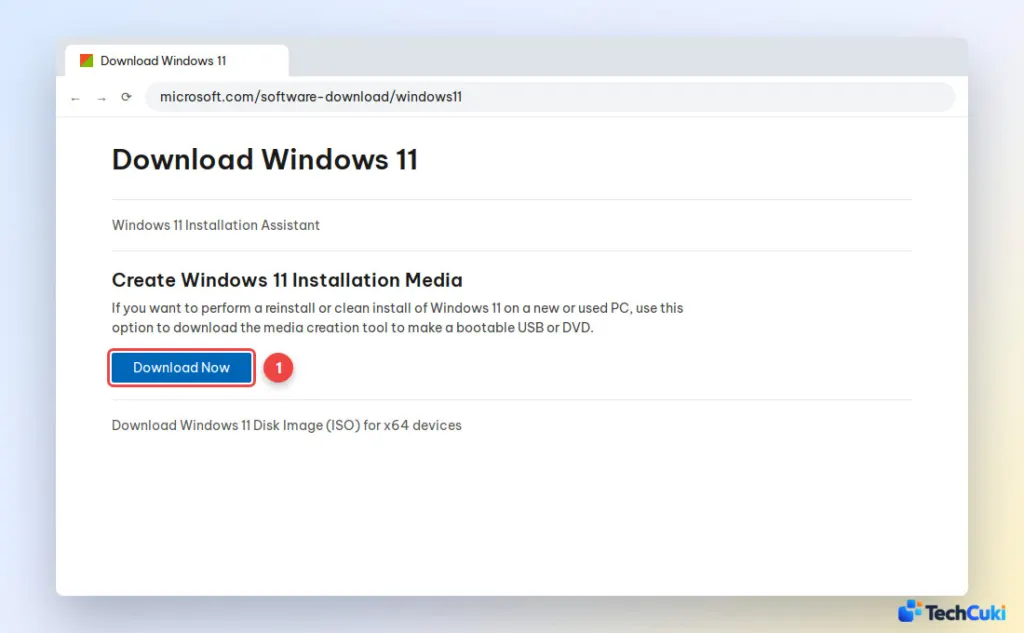
- Go to the official Windows 11 download page. Under Create Windows 11 Installation Media, click Download Now, then open the downloaded Media Creation Tool and accept the license terms.
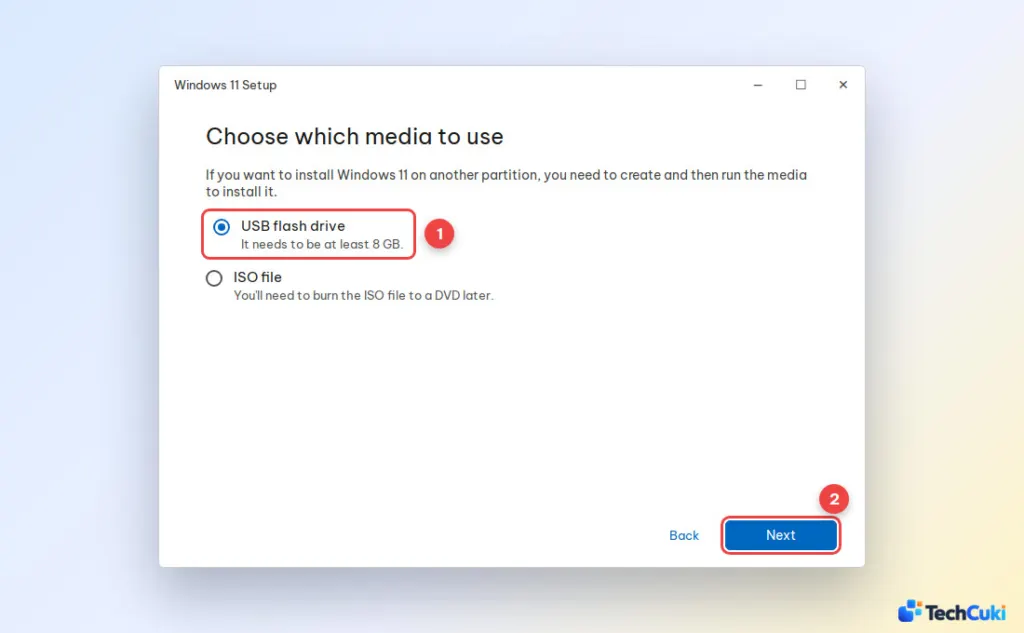
- Choose USB flash drive and click Next.
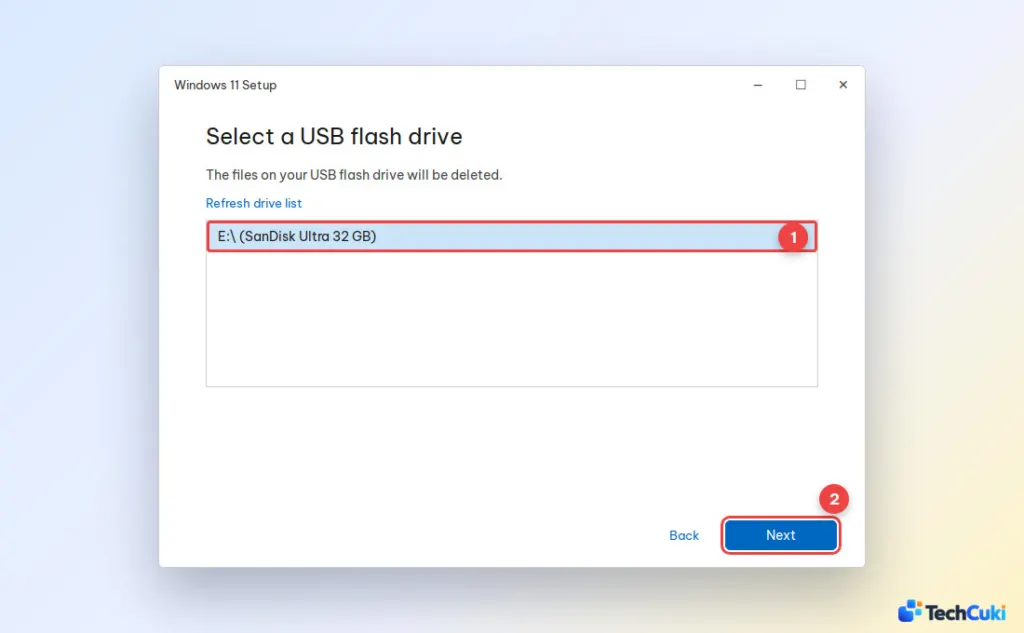
- Select your USB drive and click Next. The tool downloads Windows 11 and makes the drive bootable. When you see Your USB flash drive is ready, click Finish.
Step 2: Boot your PC from the USB drive
- Plug the USB drive into the PC you want to reinstall. Turn it on and immediately press the Boot Menu key over and over, then select the USB drive (usually listed as UEFI: [USB name]) and press Enter.
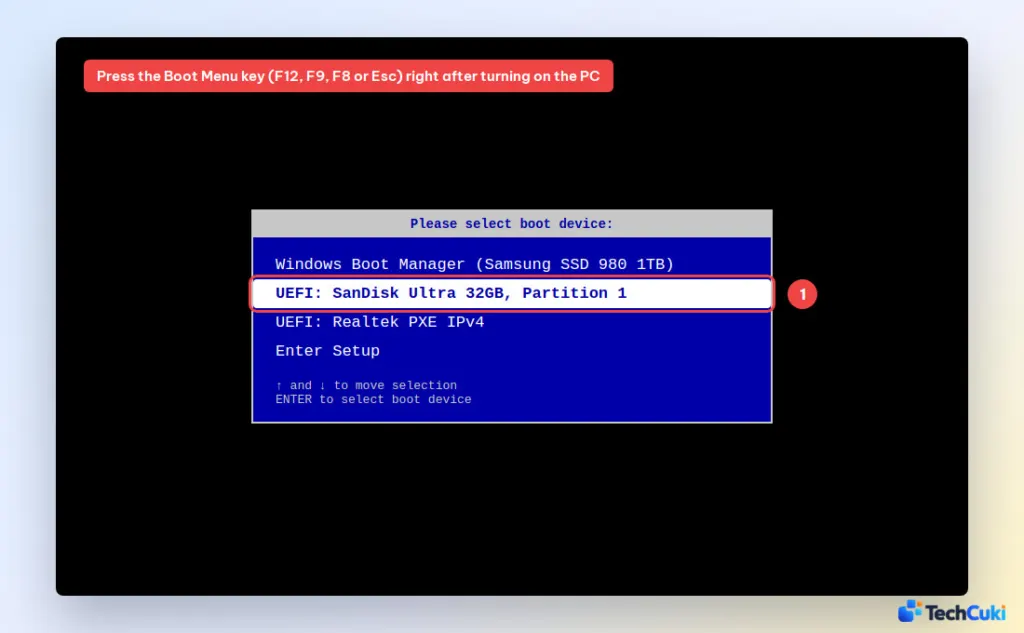
Boot Menu keys for popular brands:
- Dell, Lenovo, Acer, Gigabyte: F12
- HP: Esc, then F9
- ASUS: Esc (laptops) or F8 (desktops)
- MSI: F11
- Microsoft Surface: hold Volume Down, then press and release Power
Step 3: Install Windows 11
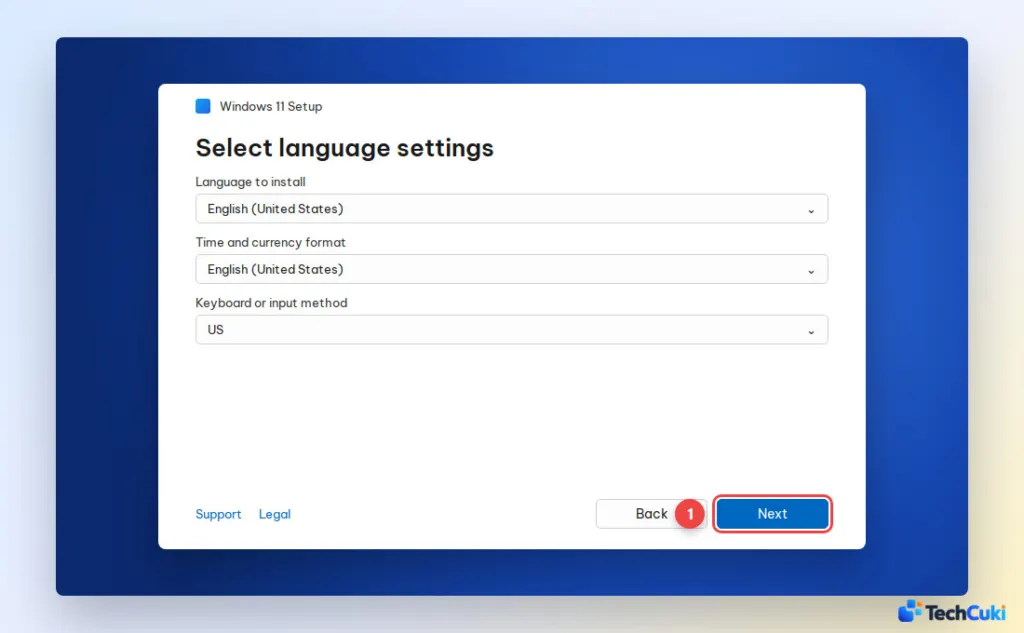
- Choose your language, time format and keyboard, then click Next.
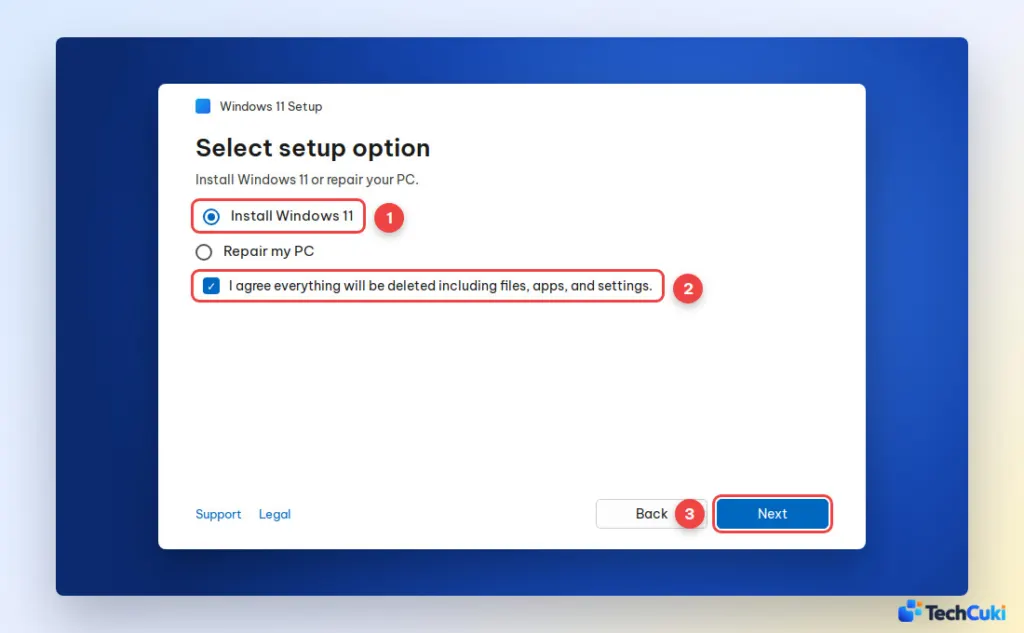
- Select Install Windows 11, check I agree everything will be deleted including files, apps, and settings, and click Next.
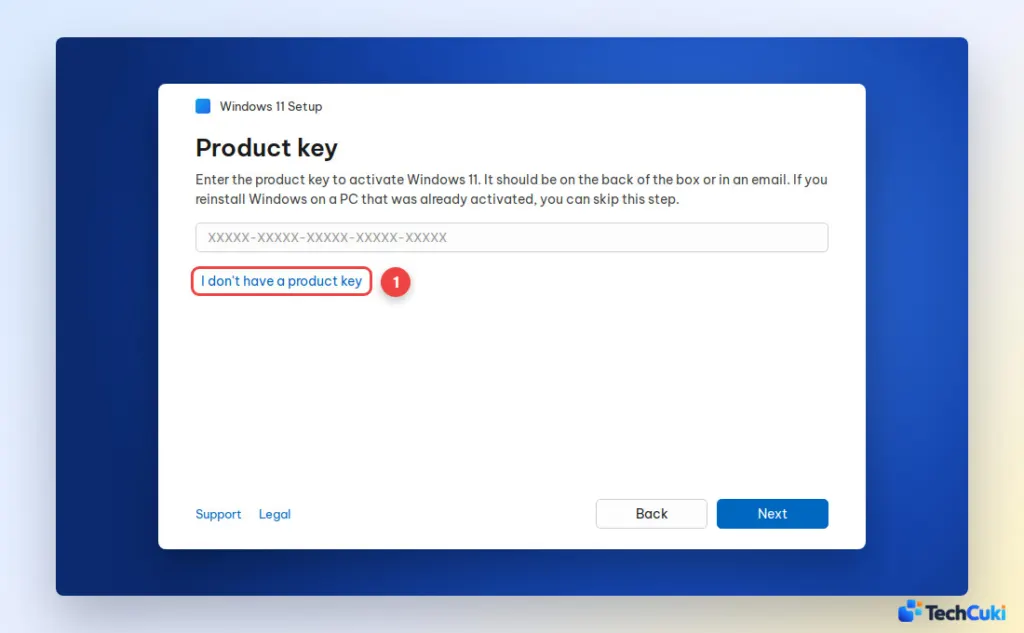
- On the Product key screen, click I don’t have a product key. If your PC was activated before, Windows activates itself after setup.
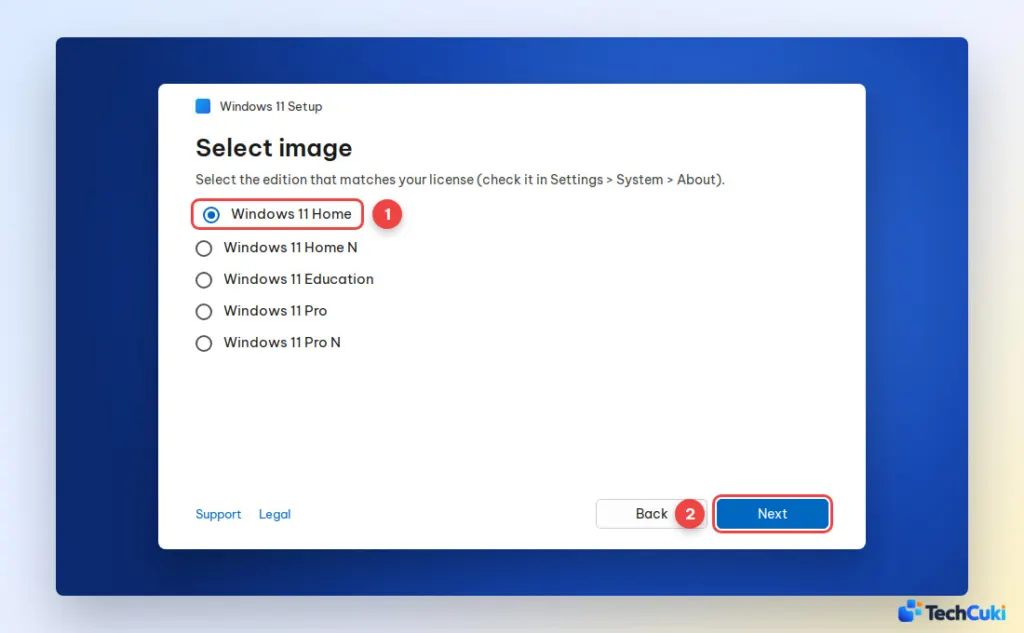
- Select the same edition you had before (for example, Windows 11 Home), click Next, then Accept the license terms.
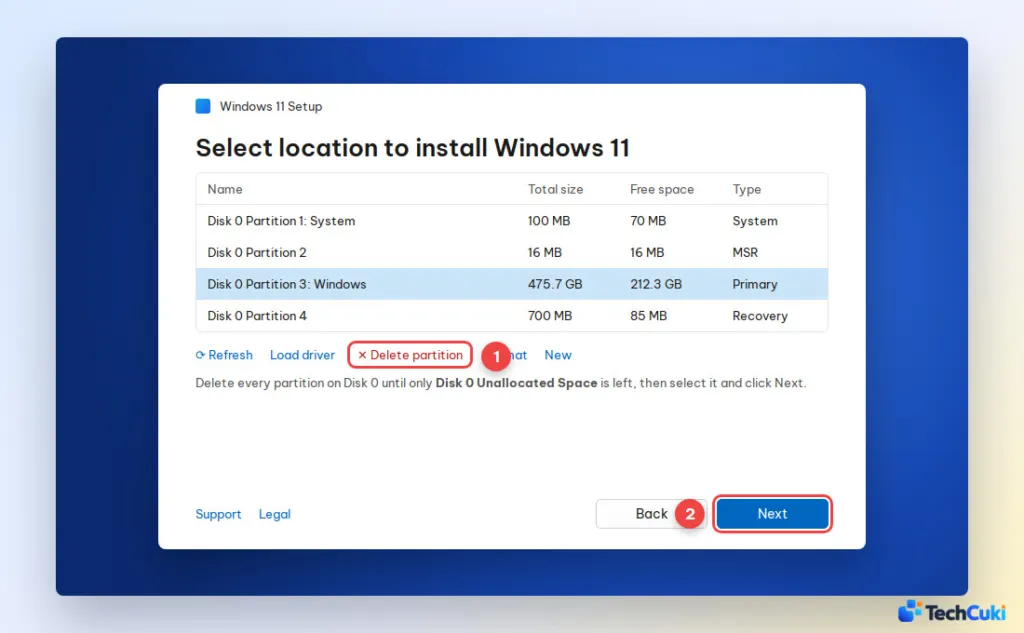
- Select each partition on Disk 0 and click Delete partition until only Disk 0 Unallocated Space is left. Select it and click Next. Don’t touch partitions on other disks (Disk 1, Disk 2), as they may hold your data.
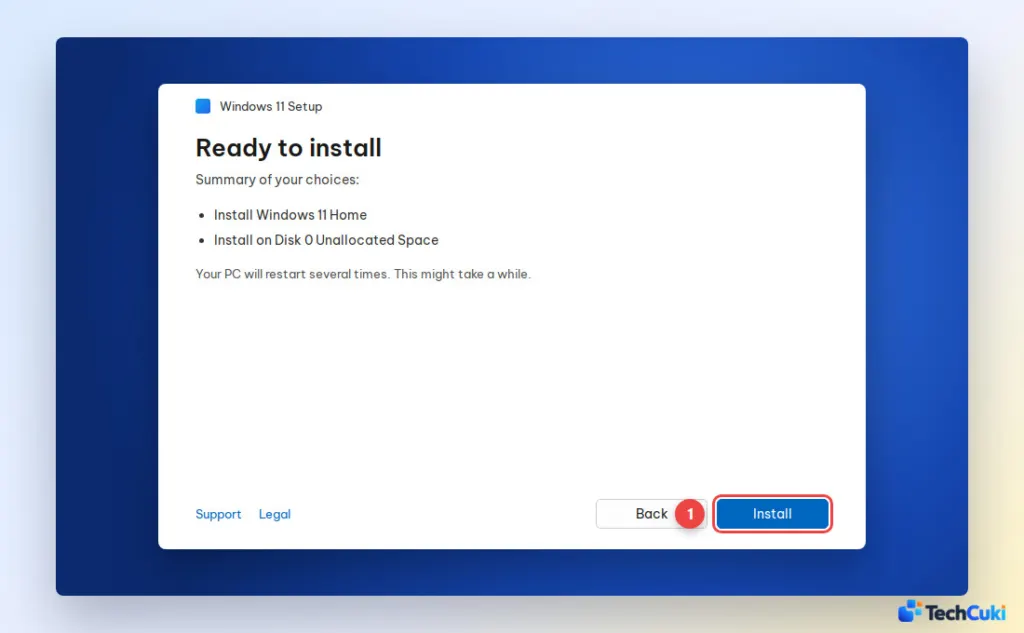
- Click Install. Your PC restarts several times. When setup finishes, choose your region and keyboard, connect to Wi-Fi and sign in with your Microsoft account.
After reinstalling Windows 11
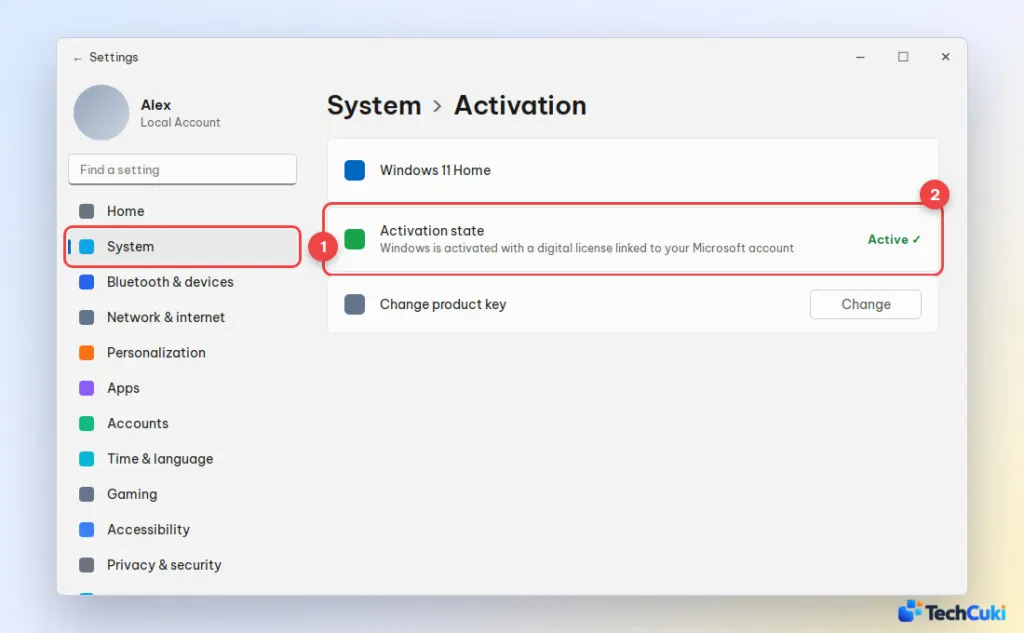
- Check activation: go to Settings > System > Activation and make sure it says Active. If not, connect to the internet and wait a few minutes, or run the Activation troubleshooter.
- Install updates and drivers: go to Settings > Windows Update, click Check for updates, and install everything, including optional driver updates.
- Restore your files from your backup and reinstall only the apps you need.
- Keep it fast: turn off apps you don’t need at startup and close background apps on Windows 11 that drain memory and battery.
Will Reinstalling Windows 11 Delete Everything?
It depends on the method. Reinstall now keeps everything. Reset this PC > Keep my files keeps your personal files but removes apps and settings. Remove everything and a USB clean install erase all files, apps and settings on the drive, so always back up first. Your Windows license is not lost in any case, as long as you reinstall the same edition.
A fresh install can clear up problems that nothing else fixes, and it pays to back up anything important first. Once Windows is back, get your PC fully up to date and, if a device still misbehaves, update its drivers in Windows 11.


