
A nearly full drive slows Windows down, and it can stop updates from installing. Space usually disappears into a handful of big items, and some of the largest are not where most people look. The eight ways to free up disk space on Windows 11 below range from built-in cleanup tools to moving files elsewhere.
Table of Contents
- Check How Much Space You Have Left
- Free Up Disk Space on Windows 11 With Cleanup Recommendations
- Turn On Storage Sense
- Delete Old System Files With Disk Cleanup
- Find and Delete Large Files
- Use OneDrive Files On-Demand
- Uninstall Apps and Games You Don’t Use
- Save New Files to Another Drive
- Turn Off Hibernation to Delete hiberfil.sys
- Which Method to Try First, and What If Space Is Still Tight
Check How Much Space You Have Left
A 64-bit Windows upgrade needs at least 20 GB free, so treat that as the floor. If the PC also feels slow, our guide to speeding up Windows 11 covers the other causes.
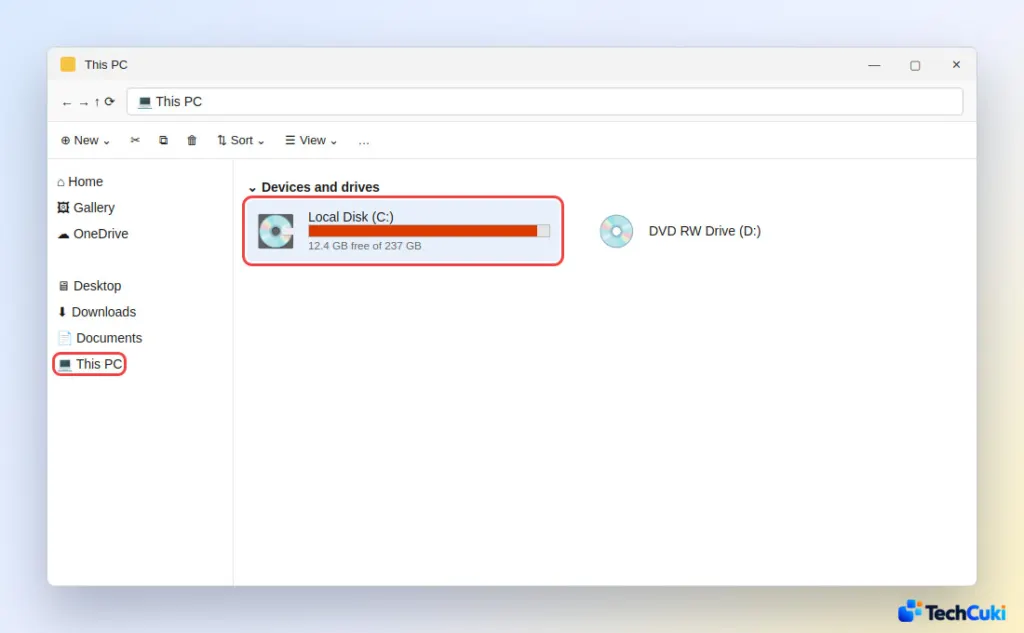
- Open File Explorer and click This PC. Free space for each drive appears under Devices and drives.
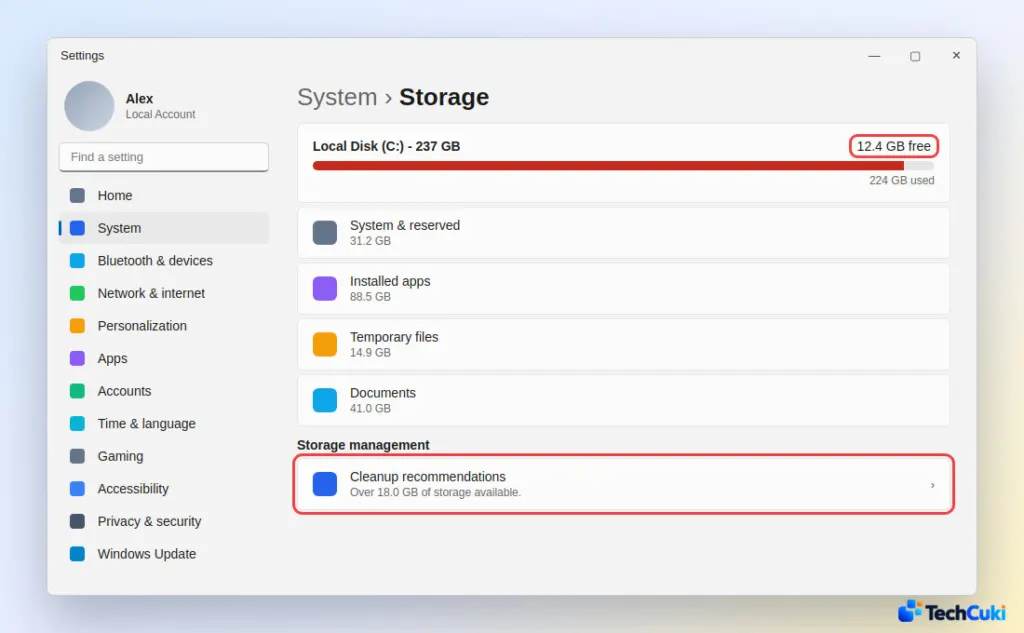
- Go to Settings > System > Storage. Space is grouped by category, such as System & reserved, Installed apps, Temporary files and Documents, which tells you which of the methods below will pay off most.
1. Free Up Disk Space on Windows 11 With Cleanup Recommendations
Cleanup recommendations lists what Windows considers removable and lets you review each group before anything is deleted, so it is the safest place to start.
- Open Settings > System > Storage.
- Click Cleanup recommendations.
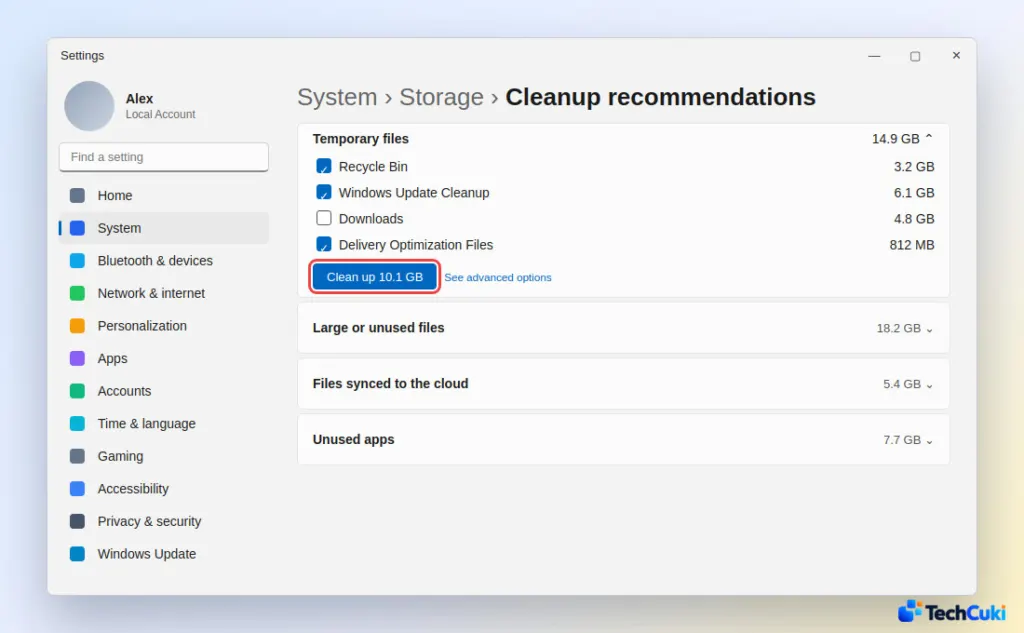
- Review Temporary files, Large or unused files, Files synced to the cloud and Unused apps. Tick what you want gone, then click Clean up for each section. Windows shows the space you will save before you confirm.
Read the Downloads box carefully, because ticking it deletes everything in your Downloads folder. If you upgraded Windows fewer than 10 days ago, Previous Windows installation(s) (the Windows.old folder) also appears. Removing it frees a lot of space, but it cannot be undone and you lose the option to roll back to the previous version.
2. Turn On Storage Sense
Storage Sense keeps temporary files and old Recycle Bin items from piling up again, so it helps more next month than today.
- Go to Settings > System > Storage and click Storage Sense.
- Turn on Automatic User content cleanup.
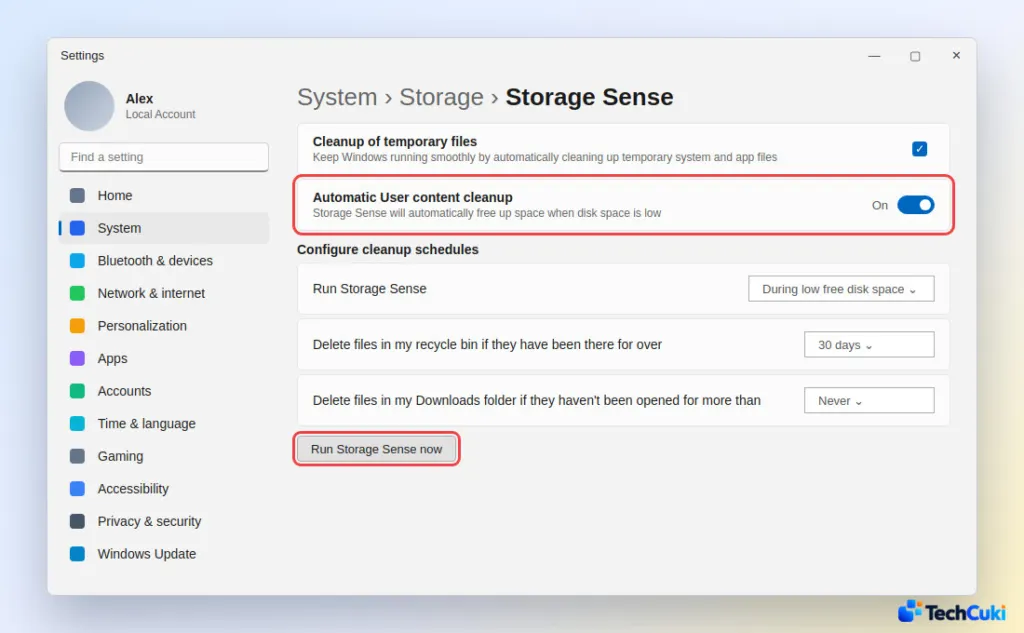
- Choose when it runs, such as During low free disk space.
- Set how long files stay in the Recycle Bin, such as 30 days.
- Check the Downloads setting. It is Never by default, so leave it that way if you keep installers there.
- Click Run Storage Sense now to clean immediately.
3. Delete Old System Files With Disk Cleanup
Disk Cleanup reaches leftovers that the Settings page does not list one by one, and its system files mode often removes several GB of old update data.
- Search for Disk Cleanup in the Start menu and open it.
- Pick drive C: and click Clean up system files.
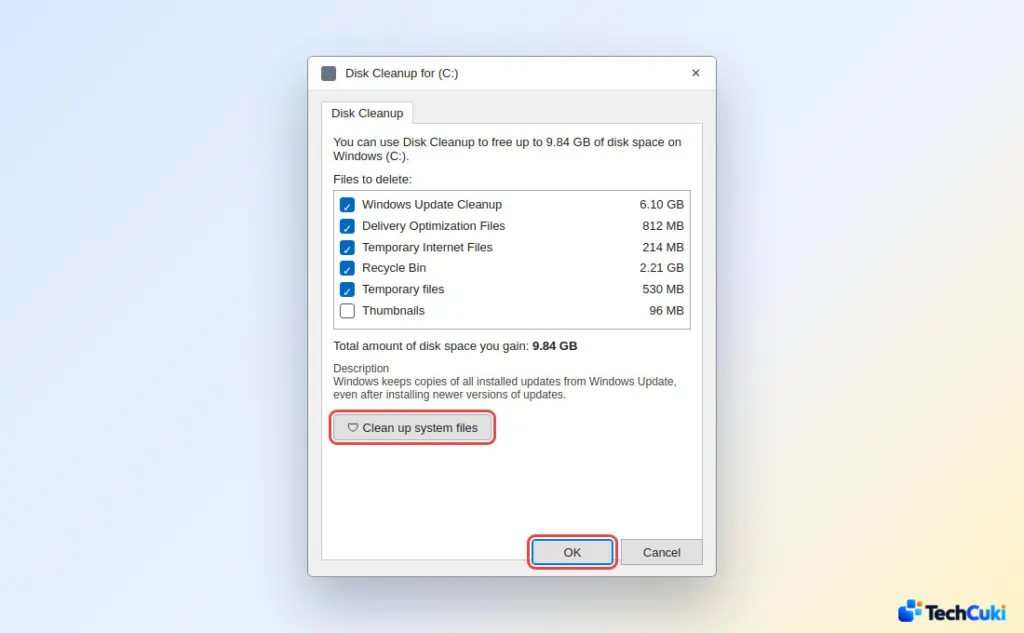
- Tick Windows Update Cleanup, which holds old copies of installed updates, and Delivery Optimization Files.
- Click OK, then Delete Files.
If you still get a Low Disk Space error right after cleaning, the Temp folder may be refilling with Microsoft Store app (.appx) files. Press Windows + R, run wsreset.exe to clear the Store cache, then restart. The Windows Update troubleshooter is the other fix Microsoft lists for this.
4. Find and Delete Large Files
Downloads, Videos, Pictures and Music are usually the largest folders, and sorting by size puts the worst offenders on top.
- Open File Explorer and go to Downloads, Videos, Pictures or Music.
- Click View > Details, then right-click empty space and choose Sort by > Size.
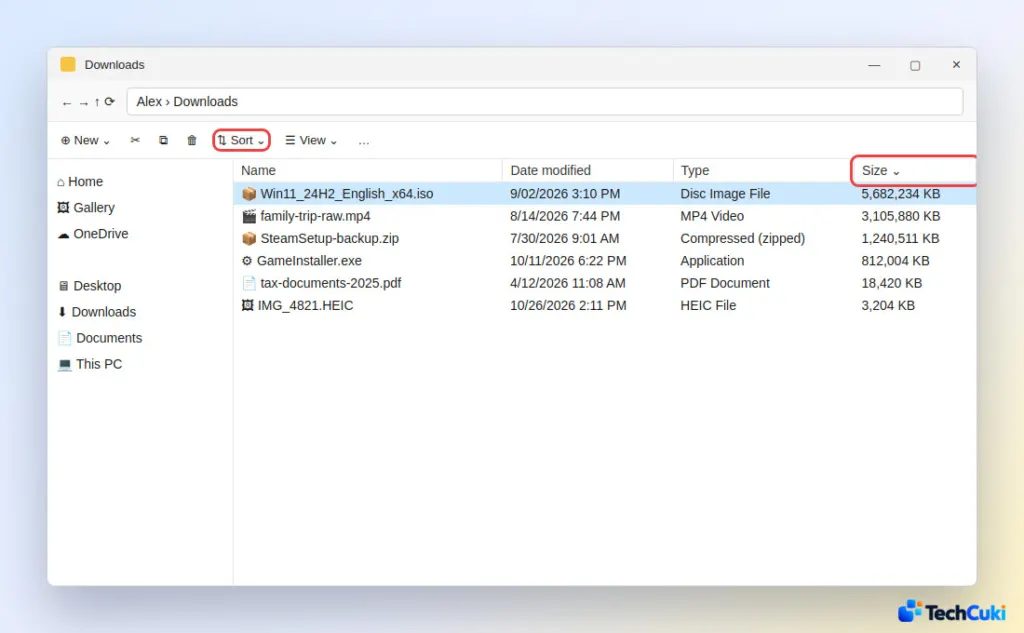
- Delete what you do not need, or move it to a USB drive, SD card or external drive.
- Empty the Recycle Bin, because deleted files keep using space until you do.
To catch big files outside those four folders, type size:Gigantic in the File Explorer search box (files over 4 GB; the capital G is required), then try size:Huge for 1 to 4 GB. Old virtual machine disks and forgotten video exports tend to turn up this way.
5. Use OneDrive Files On-Demand
Files On-Demand keeps every file visible in File Explorer but stores only a small placeholder until you open it.
- Right-click a OneDrive folder or file.
- Click Free up space. The opposite choice is Always keep on this device.
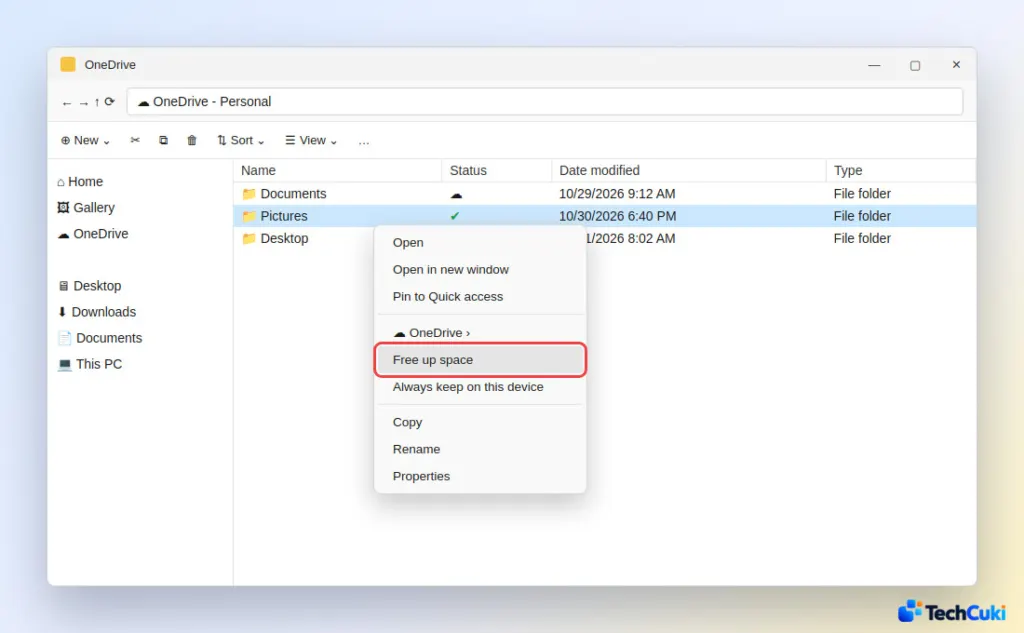
Online-only files need an internet connection to open.
6. Uninstall Apps and Games You Don’t Use
Games are often the biggest installs, so check them first. Our guide to uninstalling apps on Windows 11 has the full steps.
- Go to Settings > Apps > Installed apps.
- Set the sort to Size (large to small).
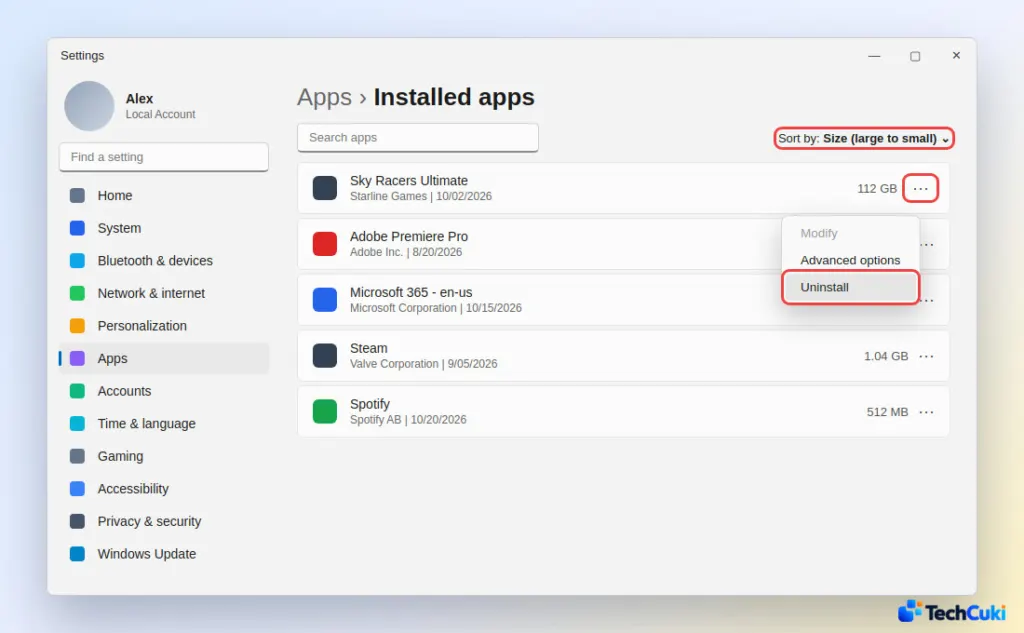
- Click the three dots (…) next to an unused app, then click Uninstall.
7. Save New Files to Another Drive
This will not free anything that is already on the drive, but it stops new documents, photos and apps from landing on it.
- Go to Settings > System > Storage > Advanced storage settings.
- Click Where new content is saved.
- Pick another drive for new documents, music, photos, videos and apps.
8. Turn Off Hibernation to Delete hiberfil.sys
The hibernation file (hiberfil.sys) can take several GB, and turning hibernation off removes it. This suits desktops best, since laptops may rely on it.
- Open Command Prompt as administrator.
- Run
powercfg /h off. This also disables Fast Startup.
Run powercfg /h on to bring both back.
Which Method to Try First, and What If Space Is Still Tight
| Situation | Start with |
|---|---|
| Update says it needs more space | Cleanup recommendations, then Disk Cleanup |
| Cannot tell what is using space | Storage page categories, then size:Gigantic |
| Small SSD that keeps filling | Storage Sense, OneDrive Files On-Demand, another save location |
| Desktop that never uses hibernation | Turn off hibernation |
As a last resort, Windows can compress its own files with compact /compactos:always from an elevated Command Prompt, though the saving is usually only a few GB. Compressing whole folders through Properties > Advanced saves more but slows the PC, because files are decompressed each time they open. If a feature update still complains about space, Windows can use an external drive to finish it.
Most of the space comes back from a few big items rather than hundreds of small files, so a short cleanup goes a long way. On a hard drive rather than an SSD, our guide to defragging Windows 11 is the sensible next step.


