
A widgets panel that pops up when you did not ask for it is a small annoyance that keeps coming back. Hiding the button is only part of the story, so what works best depends on if you want the button gone or the feature switched off entirely. The sections below cover how to disable widgets in Windows 11 with several methods, from simple to more advanced.
Table of Contents
Which Method Fits Your Case
Widgets are small panels for weather, news, stocks and calendar, and the taskbar button usually shows the current weather.
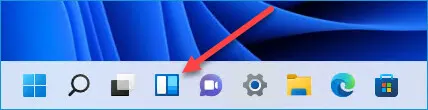
1. Disable Widgets in Windows 11 From Taskbar Settings
This is the quickest route, and it is fully reversible with the same toggle.
- Right-click an empty spot on the taskbar and select Taskbar settings.

- Under Taskbar items, turn Widgets off.
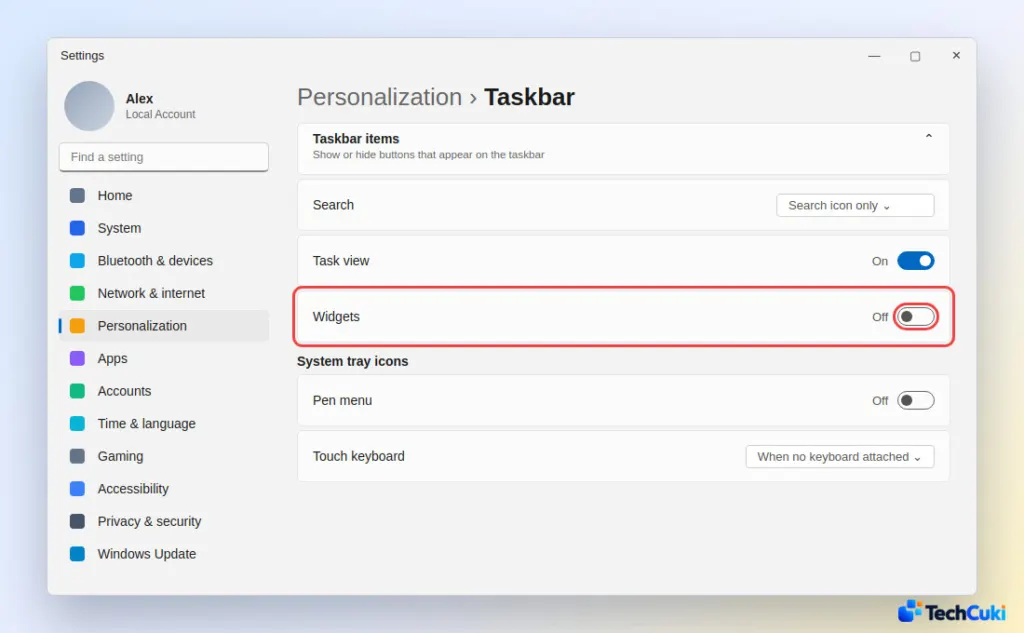
Only the icon disappears, so Windows + W still opens the board and the feature keeps running in the background. For the same result through the registry, open regedit and go to HKEY_CURRENT_USER\Software\Microsoft\Windows\CurrentVersion\Explorer\Advanced. Set the TaskbarDa DWORD to 0 (create it if it is missing) and restart or sign out. Back up the registry first, since a wrong edit there can cause problems.
2. Remove Widgets From the Lock Screen
The lock screen has its own widgets setting, separate from the taskbar toggle.
- Open Settings and go to Personalization > Lock screen.
- Under Lock screen status, choose None.
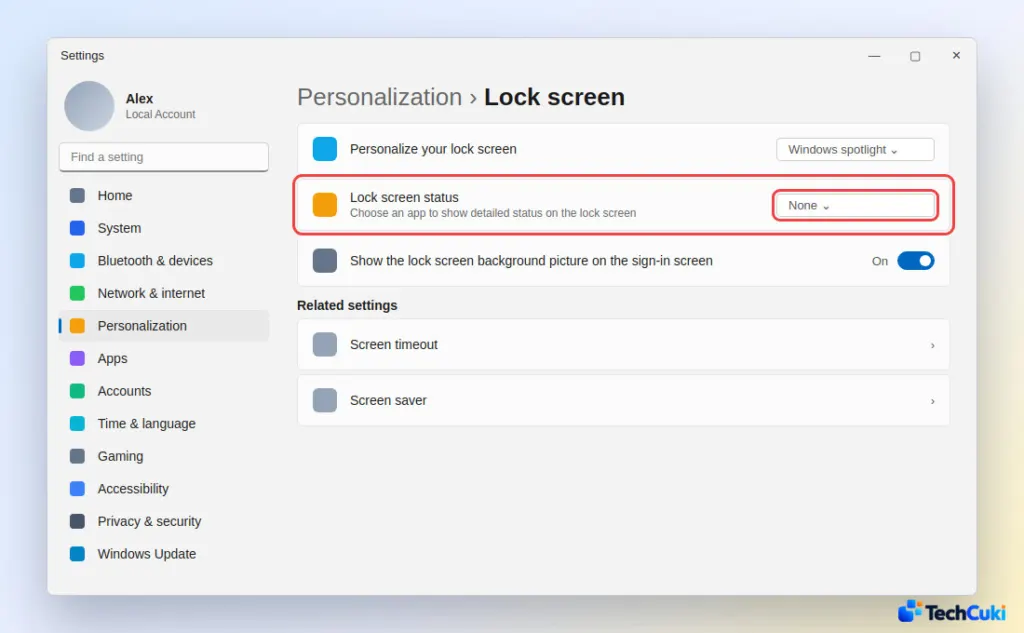
That option appears only on Windows 11 build 26100.3624 and later, and only in some regions. On older builds, look for a Widgets or “Weather and more” entry on the same page and turn it off there.
3. Disable Widgets in Windows 11 With Group Policy
This policy turns off the whole feature, and it also stops anyone from switching widgets back on in Settings. It exists only on Windows 11 Pro, Enterprise and Education, so Home users should go to method 4.
- Press
Windows + R, typegpedit.mscand press Enter. - Go to Computer Configuration > Administrative Templates > Windows Components > Widgets, then double-click Allow widgets.
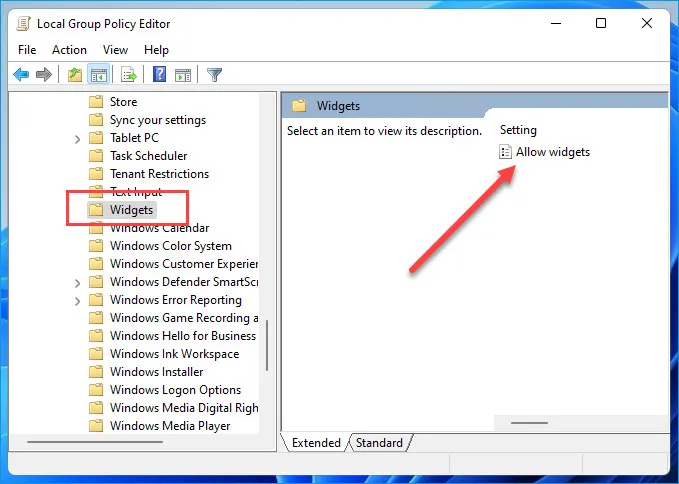
- Set the option to Disabled and click OK.
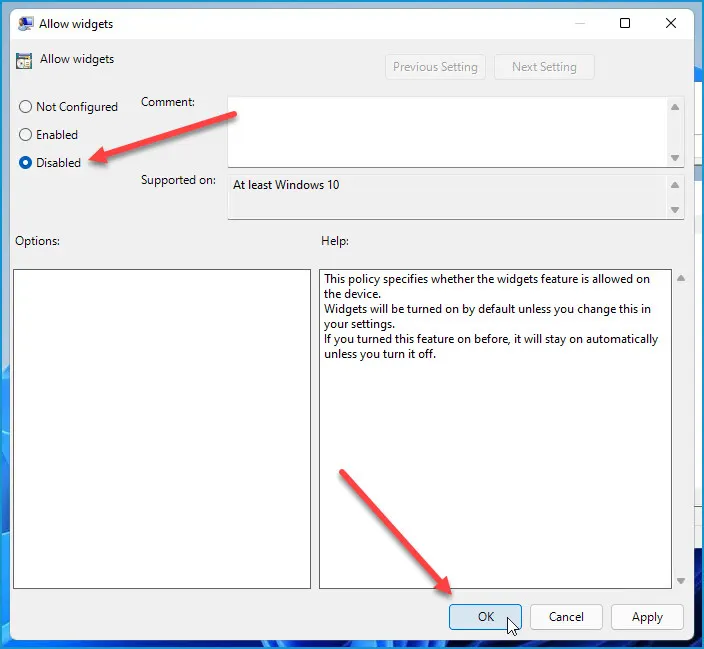
Restart, sign out and back in, or run gpupdate /force in Command Prompt to apply it. To undo it, set the policy back to Not Configured.
4. Uninstall Widgets Completely
Widgets run on the Windows Web Experience Pack app, so uninstalling that app removes the feature on any edition, Home included.
- Open PowerShell or Terminal as administrator.
- Run
winget uninstall "Windows Web Experience Pack". An alternative that matches the package by name isGet-AppxPackage *WebExperience* | Remove-AppxPackage.
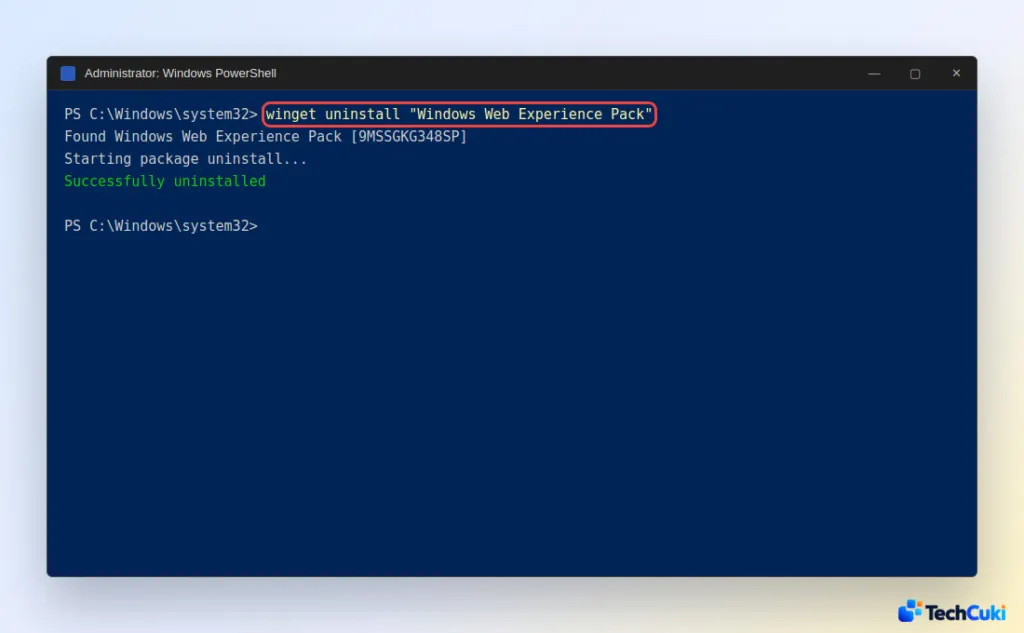
Restart afterward. To bring widgets back, reinstall Windows Web Experience Pack from the Microsoft Store.
Most people need only the lightest option, and the heavier methods are there for anyone who wants the feature fully gone. Nothing here is permanent, so each change can be undone where you made it. If you are trimming the system further, removing bloatware from Windows 11 is a sensible next step.


