
Waiting on a Windows update that never seems to arrive is frustrating, especially when you are not sure what is holding it up. Updates reach PCs in different ways and at different times, so what you see can differ from a friend’s machine. You will find several ways to update Windows 11 here, along with what to do when an update refuses to install.
Table of Contents
- Update Windows 11 Through Windows Update
- Install the Latest Feature Update (Version 26H2)
- Install 26H2 Manually With the Enablement Package
- Install Optional and Driver Updates
- Download Updates From the Microsoft Update Catalog
- What to Do If Windows 11 Won’t Update
- Can I Still Upgrade Windows 10 to Windows 11 for Free?
1. Update Windows 11 Through Windows Update
Windows checks for updates by itself, but a manual check pulls down whatever is waiting right now.
- Open Start and select Settings.
- Select Windows Update in the left sidebar, then click Check for updates.
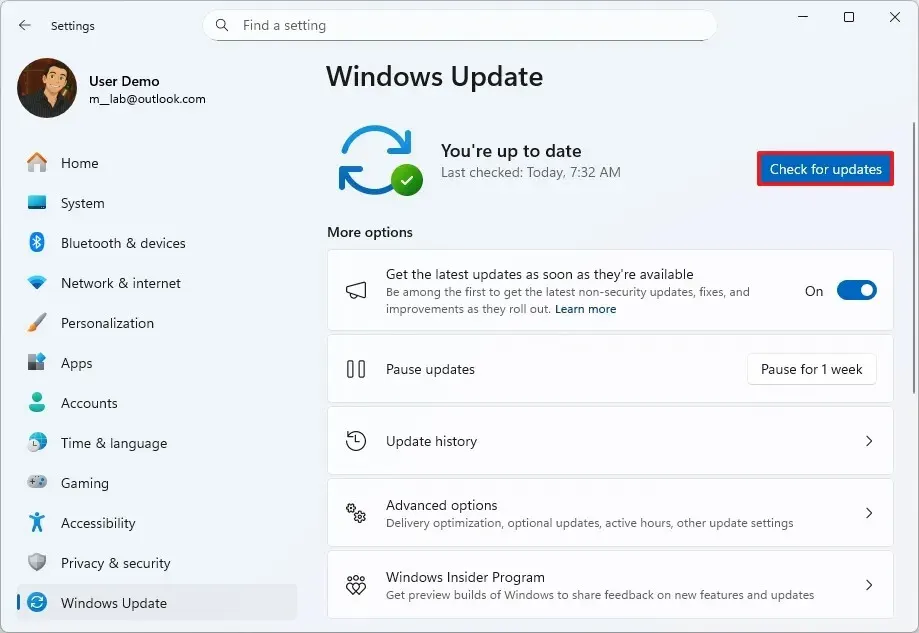
- If updates are listed, click Download & install.
- When prompted, click Restart now. Most updates only finish after the restart, so the page keeps showing “Restart required” until you do.
To receive non-security updates and features before the general rollout, turn on Get the latest updates as soon as they’re available on the same page. To keep restarts away from work hours, set active hours there too.
2. Install the Latest Feature Update (Version 26H2)
If your PC is eligible, version 26H2 shows up as a banner on the Windows Update page. It arrives as a small enablement package that needs one restart, brings few visible changes, and gives Home and Pro editions 24 months of support.
- On the Windows Update page, click Check for updates.
- Look for the banner “Windows 11, version 26H2 is available” and click Download & install.
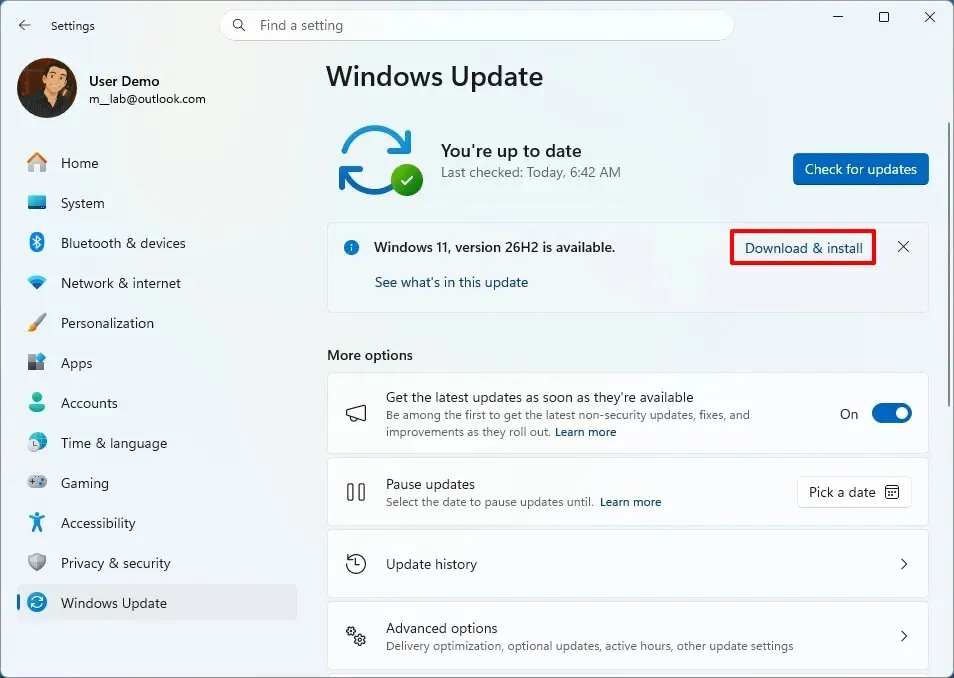
- Click Restart now when prompted.
No banner means the rollout hasn’t reached your PC yet. You can skip the wait with the Windows 11 Installation Assistant, or install the enablement package yourself as described next.
3. Install 26H2 Manually With the Enablement Package
The KB5121794 enablement package works only on PCs running 25H2 or 24H2 with the latest cumulative update already installed. Because it only switches on features that are already in the system files, it installs far faster than a full feature update.
- Download the KB5121794
.msufile from the Microsoft Update Catalog, using the catalog steps in section 5. - Open File Explorer and double-click the downloaded file, such as
Windows11.0-KB5121794-x64.msu.
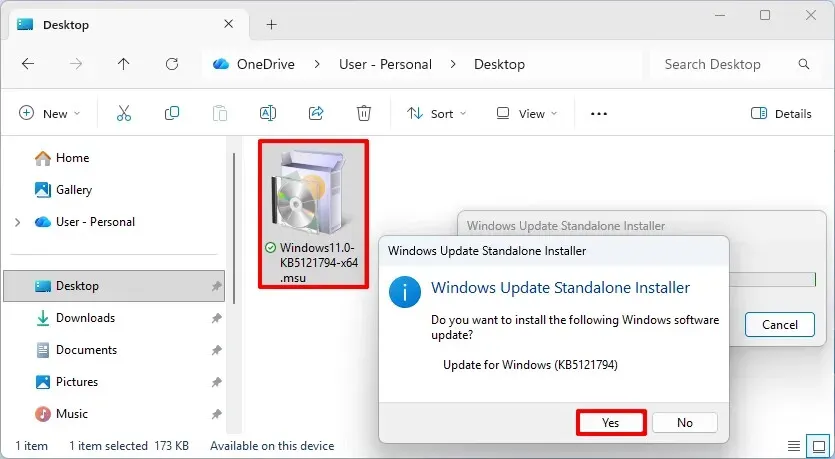
- When the Windows Update Standalone Installer asks whether to install the update, click Yes.
- Restart your PC after the installation finishes.
4. Install Optional and Driver Updates
Optional updates include driver updates and preview fixes. Install a driver from here only when a device is misbehaving, because a working driver rarely gains anything from a newer one.
- On the Windows Update page, click Advanced options.
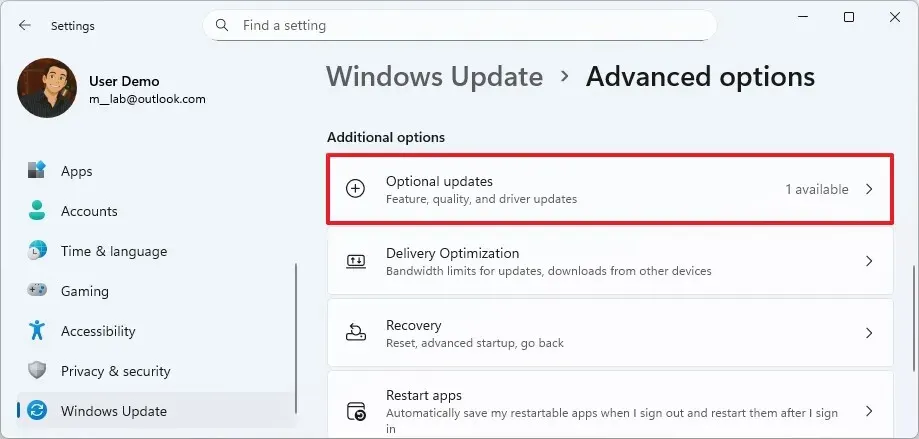
- Under Additional options, click Optional updates.
- Expand Driver updates and tick the driver you need.
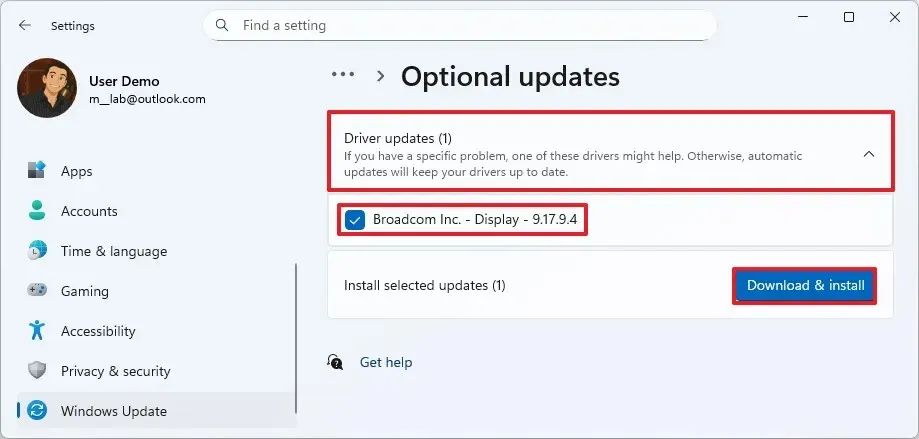
- Click Download & install.
5. Download Updates From the Microsoft Update Catalog
The Update Catalog serves any update as an .msu file by its KB number, which helps when Windows Update isn’t offering a specific one.
- Go to catalog.update.microsoft.com and search for the update’s KB number.
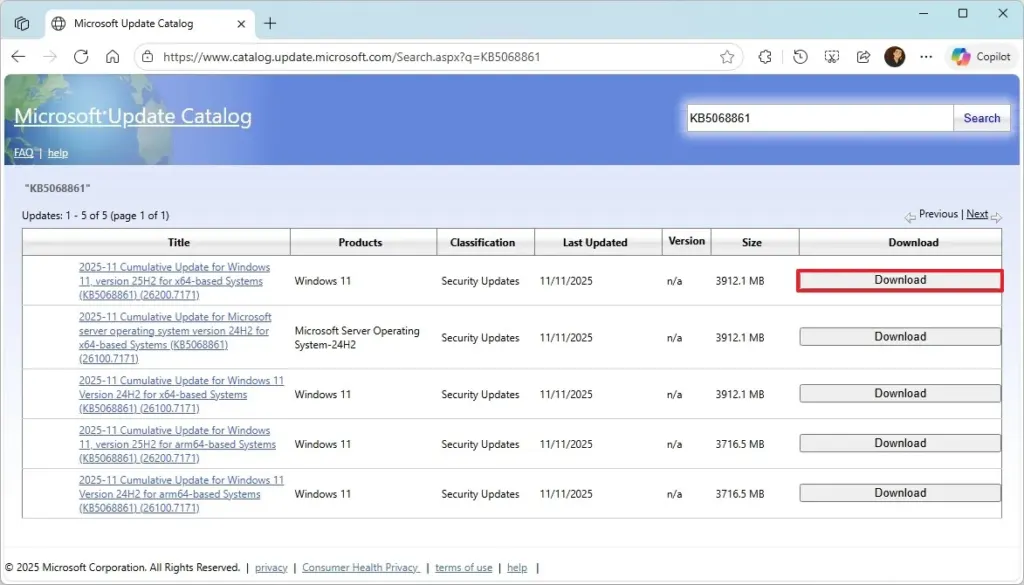
- Click Download next to the version that matches your Windows 11 version and architecture (x64 or arm64).
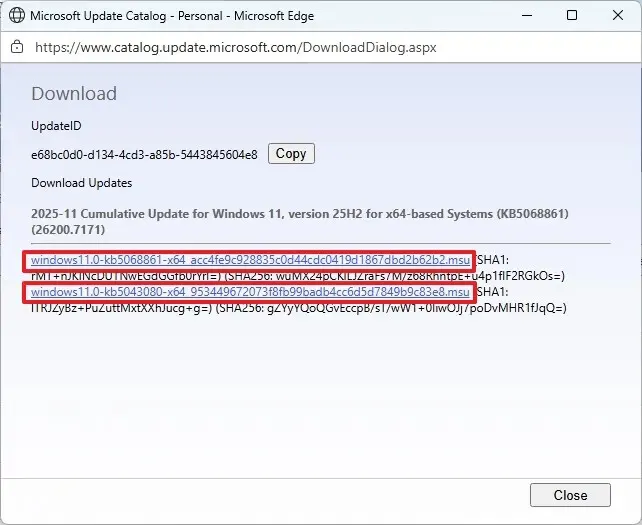
- Click the .msu link in the download dialog, then run the downloaded file.
6. What to Do If Windows 11 Won’t Update
Pick the line that matches what you see:
- Not enough space: free up storage and retry. Our guide to freeing up disk space on Windows 11 covers it.
- Error codes or a stuck download: go to Settings > System > Troubleshoot > Other troubleshooters, click Run next to Windows Update, then restart and try again.
- Stuck at a percentage: follow the steps for a Windows 11 update stuck at 100%.
- Driver problems after an update: see how to update drivers on Windows 11.
- Need to delay updates: select Pause updates on the Windows Update page for a week and extend it if needed. For longer blocks, see how to stop Windows 11 updates.
If every route fails, the Installation Assistant from section 2 installs over the existing system, and a reset or reinstall is the last resort when low disk space keeps blocking updates.
Can I Still Upgrade Windows 10 to Windows 11 for Free?
Yes. Windows 10 support ended on October 14, 2025, but the upgrade is still free for PCs that meet the Windows 11 requirements, such as a TPM 2.0 chip and a supported processor. On Windows 10, open Settings > Update & Security > Windows Update, where Windows tells you when the upgrade is ready. Microsoft’s PC Health Check app answers the eligibility question in advance, and a “What needs your attention” message during the upgrade means the PC doesn’t meet a requirement.
The download is large, so metered connections may cost money. Files normally carry over, but back them up first. After upgrading you have 10 days to go back to Windows 10 with your files intact.
Keeping Windows up to date protects your PC and keeps it running smoothly, and it rarely takes long once you know where things stand. Most problems clear up with a little patience and a restart. If an update keeps failing, Microsoft support is the next stop.


