
Memory that runs slower than advertised is easy to miss, because nothing on screen warns you about it. The reading can look odd at first and the gap often comes down to a setting rather than faulty hardware. Below is how to check RAM speed in Windows 11 in a few different places, and how to tell if the number matches what you paid for.
Table of Contents
Check RAM Speed in Windows 11 With Task Manager
This is the fastest route and needs no commands. If you need help opening it, see how to open Task Manager in Windows 11.
- Press
Ctrl + Shift + Esc. - Select the Performance tab in the left sidebar.
- Select Memory.
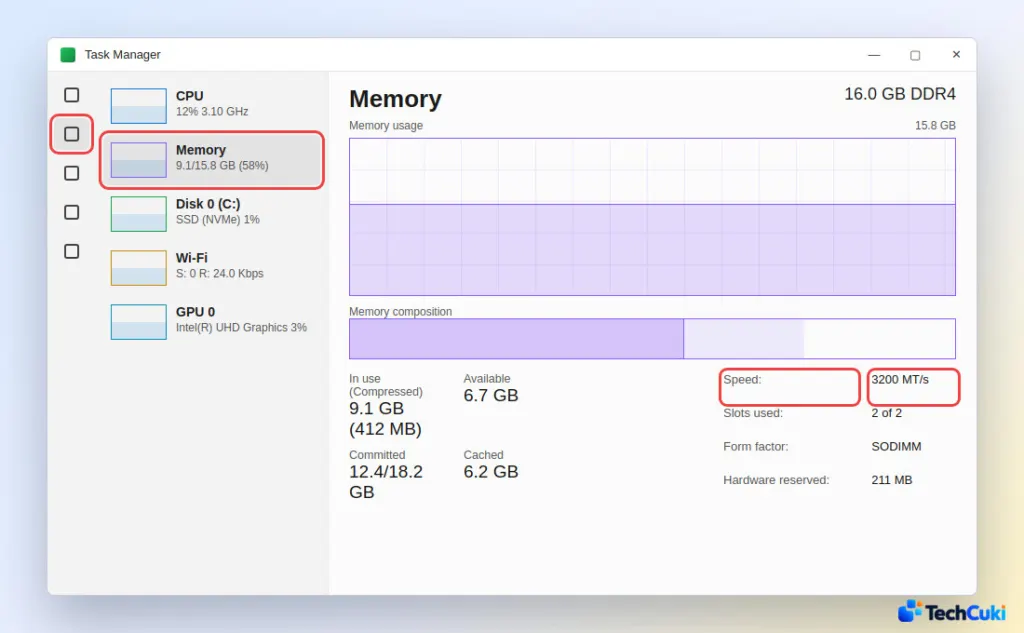
- Read Speed in the bottom-right corner, for example 3200 MT/s. The same panel shows total RAM and type (such as 16.0 GB DDR4), Slots used (such as 2 of 2) and Form factor, which is SODIMM on laptops and DIMM on desktops.
See Each Stick’s Speed in PowerShell
PowerShell prints one row per module, and it separates what the stick can do from what it is doing now, which Task Manager cannot.
- Right-click the Start button and select Terminal.
- Type
Get-CimInstance Win32_PhysicalMemory | Format-Table BankLabel, Manufacturer, Capacity, Speed, ConfiguredClockSpeedand pressEnter.
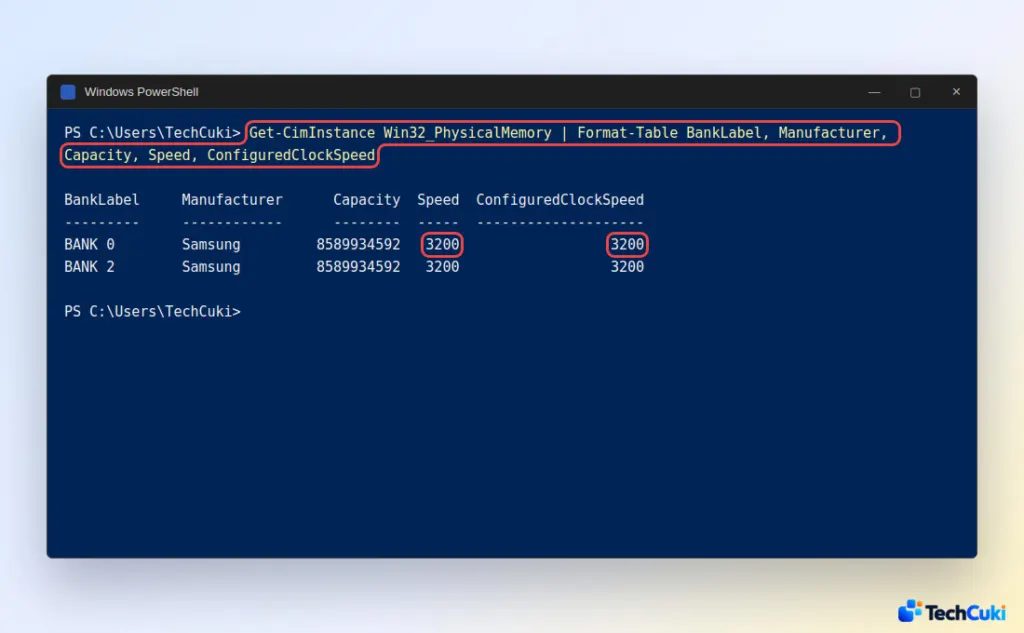
- Compare the two columns. Speed is the module’s maximum, and ConfiguredClockSpeed is what it is running at. A value of 0 in ConfiguredClockSpeed means Windows could not read the speed.
The older wmic memorychip get speed command still turns up in guides, but Microsoft is removing WMIC and recent Windows 11 versions don’t install it by default, so use the PowerShell line.
Read the Speed in BIOS/UEFI
The setup screen shows the memory frequency before Windows loads, which helps if you suspect Task Manager is misreporting. Where it sits depends on the PC maker.
- Restart the PC and press the setup key during startup, often
Del,F2orF10. - Look for the memory or DRAM frequency on the main screen, or in an overclocking or tweaker tab.
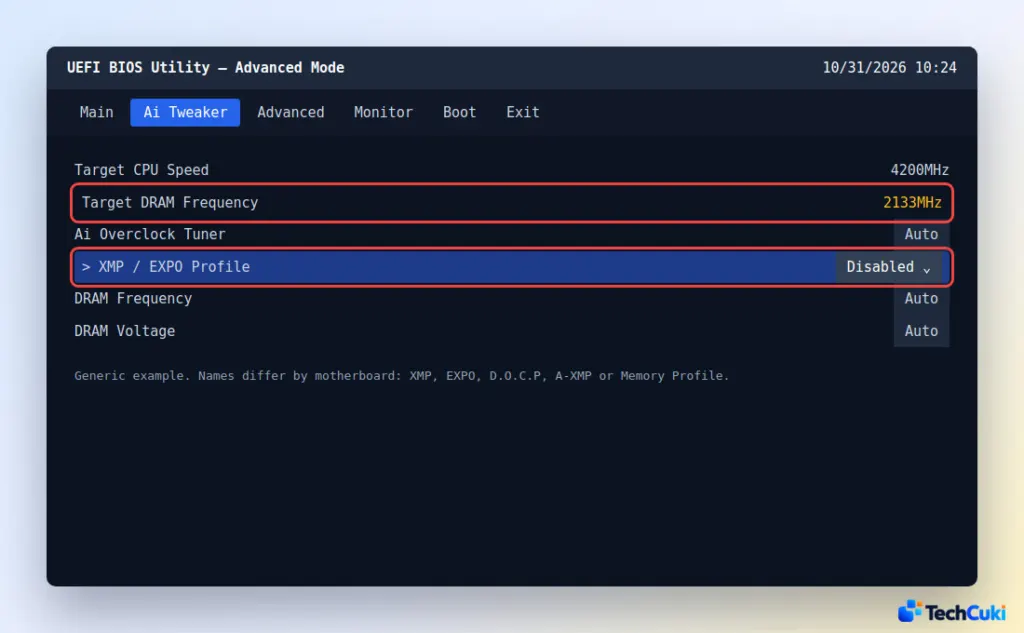
- Compare it with the speed printed on the RAM label or in its product listing.
Why Different Tools Show Different Numbers
DDR memory transfers data twice per clock cycle, so the real clock is half the headline rating: DDR4-3200 runs at 1600 MHz. Before Windows 11 build 26100.1297 (and 22635.3570 in the Beta channel), Task Manager reported that clock in MHz. Newer builds switched to MT/s, which matches the number on the box. Some BIOS screens and hardware-info apps still show the real clock, and a user on Microsoft’s forum saw 1600 in Task Manager and 3200 in the command line for the same kit, which was normal.
For a third opinion, the free CPU-Z tool shows DRAM frequency and timings on its Memory tab, and its SPD tab lists each module’s own details, including the manufacturer.
Why Is My RAM Slower Than the Box Says?
Most often the RAM is running at the motherboard’s default speed instead of its rated profile. Kits are sold with an XMP (Intel) or EXPO (AMD) profile, but boards start at a standard speed such as 2133 or 2400 for DDR4, or 4800 for DDR5, until you turn the profile on.
- If ConfiguredClockSpeed or the Task Manager value is below the rating, enable the profile in BIOS. The name differs by brand: XMP, EXPO, D.O.C.P or A-XMP.
- If it stays low after that, your CPU or motherboard may cap the speed below what the RAM supports.
- If the PC crashes or shows memory errors once the profile is on, test the RAM in Windows 11. Switching the profile off again in the same BIOS menu undoes it.
Running below the rated speed is common and rarely hurts everyday use, so there is no need to worry. A quick check now and then shows if your memory is doing what it should, and the maker’s support can help if the numbers never add up.


