
A power menu that offers only a few choices can make it seem like a favorite feature has vanished. Hibernate is still part of Windows 11, but it often needs a bit of setup before it shows up. The steps below show how to enable Hibernate in Windows 11, put it to use on a laptop, and sort out the case where it stays missing.
Table of Contents
1. Enable Hibernate in Windows 11 With Command Prompt
If the Hibernate entry is missing entirely, start here. The command creates the hibernation file the feature depends on, and without that file Windows can’t hibernate at all.
- Open Start, type cmd, right-click Command Prompt, and select Run as administrator.
- Type
powercfg /availablesleepstatesand press Enter. If the output says “Hibernation has not been enabled,” hibernation is off. - Type
powercfg /hibernate onand press Enter to turn hibernation on.
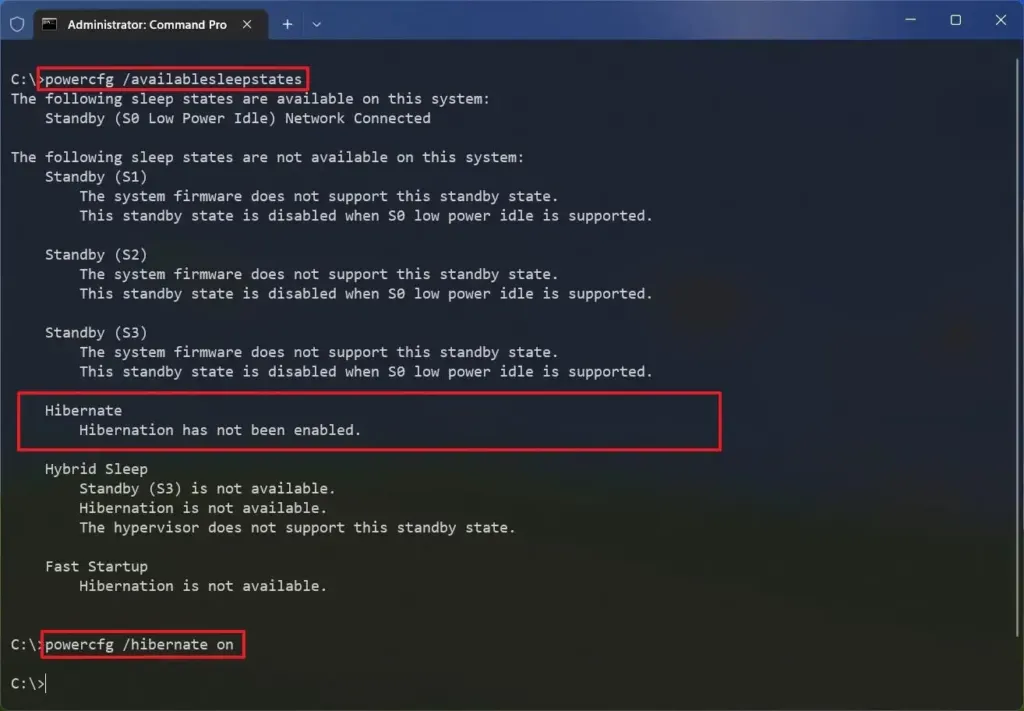
Run the availability check again afterward, and Hibernate should now be listed as available. If it prints an error instead, jump to the troubleshooting section below.
2. Enable Hibernate in the Power Menu
Turning hibernation on doesn’t add the menu entry by itself. The checkbox in Control Panel does.
- Open Control Panel and go to Hardware and Sound > Power Options.
- Click Choose what the power button does.
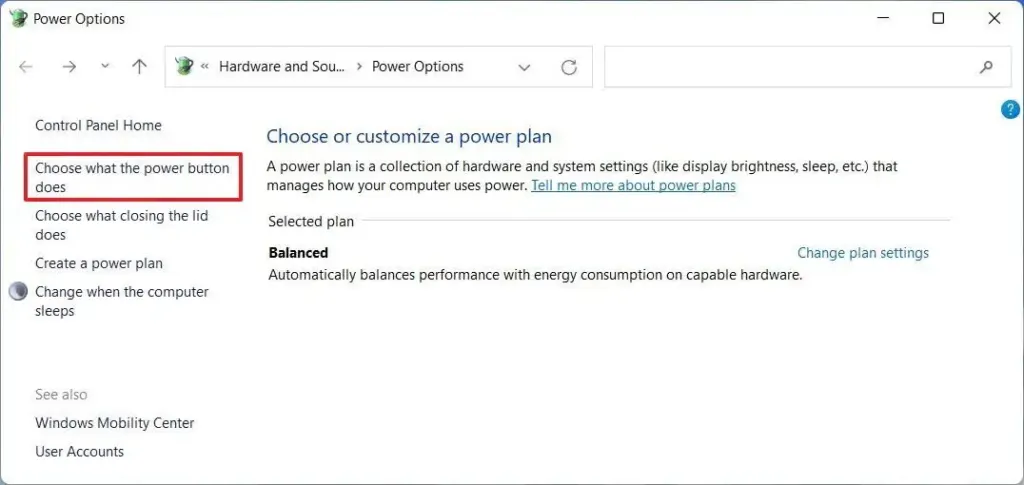
- Click Change settings that are currently unavailable. The shutdown checkboxes are grayed out until you do.
- Under Shutdown settings, check Hibernate.
- Click Save changes.
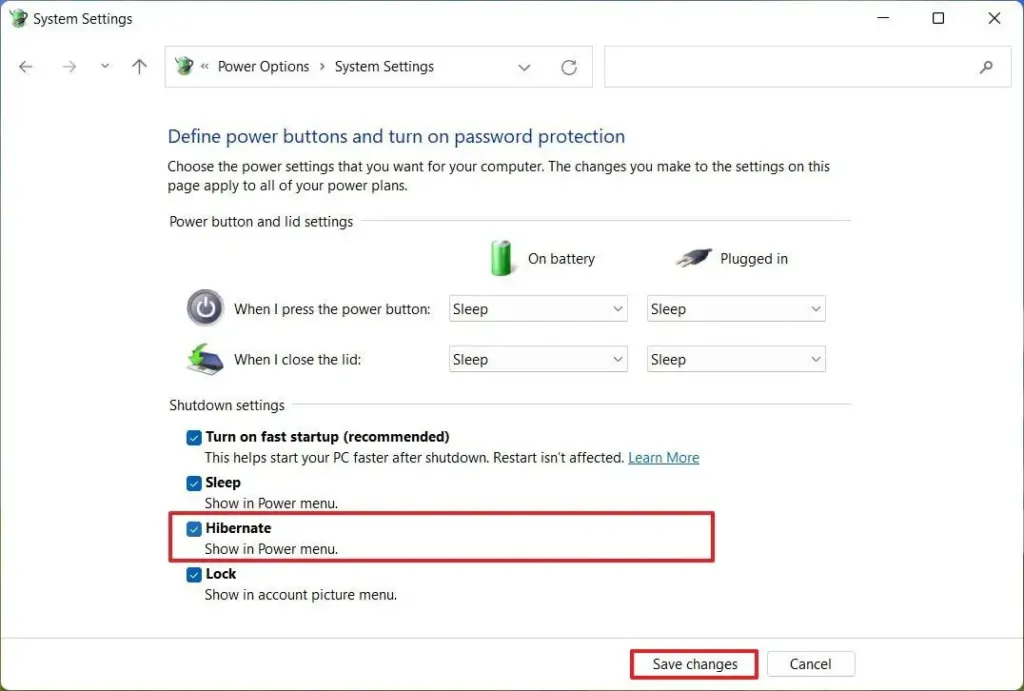
Hibernate now appears under Start > Power. To remove it again, clear the same checkbox.
3. Set the Power Button or Lid to Hibernate
This makes closing the lid or pressing the power button hibernate the PC, with separate choices for battery and plugged-in use. It’s the better option for a laptop that sits in a bag for hours.
- Open Control Panel and go to Power Options > Choose what the power button does.
- Under Power button and lid settings, set When I press the power button and/or When I close the lid to Hibernate for On battery and Plugged in.
- Click Save changes.
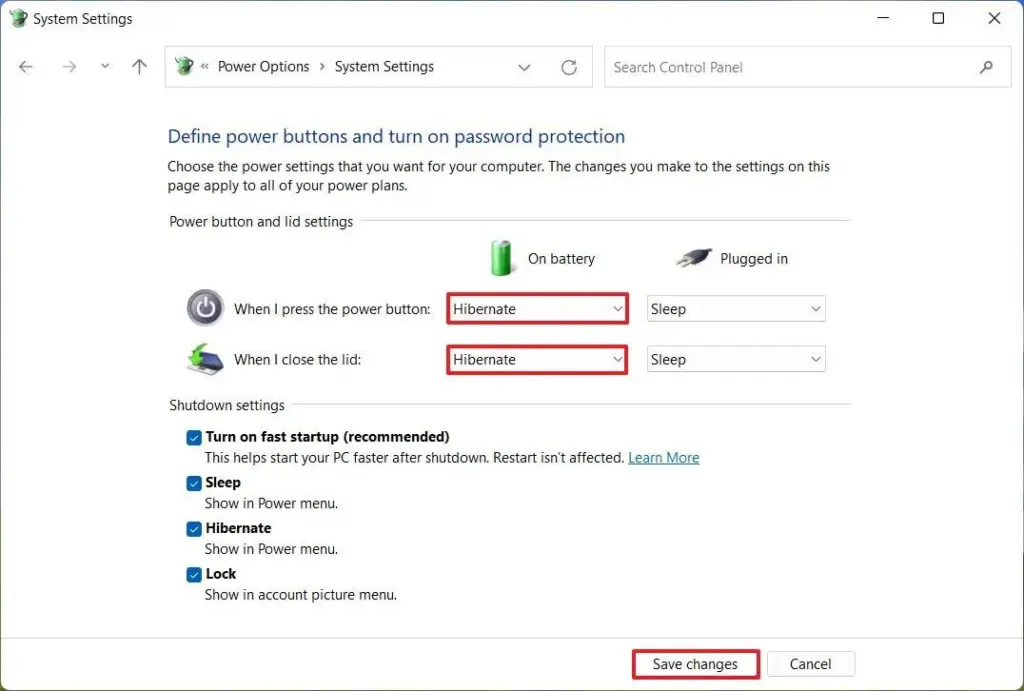
On Windows 11 24H2 and later, the same actions are in Settings > System > Power & battery under Lid & power button controls. Only the Control Panel checkbox adds Hibernate to the Start menu.
Hibernate Option Missing in Windows 11? Find the Cause
- Hidden from the power menu: tick the checkbox in section 2.
- Hibernation disabled: run
powercfg /hibernate onfrom an administrator Command Prompt. - Hardware or firmware limits:
powercfg /availablesleepstateslists the reason hibernation is unavailable. - The command fails with “The request is not supported” and names a hypervisor: see below.
When the failure message includes “An internal system component has disabled hibernation. Hypervisor,” a virtualization feature is blocking it. Typical culprits are Hyper-V, Virtual Machine Platform, Windows Hypervisor Platform, Windows Sandbox and Memory integrity under Windows Security > Device security > Core isolation. Turning those off and restarting, or running bcdedit /set hypervisorlaunchtype off in an administrator Command Prompt, can bring Hibernate back. That is a real trade-off, because it breaks anything that relies on virtualization, such as WSL2, Docker or virtual machines. Keep Sleep for those PCs, or run bcdedit /set hypervisorlaunchtype auto to undo the change.
If the Registry route suits you better, HibernateEnabled under HKEY_LOCAL_MACHINE\SYSTEM\CurrentControlSet\Control\Power is a DWORD where 1 means on. The powercfg command is safer, because it also manages the hibernation file.
Hibernate vs. Sleep in Windows 11
Sleep keeps your session in memory and wakes in seconds, while Hibernate saves the session to the drive and powers the PC off fully.
Hibernate uses no power at all, but it takes longer to resume, so it suits a laptop you won’t touch for hours or days. Sleep suits short breaks.
How to Disable Hibernate in Windows 11
To turn hibernation off, run one command in an administrator Command Prompt.
- Open Command Prompt as an administrator.
- Type
powercfg /hibernate offand press Enter.
Hibernation lives in hiberfil.sys, a hidden file in the root of your Windows drive that is roughly the size of your installed RAM. Turning hibernation off frees that space but removes Hibernate, and it also stops hybrid sleep from working. Fast Startup uses the same file, so it turns off too. If you want to keep Hibernate and only shrink the file, run powercfg /hibernate /size 50 instead. For more space-saving options, see our guide to freeing up disk space in Windows 11.
Because power features share some of the same system resources, it helps to decide how you want your PC to start and rest before changing anything. Our guide to disabling Fast Startup in Windows 11 covers it, and how to change the power mode in Windows 11 handles the rest of the power settings.


