Many printer jobs, from adding a printer by hand to fixing one that dropped off the network, start with knowing its IP address. To find the printer IP address, you can look in several places, and the right one depends on your printer and your setup. The sections cover Windows, Mac, the printer itself and your router, with options for printers that have no screen.
Table of Contents
1. Read It From the Printer
Most network printers show the address in their network menu or on a printed report. Names vary by model.
- On the control panel, open Settings or Setup, then Network or Wireless.
- Choose Wireless Status, Network Summary or View Details. Look for “IP Address” or “IPv4 Address”.
Printers without a screen work differently: hold the Wireless or Info button, or press Info and Wireless together, as many HP models do. A Network Configuration Page or Network Configuration Report printed from the menu lists the address too.
2. How to Find Printer IP Address in Windows 11
Windows keeps the address in the printer’s port settings.
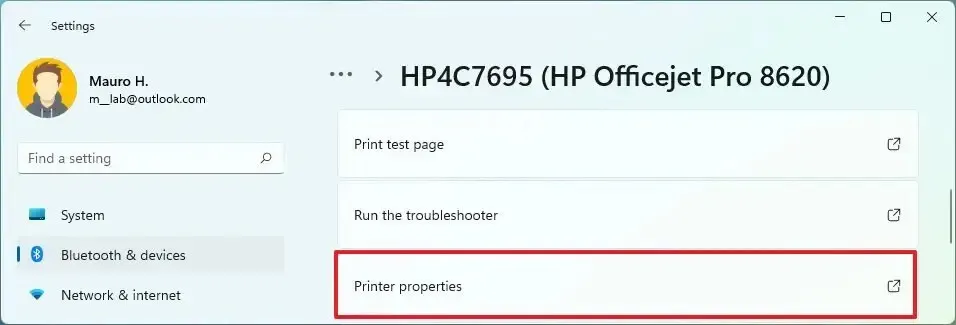
- Open Settings > Bluetooth & devices > Printers & scanners and select your printer.
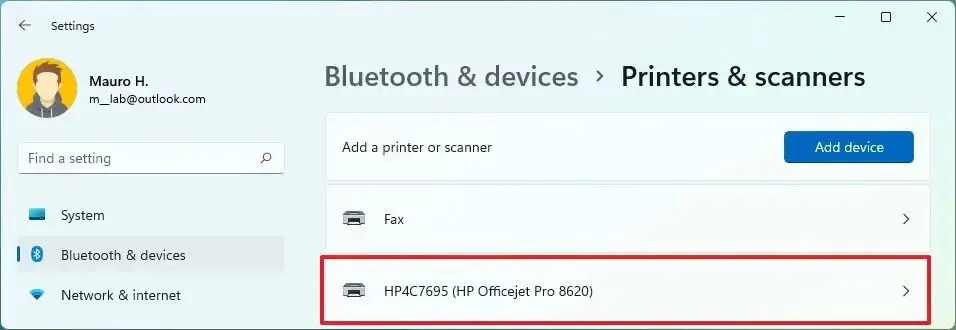
- Click Printer properties, open the Ports tab and find the ticked port.
- Select that port and click Configure Port. The Printer Name or IP Address field holds the address.
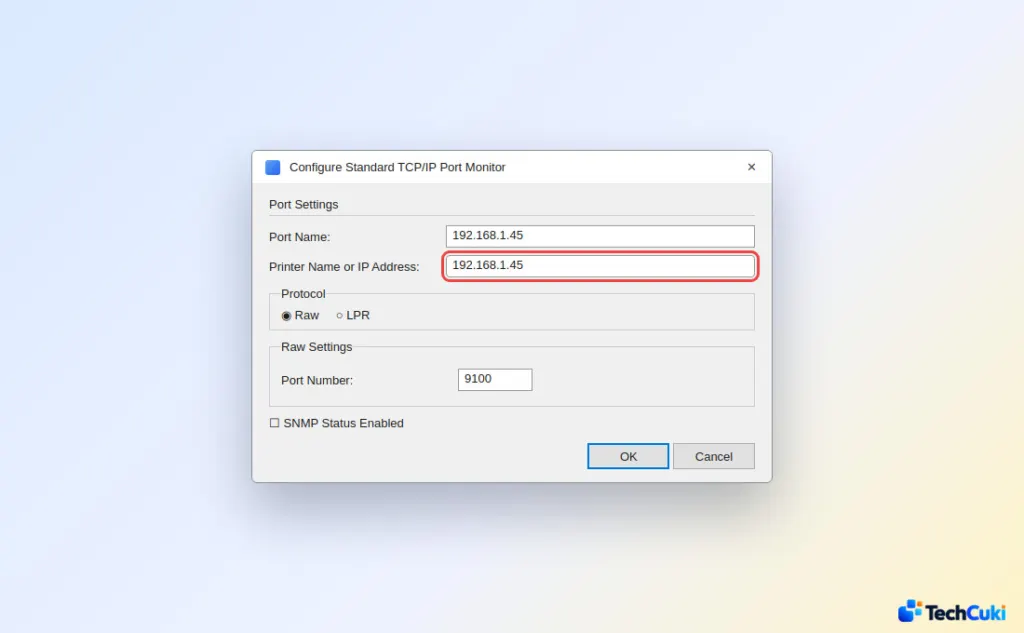
A printer installed on a WSD port shows its address on the Web Services tab instead. In the older Control Panel route (Devices and Printers > right-click > Properties), the General tab’s Location field can also carry the address.
List every printer port with PowerShell
To see all ports and their host addresses at once, run:
Get-PrinterPort | Select Name, PrinterHostAddress
3. Find a Printer’s IP Address on a Mac
The Terminal command lpstat -v lists each printer’s address.
- Open Terminal.
- Type
lpstat -vand press Return.
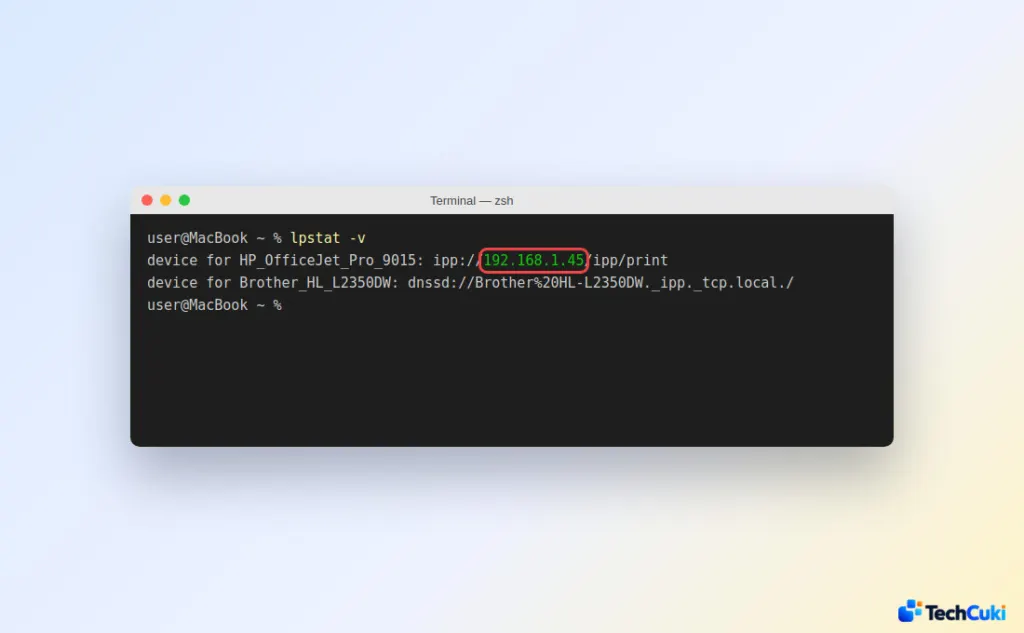
- Find your printer’s line. An
ipp://orsocket://entry such asipp://192.168.1.45contains the address.
A dnssd:// line hides it; use a network report or the router instead. Alternatively, in the printer list of Printers & Scanners, select the printer and open Options & Supplies, which on some macOS versions shows the address.
4. Look in Your Router’s Device List
This works even when the printer isn’t set up on any computer.
- Sign in to the router’s admin page or app.
- Open the list of connected devices or clients.
- Find the printer by name, such as
HP...,EPSON...orBRW...for Brother, and note its address.
5. Check the Maker’s App
Open the app and select your printer. In HP Smart, look under Printer Settings or Advanced. In the Epson, Canon and Brother apps, look for the network information.
If No Address Shows Up
A blank or missing address usually means the printer isn’t on the network at all. Check its Wi-Fi or Ethernet status and use the steps for connecting a printer to a computer once it’s online. If the printer still reports nothing, the maker’s support can check its network hardware.
What to Do With the Address
Type it into a browser to open the printer’s Embedded Web Server (EWS) settings page. The same address lets you add the printer manually, and if the printer is offline after a router restart, see how to fix a printer that shows offline.
Knowing the address makes setup and troubleshooting much easier, and it is worth noting somewhere safe. Addresses can change when a router restarts, so check again if the printer stops responding. Your router maker or printer maker can help with settings that differ between models.