Printing on both sides of the paper saves sheets, yet the option is easy to miss or to get wrong. Your ability to print double sided depends on your printer and on the app you print from, and the page layout can trip you up too. The steps cover the common apps, printers that flip pages themselves and the manual method (if it isn’t set up yet, connect the printer to your computer first).
Table of Contents
- Check That Your Printer Can Do It
- Print Double Sided in Word
- Print Double Sided From Chrome or Google Docs
- Two-Sided Printing on a Mac
- Printing a PDF Two-Sided in Acrobat
- Two-Sided Printing From iPhone or iPad
- Make Two-Sided the Default in Windows 11
- Print Double Sided Manually
- When Front and Back Don’t Line Up
Check That Your Printer Can Do It
Search the spec sheet for “automatic two-sided printing” or “auto duplex”, or open any print dialog and look for Two-Sided or Print on Both Sides. A copier-printer combo that makes two-sided copies probably supports it too. If you have several printers installed, check the one you actually selected, because one may flip pages and another may not. When the option is missing, skip to the manual method at the end.
Pick the binding edge by page orientation. Long-edge flips the sheet like a book page and suits portrait documents. Short-edge flips it like a calendar and suits landscape ones. Choose wrongly and every back page prints upside down.
Print Double Sided in Word
In Word, the switch changes from “Print One Sided” to “Print on Both Sides” in the print pane.
- Open the document and select File > Print.
- Under Settings, open the Print One Sided dropdown.
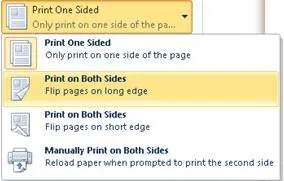
- Choose Print on Both Sides with Flip pages on long edge or Flip pages on short edge, then click Print.
On a Mac, use File > Print and look for Two-Sided under Copies & Pages or Layout. If all you get is Manually Print on Both Sides, the printer can’t flip pages itself.
Print Double Sided From Chrome or Google Docs
Google Docs hands off to Chrome’s print dialog, so the same steps cover both.
- Press
Ctrl+P(Cmd+Pon a Mac). - Click More settings, then check Print on both sides under Two-sided.
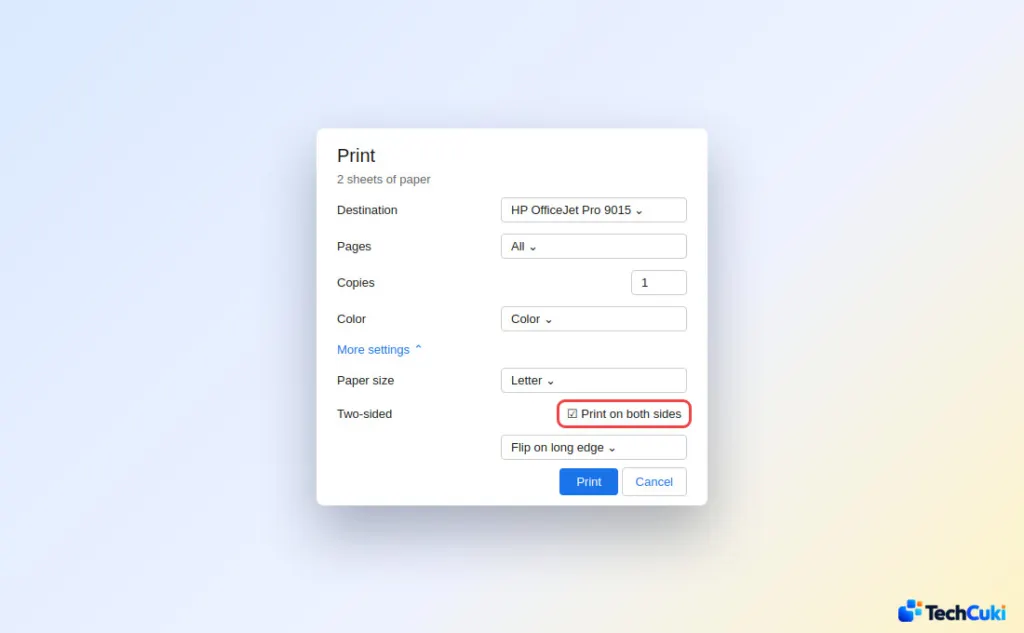
- Choose Flip on long edge or short edge, then click Print.
The checkbox only shows up for printers that support duplex.
Two-Sided Printing on a Mac
This setting is the same in any Mac app.
- Open File > Print, and click Show Details if the options are hidden.
- Open the Two-Sided menu, which may sit under Layout.
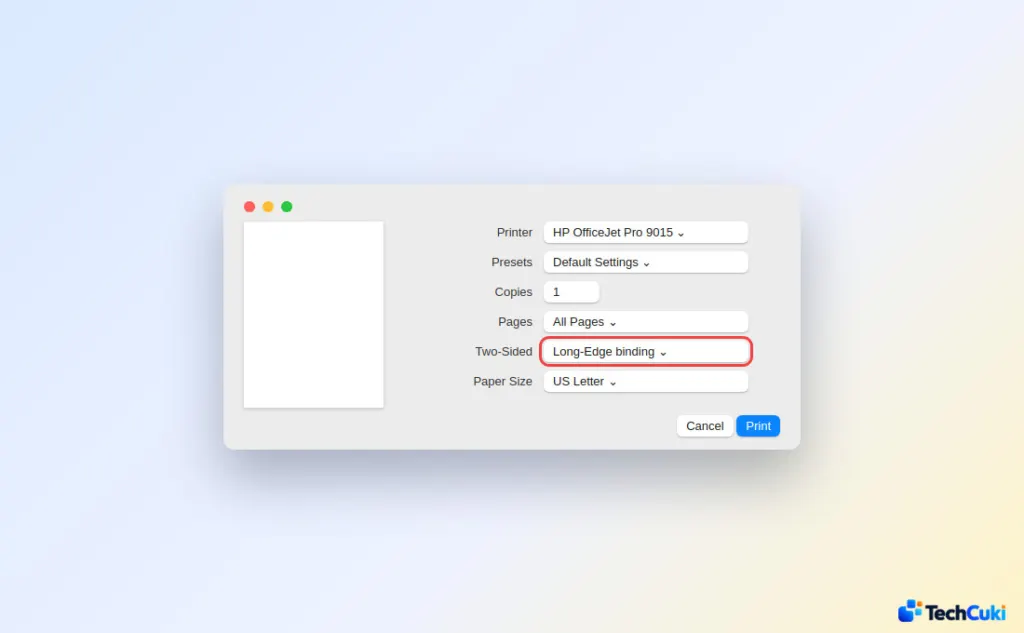
- Pick Long-Edge binding or Short-Edge binding, then click Print.
Printing a PDF Two-Sided in Acrobat
Acrobat and Reader show the option in the standard print dialog.
- Open the PDF and choose File > Print.
- Check Print on both sides of paper.
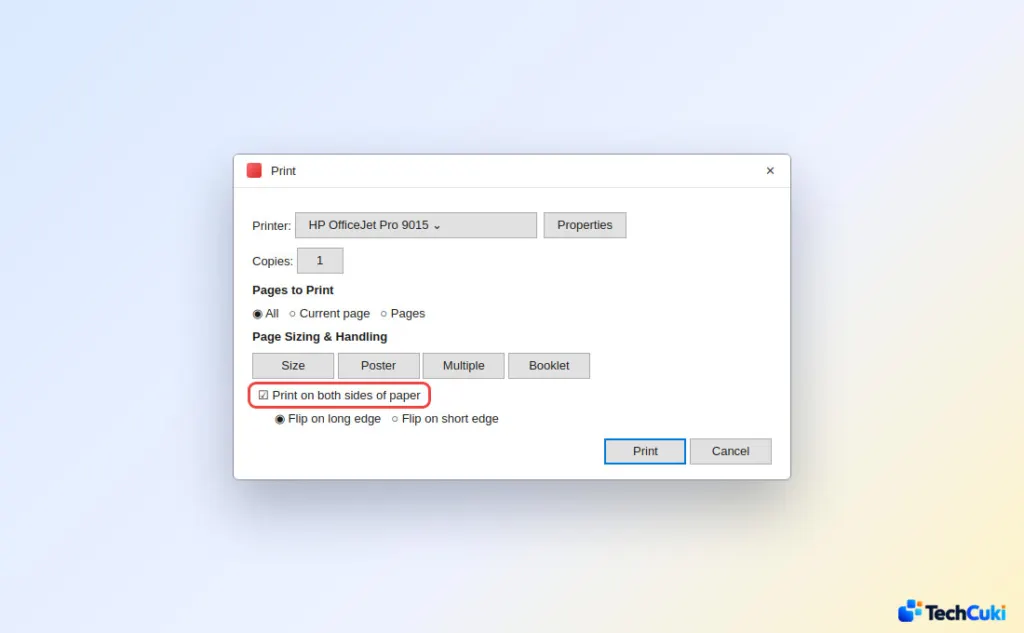
- Choose Flip on long edge or Flip on short edge, then click Print.
If the checkbox is dimmed, the printer isn’t offering duplex to Acrobat. Open More Options and use Pages with Odd pages only and then Even pages only instead. Adobe also documents a separate manual route for printers that deliver pages face down.
Two-Sided Printing From iPhone or iPad
Tap Print, then Print Options, and switch on Double-sided. The switch appears only for duplex-capable printers. If you haven’t printed from the phone before, see how to print from an iPhone or iPad.
Make Two-Sided the Default in Windows 11
Setting it in the printer’s preferences means every app starts with it on, which is handy if you print mostly to save paper.
- Open Settings > Bluetooth & devices > Printers & scanners and select the printer.
- Click Printing preferences and find Two-sided or Print on Both Sides. Depending on the driver, it is on the Layout, Finishing or Main tab.
- Turn it on, pick the binding edge and save. Reverse the change the same way if you later want single-sided output.
Print Double Sided Manually
With no duplex hardware, print one side of each sheet, reload the stack, then print the other side.
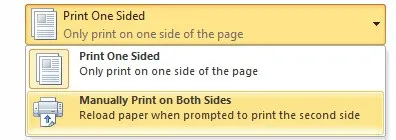
- In Word, choose Manually Print on Both Sides and it will prompt you when to reload. In any other app, print the odd pages first. (In Word’s own odd/even route, use Print All Pages > Only Print Odd Pages, then the even option.)
- Reload the stack. Many front-loading inkjets want it printed side up with the top edge toward the printer, while rear-feed printers want it printed side down. The arrow icon on the tray shows the intended direction, or mark one test sheet.
- Print the even pages. If the backs come out in the wrong order, go to File > Options > Advanced in Word and, under Print, select Print on front of the sheet for duplex printing or Print on back of the sheet for duplex printing. Other apps may need the even pages in reverse.
When Front and Back Don’t Line Up
Cards, flyers and photo paper expose small alignment drift between sides, and thicker paper can shift it again. Add a bleed or a border on both sides so a slight offset doesn’t show as a white edge, and test on plain paper before using the good stock. A settings change that worked on one paper type may need retuning on another.
Two-sided printing saves paper and keeps long documents tidy once you know how your printer handles it. A short test before a big job costs almost nothing and avoids wasted sheets. If the front and back still do not line up, the printer maker’s support pages can confirm what your model supports.