A new printer has to join your Wi-Fi on its own before any computer or phone can find it, and that is where setups often stall. The way to connect a printer to WiFi depends on what the printer offers, and an older model can be picky about the network. The methods below cover printers with and without a screen, plus what to check if the printer will not join.
Table of Contents
Before you start
- Have your network name and password ready, and put the printer near the router.
- Many home printers only support 2.4 GHz. If one can’t join a combined network name, turn on the router’s 2.4 GHz band.
- Hidden networks, guest networks and captive portals (hotel or dorm logins) often don’t work for printer setup.
1. Join From the Printer’s Control Panel
Choosing the network on the printer’s own display is the most direct route. Menu names vary by model, so treat these labels as examples.
- Open the wireless or network settings: look for the wireless icon, or go to Settings > Network or Wireless.
- Select the Wireless Setup Wizard.
- Pick your network from the list and type the password.
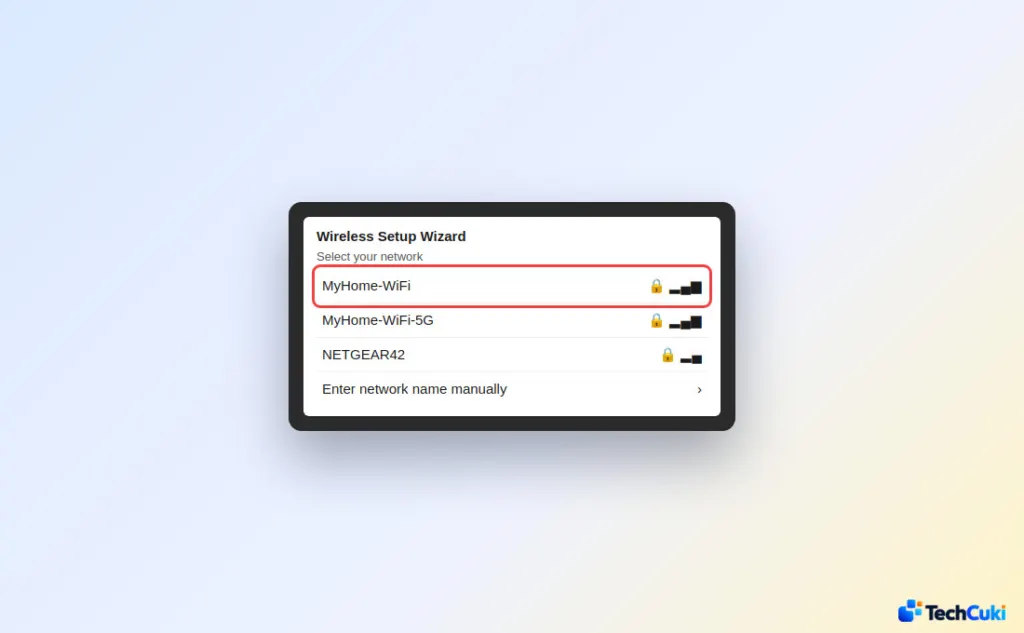
- Confirm the settings. Once connected, the wireless light turns solid blue or stays on.
2. Join With the WPS Button
If the printer has no screen but the router has a WPS button, you can skip typing the password. WPS fails when the router has it switched off or uses WPA3-only security.
- Press and hold the printer’s wireless button until its light blinks, usually 3 to 5 seconds (check your manual).
- Within 2 minutes, press the router’s WPS button. Some makers, HP among them, list the router button first and the printer second; either way, the two presses must fall inside that 2-minute window.
- Wait for the blinking to stop. A steady light means it joined.
3. How to Connect Printer to WiFi With the Maker’s App
For a printer without a screen, the manufacturer’s app can pass your Wi-Fi details to it.
- Install the app for your brand: HP Smart, Canon PRINT, Epson Smart Panel or Brother Mobile Connect.
- Put the printer into Wi-Fi setup mode, often a button combination or a network-settings reset. Your model’s manual has the exact method.
- Connect the phone to the network the printer should use, and allow Bluetooth and location for setup.
- Open the app, let it find the printer, and follow the prompts.
4. Send the Wi-Fi Settings Over USB
When the app can’t find the printer, a cable lets the computer hand over the settings instead.
- Connect the printer to a computer with a USB cable.
- Run the installer from the maker’s software.
- When it asks how to connect, choose the wireless option. HP’s installer words it as “Yes, send my wireless settings to the printer”, and it expects a 2.4 GHz network with an automatically assigned IP address.
- Unplug the cable when setup finishes.
If there is no Wi-Fi network at all, some printers can broadcast their own signal. HP’s version is Wireless Direct: the printer appears in your phone’s Wi-Fi list as HP-Print-XX-XXXX, and you join it with the Wireless Direct password.
Add the Printer to Your Computer
With the printer on your network, add it on the device you print from. These steps are for Windows 11; our guide to connecting a printer to a computer covers other setups.
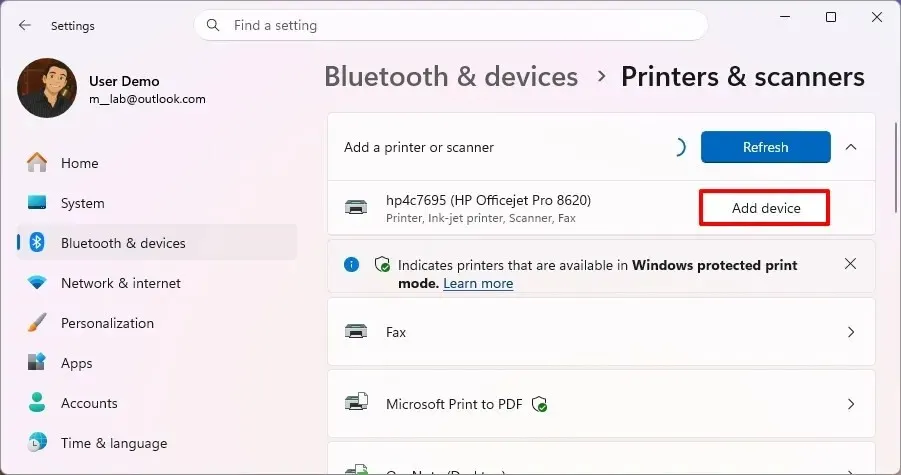
- Open Settings > Bluetooth & devices > Printers & scanners.
- Select Add device.
- When your printer shows up, select Add device beside it.
- If it isn’t listed, select The printer that I want isn’t listed.
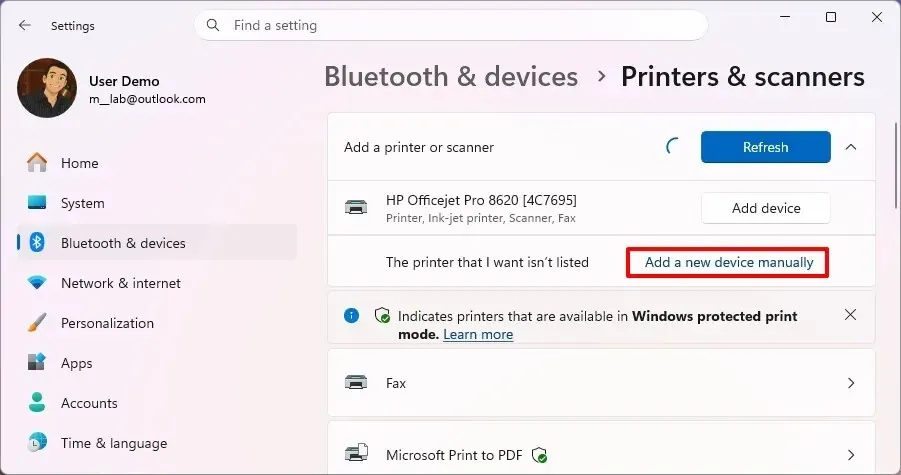
- Choose Add manually and enter the printer’s IP address. If you don’t know it, find your printer’s IP address first.
On a Mac, open System Settings > Printers & Scanners, select Add Printer, Scanner or Fax and pick the printer; AirPrint models need no driver. On an iPhone or iPad, AirPrint printers appear in the Print menu, as our guide to printing from an iPhone shows.
If the Printer Still Won’t Join Wi-Fi
Printers that find your network but “fail to connect” are often hitting the router’s security setting: older models don’t support WPA3, so make sure WPA2 is enabled. This turns up most often after a move or a new router, whose defaults differ from the old one. Your internet provider’s modem counts as a router, so those settings live there.
- Restart the printer and the router, then retry.
- Move the printer closer to the router.
- Re-enter the password; it is case sensitive.
- Confirm the 2.4 GHz band is on.
- Restore the printer’s network settings and run the setup again.
If it fails after all that, the printer’s wireless hardware or the router may be the problem; a USB connection still lets you print while you ask the maker’s support.
Joining Wi-Fi is a one-time job for most printers, and it makes printing from every device in the house much easier. A moved router or changed network settings can undo it, which is worth knowing before blaming the printer. If it later drops off the network, see how to fix a printer that shows as offline.