
Capturing what is on your screen should take a second, yet it is easy to end up with the wrong thing or no file at all. Windows offers more than one way to do it, and each suits a different situation. You will find seven ways to take a screenshot on Windows 11, where the images are saved and what to check when a method does nothing.
Table of Contents
- Windows 11 screenshot shortcuts at a glance
- Take a screenshot on Windows 11 with Windows + Shift + S
- Change what the Print Screen key does
- Save a full-screen screenshot automatically
- Capture only the active window
- Use the Snipping Tool app for delays and markup
- Take game and app screenshots with Xbox Game Bar
- Screenshot on Windows 11 Surface and Copilot+ PCs
- Fix a screenshot shortcut that isn’t working
Windows 11 screenshot shortcuts at a glance
| Shortcut | What it captures | Where it goes |
|---|---|---|
Windows + Shift + S |
Rectangle, window, full screen, or freeform area | Clipboard, with an option to edit and save |
PrtScn |
Opens the capture bar by default | Capture bar, or clipboard if the setting is off |
Windows + PrtScn |
Entire screen | Pictures > Screenshots as a PNG file, and the clipboard |
Alt + PrtScn |
Active window | Clipboard |
Windows + Alt + PrtScn |
Active game or app window | Videos > Captures |
With no Print Screen key on your keyboard, use Windows + Shift + S, the Snipping Tool app or Xbox Game Bar instead.
Take a screenshot on Windows 11 with Windows + Shift + S
Press Windows + Shift + S, pick a capture mode, and select the area you want. Press Esc if you change your mind.
- Press
Windows + Shift + S. The capture bar opens at the top of the screen. - Choose a mode: Rectangle, Window, Full screen, or Freeform.
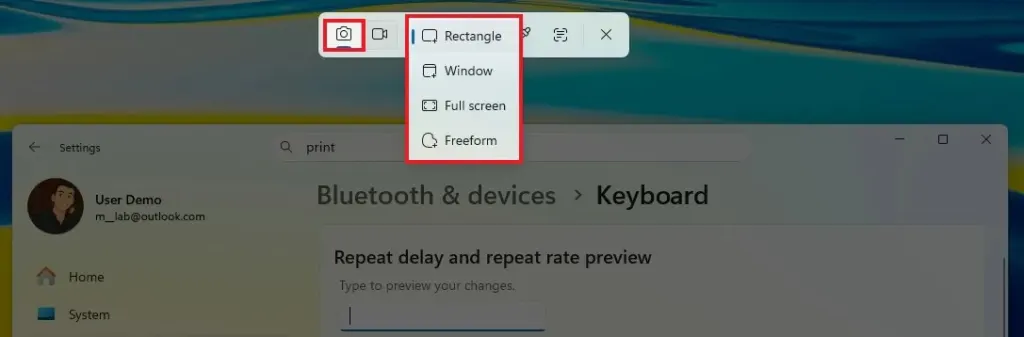
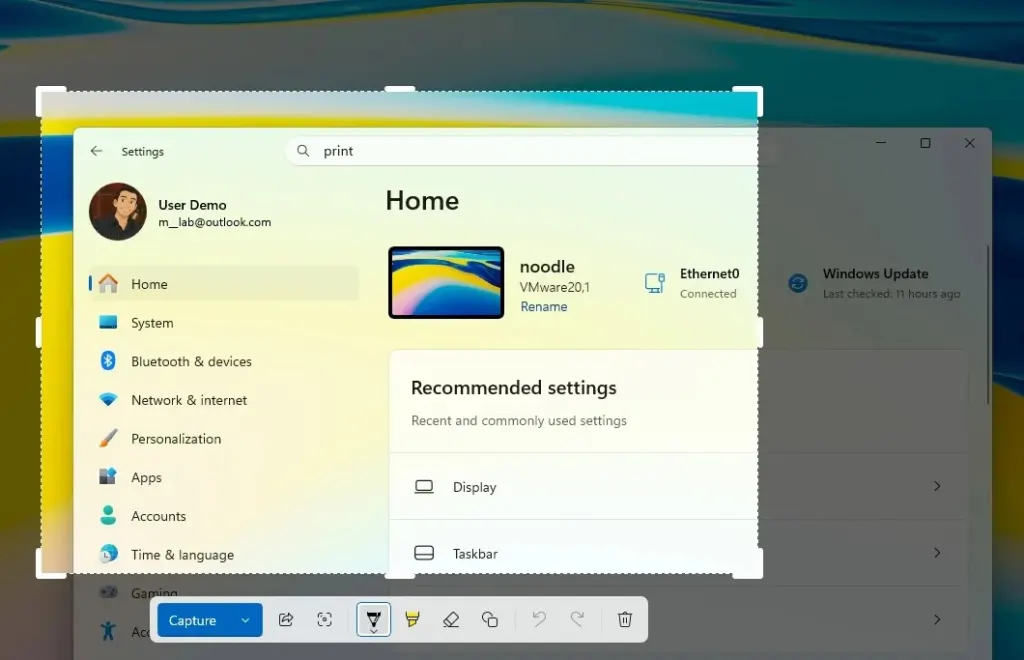
- In Rectangle mode, drag across the area you want.
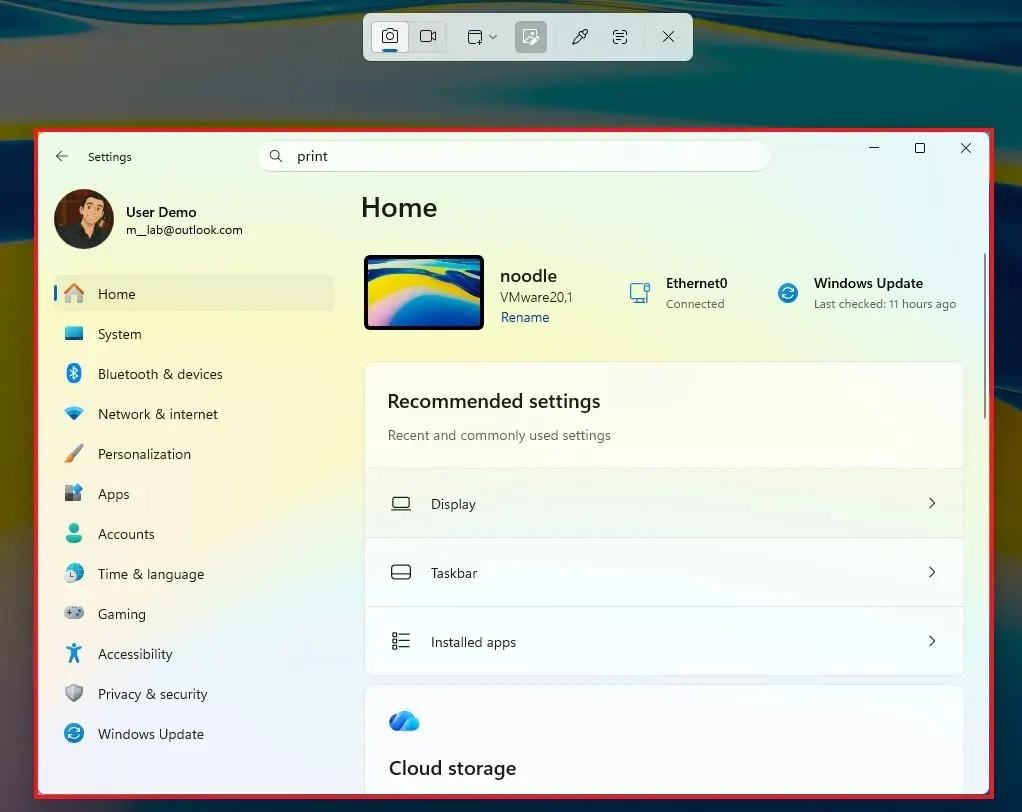
- In Window mode, click the window you want. It is highlighted before you capture it.
- In Freeform mode, draw around the shape you want.
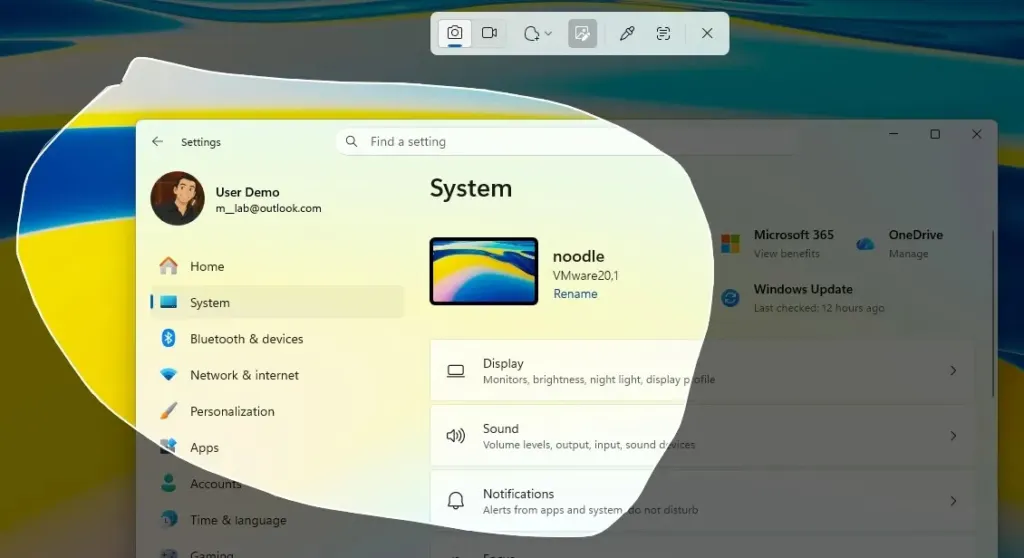
The capture lands on the clipboard, so Ctrl + V pastes it straight into an app. A thumbnail notification also appears, and selecting it opens the image in Snipping Tool for editing. Snipping Tool saves captures to Pictures > Screenshots by default, and its settings (the three-dot menu) let you turn that off if you don’t want the disk space used.
Change what the Print Screen key does
Print Screen opens the capture bar by default. Turning that off brings back the classic behavior of copying the full screen to the clipboard.
- Open Settings and go to Accessibility > Keyboard.
- Find Use the Print screen key to open screen capture and switch it off.
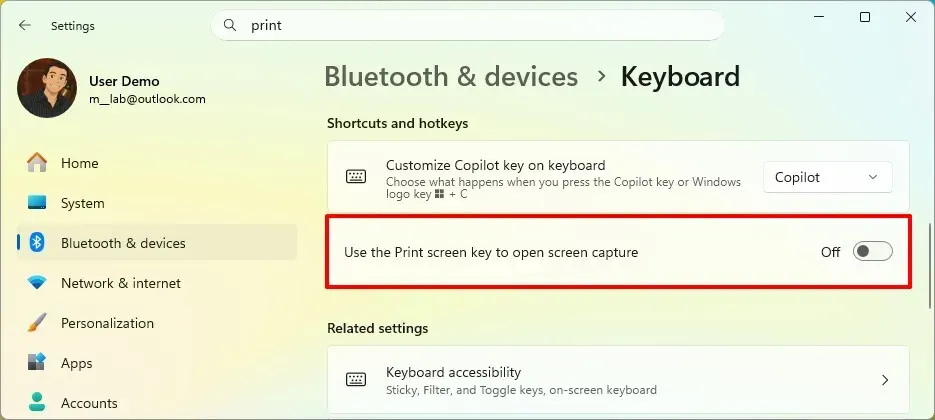
The classic mode doesn’t disturb what’s on screen, which helps with menus that close the moment you press a shortcut combination. If you use OneDrive, its Backup tab has a Save screenshots I capture to OneDrive checkbox that makes the key save a dated PNG into your OneDrive Screenshots folder, so you never paste or save by hand.
Save a full-screen screenshot automatically
Windows + Print Screen saves the whole screen as a PNG without opening any tool, and also copies it to the clipboard.
- Press
Windows + PrtScn. The screen dims briefly to confirm the capture. - Open File Explorer and go to Pictures > Screenshots to find the file.
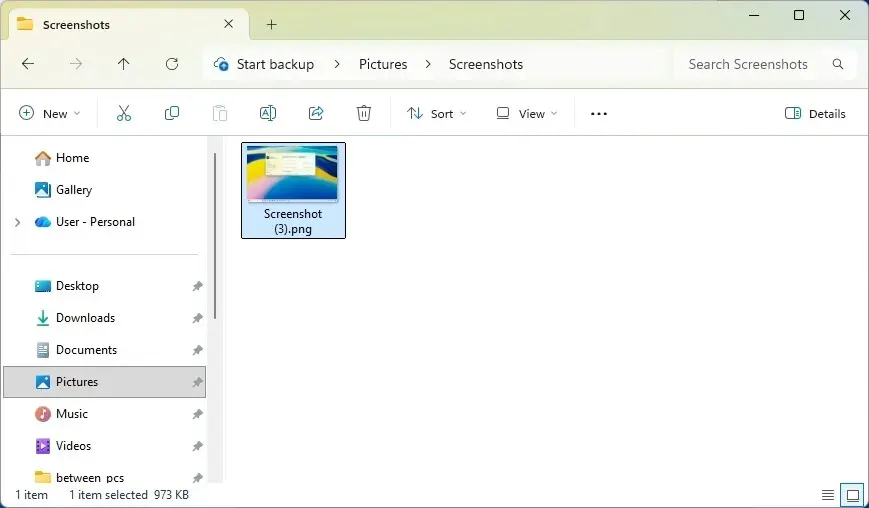
Some laptops need Fn + Windows + PrtScn instead. Screenshots pile up over time, so if the drive is getting full, see how to free up disk space on Windows 11.
Capture only the active window
Alt + PrtScn copies just the window you are using, which is also how you grab one monitor’s content on a multi-monitor setup.
- Click the window you want so it is active.
- Press
Alt + PrtScn. - Press
Ctrl + Vin an app such as Paint or a document.
The pasted image has squared-off corners where Windows 11 windows are rounded, because image files are always rectangular.
Use the Snipping Tool app for delays and markup
The app offers the same modes as the shortcut, plus a delay timer and editing tools.
- Click Start, search for Snipping Tool, and open it.
- Open the mode menu and choose Rectangle, Window, Full screen, or Freeform.
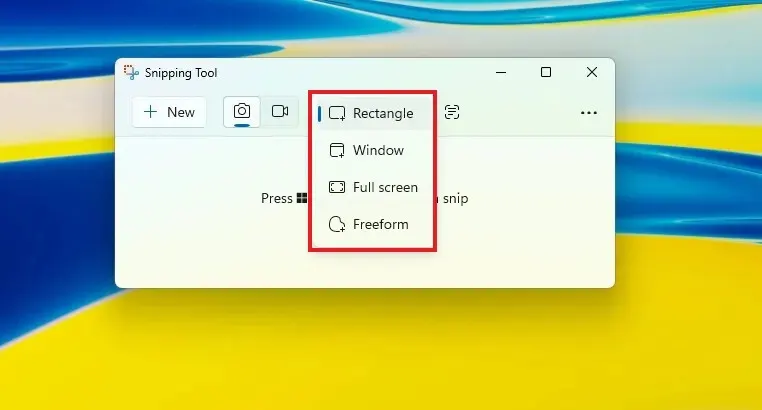
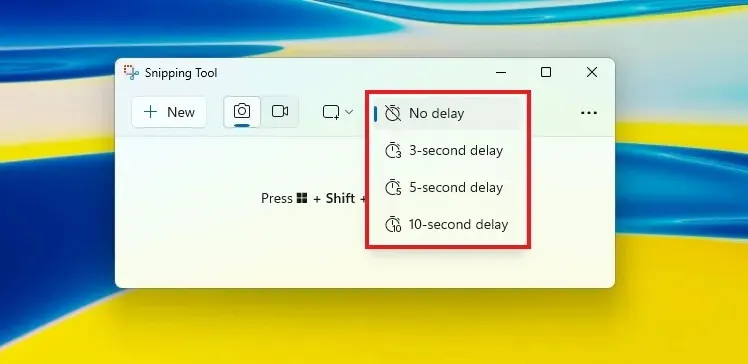
- To keep a menu or tooltip open while you capture it, open the delay menu and choose No delay, 3, 5, or 10 seconds. The shortcut can’t do this, because pressing it often closes the menu.
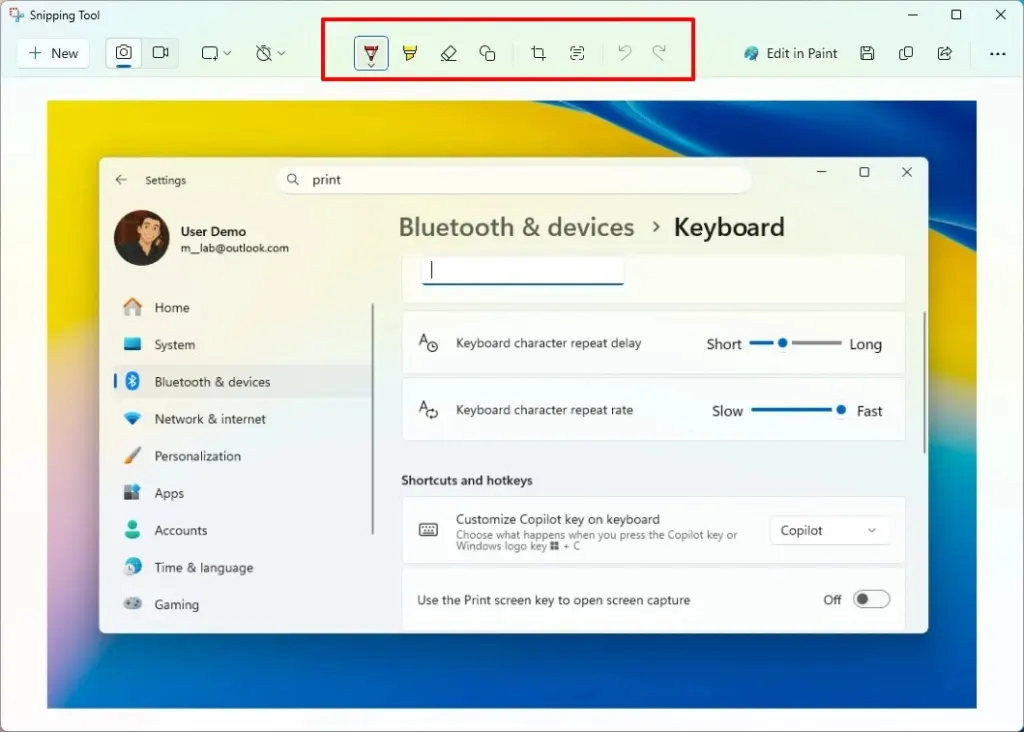
- After you capture, use the pen, highlighter, eraser, shapes and crop tools to mark up the image.
- Press
Ctrl + Sto save the edited screenshot.
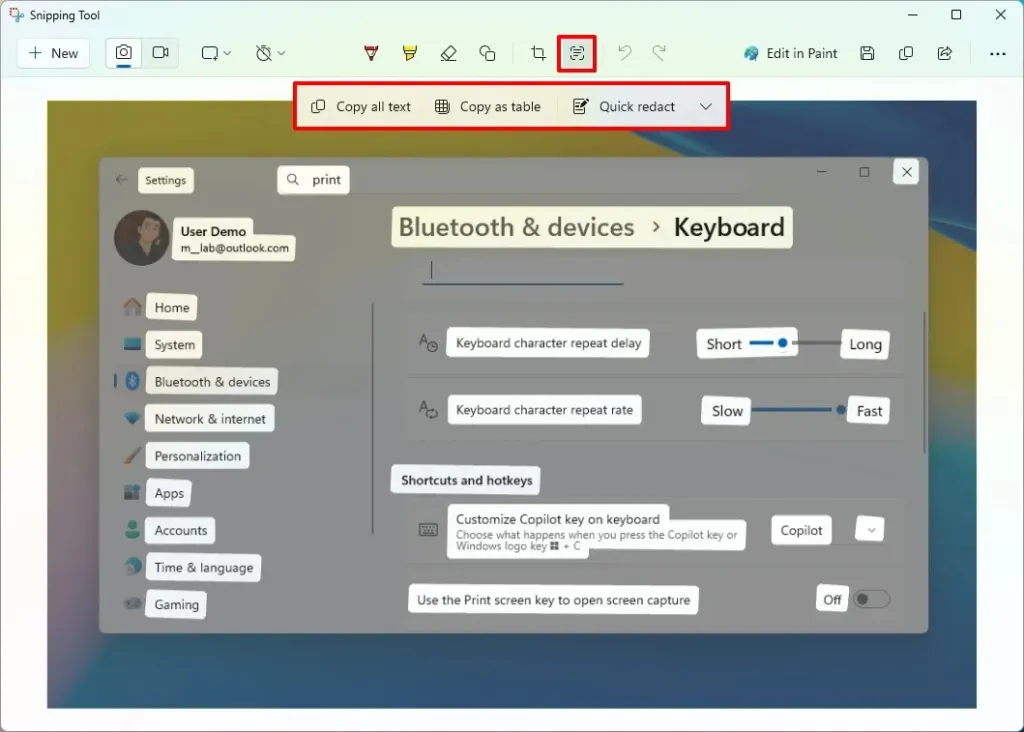
If the capture contains text, the Text actions menu can copy all of it, copy it as a table, or use Quick redact to hide email addresses and phone numbers before you share the image. Text recognition runs locally on the device.
The same app records video: press Windows + Shift + R, select the area, then Start and Stop. You can save the clip as is or pick Edit in Clipchamp.
Take game and app screenshots with Xbox Game Bar
Game Bar captures the active game or app window and saves it under Videos.
- Press
Windows + Alt + PrtScnwhile the game or app is open and active.
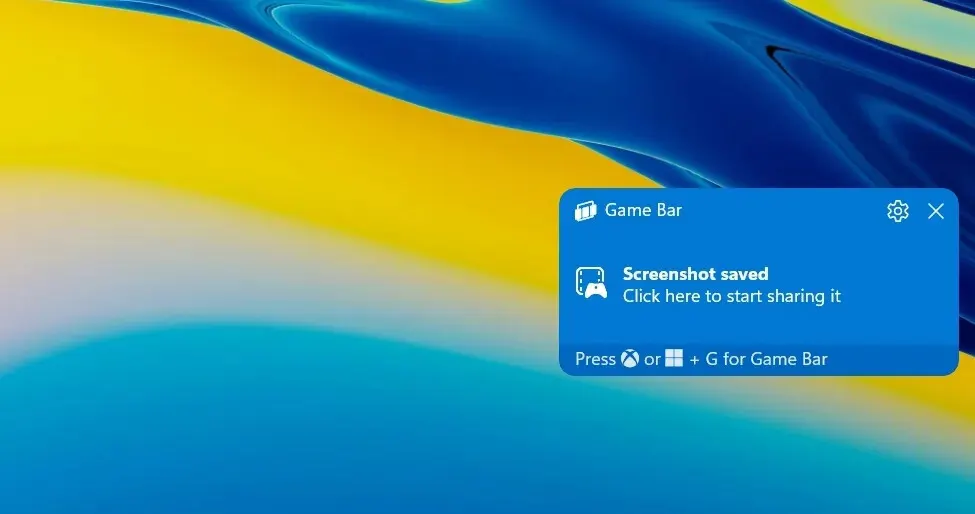
A Screenshot saved notification confirms it, and the file is in Videos > Captures. If those pop-ups get in the way, you can turn off notifications in Windows 11.
Screenshot on Windows 11 Surface and Copilot+ PCs
Both have something the standard methods lack.
- On a Surface device, press the Power button and Volume up together.
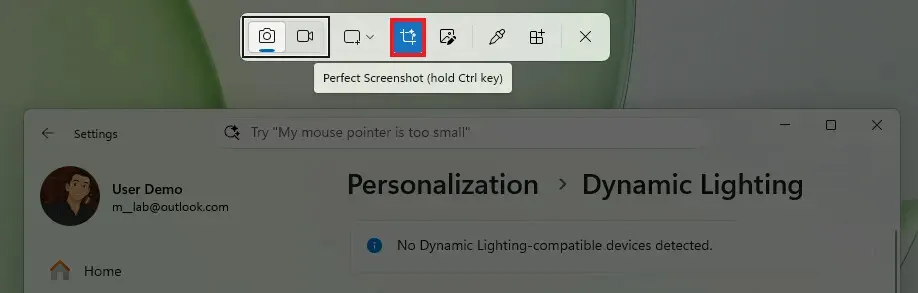
- On a Copilot+ PC, open the Snipping Tool capture bar and select Perfect screenshot (or hold
Ctrlwhile you select an area). It snaps the selection tightly around the most prominent content. Perfect screenshot and the color picker are available only on Copilot+ PCs.
Fix a screenshot shortcut that isn’t working
The usual culprits are the Print Screen setting, a laptop Fn key, or an outdated Snipping Tool.
- Recheck the Print Screen toggle described earlier, since it changes what the key does.
- On a laptop, make sure Fn Lock isn’t blocking the key, and try the combination with
Fn. - Open the Microsoft Store and confirm Snipping Tool is installed and up to date.
A reliable screenshot habit saves time whenever you need to share something or keep a record of it. Try a few methods and keep the one that fits how you work. Your captures are easy to find afterward, so nothing gets lost.


