
Finding AirDrop can be surprisingly awkward when there’s no obvious button for it. To turn on AirDrop on iPhone, a couple of things need to be in place first, and the option can sometimes be hidden or greyed out. The sections below cover turning it on, choosing who can see you, fixing a missing option and receiving files from people outside your contacts.
Table of Contents
1. Turn On AirDrop on iPhone From Control Center
This is the quickest route, and it is the one to use when someone is standing next to you waiting to send a file.
- Open Control Center.
- Touch and hold the top-left group of connectivity controls (Airplane Mode, Cellular, Wi-Fi, Bluetooth).
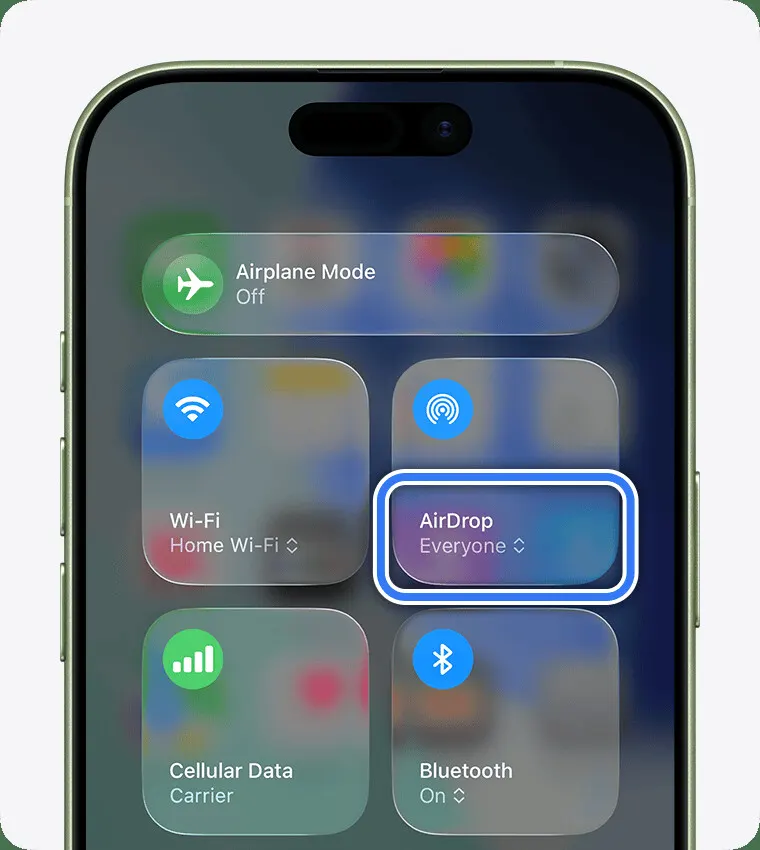
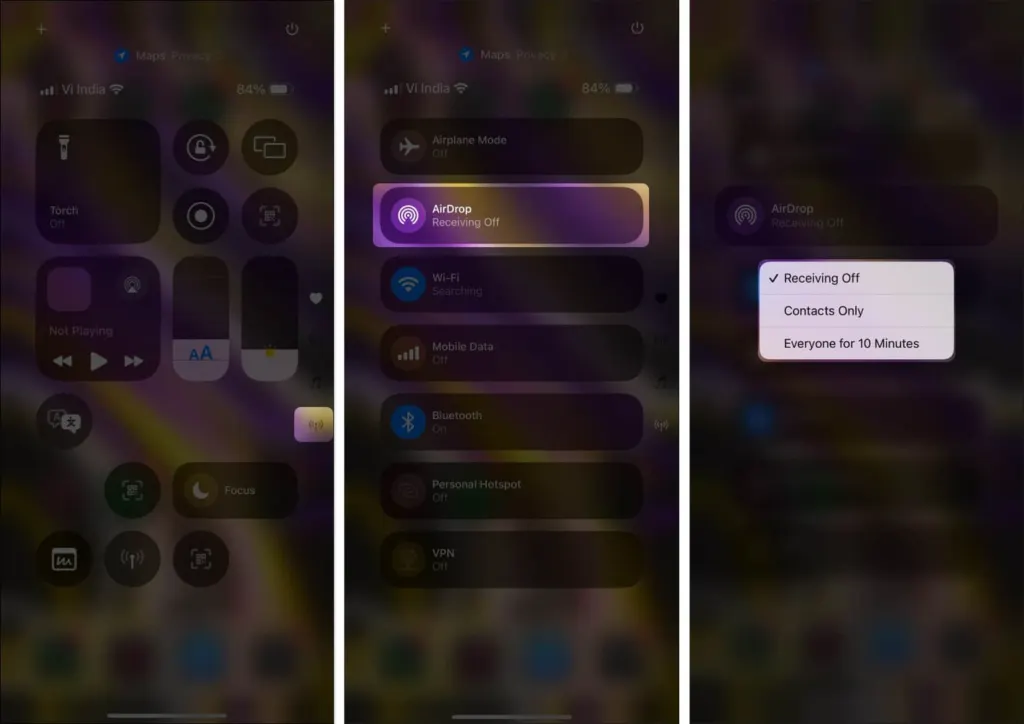
- Tap AirDrop.
- Choose Receiving Off, Contacts Only or Everyone for 10 Minutes.
2. Turn On AirDrop on iPhone in Settings
Settings offers the same three choices plus two extras, which is handy for setting AirDrop up once and forgetting it.
- Open Settings and tap General.
- Tap AirDrop.
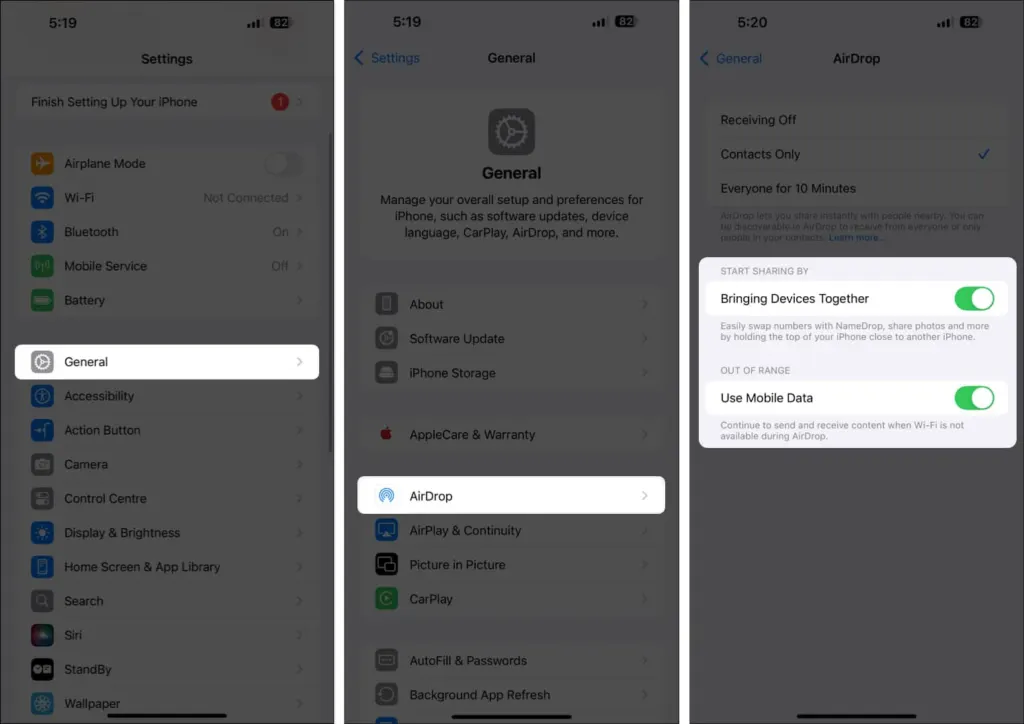
- Choose one of the three receiving options.
On iOS 17 and later, Bringing Devices Together starts AirDrop when you hold two iPhones near each other. Use Cellular Data keeps a transfer going if the other person walks out of Wi-Fi range.
3. Which Setting to Pick: Contacts Only or Everyone for 10 Minutes
Leave it on Contacts Only day to day, and use Everyone for 10 Minutes only when you are expecting something from a stranger or a new coworker.
- Contacts Only: the sender must be saved in your contacts, and their card has to include the email address or phone number tied to their Apple Account. A contact saved with only a different number or email will not match.
- Everyone for 10 Minutes: on iOS 16.2 and later it switches itself back after 10 minutes, to Contacts Only if you are signed in to your Apple Account or to Receiving Off if you are not. That explains an AirDrop that was working earlier and now shows Receiving Off.
Between your own devices on the same Apple Account, files are accepted automatically with no preview. Anyone else’s file triggers an Accept or Decline prompt.
4. AirDrop Missing, Greyed Out or Stuck on Receiving Off
Check the cheap causes first, then Screen Time, which is the usual reason the AirDrop option disappears entirely.
| What you see | Likely cause | Fix |
|---|---|---|
| AirDrop shows Receiving Off | Everyone for 10 Minutes expired, or it was never set | Pick Contacts Only or Everyone again |
| Other iPhone never appears | Wi-Fi or Bluetooth off, Personal Hotspot on, or too far away | Steps 1 and 2 below |
| No AirDrop option in Settings or Control Center | Restricted in Screen Time | Steps 3 and 4 below |
- Turn on Wi-Fi and Bluetooth on both devices, and turn off Personal Hotspot if it is on.
- Keep the other device within about 30 feet (10 meters).
- Open Settings, tap Screen Time, then tap Content & Privacy Restrictions.
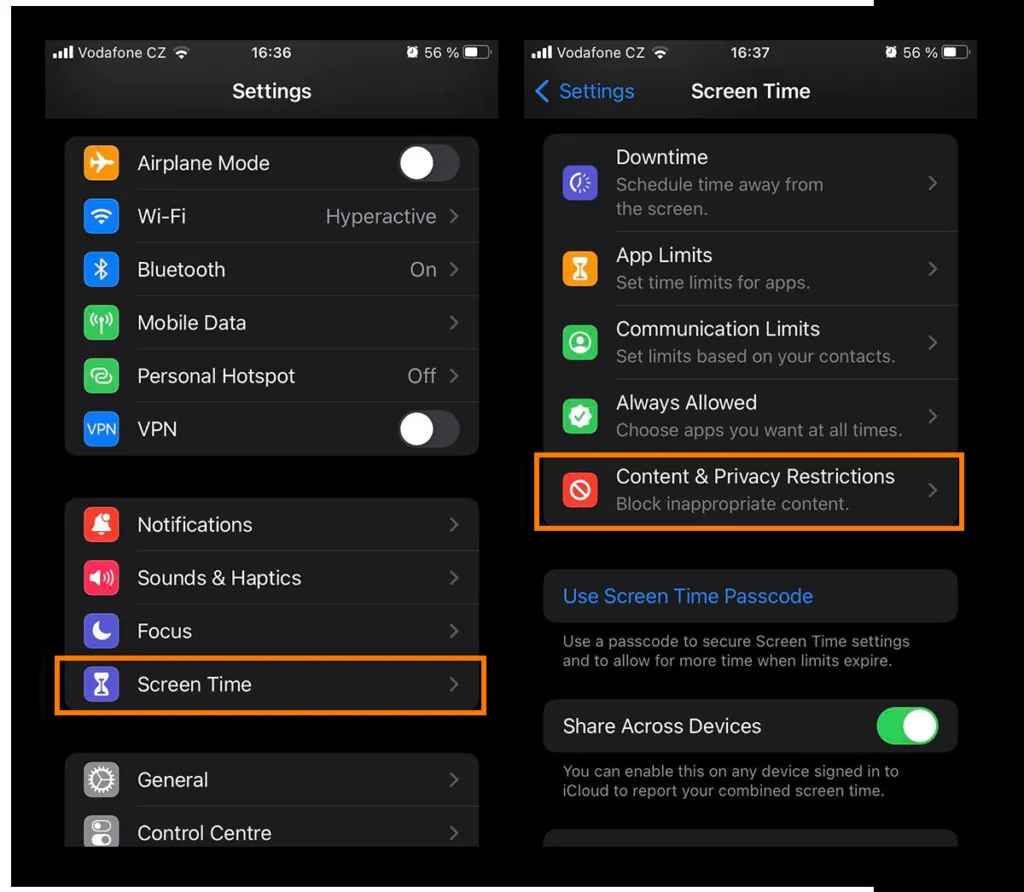
- Tap Allowed Apps & Features and make sure AirDrop is on. If a parent or organization manages the iPhone, they will need to change it.
- Restart the iPhone if the option still does not appear.
If AirDrop is on and the files still will not send, our guide to fixing AirDrop when it is not working goes deeper.
5. Receive Files From Someone Not in Your Contacts
The other person cannot see you until you let them. Set your iPhone to Everyone for 10 Minutes first, then have them send the file from the Share sheet.
If both devices run iOS 26.2 or later, the sender gets an AirDrop code prompt. This is the step on your side:
- Tap Get AirDrop Code on your iPhone.
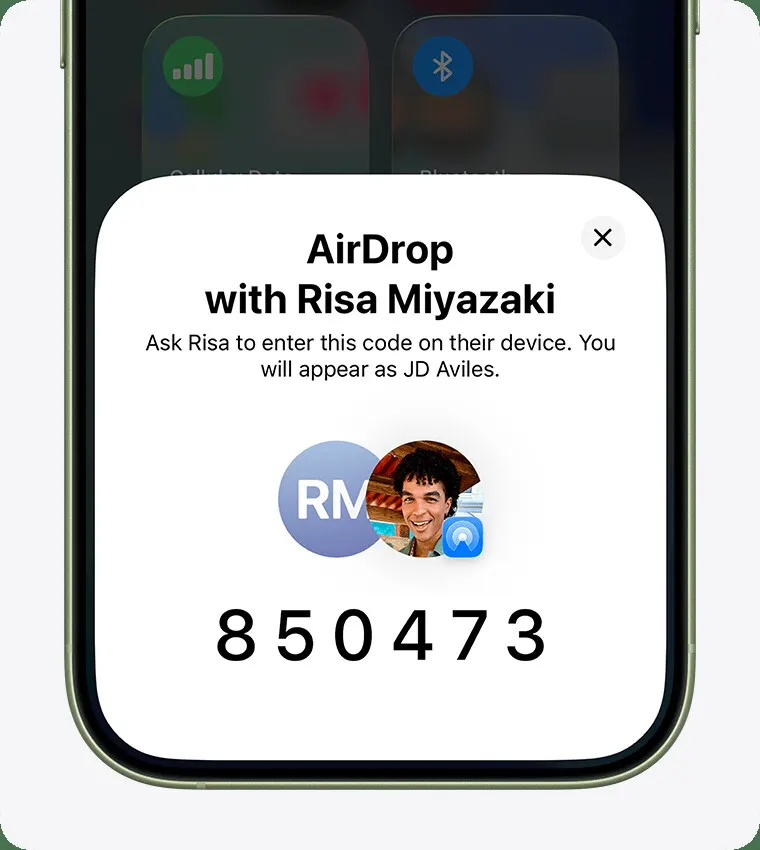
- Tell the sender the code so they can enter it on their device.
Choosing who can see your iPhone is a good balance between convenience and privacy, and it’s easy to change whenever you like. Review the setting now and then so it still matches how you share.


