
Seeing Call Failed just when you need to reach someone is stressful, and it can strike with no warning. If your iPhone keeps saying call failed, the cause usually involves the signal, a setting, the SIM or your carrier account. The ten fixes below cover the likely causes and end with what to ask your carrier.
Table of Contents
- What Triggers the Call Failed Message
- Force Close the Phone App
- Turn Airplane Mode Off and On
- Check the Signal and Move
- Turn Wi-Fi Calling Off or On
- Set Network Selection to Automatic
- Pick the Right Line on Dual SIM
- Check Blocked Contacts and Call Settings
- Update Carrier Settings and iOS
- Reinsert the SIM
- Reset Network Settings
- When Your iPhone Keeps Saying Call Failed, Call Your Carrier
What Triggers the Call Failed Message
These are the usual causes, and each one maps to a fix below:
- A weak or missing cellular signal, or a congested network (fixes 2 and 3)
- A Wi-Fi Calling glitch (fix 4), a network lock (fix 5), or the wrong line on dual SIM (fix 6)
- A blocked number or a call setting such as Call Forwarding (fix 7)
- Outdated carrier settings or iOS (fix 8), or a badly seated SIM (fix 9)
- An outage, account problem or billing block at the carrier (last section)
Test a call after every fix, so you know which one worked.
1. Force Close the Phone App
This clears a stuck Phone app without touching any setting.
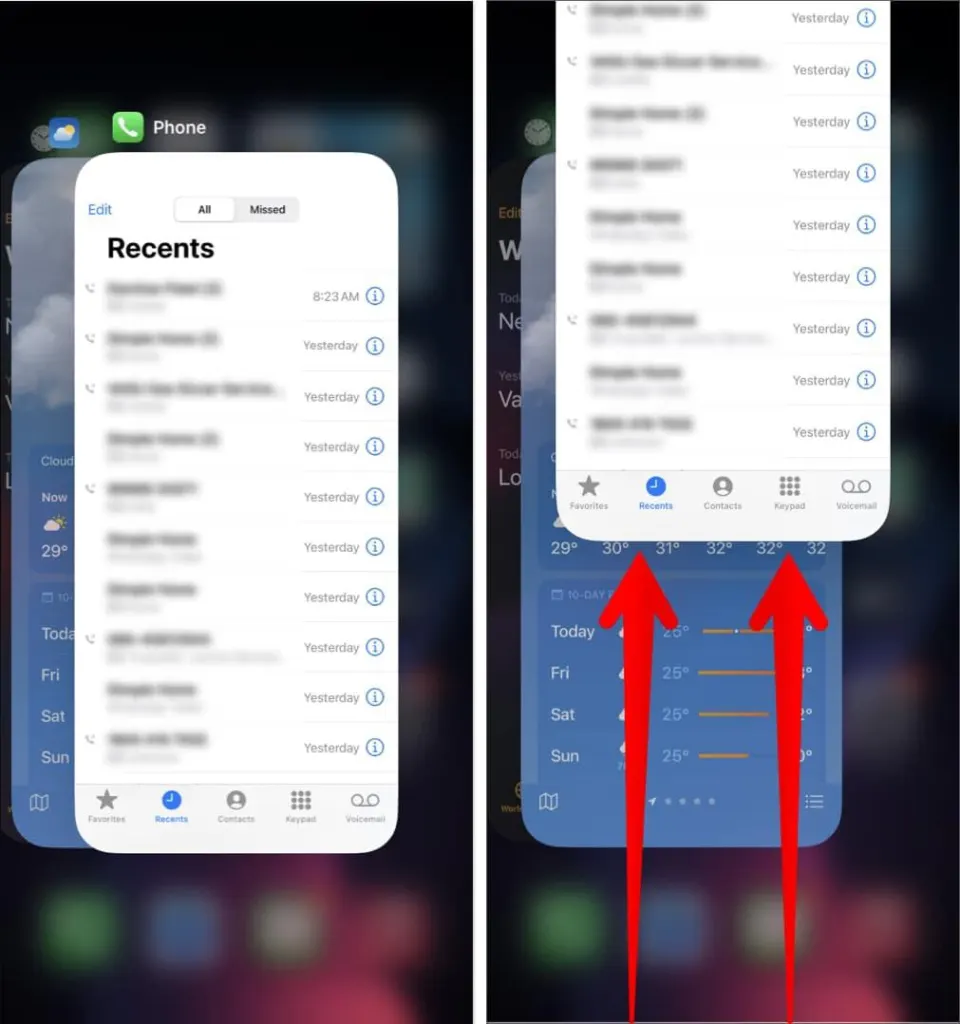
- Swipe up from the bottom of the screen and pause in the middle to open the App Switcher.
- Swipe the Phone app card up and off the screen.
- Reopen Phone and try the call.
2. Turn Airplane Mode Off and On
Toggling it forces the iPhone to drop and rebuild its network connection.
- Open Control Center and tap the Airplane Mode icon to turn it on.
- Wait five seconds, then tap it again to turn it off and try the call.
3. Check the Signal and Move
With no bars, or “No Service” or “Searching” in the status bar, the call has nothing to connect over. Walk to a window or another room, or go outdoors, and try again.
4. Turn Wi-Fi Calling Off or On
Wi-Fi Calling can fail over a weak Wi-Fi link, so try it off. It’s also the cause when calls jump straight to voicemail without ringing: one iPhone 15 Pro owner on Verizon got every call again once it was off. If your cell signal is the weak link, try it on instead.
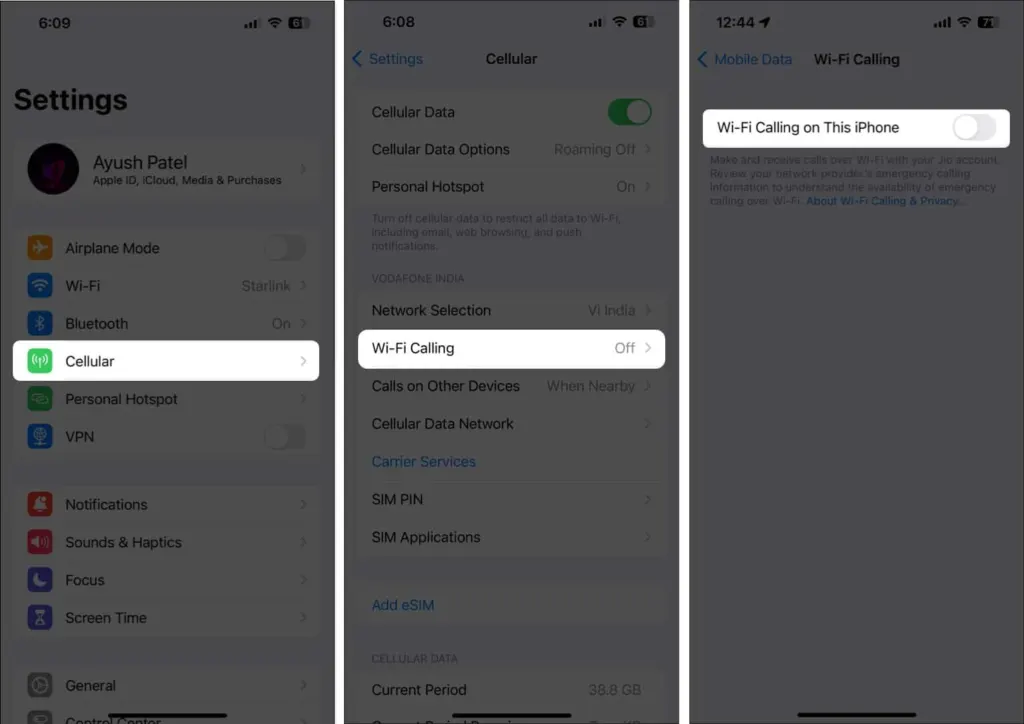
- Open Settings and tap Cellular.
- Tap Wi-Fi Calling.
- Switch Wi-Fi Calling on This iPhone the other way and try the call.
If it still fails either way, see fixing iPhone Wi-Fi Calling that isn’t working.
5. Set Network Selection to Automatic
A phone pinned to a network it can’t use will fail every call, so give control back to automatic selection.
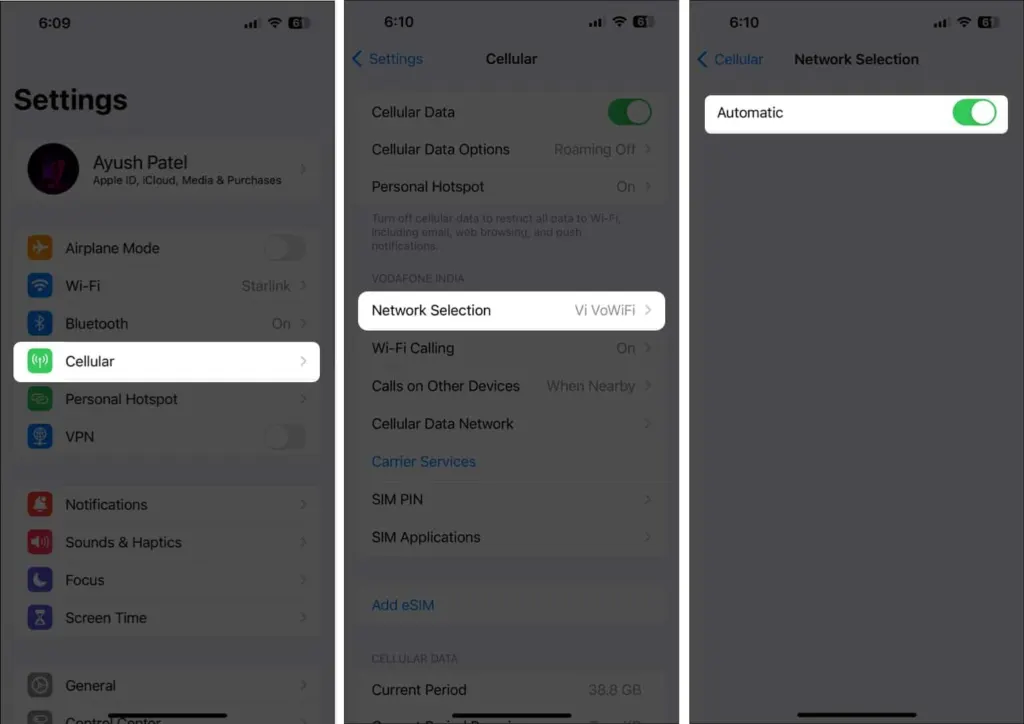
- Open Settings > Cellular > Network Selection.
- Turn on Automatic.
- If it was already on, turn it off, choose your carrier from the list, then turn Automatic back on.
6. Pick the Right Line on Dual SIM
Calls leave on the default voice line, so if that line has no service, every call fails even though the other line is fine.
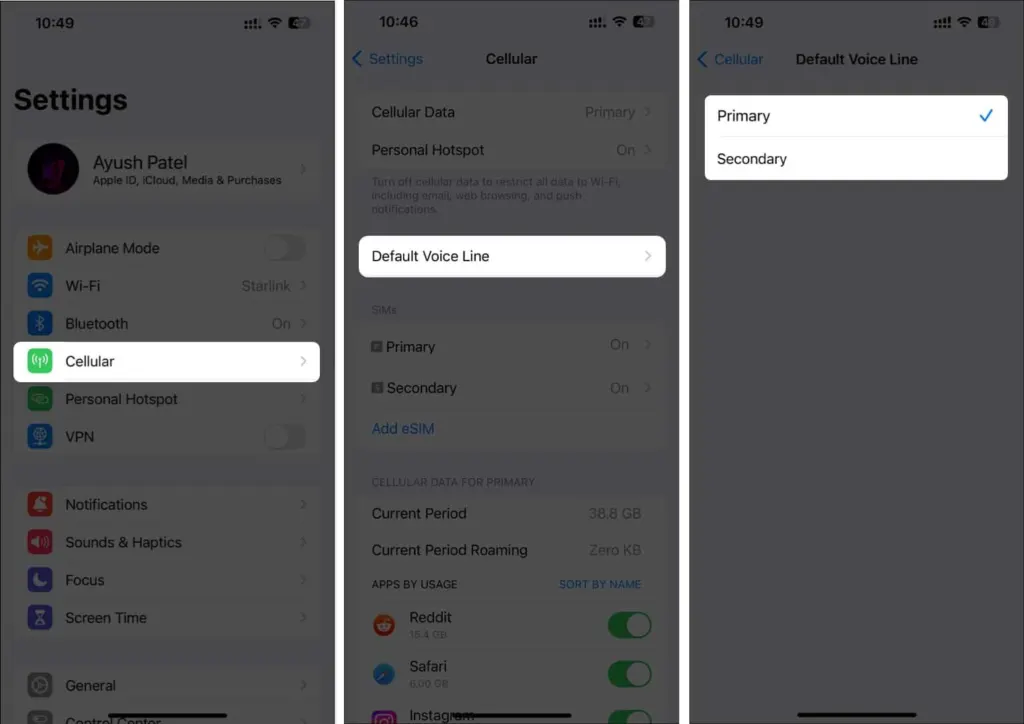
- Open Settings > Cellular.
- Tap Default Voice Line and choose the line with service.
A contact can also have its own assigned line, so a single person whose calls fail may be set to the dead line.
7. Check Blocked Contacts and Call Settings
A blocked number can’t be called, and a few call settings change what happens to calls.
- Open Settings > Apps > Phone, then tap Blocked Contacts. If the number is listed, unblock it. Our guide to blocking a number on iPhone explains how the list works.
- Back in the Phone settings, open Call Forwarding and make sure it’s off. If you’re missing incoming calls rather than failing outgoing ones, also check Silence Unknown Callers and the Do Not Disturb Focus under Settings > Focus.
8. Update Carrier Settings and iOS
Outdated carrier settings or iOS can break call setup, and updates may need Wi-Fi.
- Open Settings > General > About. If a carrier settings update appears, install it.
- Go back to General > Software Update and install any iOS update.
- On iOS 18 or later, the Apple Support app can run extra diagnostics on the phone.
9. Reinsert the SIM
A SIM that has shifted in its tray can drop the connection. Turn the iPhone off, open the SIM tray with an eject tool or a small paperclip, check that the SIM sits flat, close the tray and turn the phone on. If it still looks like a SIM fault, see iPhone SIM failure fixes.
10. Reset Network Settings
This is the last fix on the phone. It erases saved Wi-Fi passwords, preferred networks, VPN settings and APN settings, so it’s worth having your Wi-Fi password at hand.
- Open Settings > General > Transfer or Reset iPhone.
- Tap Reset > Reset Network Settings.
- Enter your passcode, confirm, then rejoin your Wi-Fi networks and test a call in a different location.
Our guide to resetting network settings on iPhone covers what else it clears.
When Your iPhone Keeps Saying Call Failed, Call Your Carrier
If everything above fails, the cause is likely on the carrier’s side. Ask them to confirm that:
- your account is set up to use your iPhone
- there’s no local outage
- your line has no billing-related block
- your calls aren’t producing errors on their system
Most cases come down to something small that can be corrected without replacing the phone. If the message persists after you have checked the basics, your carrier or Apple can look at your line and device directly. See also why iPhone calls keep dropping.


