
Needing a fresh copy of Windows but having no flash drive or DVD to hand is more common than you might think. Windows 10 can often rebuild itself from files already on the PC or from Microsoft, so extra media is optional. Below are three ways to reinstall Windows 10 without USB, including one for a PC that no longer starts and one that can keep your apps.
Table of Contents
Before you start
- Back up your files first. Remove everything and the Nothing option in an in-place reinstall erase your personal files, and Keep my files only protects what is in your user profile.
- Windows 10 reactivates automatically from its digital license if it was activated before, but the edition you reinstall must match that license (Home stays Home). To check, open Settings > System > About. On a PC with a replaced motherboard, link the license to your Microsoft account first.
- Microsoft ended Windows 10 support on October 14, 2025, so it no longer gets regular security updates. If the PC supports Windows 11, our reinstall Windows 11 guide is the better target.
Which Method Fits Your Situation
- Windows works but you want a fresh start: method 1, Reset this PC.
- Windows works but is buggy and you want to keep every app: method 3, the in-place reinstall.
- Windows won’t boot or you can’t sign in: method 2, the recovery menu.
1. Reinstall Windows 10 Without USB Using Reset This PC
Reset this PC is built into Windows 10 and reinstalls the system straight from Settings.
- Open Start > Settings > Update & Security > Recovery.
- Under Reset this PC, click Get started.
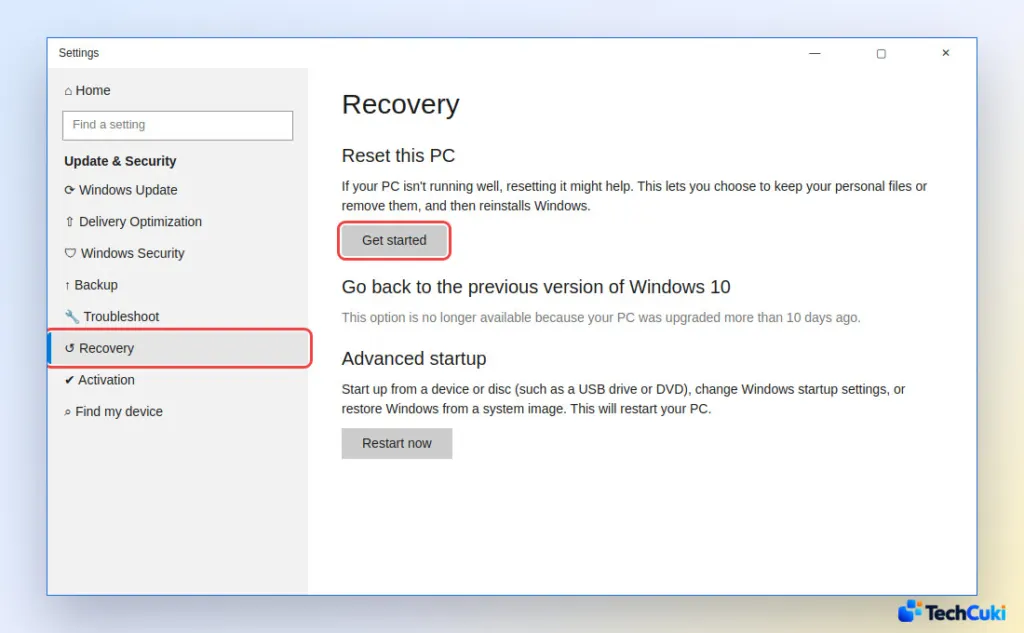
- Choose Keep my files (removes apps and settings, keeps personal files) or Remove everything (removes files, apps and settings; use it to wipe the PC completely, for example before selling it).
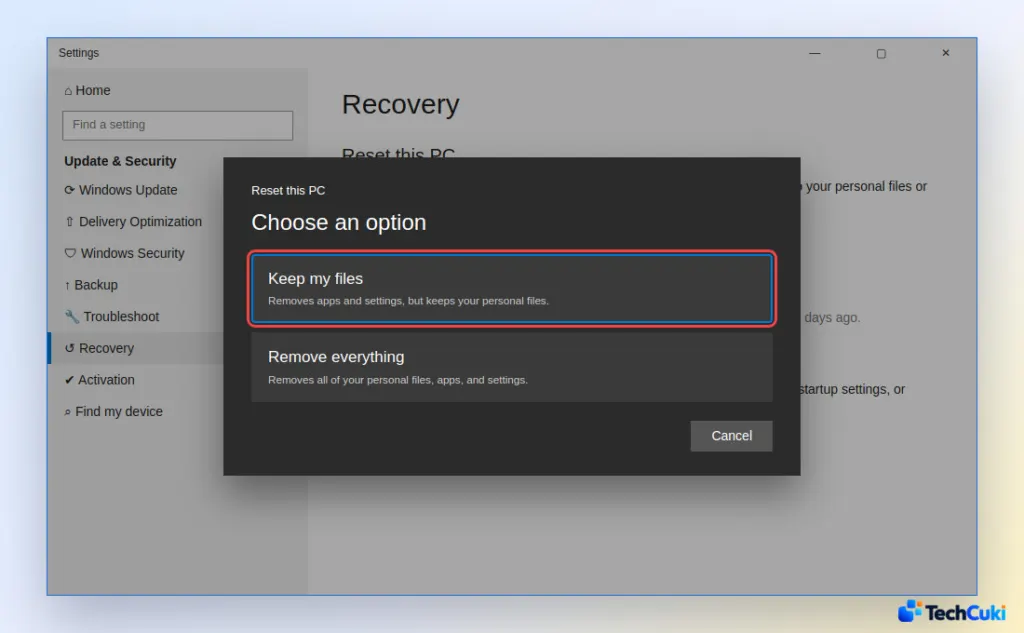
- Choose Cloud download or Local reinstall. Cloud download pulls a fresh copy of Windows from Microsoft and can use more than 4 GB of data, which makes it the safer pick if local system files are damaged. Local reinstall reuses the files already on the PC, so there is no download and it finishes faster.
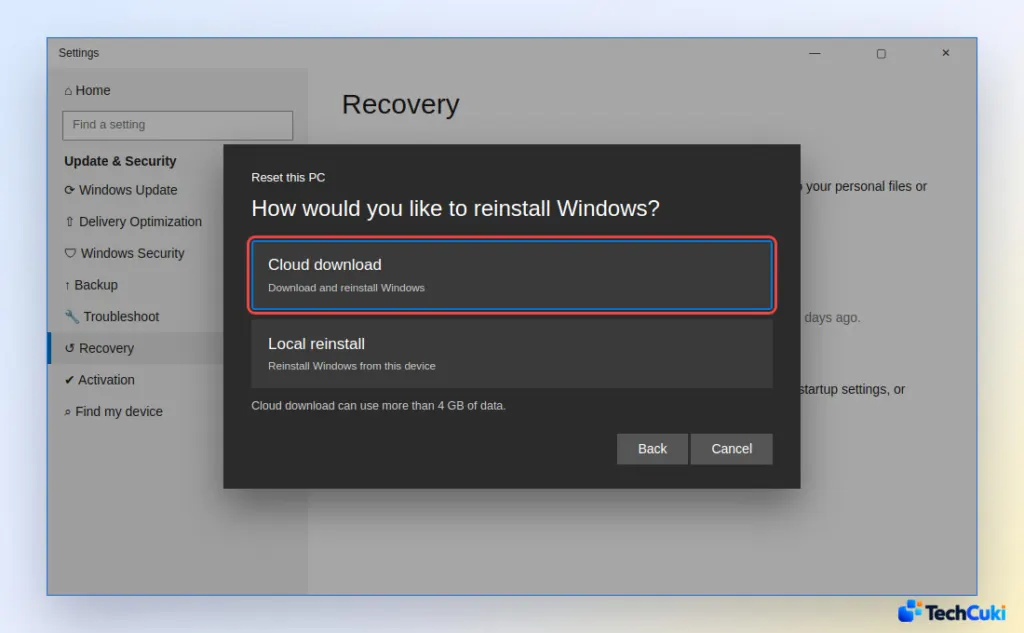
- Review the Ready to reset this PC screen and click Reset.
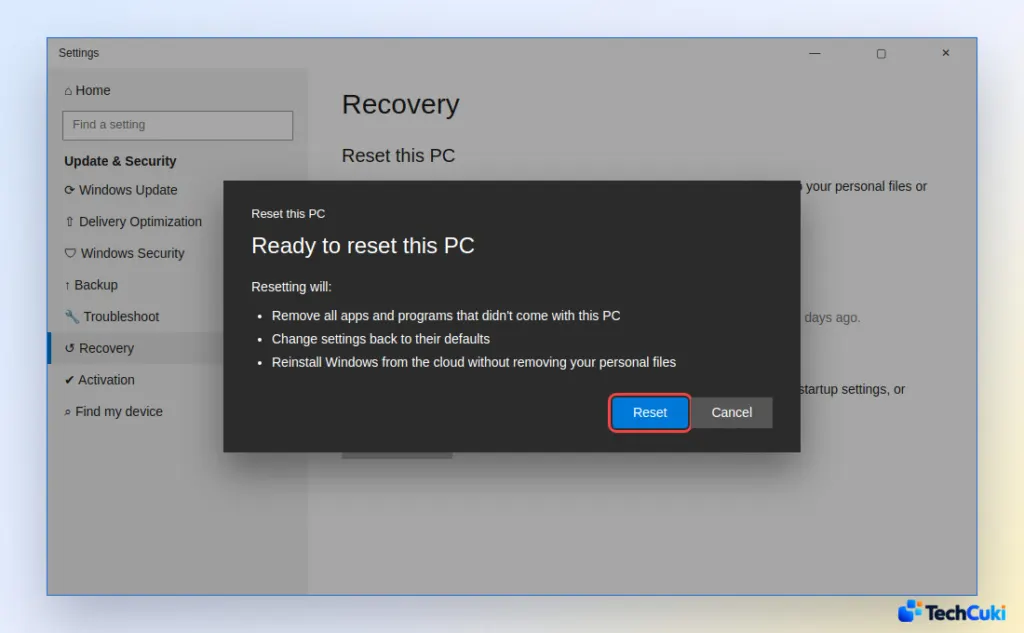
The PC restarts several times, and the reset takes from about 30 minutes to a few hours. Keep a laptop plugged in so it can’t die halfway through. When it finishes you land on a fresh sign-in or setup screen, and any apps that didn’t come with the PC need reinstalling.
2. Reinstall Windows 10 From the Recovery Menu
When Windows can’t start, the same reset is reachable from the recovery environment. Windows opens it on its own after 2 or 3 failed starts in a row, so you may already be looking at it.
- On the sign-in screen, hold Shift and click Power > Restart.
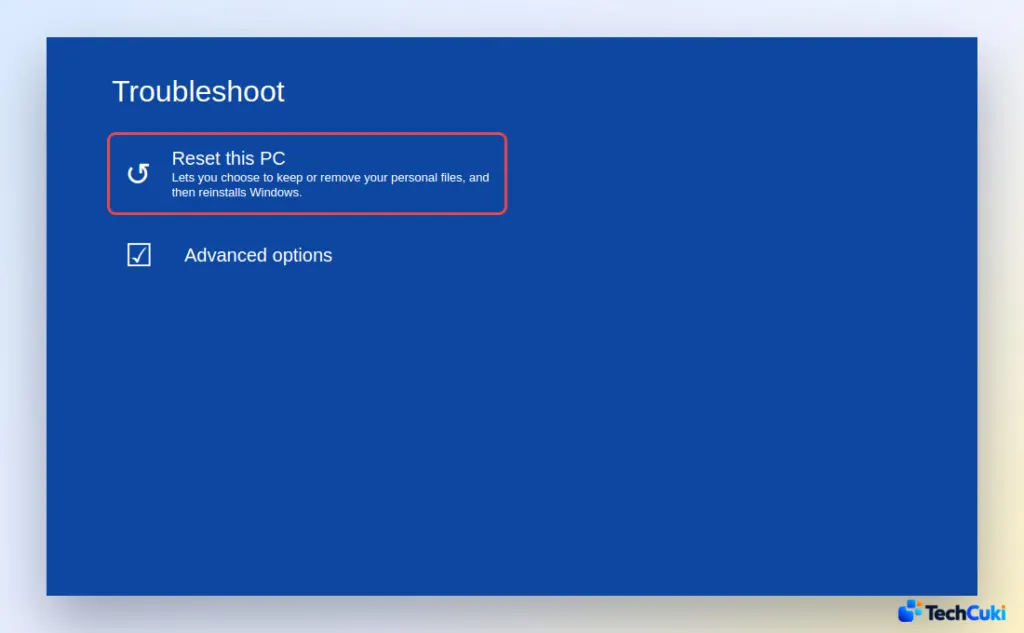
- Choose Troubleshoot > Reset this PC, then pick the same options as in method 1. If the local files are what broke Windows, choose Cloud download here.
3. Reinstall Windows 10 Without USB and Keep Your Apps
An in-place reinstall repairs Windows while keeping your files and apps. It runs from a mounted ISO, so no USB drive is involved, but Windows has to be able to start and sign in. The ISO should match the edition and language of the Windows you have now.
- On Microsoft’s Windows 10 download page, get the Media Creation Tool. Run it, choose Create installation media, and then pick ISO file as the target.
- In File Explorer, right-click the ISO and choose Mount.
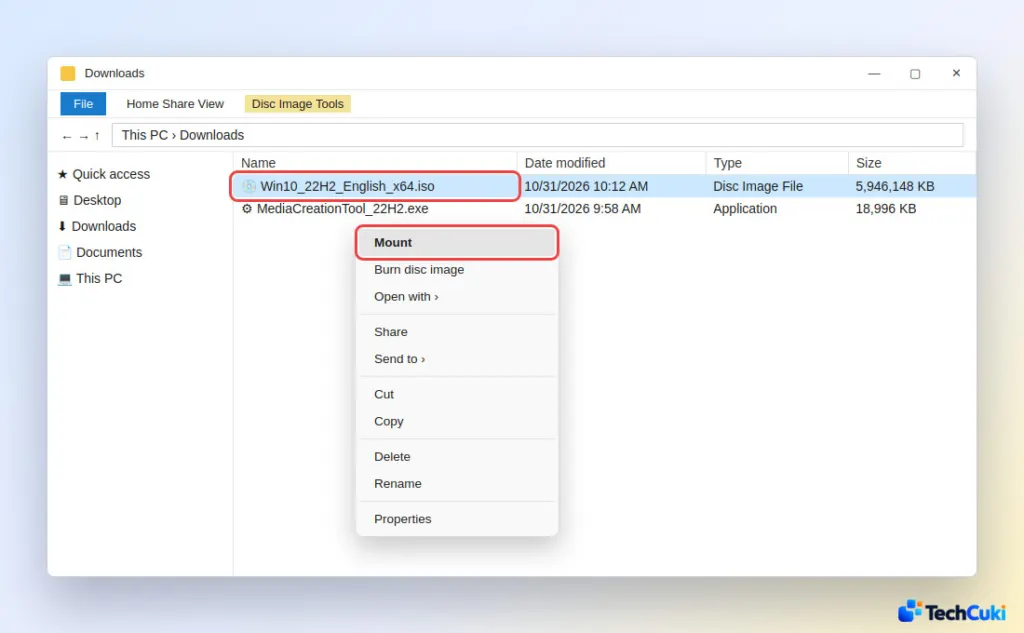
- Open the mounted drive and run setup.exe. Select Yes at the permission prompt, then follow the setup screens.
- On the Choose what to keep screen, pick one of the options: Keep personal files and apps preserves data, settings and apps, Keep personal files only removes the apps, and Nothing erases everything.
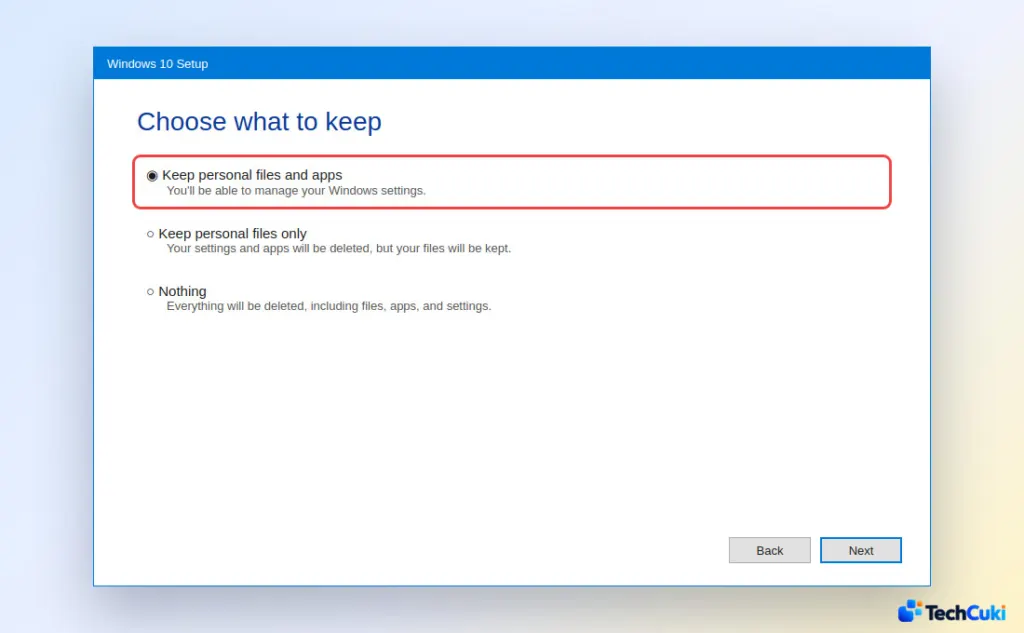
- Click Install. The PC restarts several times along the way.
If None of These Work
A PC that can’t reach the recovery menu, or a reset that keeps failing, needs a true clean install from bootable media. Our guide to installing Windows 10 from USB covers it, and you can build the USB on any other working PC.
A reinstall is a strong fix for stubborn software problems, but it is worth doing carefully. Back up what matters first, since that is the one step you cannot undo afterward.


