
Sometimes a stubborn printer, game or app makes you wonder if your protection is getting in the way. If you need to turn off firewall protection in Windows 11, there are a few ways to do it, and the right one depends on what you’re trying to fix. The steps below cover switching it off, the safer alternatives and how to turn it back on.
Table of Contents
Turn Off Firewall in Windows 11 With Windows Security
The firewall is controlled per network profile, so you switch off the one you’re connected to.
- Open Windows Security from the Start menu, or go to Settings > Privacy & security > Windows Security.
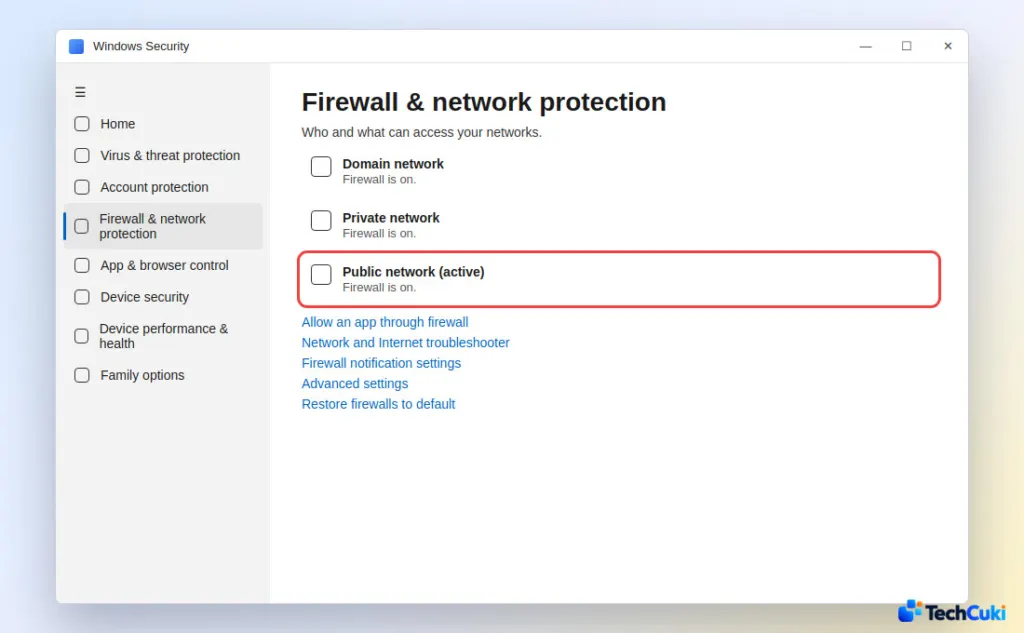
- Select Firewall & network protection. The profiles are Domain network, Private network and Public network, and the one in use is marked “(active).”
- Select the active profile.
- Under Microsoft Defender Firewall, switch the toggle to Off and approve the User Account Control prompt.
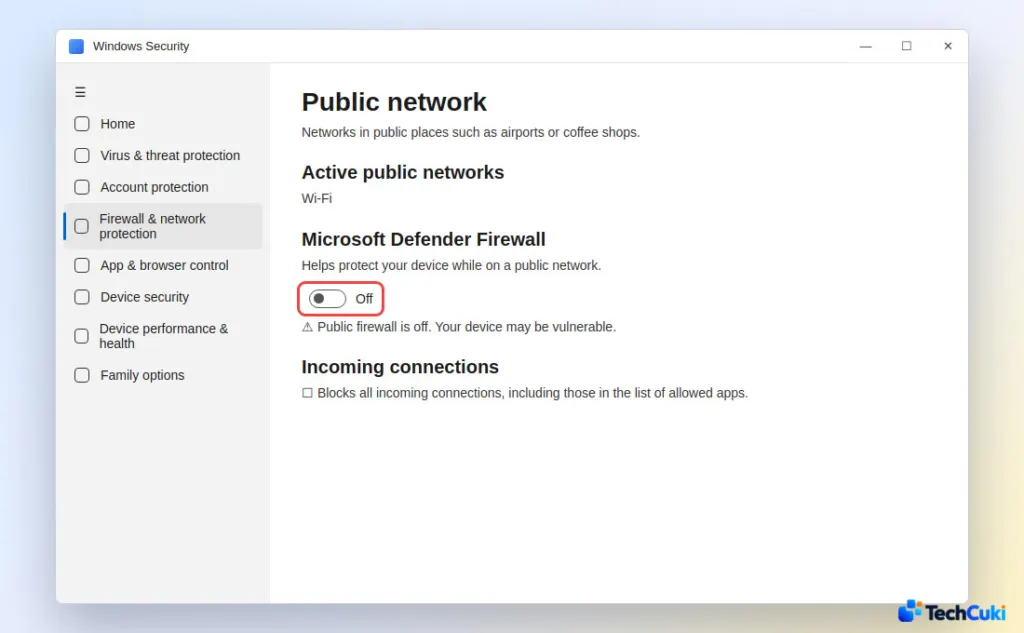
You’ll see a warning such as “Public firewall is off. Your device may be vulnerable.” The other profiles stay on, so repeat for Domain and Private if you need the firewall fully off. There is no timer here: the firewall stays off until you return to the same page and switch it to On. That also reverses the change.
If the toggle won’t move on a work or school PC, an organization policy controls it and only your administrator can change it.
Allow One App Through the Firewall Instead
This keeps protection on and only opens a path for the app that’s being blocked.
- In Windows Security, select Firewall & network protection, then Allow an app through firewall.
- Select Change settings.
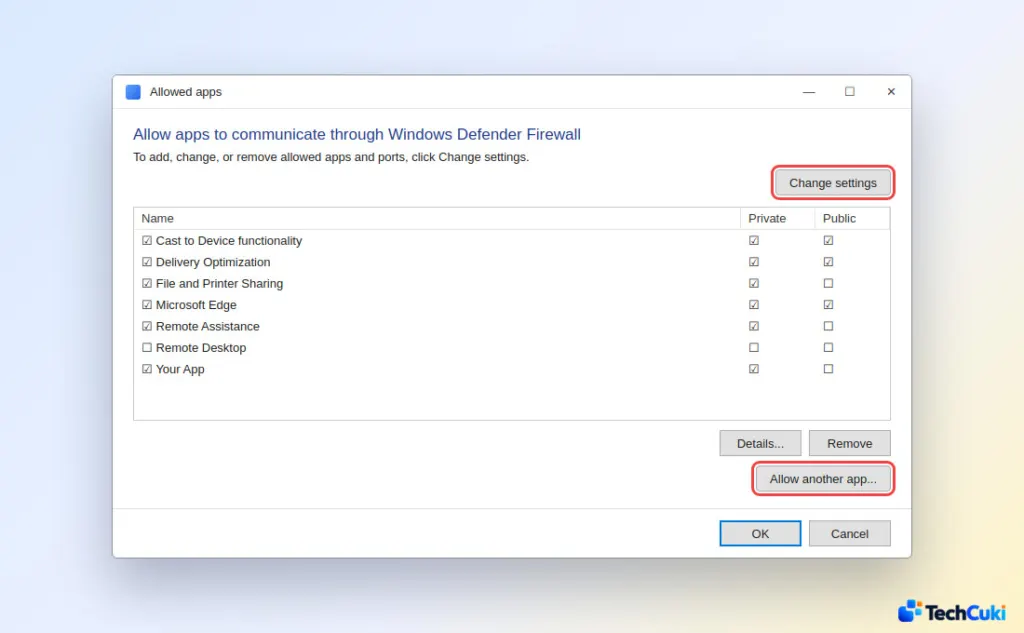
- Find the app and tick Private, Public, or both. Tick Public only if you really use the app on networks you don’t trust.
- If the app isn’t listed, select Allow another app > Browse, pick the app’s file, then select Add and OK.
To undo it, select the app in the list and choose Remove.
Turn Off the Firewall From Command Prompt or PowerShell
This command turns off every profile at once, using the method Microsoft documents.
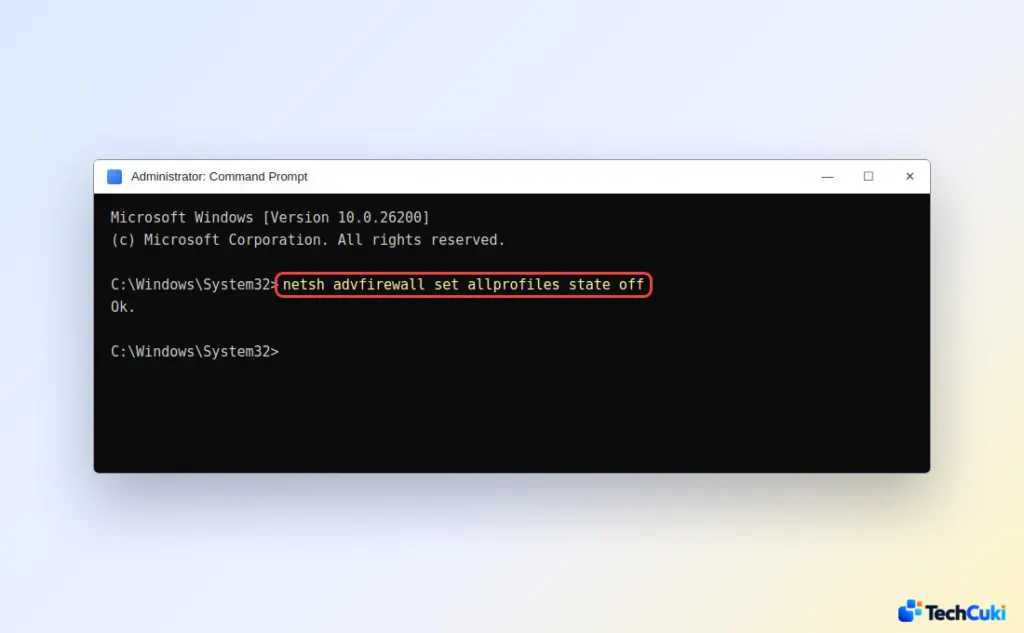
- Search the Start menu for Command Prompt, right-click it and select Run as administrator.
- Type
netsh advfirewall set allprofiles state offand press Enter.
- To turn it back on, run
netsh advfirewall set allprofiles state on.
In an administrator PowerShell window, Set-NetFirewallProfile -Profile Domain,Public,Private -Enabled False does the same, and -Enabled True reverses it.
Don’t stop the Windows Defender Firewall service (MpsSvc) in Services instead. Microsoft says that isn’t supported and can break the Start menu, app installs and updates from the Store, and phone activation of Windows. Turning off the profiles with the settings above leaves the service running, which is the supported way.
Is It Safe to Turn Off the Firewall?
Only briefly, and ideally when another firewall is already protecting the PC. Without one, your PC is exposed to network attacks, especially on public Wi-Fi. Microsoft also notes you give up IPsec connection security rules, protection against network fingerprinting, Windows Service Hardening and boot-time filters. A third-party suite such as McAfee, Norton or Bitdefender runs its own firewall, which you manage in that app. If you’re reviewing other protections too, how to enable Secure Boot in Windows 11 is worth a look.
Firewall Off Already, or Still Nagging You to Turn It On
A firewall that’s already off usually means someone with access to the PC switched it, a third-party security suite took over firewall management, or an organization policy is applied. On a managed PC, ask your administrator.
If you left it off on purpose and keep getting “turn on” alerts, the notification setting in Windows Security only covers blocked-app alerts, not these. Microsoft’s support staff point to Local Group Policy (Pro and higher): Computer Configuration > Windows Settings > Security Settings > Windows Defender Firewall with Advanced Security, open Windows Defender Firewall Properties, and set the firewall state to Off for each profile.
If your firewall rules turned into a mess, select Restore firewalls to default on the Firewall & network protection page. Organization policies are applied again afterward. Should an app still be blocked once the firewall is off, the cause is likely elsewhere, such as the app’s own settings or security software, so check those next.
Firewall protection matters, so any change is best kept short and reversed once your task is done. Take care not to leave the PC exposed longer than you need to.


