
Defender can feel like it’s in the way when it flags a file or app you trust. If you want to turn off Windows Defender in Windows 11, the options are more limited than they used to be, and some choices are safer than others. The steps below cover what is realistic, what to do instead and how to keep your PC protected.
Table of Contents
Turn Off Windows Defender Temporarily
Pausing real-time protection stops scanning of files as you open or download them, while scheduled scans continue.
- Click Start, type Windows Security and open it.
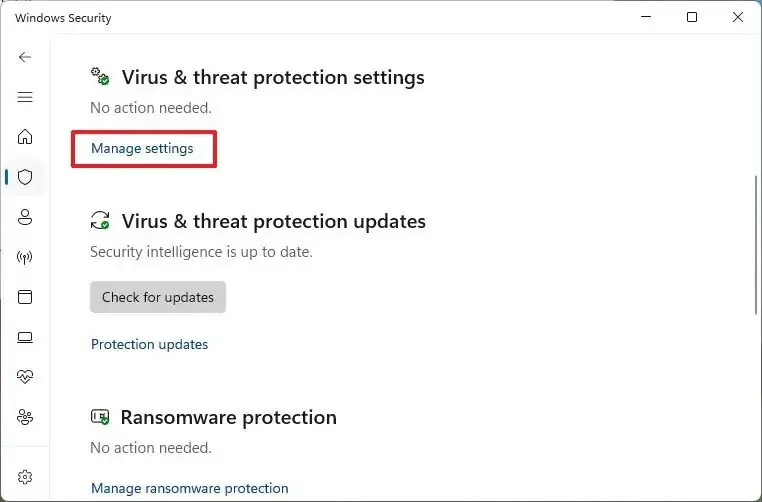
- Click Virus & threat protection.
- Under Virus & threat protection settings, click Manage settings.
- Switch Real-time protection to Off.
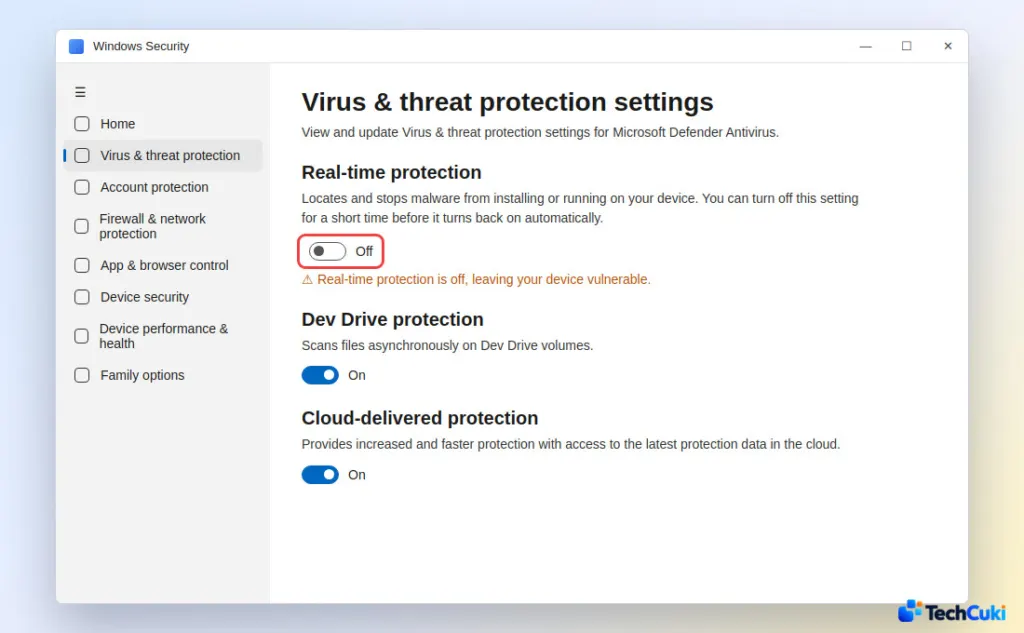
- Approve the User Account Control prompt.
The pause doesn’t last: Windows switches it back on after a short delay, and a restart restores it too. If the toggle is already back on when you finish the job, nothing more is needed, but open the same page and confirm that it reads On.
Add an Exclusion Instead of Turning It Off
If Defender keeps removing or blocking one program, such as an older app run from a USB drive, an exclusion fixes that without dropping protection for the whole PC. Only exclude things you trust, because excluded items are not scanned in real time.
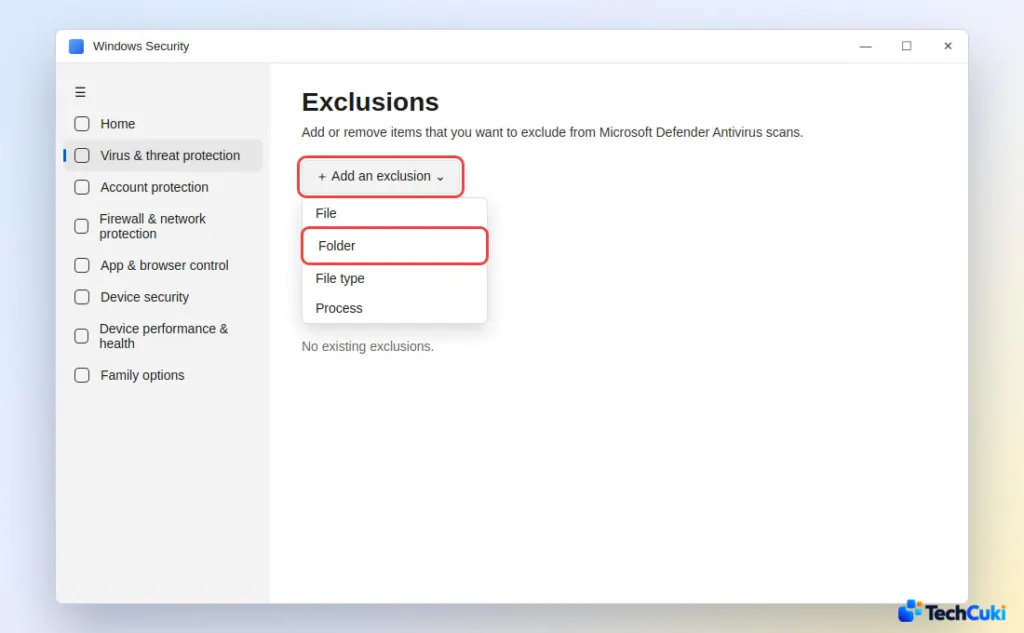
- In Manage settings, scroll to Exclusions and click Add or remove exclusions.
- Click Add an exclusion and choose File, Folder, File type or Process.
To undo it, open the same list and remove the entry.
Turn Off Windows Defender by Installing Another Antivirus
This is the supported way to stop using Defender permanently. Once a third-party antivirus is installed and working, Defender turns itself off, Windows Security shows the new product in the Virus & threat protection section, and a Periodic scanning option becomes available. If you uninstall that product later, Defender comes back on. Note that when Defender is fully disabled by other means, Periodic scanning can’t be turned on.
Why Windows Defender Won’t Stay Off
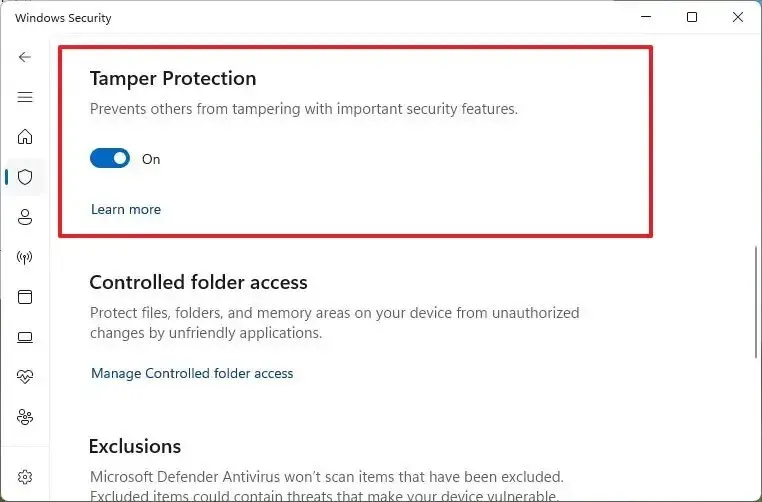
Windows 11 is built to undo manual changes. Tamper Protection, on the same Manage settings page, blocks other apps and scripts from changing key security settings, and registry edits don’t take effect while it is on. Even with it off, a registry-only disable is reversed by Windows over time unless an enterprise policy enforces it or another antivirus is in place. Local Group Policy has a “Turn off Microsoft Defender Antivirus” setting, but that editor exists only in Windows 11 Pro, Enterprise and Education, so it isn’t a Home option.
On a work or school PC, an admin may manage these settings and the toggles can be locked, so ask them before you change anything.
Is It Safe to Turn Off Windows Defender?
Briefly, yes, if you trust what you’re about to run. With no other antivirus, a PC has no malware protection at all. The firewall is a separate setting, so Defender being off doesn’t change it; see turning off the firewall in Windows 11 for that.
Protection that’s switched off is protection you don’t have, so it’s worth weighing the risk before changing anything. If you can’t tell if a file is safe, leave protection on and look for another source.


