
Headphones that will not connect, a mouse that keeps dropping or a Bluetooth option that has disappeared can stop you mid-task. The cause is often simple, though it can also sit with the device, the PC or the way they are paired. Here you will find what to check when you see Windows 11 Bluetooth not working, starting with the quickest checks and moving on to deeper repairs.
Table of Contents
- Windows 11 Bluetooth Not Working? Check the Basics First
- Run the Bluetooth Troubleshooter
- Remove the Device and Pair It Again
- Update the Bluetooth Driver Through Windows Update
- Enable, Update or Reinstall the Adapter in Device Manager
- Restart the Bluetooth Support Service
- Fix Bluetooth That Stops After Sleep
- Handle a Missing Bluetooth Option
Windows 11 Bluetooth Not Working? Check the Basics First
Confirm the radio is on and the accessory is ready, because both are easy to miss and a pairing screen won’t warn you.
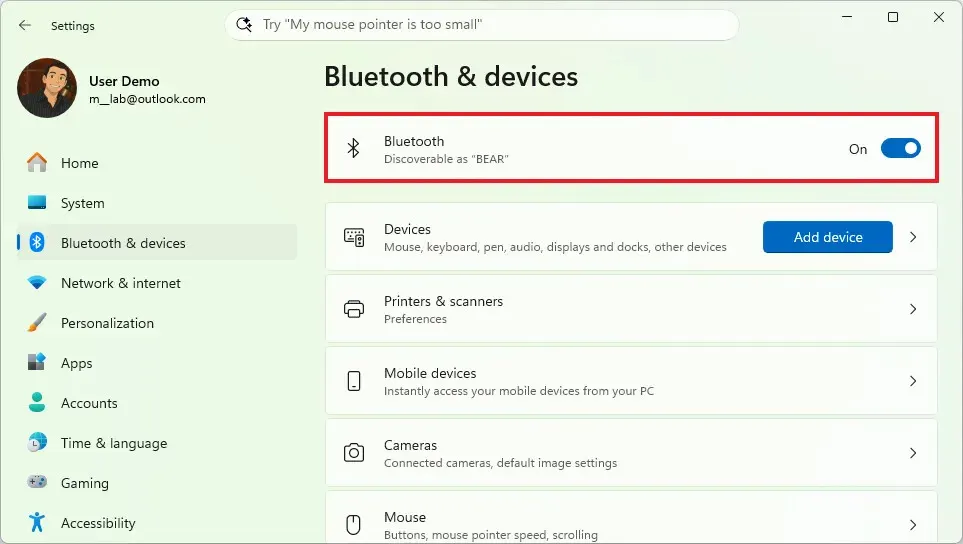
- Open Settings and go to Bluetooth & devices. Make sure the Bluetooth toggle is On.
- Press
Windows + Ato open Quick Settings and check that the Bluetooth tile is turned on. Some laptops also have a physical Bluetooth switch on the body.
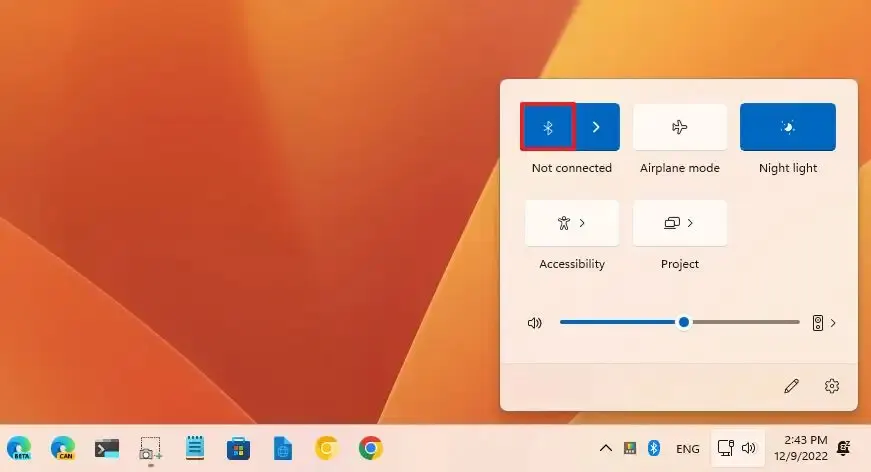
- Make sure Airplane mode is off.
- Charge the device and put it in pairing mode within range of your PC. A low battery can stop a device from entering pairing mode at all, and rechargeable headphones pair more reliably while plugged in.
- If the device never shows up, return to Bluetooth & devices and set Bluetooth devices discovery under Device settings to Advanced. The default setting only lists common device types.
- Restart your PC and try again. A sluggish connection can also come from an unshielded USB device in a USB 3.0 port right next to the PC’s Bluetooth antenna, so move it away.
Run the Bluetooth Troubleshooter
It checks the adapter and the Bluetooth services in one pass, which makes it a cheap test before you touch drivers.
- Open Settings and go to System > Troubleshoot.
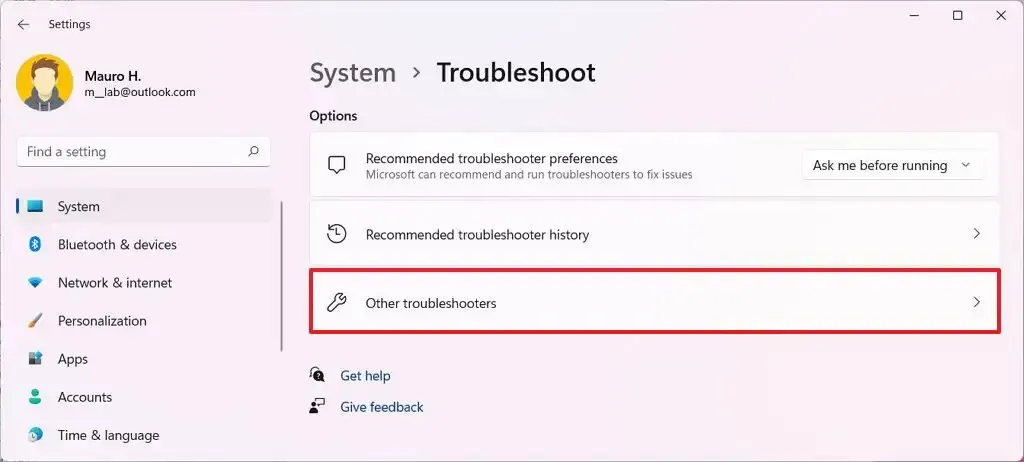
- Select Other troubleshooters.
- Find Bluetooth in the list and select Run.
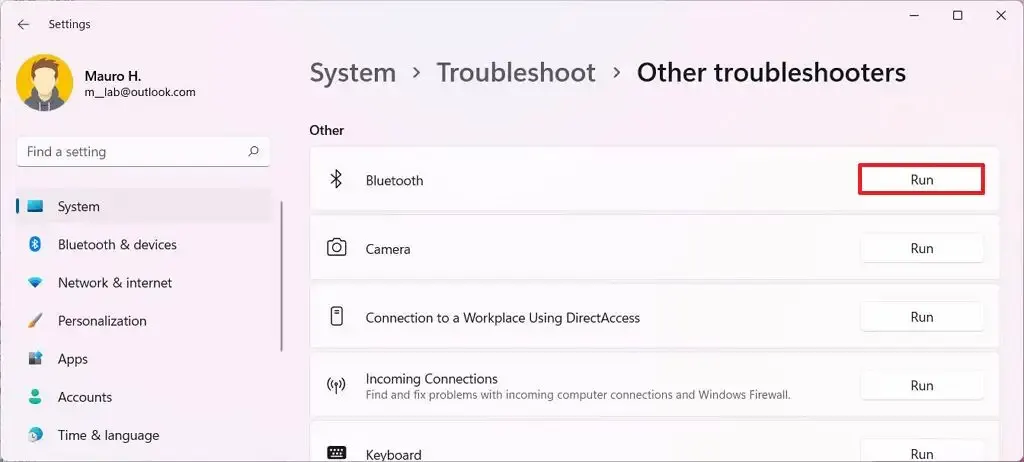
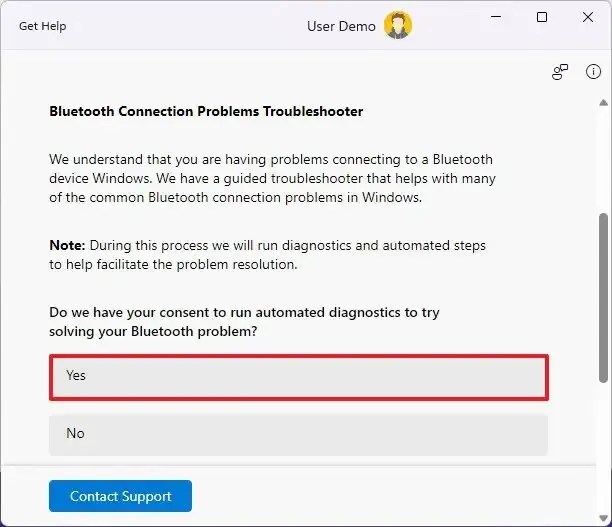
- On newer versions of Windows 11, this opens the Get Help app’s Bluetooth troubleshooter. Select Yes to run the automated diagnostics.
Remove the Device and Pair It Again
If one device is listed but won’t connect, the saved pairing is probably stale. Removing it makes Windows and the device exchange fresh keys. This fixes a dropping device more often than any driver change.
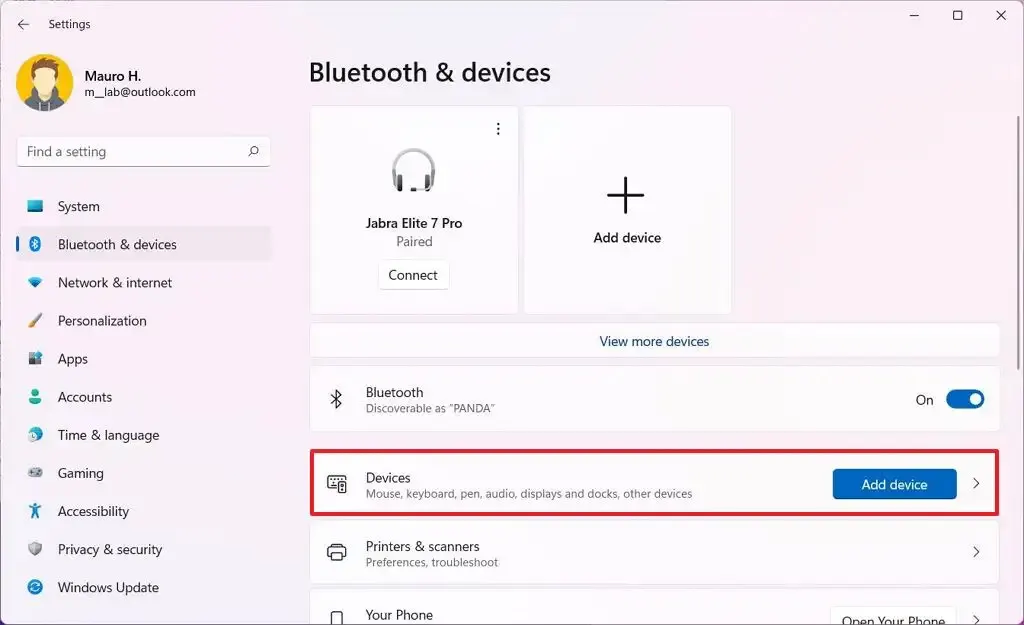
- Open Settings and select Bluetooth & devices, then select Devices.
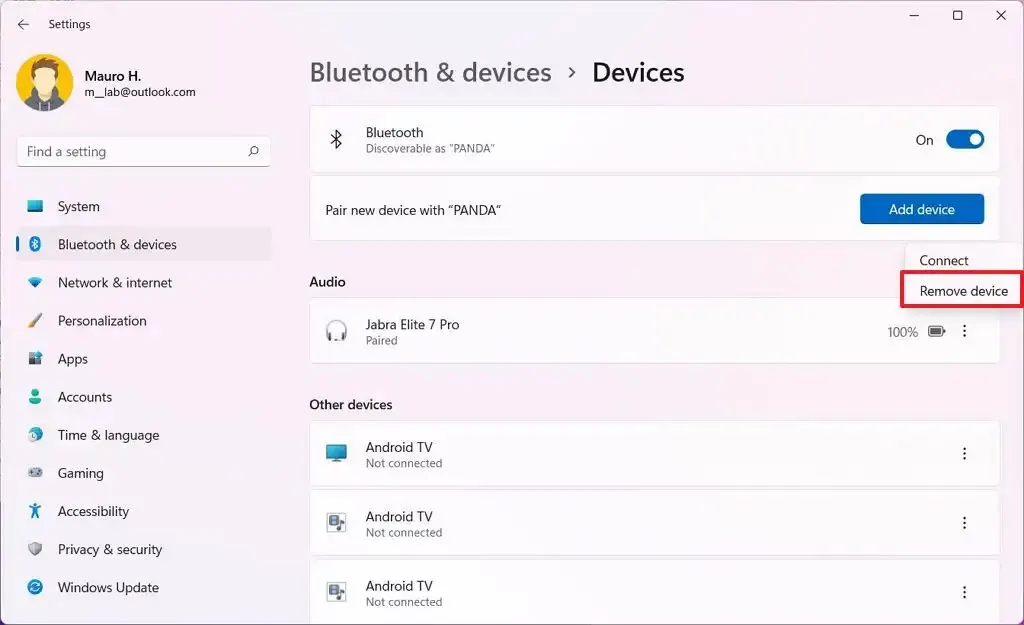
- Find the device, select the … menu next to it, and choose Remove device.
- Select Add device and pair the device again by following the on-screen prompts.
Update the Bluetooth Driver Through Windows Update
Windows Update can offer a newer Bluetooth driver as an optional update, which is worth checking when the problem started after a Windows update or an upgrade.
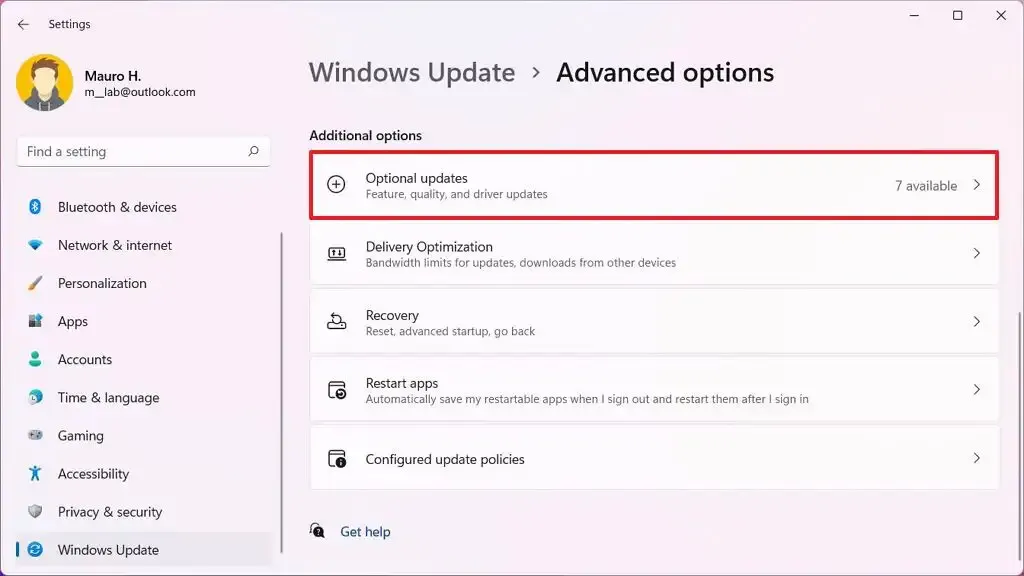
- Open Settings, go to Windows Update, and select Advanced options.
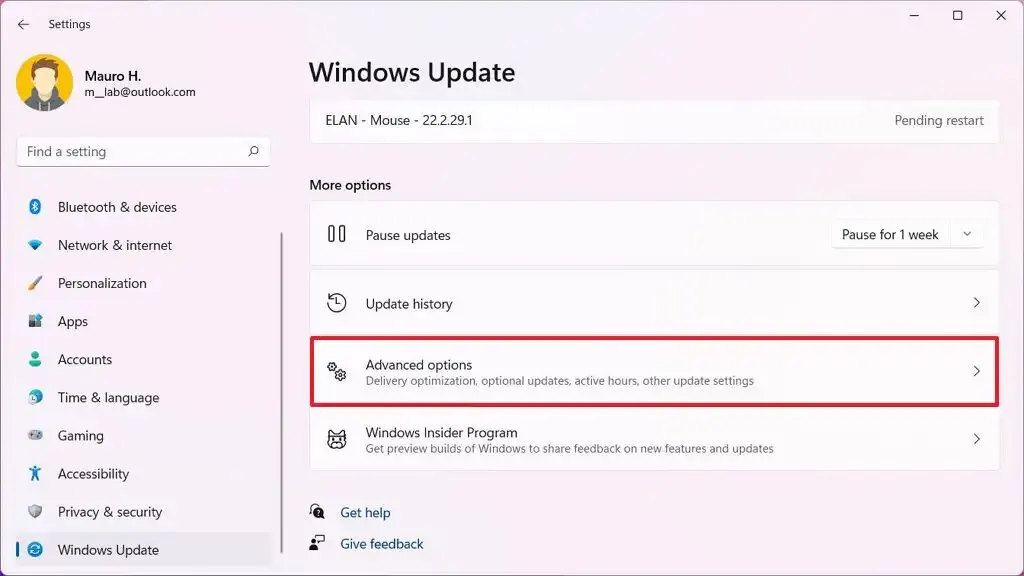
- Select Optional updates.
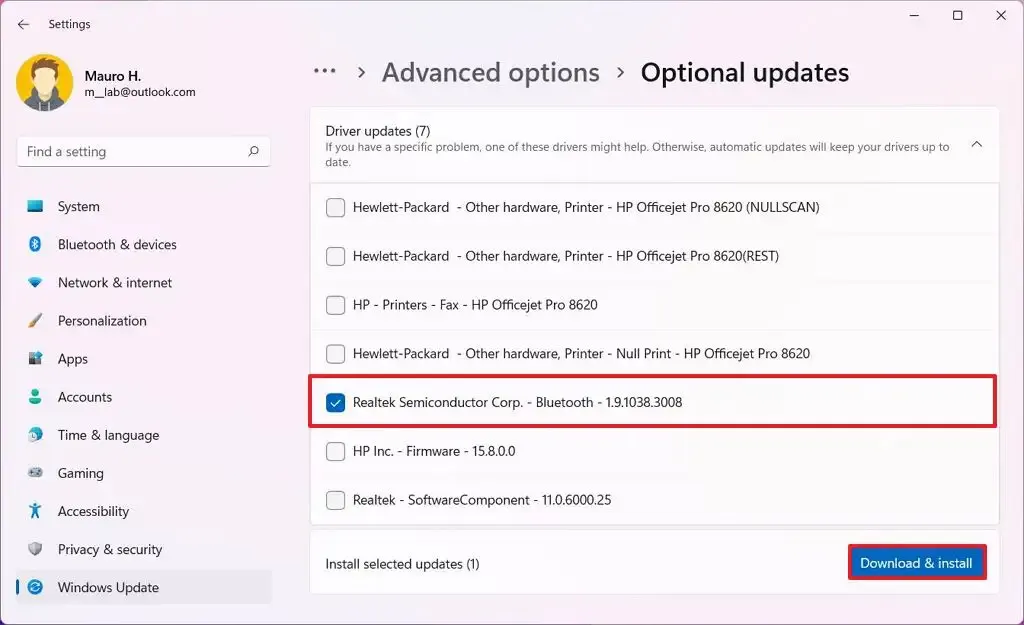
- Expand Driver updates, check the Bluetooth driver, and select Download & install.
Enable, Update or Reinstall the Adapter in Device Manager
Device Manager covers a disabled adapter, a bad driver and a corrupted install.
- Right-click the Start button and select Device Manager. Expand Bluetooth, then right-click your Bluetooth adapter.
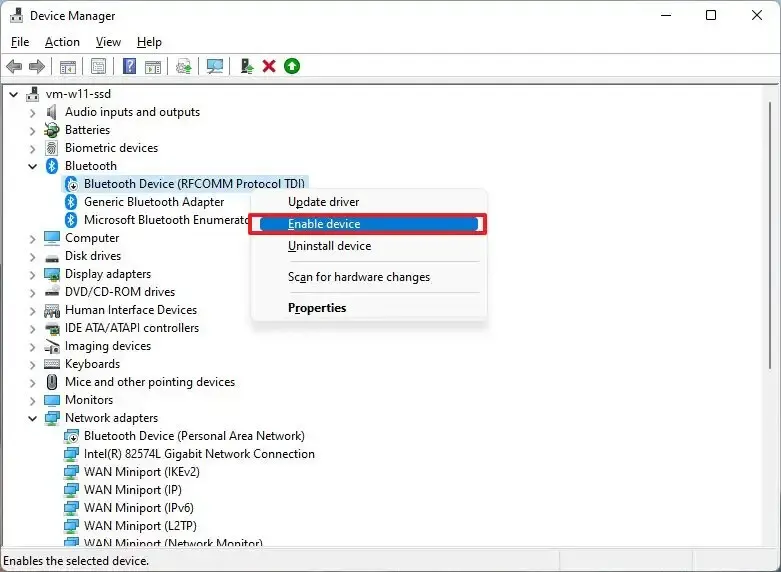
- If the adapter has a down-arrow icon, it is disabled. Select Enable device.
- To try a newer driver, select Update driver. If Windows finds nothing, download the driver from your PC maker’s site: run it if it is an .exe, or choose Browse my computer for drivers and point to the folder if you have .inf and .sys files.
- To reinstall, remove your paired devices first, then select Uninstall device, tick Attempt to remove the driver for this device if offered, and restart. Windows installs the driver again. If it doesn’t, choose Action > Scan for hardware changes.
If the adapter is missing from the list, select View > Show hidden devices. If Bluetooth broke right after a driver update, open the adapter’s Properties, go to the Driver tab, and select Roll Back Driver. For other places to find a newer driver, see updating drivers in Windows 11.
Restart the Bluetooth Support Service
When devices won’t connect even though the adapter looks healthy, the service behind Bluetooth may have stopped.
- Press
Windows + R, typeservices.msc, and press Enter. - Find Bluetooth Support Service and select Restart.
- Open the service’s properties and set Startup type to Automatic.
Fix Bluetooth That Stops After Sleep
If everything works until the PC sits idle or sleeps, Windows may be switching the adapter off to save power. You then have to toggle Bluetooth off and on to get the device back.
- Open Device Manager, expand Bluetooth, and open the adapter’s Properties.
- Go to the Power Management tab and uncheck Allow the computer to turn off this device to save power.
A desktop gains nothing from that power saving. On a laptop it costs a little battery life, and you can tick the box again if the dropouts continue anyway.
Handle a Missing Bluetooth Option
If the toggle is gone and Device Manager has no Bluetooth category, check the PC’s specifications first, since some models have no Bluetooth. If it should have it, the radio may be disabled in the BIOS, so look for a Bluetooth option there. A PC without built-in Bluetooth can use a USB Bluetooth adapter, an inexpensive add-on.
Bluetooth problems feel stubborn, but most have an ordinary cause that is easy to sort out. If nothing helps, the fault may lie with the device itself rather than Windows, and its maker can advise. Work calmly through the checks and you will usually get connected again.


