
Firmware details sit in your PC’s records, and you may need them before an update, a support call or a security fix. Many people assume they have to restart and dig through setup screens, but that is not always the case. Here is how to check the BIOS version in Windows 11 in four ways, plus how to read what comes back.
Table of Contents
Check BIOS Version With System Information
This is the quickest route and works on Windows 10 too. It also shows the maker and release date in one place.
- Press
Windows + Rto open the Run dialog. - Type
msinfo32and press Enter.
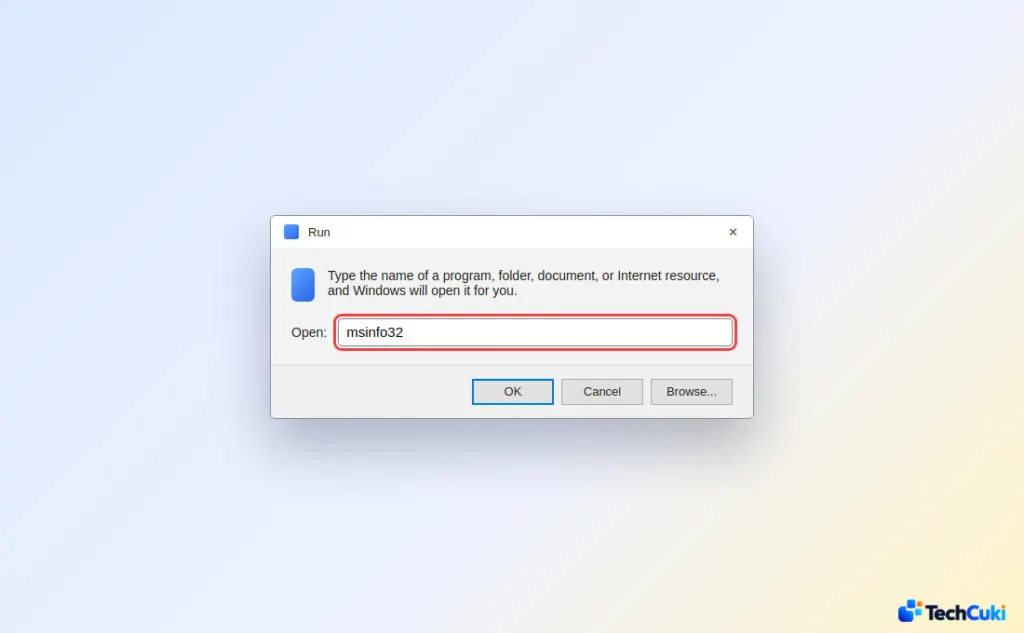
- In the System Summary list, find BIOS Version/Date. It shows the maker, the version string and the release date.
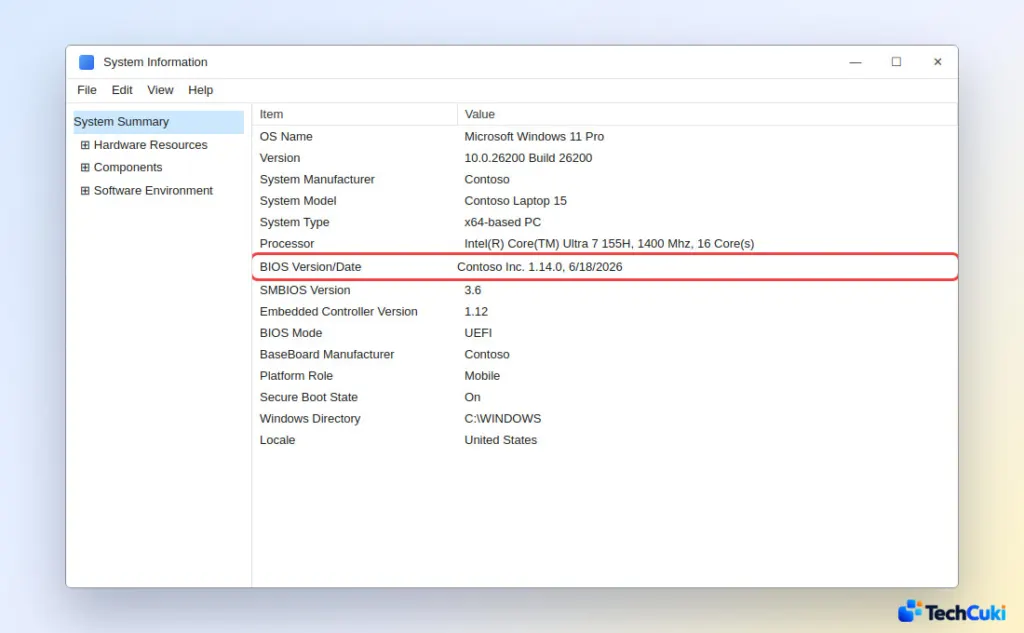
The BIOS Mode row nearby says whether the PC runs UEFI or Legacy. The same list has a System Model row. Note it down because maker download pages are organized by exact model. The dxdiag tool shows the same two details in its System Model and BIOS fields.
Read the BIOS Version in PowerShell
PowerShell returns the version, manufacturer and release date in one line, which is handy for copying into a support ticket.
- Open PowerShell from the Start menu.
- Run
Get-CimInstance -ClassName Win32_BIOS | Select-Object SMBIOSBIOSVersion, Manufacturer, ReleaseDate.
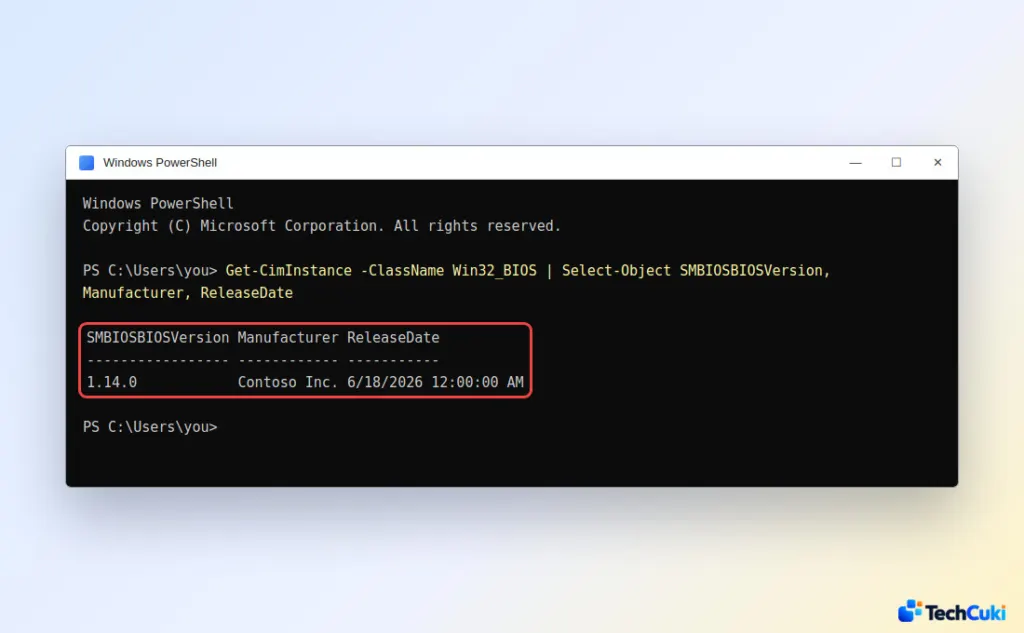
The SMBIOSBIOSVersion value is the version string you need. If you only want a quick look, Get-CimInstance Win32_BIOS on its own lists the version among its default properties.
Pull It From Command Prompt
Command Prompt filters the long systeminfo report down to the BIOS line.
- Open Command Prompt from the Start menu.
- Run
systeminfo | findstr /I "BIOS"and look for the BIOS Version line.
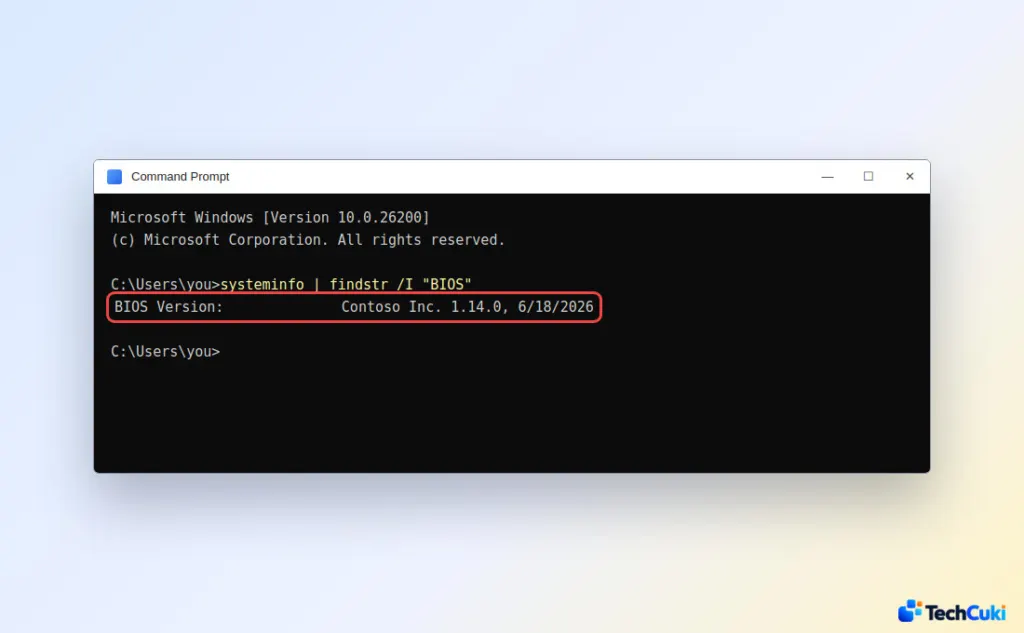
The older wmic bios get smbiosbiosversion command is deprecated and removed by default on many Windows 11 installs, so use the commands above instead. For scripts, the registry holds the value too, under HKEY_LOCAL_MACHINE\HARDWARE\DESCRIPTION\System as SystemBiosVersion.
Look in the UEFI Setup Screen
The setup screen shows the firmware’s own record, with no Windows tool involved. It is the one to use if Windows won’t start.
- Restart your PC and press the setup key during startup. It is usually
F1,F2,F10,F12orDel, depending on the maker. If you can’t get in, see getting to BIOS in Windows 11. - On the main screen, find the UEFI version under System Information.
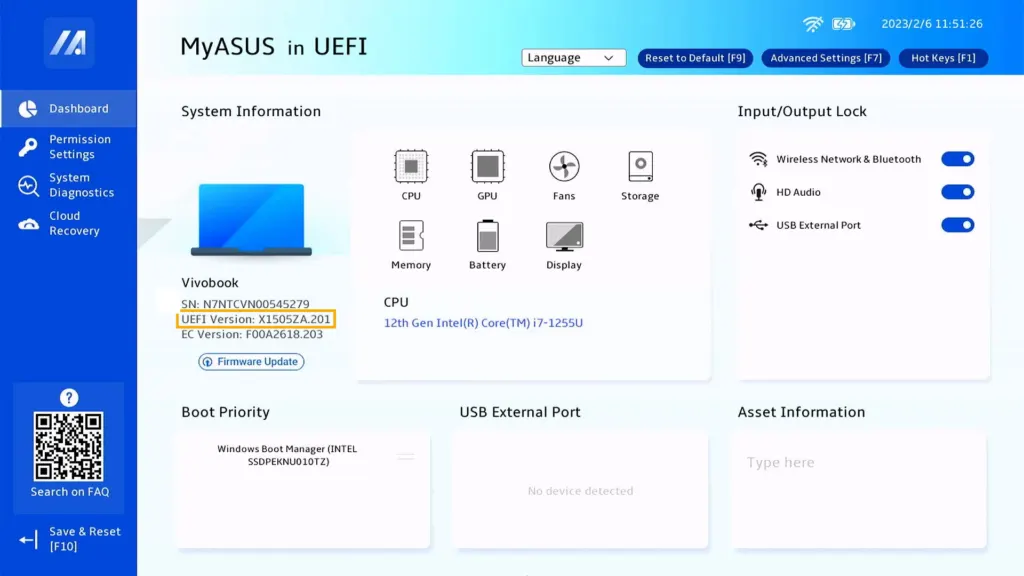
Some makers also show it in their own app, such as MyASUS under System info in the Firmware section on ASUS models.
How to Read the Version You Found
There is no standard format, so the string only means something next to your maker’s download page. ASUS often uses a plain number such as 202 or 310, while Gigabyte boards use a letter prefix like F3 after the model name. Match it against the newest release for your exact model, and if the numbers already match, there is nothing to update.
Does Windows 11 Update the BIOS Automatically?
Not always. Some manufacturers deliver firmware updates through Windows Update, so check Windows Update, then Advanced options and Optional updates. Otherwise, use your maker’s support site or app. Before flashing a new version, suspend BitLocker so the drive doesn’t ask for its recovery key afterward. Other firmware and driver updates are covered in updating drivers in Windows 11.
Knowing your firmware version takes the guesswork out of updates and support requests. Keep a note of it and your PC model so you always have a reference if something changes.


