
A Start button that does nothing leaves you without the usual way into your settings and tools. When the Windows 11 Start menu not working problem appears, it often looks worse than it is, and other routes can still get you to what you need. Eight fixes follow, from quick restarts to deeper repairs.
Table of Contents
- Open Your Tools Without the Start Menu
- Restart Windows Explorer
- Restart the Start Menu Process
- Sign Out or Restart
- Re-Register the Start Menu Package
- Install or Remove the Latest Update
- Repair System Files With SFC and DISM
- Disable Start Menu Customization Tools
- Test With a New User Account
- Windows 11 Start Menu Not Working After Every Fix
Open Your Tools Without the Start Menu
These routes work even when a left-click on Start does nothing.
Ctrl+Shift+Escopens Task Manager. From there, File > Run new task launches Settings (typems-settings:), PowerShell or Command Prompt. Our guide to opening Task Manager in Windows 11 lists other ways in.- Right-click the Start button, or press
Win+X. This menu often still works when a left-click doesn’t. If it answers with “no app associated with this action”, use Task Manager instead. Ctrl+Alt+Delreaches sign-out and restart.
1. Restart Windows Explorer
Explorer draws the taskbar and hosts the Start button, so restarting it clears most one-off freezes. The screen flashes for a few seconds while it reloads.
- Press
Ctrl+Shift+Escand open the Processes tab. - Select Windows Explorer and click Restart.
- When the taskbar returns, click Start.
2. Restart the Start Menu Process
Ending the process that draws the menu makes Windows launch a fresh copy straight away, with no reboot.
- In Task Manager, open the Details tab.
- Right-click StartMenuExperienceHost.exe and choose End task. Do the same for SearchHost.exe if it’s listed, since a crashing search box can stop Start from opening.
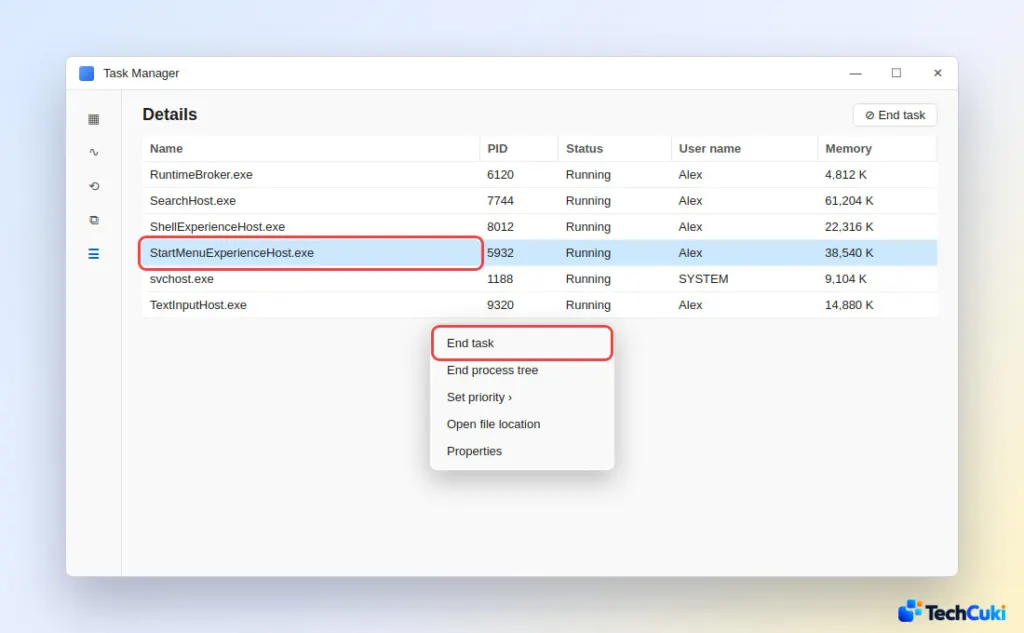
- Wait a few seconds for Windows to relaunch them, then click Start.
3. Sign Out or Restart
This resets your session and reloads the shell from scratch.
- Press
Ctrl+Alt+Del. - Choose Sign out or Restart from the power options, sign back in and click Start.
4. Re-Register the Start Menu Package
Start runs as an app package, and when its registration for your account is damaged, re-registering it is the repair that works most often. Run it in a normal, non-admin PowerShell window, because an elevated window registers the package to the administrator account and your own account stays broken.
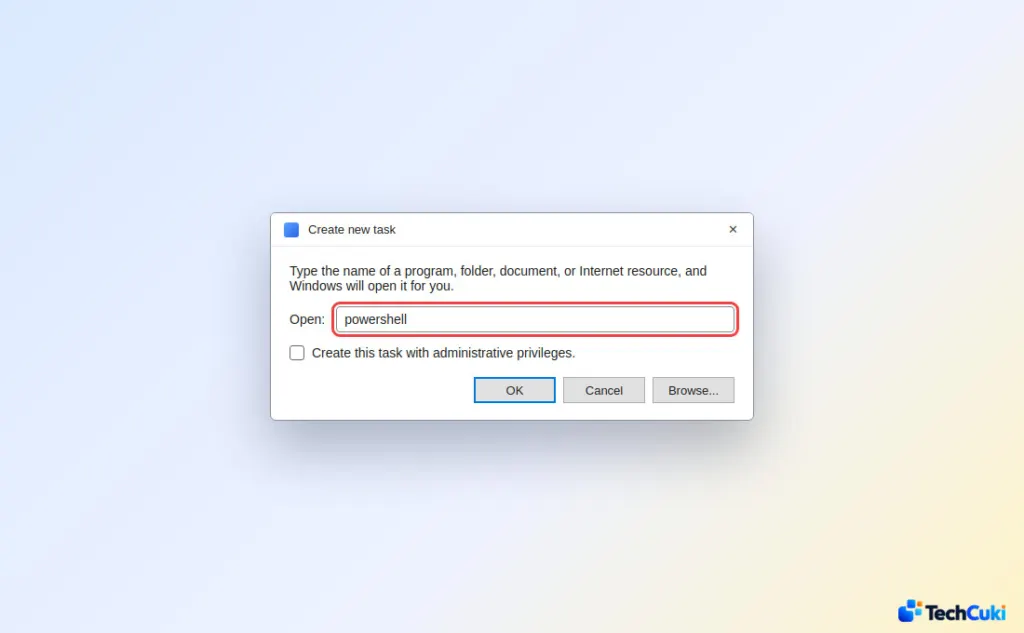
- In Task Manager, choose File > Run new task.
- Type
powershell, leave Create this task with administrative privileges unchecked and click OK.
- Run
Get-AppxPackage -Name Microsoft.Windows.StartMenuExperienceHost. Empty output means the package isn’t registered for your account. - Run this command:
Get-AppxPackage Microsoft.Windows.StartMenuExperienceHost | Foreach {Add-AppxPackage -DisableDevelopmentMode -Register "$($_.InstallLocation)AppXManifest.xml"}
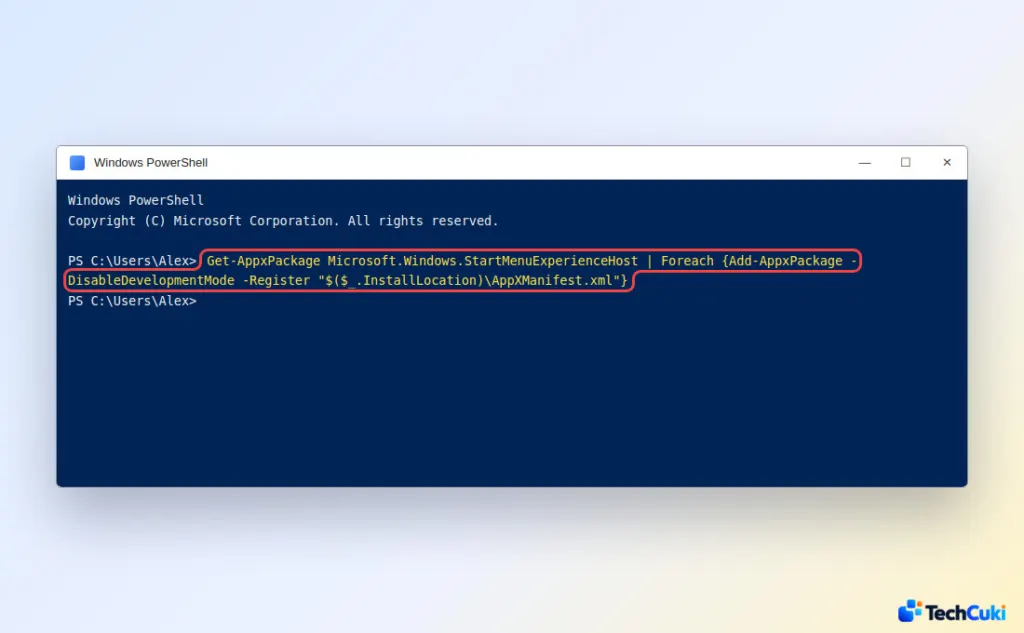
- Restart the PC and click Start. Red text during step 4 is common; judge it by whether the menu opens afterward.
If step 3 returned nothing and step 4 fails, check whether the package still exists on the machine for other users. In an elevated PowerShell window, run Get-AppxPackage *StartMenu* -AllUsers. If it lists the package, register it from a normal window with Add-AppxPackage -Path "C:\Windows\SystemApps\Microsoft.Windows.StartMenuExperienceHost_cw5n1h2txyewy\AppxManifest.xml" -Register -DisableDevelopmentMode.
5. Install or Remove the Latest Update
If Start broke right after an update, remove that update. If it didn’t, install pending updates first, since a later patch may already carry the fix.
- Press
Win+Ifor Settings, or runms-settings:windowsupdatefrom Task Manager’s Run new task box. - Go to Windows Update > Update history > Uninstall updates.
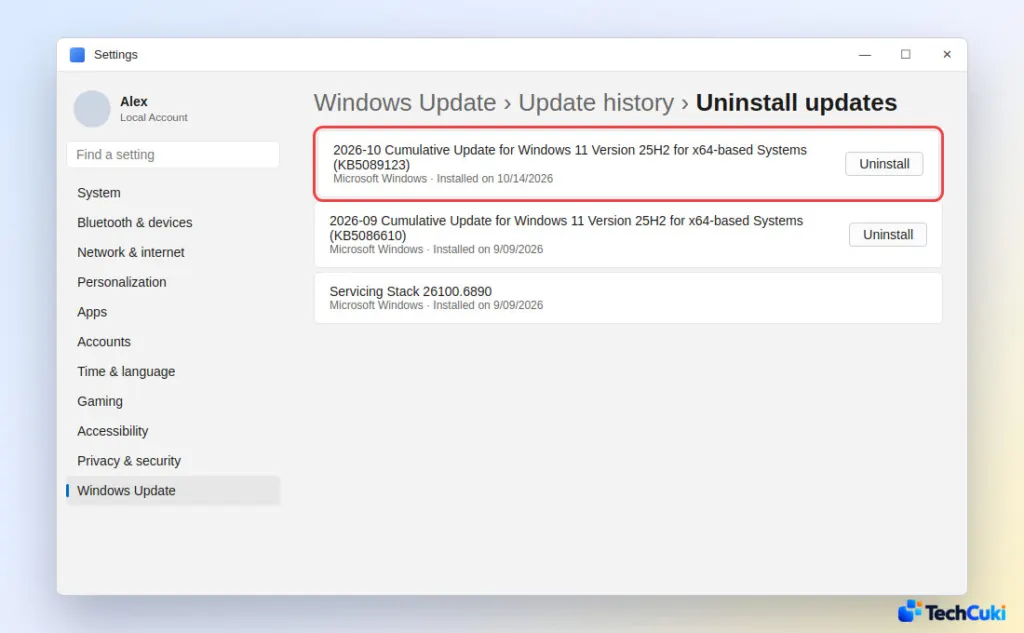
- Pick the update installed just before the problem began, uninstall it and restart.
Windows may reinstall it later, so pause updates for a few days if the menu works again.
6. Repair System Files With SFC and DISM
SFC replaces damaged Windows files and DISM repairs the component store that SFC copies from. Run SFC first, then DISM, from an administrator prompt.
- Open Run new task again.
- Type
cmd, check Create this task with administrative privileges and click OK. - Run
sfc /scannowand let it finish. - Run
DISM /Online /Cleanup-Image /RestoreHealth. - Restart and click Start.
7. Disable Start Menu Customization Tools
Tools that restyle the Start menu hook into it, and an update can break that hook. One user reported a Start menu that stayed broken for over six months until the Windhawk mod Windows 11 Start Menu Styler was switched off. Start11 and ExplorerPatcher belong in the same suspect list.
- Open the tool (or the Windhawk app), disable the Start menu mod or uninstall the tool.
- Restart and click Start. To find out whether any third-party software is involved, you can also test in Safe mode, or use
msconfigto turn off non-Microsoft items.
8. Test With a New User Account
A new local account has a fresh profile, so it shows whether the fault lives in your account or in Windows itself.
Sign in to the new account and click Start. If it works there, your old profile is damaged, and moving your files to the new account is often easier than repairing the old one. Some users report that a new account was the only thing that worked. One reversible repair to try on the old profile first: from another admin account, rename the LocalState folder inside C:\Users\[old username]\AppData\Local\Packages\Microsoft.Windows.StartMenuExperienceHost_cw5n1h2txyewy to LocalState.OLD. Windows builds a new one at the next sign-in, and renaming it back undoes the change.
Windows 11 Start Menu Not Working After Every Fix
If the Start package is missing for every user, Microsoft’s guidance is to go back to a known-good state, because installing the package files by hand is unreliable. Roll back the update, reset the PC or restore from a backup. Copy your files somewhere safe before a reset, and follow our steps for resetting Windows 11 to factory settings.
A stubborn Start menu is usually fixable without losing files or reinstalling Windows, so take the gentler options first. If other parts of the desktop misbehave too, see fixing a Windows 11 taskbar that is not working and fixing Windows 11 search.


