
A search box that stays blank, spins forever or won’t take text is frustrating, but it rarely means anything is wrong with your files. When you find Windows 11 search not working, the cause is usually something inside Windows that can be put right in a few minutes. Below you’ll find eight fixes in order and what to do when none of them work.
Table of Contents
- Restart Windows Explorer
- End SearchHost.exe (and the Start Menu Process)
- Restart the Windows Search Service
- Restart the Windows Font Cache Service
- Fix a Search Box That Won’t Let You Type
- Rebuild the Search Index for Missing Results
- Install Windows Updates
- Reset Windows 11 Search With Microsoft’s PowerShell Script
- If Search Is Still Blank or Frozen
1. Restart Windows Explorer
Explorer draws the taskbar and search box, so restarting it refreshes both without a reboot. If Task Manager is unfamiliar, here’s how to open Task Manager in Windows 11.
- Press
Ctrl + Shift + Escto open Task Manager. - On the Processes tab, find Windows Explorer.
- Right-click it and select Restart.
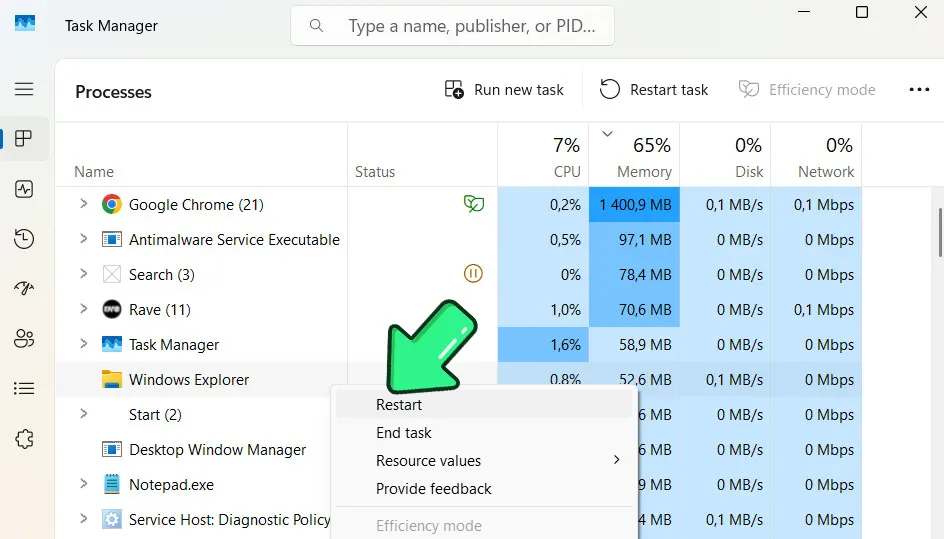
The taskbar vanishes for a second and then returns. Try search again before moving on.
2. End SearchHost.exe (and the Start Menu Process)
Search runs inside SearchHost.exe on Windows 11, so ending it kills a hung search window. A fresh copy launches the next time you search.
- Open Task Manager and select the Details tab.
- Right-click SearchHost.exe, select End task, then confirm with End process.
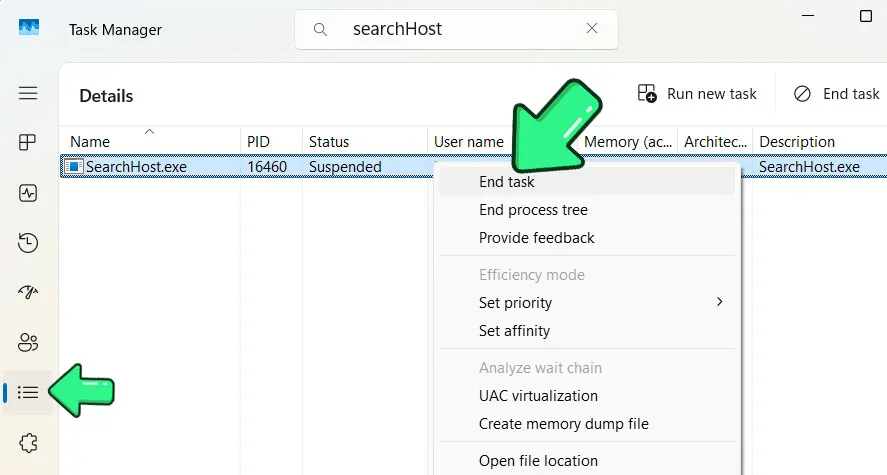
If typing in the Start menu gives blank results, the Start menu may be the part that’s stuck. In the same Details tab, end StartMenuExperienceHost.exe the same way. Windows relaunches it on its own when you open Start.
3. Restart the Windows Search Service
The Windows Search service does the actual indexing and lookups in the background, so a stopped service means empty results even when the interface opens fine.
- Press
Windows + R, typeservices.msc, and press Enter. - Find Windows Search. If its Status is Running, right-click it and select Restart. Otherwise select Start.
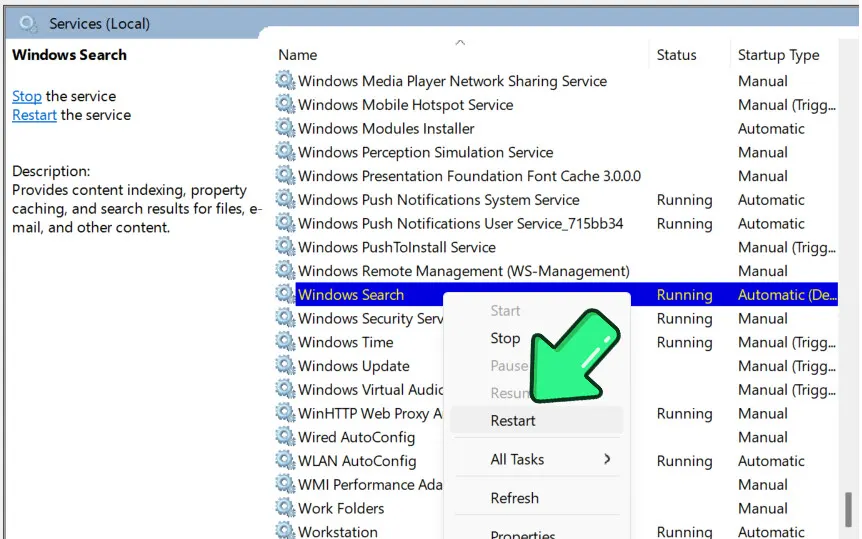
- Double-click Windows Search and make sure the Startup type is Automatic (Delayed Start) or Automatic, so it comes back after every restart.
4. Restart the Windows Font Cache Service
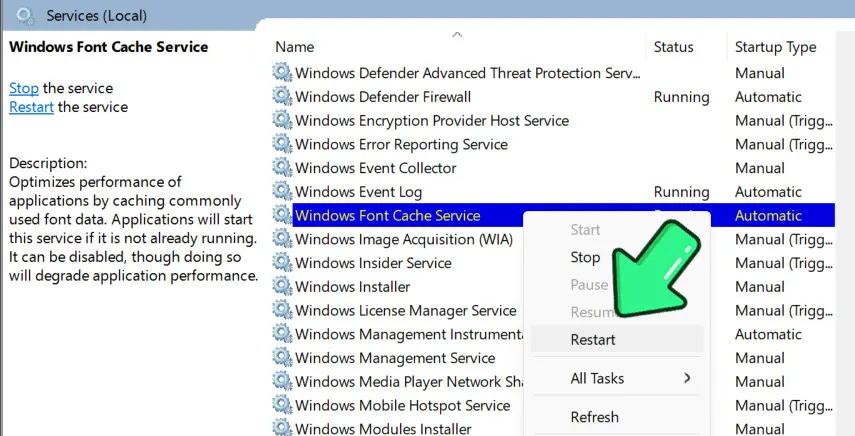
Microsoft’s own support article puts this first for unresponsive search. It’s a harmless stop and start that clears a cache the search window leans on.
- In
services.msc, right-click Windows Font Cache Service and select Stop. - Try searching again.
- Right-click the service again and select Start.
5. Fix a Search Box That Won’t Let You Type
When the box opens but ignores the keyboard, the text input process (ctfmon.exe) has usually stopped. A quick trick with the Run box sometimes wakes it up.
- Press
Windows + R, then click Cancel or pressEsc. - Click the search box and try typing.
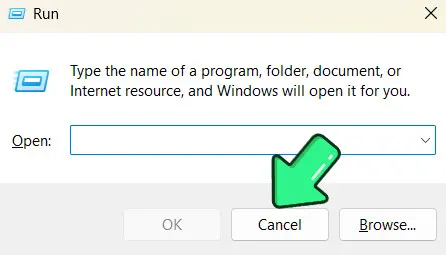
If that fails, launch the text input process by hand.
- Press
Windows + R, typeC:\Windows\System32\ctfmon.exe, and click OK.
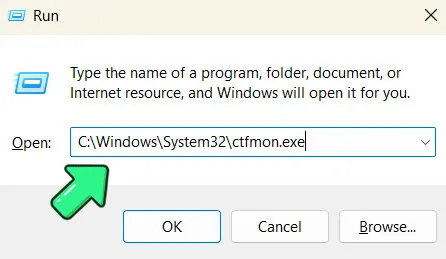
Then open Notepad to check that typing works there. If characters come out wrong, the active keyboard layout is probably different, and Windows + Space switches it.
6. Rebuild the Search Index for Missing Results
If search opens but skips files you know exist, including in File Explorer, the index is incomplete or damaged. Check its status first, then rebuild.
- Open Settings > Privacy & security > Searching Windows.
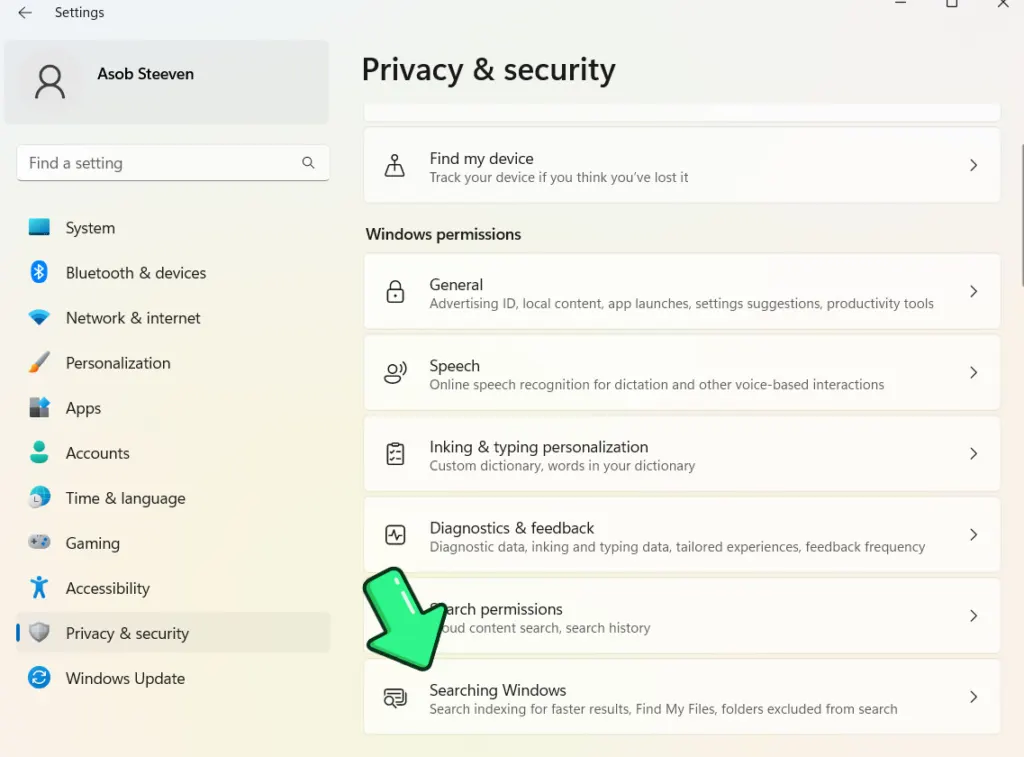
- Look at the Indexing status. A high Pending count means indexing is still running, so wait before rebuilding.
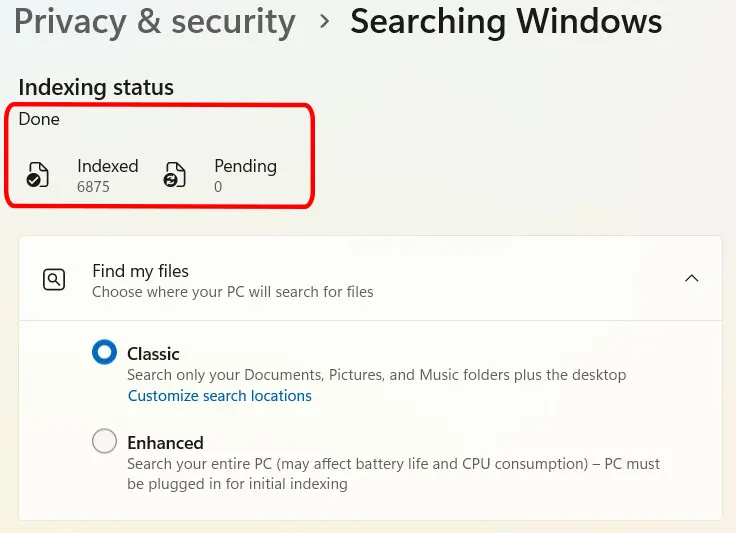
- Under Find my files, Classic covers only Documents, Pictures, Music and the desktop. Choose Enhanced to index the whole PC. Enhanced uses more battery and CPU, so keep the PC plugged in during the first pass.
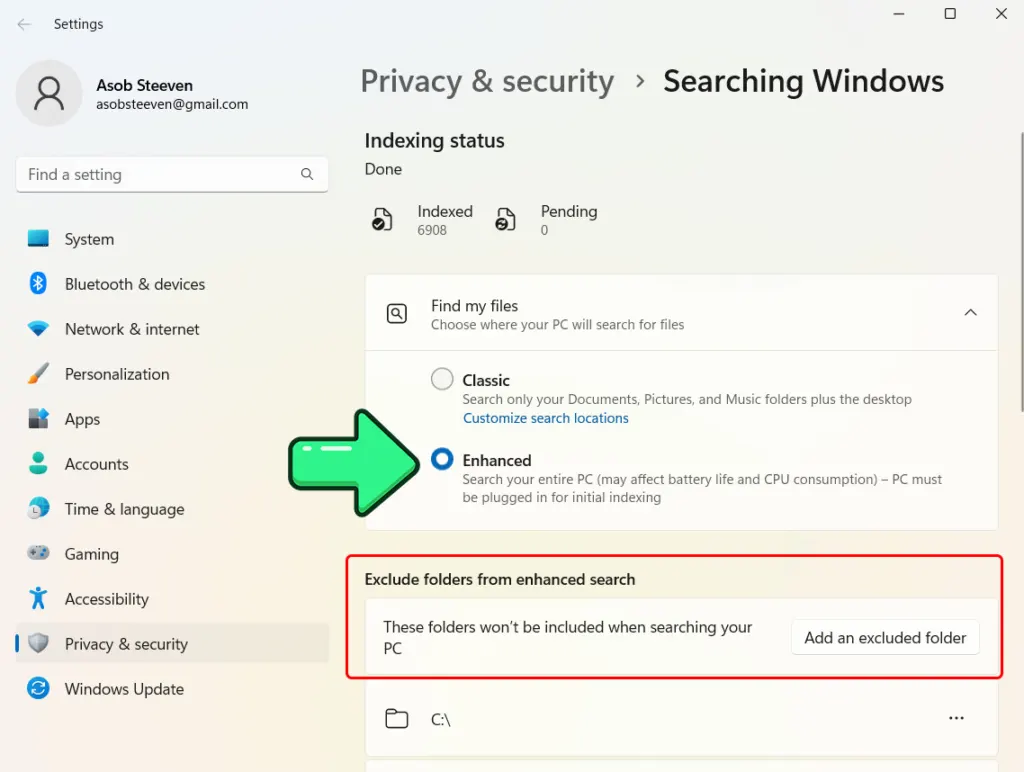
- To rebuild, open Control Panel > Indexing Options > Advanced. Under Troubleshooting, click Rebuild, then OK.
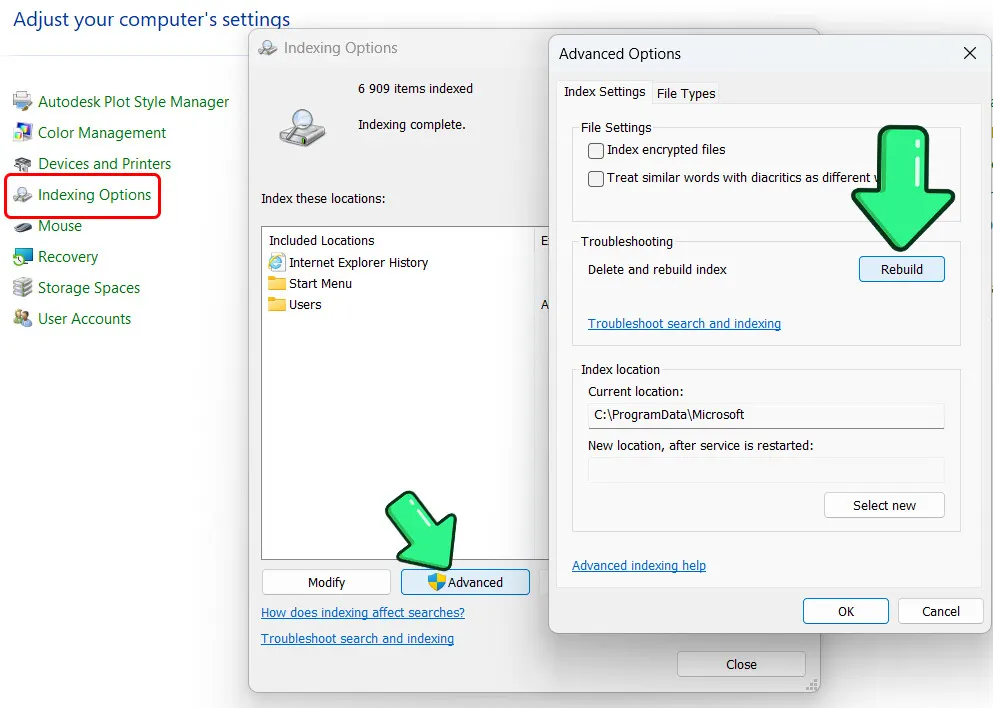
Results stay incomplete until the rebuild finishes, which can take a while on a large drive.
7. Install Windows Updates
Search bugs are often patched in cumulative updates, and a half-installed update can itself be the cause, so finish any pending one.
- Open Settings > Windows Update and click Check for updates.
- Install everything offered.
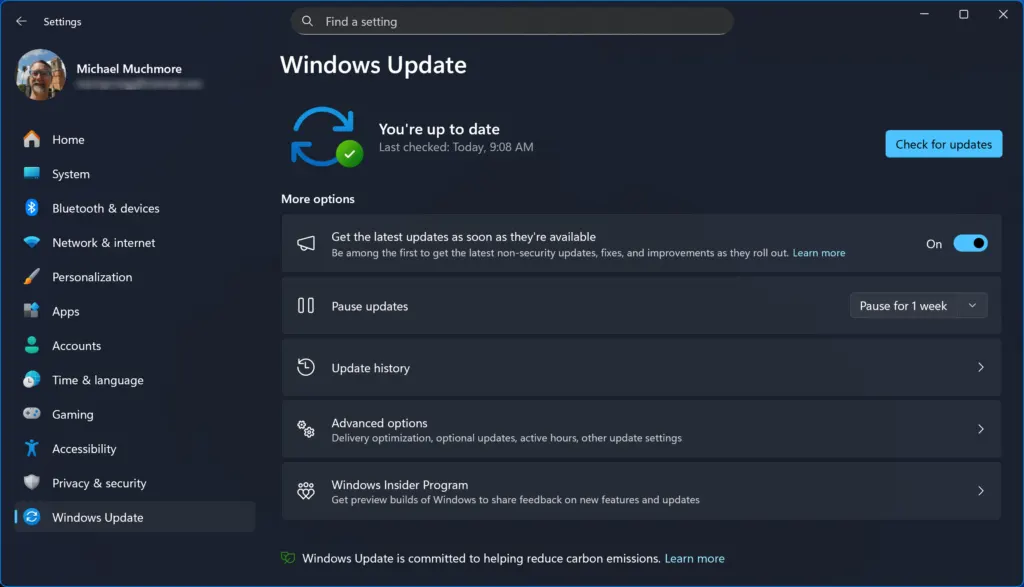
- Restart the PC when it finishes.
8. Reset Windows 11 Search With Microsoft’s PowerShell Script
The ResetWindowsSearchBox.ps1 script from Microsoft returns search to its default state. Your files stay untouched, but result relevance can dip while Windows reindexes. You need admin rights, and a work PC with scripts blocked by policy won’t run it.
- Open PowerShell as administrator and run
Get-ExecutionPolicy. Note the value it returns. - If it isn’t
Unrestricted, runSet-ExecutionPolicy -Scope CurrentUser -ExecutionPolicy Unrestricted, then pressYandEnter. - Download ResetWindowsSearchBox.ps1 from Microsoft’s “Fix problems in Windows Search” page.
- Right-click the file and select Run with PowerShell. Click Yes if asked.
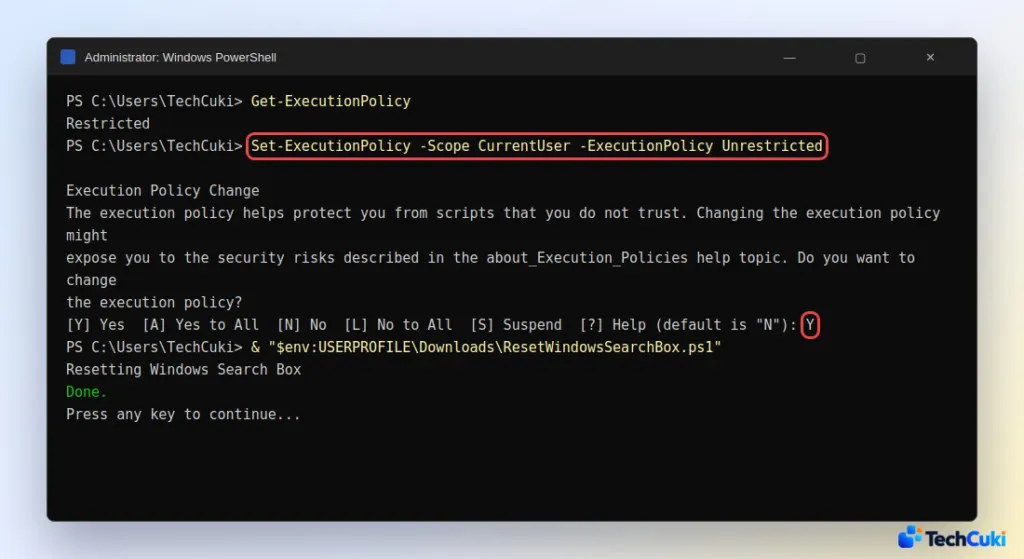
- When Done appears, restore the old policy with
Set-ExecutionPolicy -Scope CurrentUser -ExecutionPolicy <previous value>.
The error “running scripts is disabled on this system” means the policy change didn’t take, so repeat step 2 and check the value again.
If Search Is Still Blank or Frozen
Start by checking whether the damage is in your profile or in Windows itself: create a new local user account and search there. If it works, the problem is in your profile, and Microsoft’s own fix is to delete the %USERPROFILE%\AppData\Local\Packages\MicrosoftWindows.Client.CBS_cw5n1h2txyewy folder and the HKEY_CURRENT_USER\SOFTWARE\Microsoft\Windows\CurrentVersion\Search registry key while signed in to the affected account. Then re-register the package from an elevated PowerShell window. Back up the registry before touching it.
Add-AppxPackage -Path "C:\Windows\SystemApps\MicrosoftWindows.Client.CBS_cw5n1h2txyewy\Appxmanifest.xml" -DisableDevelopmentMode -Register
Windows rebuilds the folder and key the next time you search. If the new account fails too, or the panel opens but never paints its content, try these, top to bottom:
- Repair WebView2. The search panel can render through the Edge WebView2 runtime. Open Settings > Apps > Installed apps, find Microsoft Edge WebView2 Runtime, select Modify, then Repair.
- Run the troubleshooter. Enter
msdt.exe -ep WindowsHelp id SearchDiagnosticin Command Prompt. If it reports “Incorrect permissions on Windows Search directories” and can’t fix them, the package registration is the likelier culprit. - Do an in-place upgrade. Mount a current Windows 11 ISO, run
setup.exe, and choose to keep personal files and apps. This replaces damaged system files and fixed a user in a Microsoft Q&A thread whose search had stayed blank through every other step.
Most one-off glitches clear up with the quick fixes, so work through them in order before trying anything bigger. A full Windows 11 factory reset is the last resort, and it’s worth backing up first in case you ever go that far.


