A printer that shows as offline while it is switched on and sitting right there is a familiar annoyance. The cause is usually a lost connection rather than a broken printer, and it can start after something small changes on your network or your computer. Causes, a symptom guide and fixes for a printer offline message on Windows or a Mac follow in that order.
Table of Contents
Why Windows Shows Your Printer as Offline
“Offline” means the PC can’t reach the printer at this moment, not that the printer has failed. Typical triggers:
- The printer is asleep or off, or its screen shows an error such as a paper jam, empty tray or low ink.
- It slipped off Wi-Fi or joined another network, such as a guest network or the 5 GHz band. Many home printers only support 2.4 GHz.
- Its IP address changed after a router restart, so the saved port points at an address nobody answers to.
- Use Printer Offline is ticked in the queue window.
- A stuck job or a hung Print Spooler service.
- A corrupt or outdated driver, or a leftover duplicate printer entry.
- A VPN on the PC is blocking local devices.
| What you see | Try first |
|---|---|
| Offline right after a router restart | Step 7 (port address), then a router reservation |
| Printer screen shows an error or the printer is asleep | Steps 1 and 2 |
| Jobs pile up and nothing prints | Steps 5 and 6 |
| Offline again every few days | The “keeps going offline” section |
How to Fix a Printer Offline in Windows 11
Begin with the power and network checks, then move into Windows settings. Screens on the printer itself differ by model.
- Switch the printer off, unplug it, wait 30 seconds (this clears its temporary memory and forces a fresh network handshake), then plug it in and power it on. If other gadgets lost their connection too, restart the router as well.
- Check the link. On the printer’s own menu, the Wi-Fi status should show your network name, and it must be the same network as the PC. If it dropped, run its Wireless Setup Wizard again. For USB, try a different port or cable and skip hubs. Clear any message on the printer’s display and look for a firmware update in its menu.
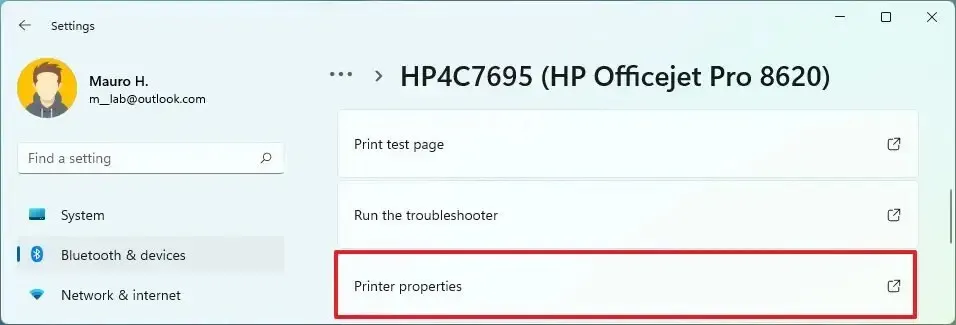
- Open Settings, go to Bluetooth & devices > Printers & scanners, and select your printer.
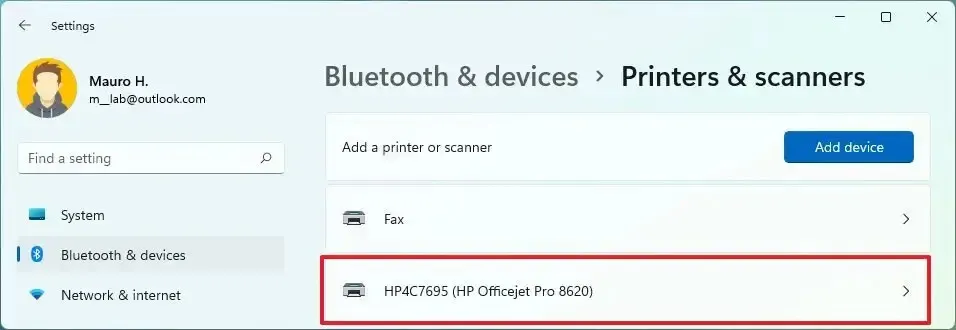
- From that page you can run the troubleshooter, print a test page or open Printer properties. On Windows 11 the troubleshooter opens in the Get Help app. If you want to choose the default printer yourself, switch off Let Windows manage my default printer first, otherwise Set as default doesn’t appear.
- Open the print queue from the same page and cancel stuck documents, since one bad job can hold up the rest. In the classic queue window, open the Printer menu and clear Use Printer Offline if it has a check mark.
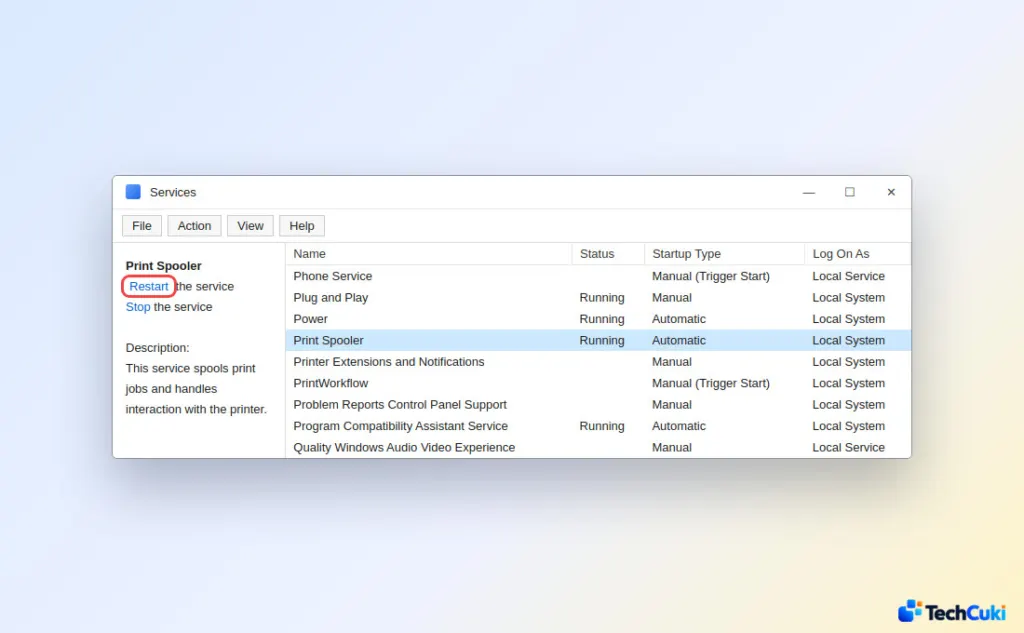
- Restart the spooler, the Windows service that hands jobs to the printer. Press
Win+R, typeservices.msc, press Enter, right-click Print Spooler and choose Restart. If jobs keep jamming, choose Stop instead, delete the files insideC:\Windows\System32\spool\PRINTERS, then start the service again.
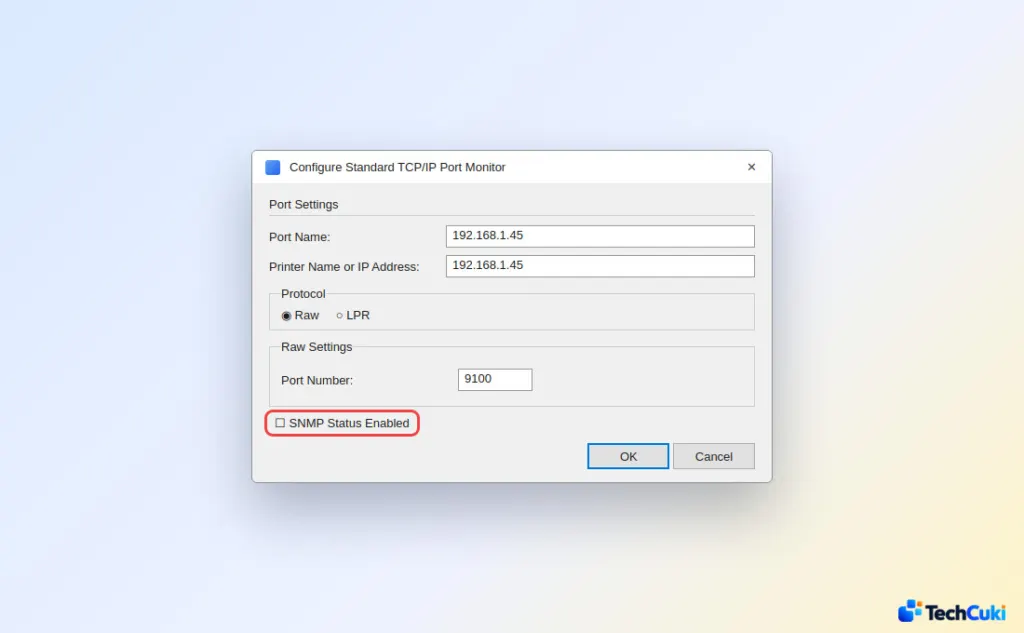
- Fix the port if the address changed. In Printer properties, open the Ports tab, select the ticked Standard TCP/IP port and click Configure Port. Printer Name or IP Address must match the printer’s present address, which a network configuration page printed from its menu will show. Untick SNMP Status Enabled so failed SNMP checks stop flagging a working printer as offline.
- Remove and re-add the printer. Back in Printers & scanners, select it, click Remove, then Add device. While you’re in that list, delete extra entries such as “Printer (Copy 1)”, which may point at an old setup. A newer driver or the maker’s app (HP Smart, Canon PRINT, Epson, Brother iPrint&Scan) can help too, and our walkthrough on updating drivers in Windows 11 covers the driver side. If a clean reinstall is needed, also uninstall the brand’s printer software from Apps before running the fresh installer.
Once the printer is back, its entry in Printers & scanners should no longer say Offline, and a test page confirms it. On an ARM-based PC such as a Copilot+ PC, the maker’s installer may fail to add the printer. Use Add device in Windows instead. If nothing has worked, restart the PC itself. When it still shows Offline after the port, spooler and reinstall steps, plug the printer in by USB to rule out the network, and if that fails too, contact the maker’s support, because the printer’s network board may be at fault.
Fix a Printer Offline on Mac
A paused queue is the first suspect on a Mac.
- Open System Settings > Printers & Scanners, select your printer and click Printer Queue. If it is paused, click Resume.
- Still offline? Select the printer, click Remove Printer (the minus button), then Add Printer, Scanner or Fax to add it again.
- Confirm the Mac and the printer share one Wi-Fi network.
When a Printer Keeps Going Offline
Repeat drops usually trace back to one of four things.
- Changing IP address: a router restart can give the printer a new address. A DHCP reservation in the router pins it down for good. A printer installed on a WSD port may also be flaky; on the Ports tab, Add Port > Standard TCP/IP Port with the fixed IP is the steadier setup.
- Sleep or power: the printer may nap or be switched off between jobs.
- Wi-Fi band: a printer limited to 2.4 GHz won’t hold a link on a 5 GHz network.
- VPN: a running VPN can wall off local devices such as printers.
Most offline problems are a lost connection rather than a faulty printer, so they are usually worth fixing yourself. Some fixes last longer than others, and router steps depend on the model you have. If the printer stays offline after all that, the maker’s support is the next step. Once printing works again, you can also print from an iPhone.