Plugging in a printer and waiting for it to show up does not always go smoothly. How you connect a printer to a computer depends on the printer and the link it supports, and some setups are easier than others. The steps cover Windows and Mac, laptops and desktops, and what to try when the computer cannot see the printer.
Table of Contents
Before you start
- A USB cable for a wired printer, or a printer already on the same Wi-Fi network as your computer.
How to Connect Printer to Computer With a USB Cable
Plug it in and switch it on; Windows normally installs the printer by itself. Labels differ by brand, so match the ones below to your screen.
- Connect the cable to the printer and to a USB port on the computer, then turn the printer on.
- Give Windows a moment to install the driver.
- Open Settings > Bluetooth & devices > Printers & scanners.
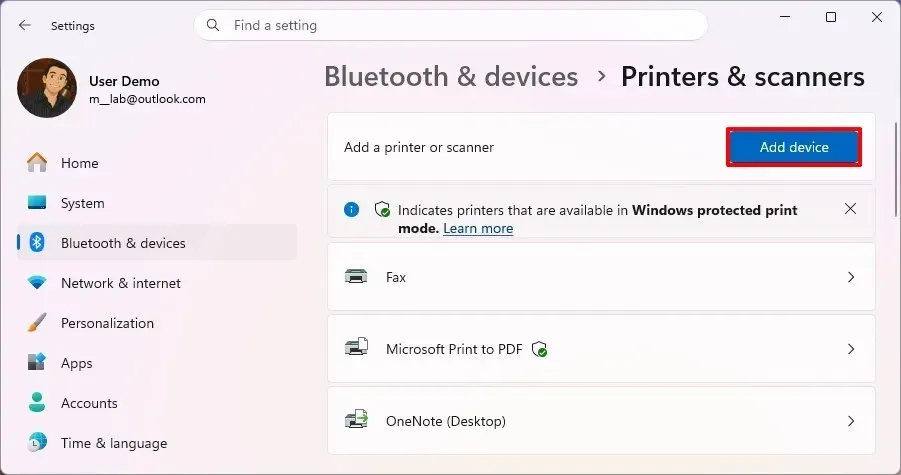
- If the printer is in the list, you’re connected. If not, select Add device and let Windows search again. The list can take a few minutes to fill.
Afterward, check Windows Update for newer printer drivers. A Find drivers button beside the printer means it works but with reduced functionality until a full driver is installed.
Connect a Printer Over Wi-Fi
The printer and the computer must share one network. If the printer isn’t online yet, connect it to Wi-Fi first.
- Confirm both are on the same Wi-Fi network.
- Open Settings > Bluetooth & devices > Printers & scanners.
- Select Add device, wait for the search to finish, then select Add device beside your printer.
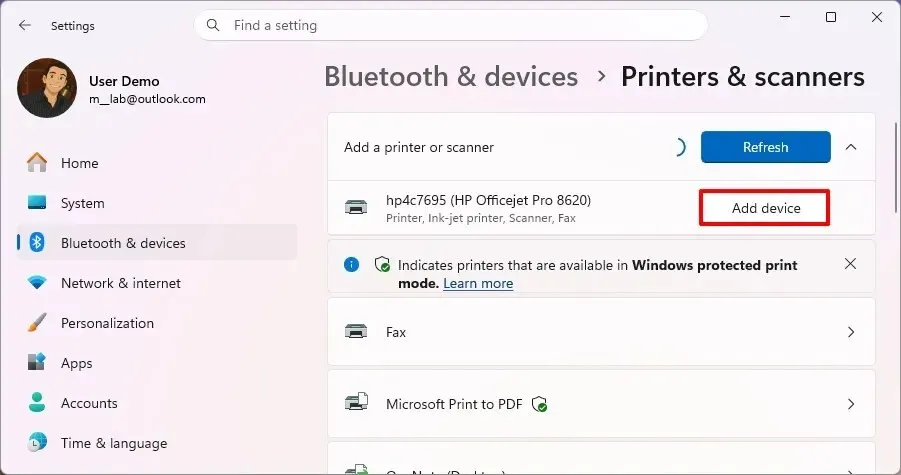
- Not listed? Use the IP address method below.
Add a Printer by IP Address
Use this when Windows can’t discover a Wi-Fi or network printer on its own.
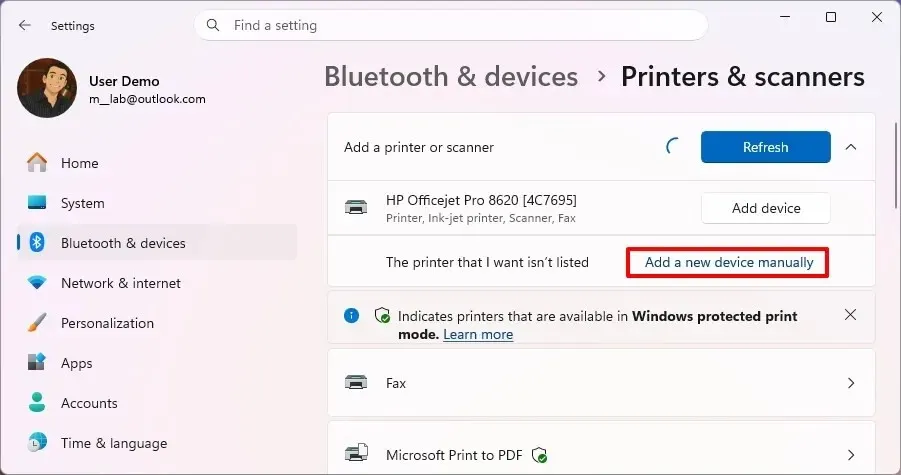
- On the Printers & scanners page, select The printer that I want isn’t listed, then Add manually.
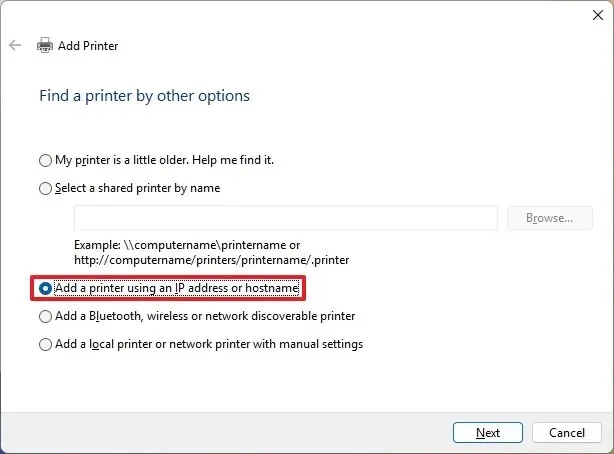
- Select Add a printer using an IP address or hostname, then Next.
- Set Device type to Autodetect and type the printer’s address in the hostname or IP field. Don’t have it? Find the printer’s IP address first.
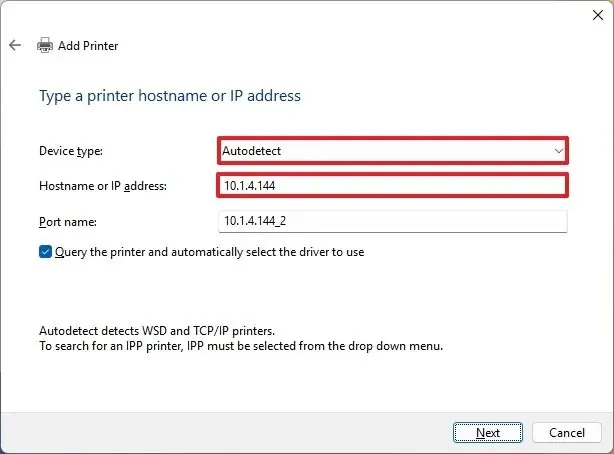
- Select Next, choose the driver, name the printer and finish the wizard.
Connect a Printer to a Mac
A USB printer usually works the moment it’s plugged in; a Wi-Fi printer is added in System Settings.
- For USB, plug it in and accept any software download macOS offers.
- For Wi-Fi, open System Settings > Printers & Scanners.
- Select Add Printer, Scanner or Fax (the + button on older macOS).
- Choose the printer, set Use to AirPrint or the maker’s driver, and select Add.
- If it doesn’t appear, open the IP tab, enter its address, pick IPP or LPD and add it.
Bluetooth and Shared Printers
Bluetooth printer
- Put the printer in pairing mode.
- In Windows, go to Settings > Bluetooth & devices > Add device > Bluetooth.
- Pick the printer from the list.
Shared printer on another computer
- Open the same not-listed option as above and choose Add manually.
- Choose Select a shared printer by name, enter
\\computername\printernameand follow the prompts. The other computer must be on and sharing the printer.
When the Computer Can’t Find the Printer
If a printer works from phones or Macs but never shows up in Windows, a missing or generic driver is a common reason. Installing the maker’s driver from its own website, or trying a USB cable, often settles it. Other checks:
- Confirm both devices are on the same network, and pause any VPN while adding.
- Restart the printer and the computer, then search again.
- On newer Windows 11 builds, Windows protected print mode may allow only Microsoft’s built-in Mopria-compatible driver, so older printers may need it turned off.
- If the built-in driver lacks scanning or ink-level features, install the maker’s app (HP Smart, Brother iPrint&Scan) from the maker’s website only. Our guide to updating drivers on Windows 11 covers the driver side.
- On an ARM PC such as a Copilot+ PC, the maker’s installer can fail. Use Add device in Windows instead.
If none of that works, the problem is probably the printer’s network side, so check the maker’s support for your model.
The best setup depends on how many people print and where the printer sits, and you can change it later if your needs shift. If the printer works with limited features at first, that is normal until the full driver arrives. To confirm success, open the printer in Printers & scanners and select Print test page; if it later shows as Offline, the printer offline checklist lists what to check.