Few settings cause as much worry before a trip as the one that lets your phone use a partner network, because a wrong choice can mean either a surprise bill or no data at all. The right answer for iPhone data roaming depends on where you are, what your plan includes and how many lines your phone has. The steps below cover what it does, when to leave it on at home or abroad, and how to avoid charges.
Table of Contents
What iPhone Data Roaming Does
Data Roaming lets your iPhone use cellular data on a partner network when you are outside your own carrier’s coverage.
Domestic roaming, meaning a partner network inside your own country, is common in rural areas and is usually included at no extra cost on US plans. International roaming can be expensive unless your plan or a travel pass includes it, so check your own plan.
Turning it off does not block calls and texts. It only blocks cellular data, so iMessage and FaceTime need Wi-Fi. Carriers may still charge for roaming calls and texts.
Should Data Roaming Be On or Off at Home?
For most people in the US, leaving it on at home is fine.
Turning it off can leave you without data in places where your carrier relies on a partner network. The exception is a plan that charges for domestic roaming. If yours does, switch it off.
Should Data Roaming Be On or Off Abroad?
Keep it off abroad unless your plan includes international data or you bought a pass from your carrier. Otherwise you pay per MB.
Once you have arranged a roaming plan, turn Data Roaming on after you arrive, along with any settings your carrier suggests. If you plan to buy a local SIM, note that a carrier-locked iPhone rejects it with an alert, which our guide to iPhone SIM not supported explains.
How to Turn Data Roaming On or Off
The switch lives inside the Cellular settings.
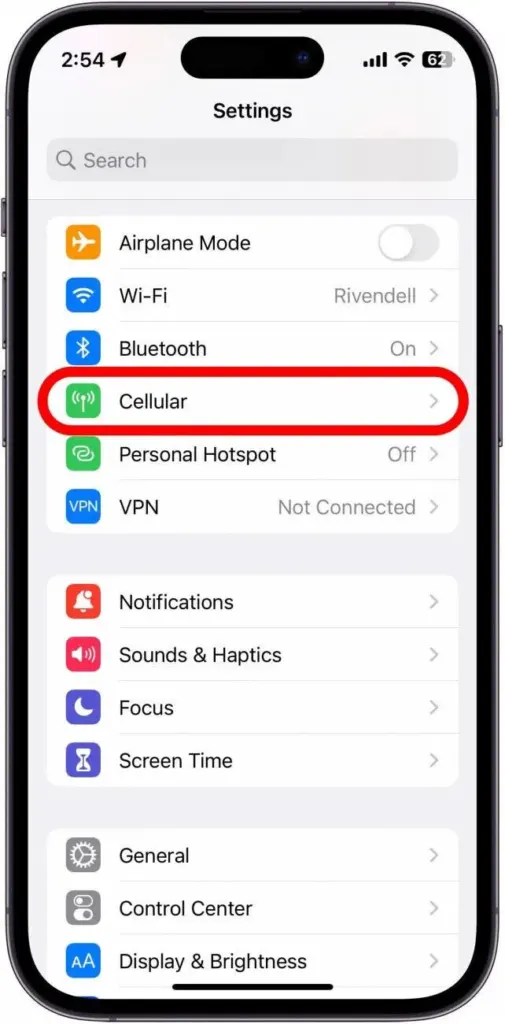
- Open Settings and tap Cellular. In some regions it is called Mobile Data.
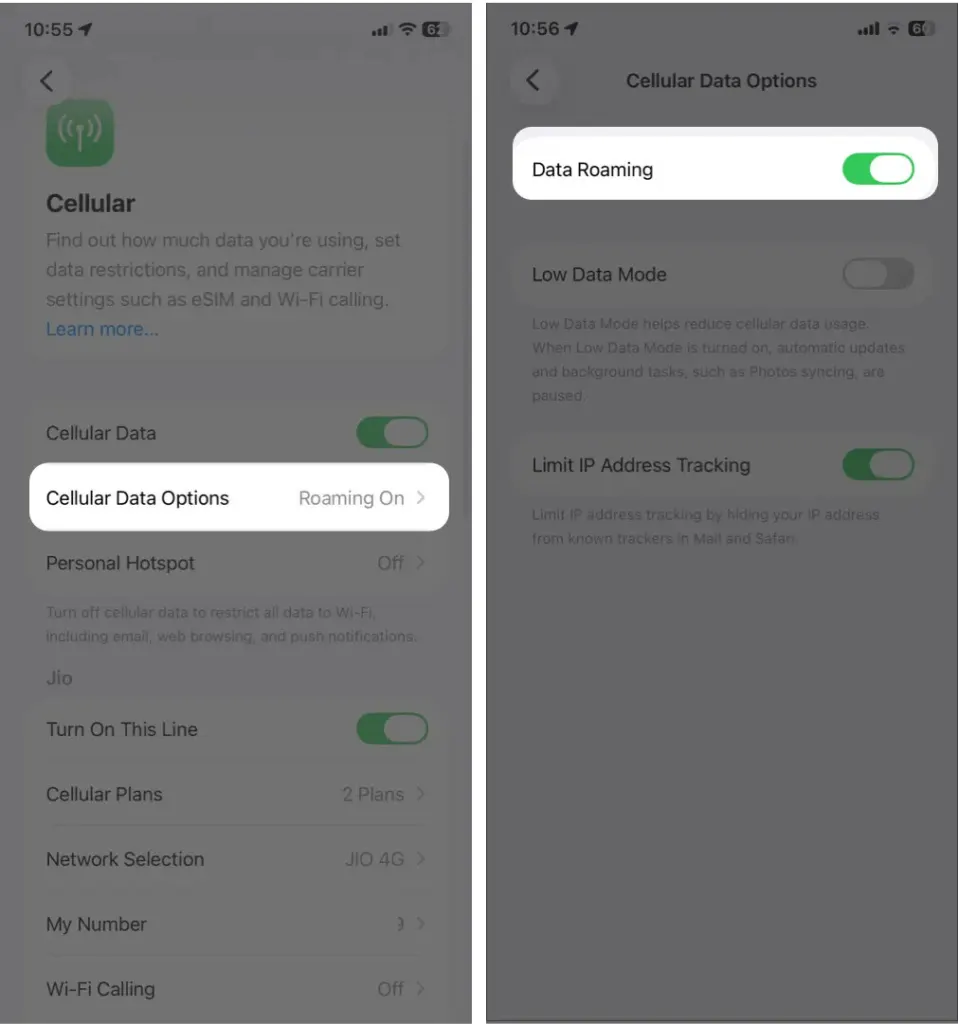
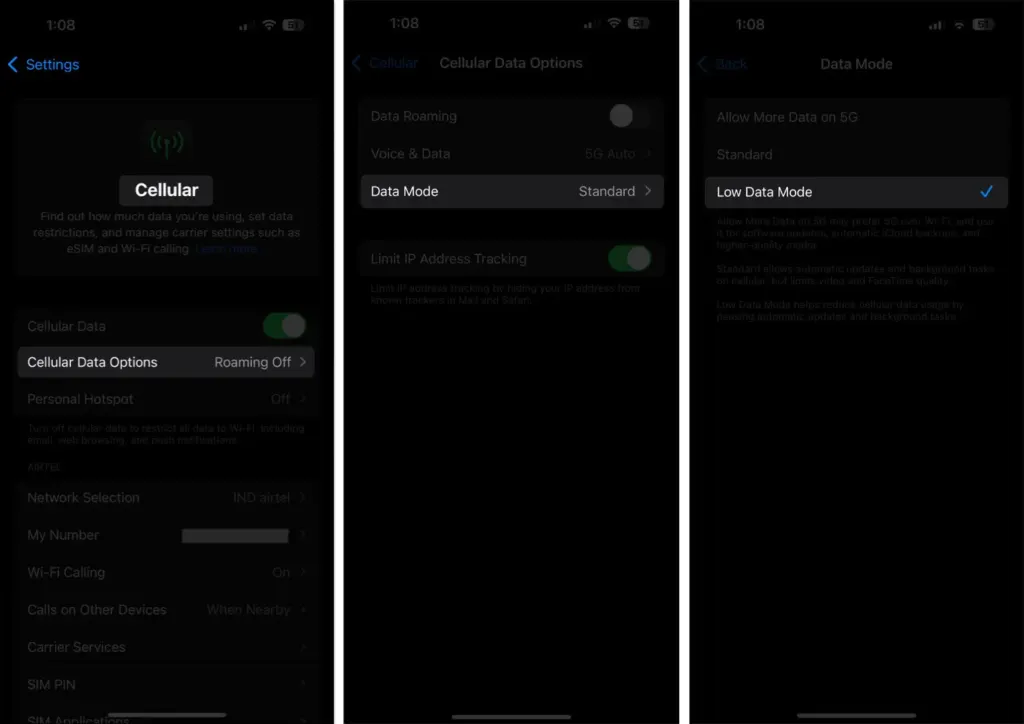
- Tap Cellular Data Options, then switch Data Roaming on or off. On a dual SIM or eSIM setup, tap the line first.
Using a Travel eSIM or Local SIM
With two lines, give each one a different job.
- Set the travel line as your Cellular Data line and turn Data Roaming on for it. It connects to local partner networks.
- Keep Data Roaming off on your home line so it cannot use data.
Calls and texts on the home line may still cost roaming fees.
Other Ways to Avoid Roaming Charges
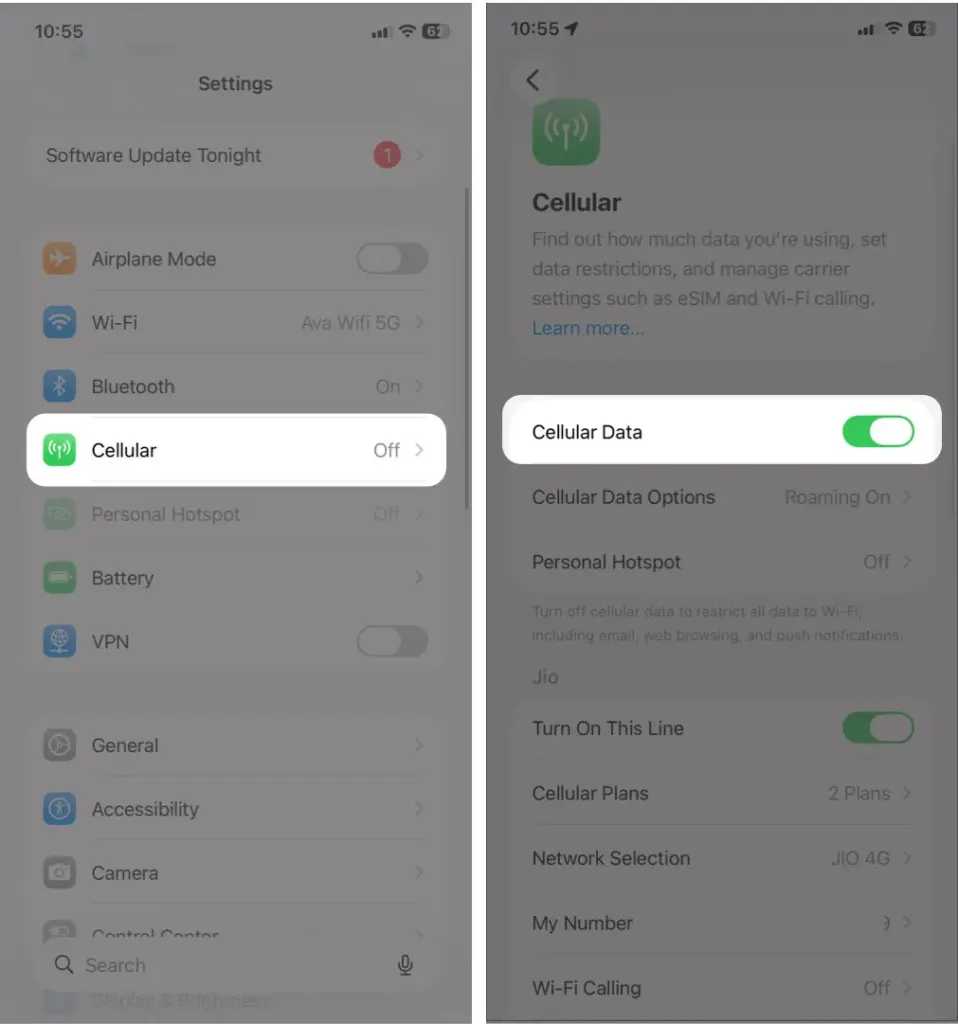
If you want no cellular data use at all, turn off Cellular Data completely and rely on Wi-Fi. Airplane Mode works too, as long as you switch Wi-Fi back on afterward.
- In Settings > Cellular, turn off the Cellular Data toggle.
On a limited roaming pass, Low Data Mode cuts background data. Go to Cellular Data Options > Data Mode and choose Low Data Mode. If you want it back to normal later, see how to turn off Low Data Mode on iPhone.
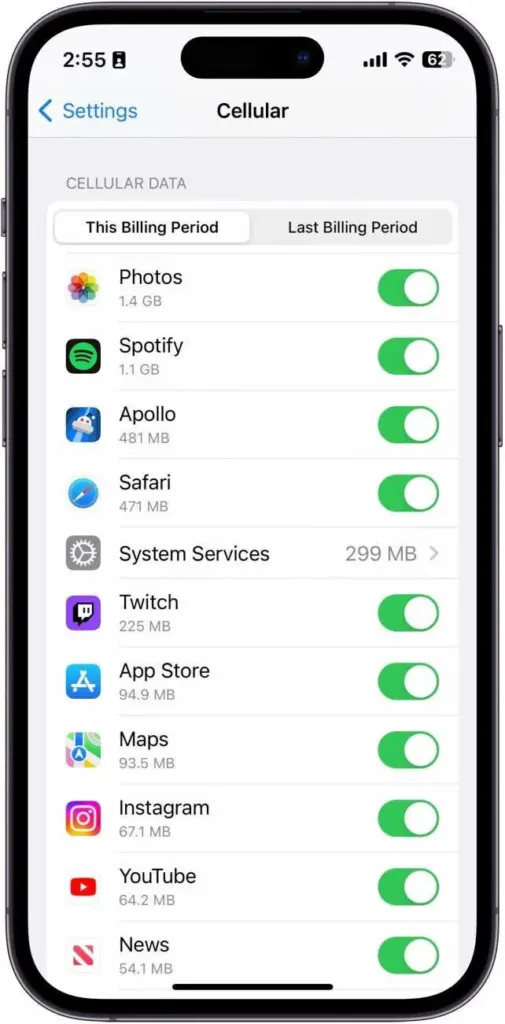
To see what a trip used, reset the statistics before you leave and check the per-app list under Settings > Cellular afterward. More detail is in our guide to checking data usage on iPhone.
For calls from a hotel or cafe abroad, Wi-Fi calling can help.
If Roaming Does Not Work After You Arrive
When the phone shows No Service or SOS, or has no data, try these in order.
- Set Date & Time to Set Automatically.
- Turn Airplane Mode on for about 30 seconds, then off.
- Make sure Data Roaming is on for the line you want to use.
- Try another SIM, or contact your carrier.
If data fails at home as well, our guide to iPhone cellular data not working is the better place to look.
A minute spent on this setting before you travel is cheaper than any roaming bill. You can flip it back whenever your plan or location changes.