
A taskbar that ignores clicks or goes blank makes the whole PC feel broken, since it is how you reach almost everything. When the Windows 11 taskbar not working problem strikes, it usually traces back to a stuck process, a service, a recent update or damaged system files. Below are seven fixes, each aimed at a different symptom, so you can jump to the one that matches yours.
Table of Contents
- Windows 11 taskbar not working? Restart Explorer first
- Restart the PC to reset the Windows 11 taskbar
- Check the taskbar settings when it hides or goes missing
- Make sure Background Tasks Infrastructure Service is running
- Install or roll back the update that left the Windows 11 taskbar not working
- Update or roll back the display driver
- Re-register the Shell Experience Host
- Repair system files with DISM and SFC
- Rebuild the icon cache for blank taskbar icons
- If nothing brings the taskbar back
Windows 11 taskbar not working? Restart Explorer first
This reloads the taskbar without closing your apps, and it works even when the taskbar is frozen. If you’re not sure how to reach it, see our guide on how to open Task Manager in Windows 11.
- Press
Ctrl + Shift + Escto open Task Manager. - On the Processes tab, find Windows Explorer.
- Right-click it and select Restart. The taskbar vanishes for a moment and reloads.
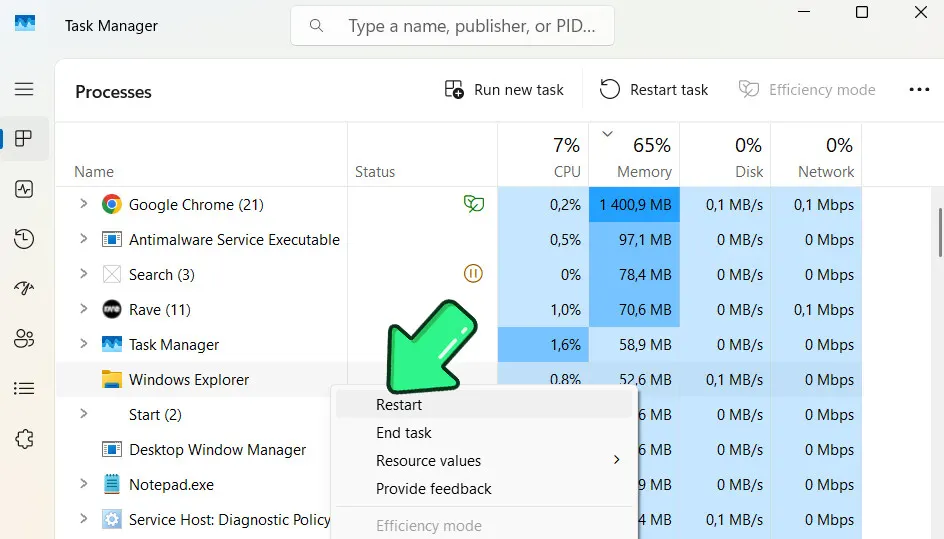
If Restart does nothing, open the Details tab instead, select explorer.exe and click End task. Then choose Run new task, type explorer.exe and press Enter. Ending the process outright forces a clean start that the Restart button sometimes fails to trigger.
Restart the PC to reset the Windows 11 taskbar
If Explorer isn’t the culprit, a full restart reloads every shell component, and it works even when the Start button doesn’t respond.
- Press
Ctrl + Alt + Delete. - Click the power icon in the bottom-right corner.
- Select Restart.
Check the taskbar settings when it hides or goes missing
An auto-hide setting or a multi-monitor option can look exactly like a broken taskbar.
- Open Settings. If the Start button doesn’t respond, press
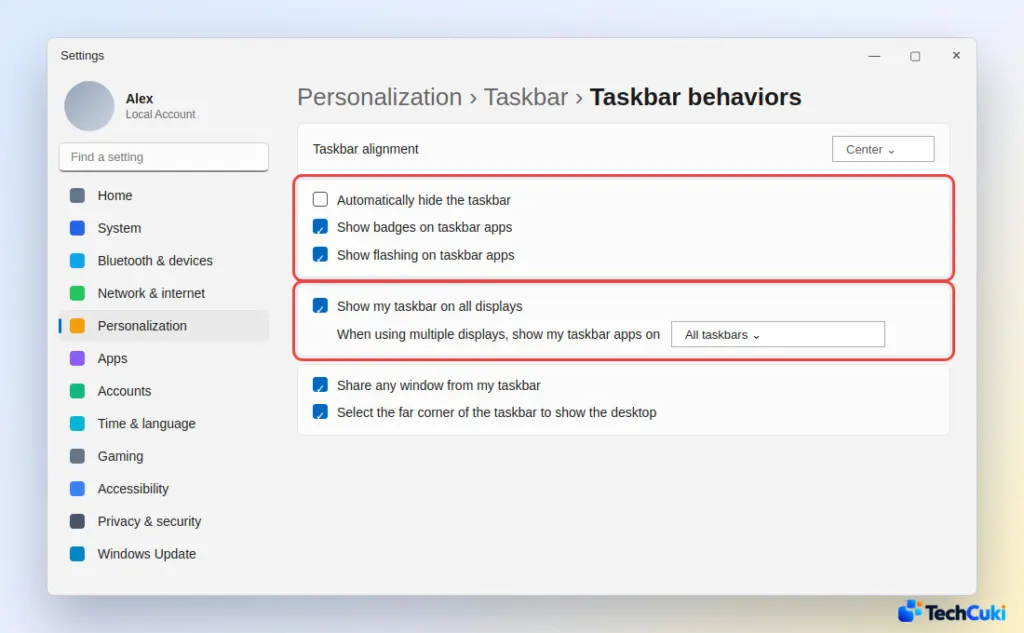
Windows + I. - Go to Personalization > Taskbar, then open Taskbar behaviors.
- Uncheck Automatically hide the taskbar if the bar keeps disappearing.
- For a second monitor, check Show my taskbar on all displays.
Make sure Background Tasks Infrastructure Service is running
This service supports the shell’s background work, so a stopped or disabled copy can leave the taskbar unresponsive.
- Press
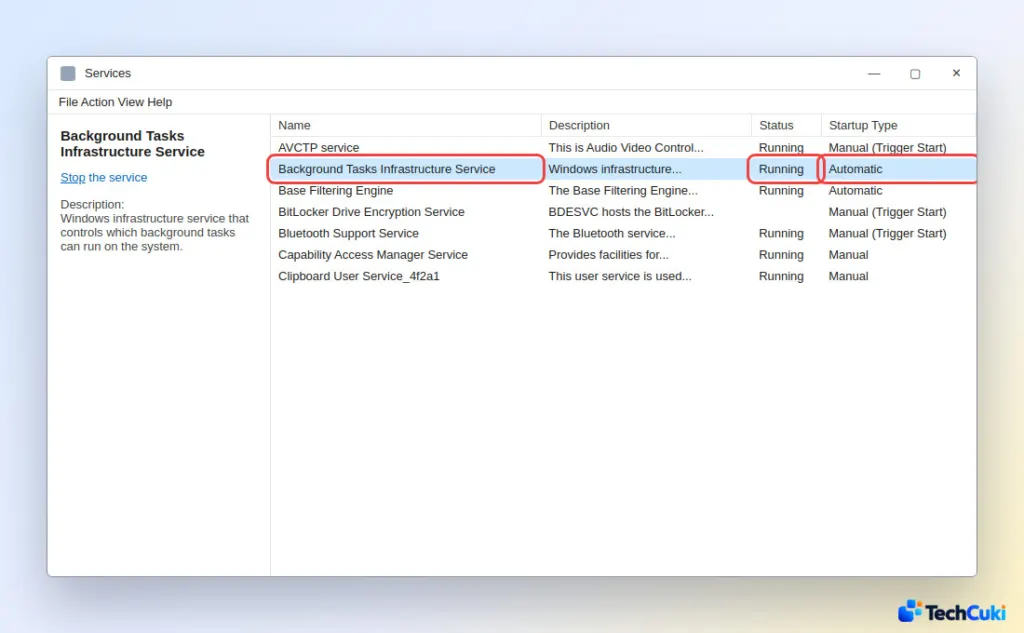
Windows + R, typeservices.msc, and press Enter. - Find Background Tasks Infrastructure Service in the list.
- Check that Status shows Running and Startup type is Automatic.
Install or roll back the update that left the Windows 11 taskbar not working
Later updates often repair bugs from earlier ones, so install what’s waiting before you remove anything.
- Go to Settings > Windows Update and select Check for updates.
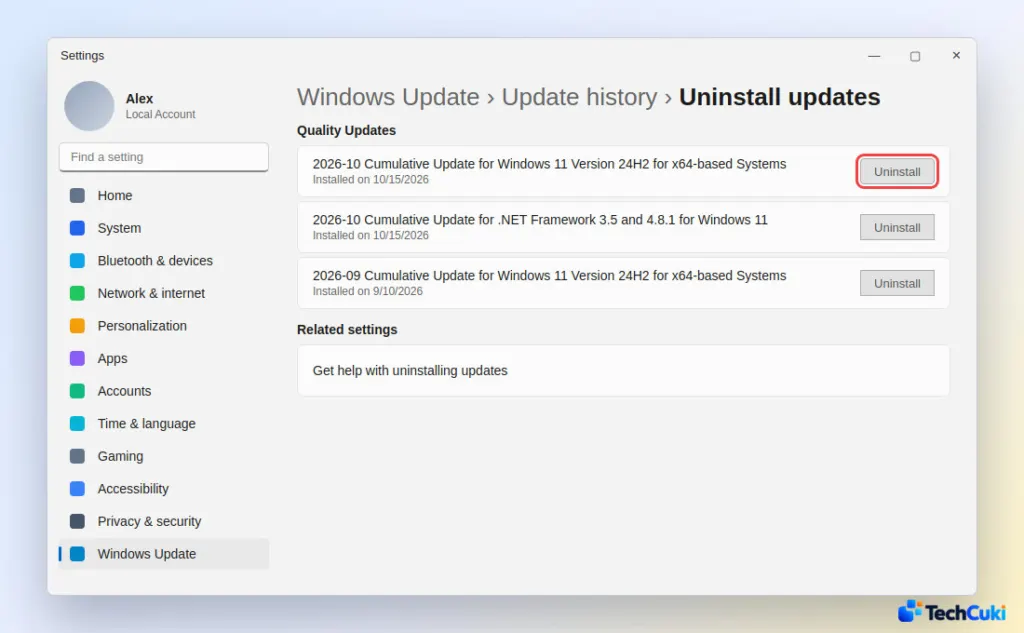
If the taskbar broke straight after a cumulative update and nothing newer is offered, roll that update back.
- Go to Settings > Windows Update > Update history > Uninstall updates.
- Uninstall the latest cumulative update, then restart.
If the update refuses to install and fails with error 0xc1900101, that code points to a driver or hardware compatibility problem rather than the taskbar, so the next section is the better place to look.
Update or roll back the display driver
When the desktop freezes at random after sign-in following monthly updates, a graphics driver that Windows installed automatically can be the cause. One user on Microsoft’s forum stopped the freezes by installing the latest driver directly from the GPU maker.
- Press
Windows + Xand select Device Manager. - Expand Display adapters, right-click your GPU and choose Update driver > Search automatically for drivers.
- If that changes nothing, choose Browse my computer for drivers and pick an older version. As a last step here, uninstall the device and restart so Windows reinstalls it.
Re-register the Shell Experience Host
If the Start menu and taskbar are both dead, re-registering this component rebuilds its app registration without touching your files.
- Right-click Start (or press
Windows + X) and open Terminal (Admin). If that fails, use Run new task in Task Manager to startpowershellwith administrative privileges. - Run this command:
Get-AppXPackage -AllUsers | Where-Object {$_.InstallLocation -like "*ShellExperienceHost*"} | Foreach {Add-AppxPackage -DisableDevelopmentMode -Register "$($_.InstallLocation)\AppXManifest.xml"} - Restart the PC when it finishes.
Repair system files with DISM and SFC
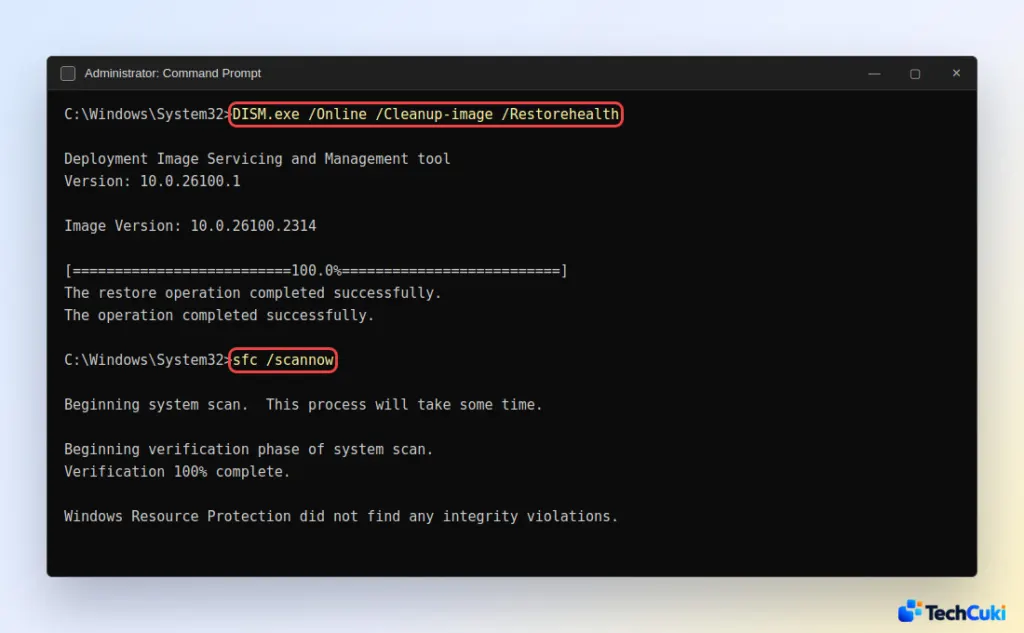
DISM repairs the Windows image from Windows Update, and SFC then fixes protected files from that repaired source, so run them in this order.
- Open Command Prompt as administrator. If the taskbar is frozen, press
Ctrl + Shift + Esc, select Run new task, typecmd, tick Create this task with administrative privileges, and select OK. - Type
DISM.exe /Online /Cleanup-image /Restorehealthand press Enter. Wait for it to finish. - Type
sfc /scannowand press Enter. - Restart your PC.
Rebuild the icon cache for blank taskbar icons
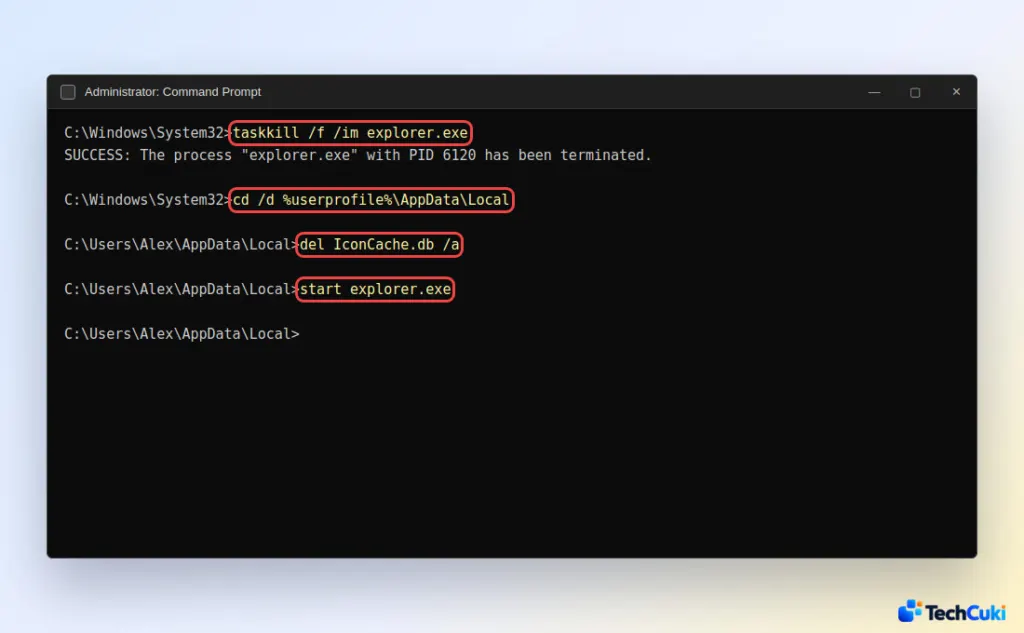
Blank or generic icons mean the cached thumbnails are damaged, and deleting the cache forces Windows to redraw them.
- Open Command Prompt as administrator, using the method from the previous section if the taskbar is frozen.
- Type
taskkill /f /im explorer.exeand press Enter. The taskbar and desktop disappear. - Type
cd /d %userprofile%\AppData\Localand press Enter. - Type
del IconCache.db /aand press Enter. - Type
start explorer.exeand press Enter to bring the taskbar back.
If nothing brings the taskbar back
If DISM and SFC found nothing and the taskbar is still dead, a factory reset of Windows 11 is the last software option, so back up your files first. Some users on the forums found that a reset that keeps files did not help and only a clean install did, which points to a deeper fault such as a failing boot drive. If Start search is broken too, our guide to Windows 11 search not working covers that separately.
Most frozen taskbars come back without any data loss, and the gentler steps are worth trying first. If nothing helps, Microsoft support can look deeper into the problem.


