
Texting an Android friend from an iPhone can feel clunky when photos arrive blurry and there are no typing indicators. To turn on RCS on iPhone, you only need to check one setting, and on many phones it may already be active. The steps cover where to look, how to confirm it is working and what to do when the option is missing.
Table of Contents
Before you start
- You need iOS 18 or later and a cellular plan from a carrier that supports RCS on iPhone. RCS is a carrier-provided service, so availability varies by region and carrier, and carrier fees may apply.
How to Turn On RCS on iPhone
The switch is RCS Messaging in the Messages settings, and it is the only RCS toggle on iPhone for basic texting.
- Open Settings and tap Apps.
- Tap Messages, then tap RCS Messaging.
- Turn on the RCS Messaging toggle.
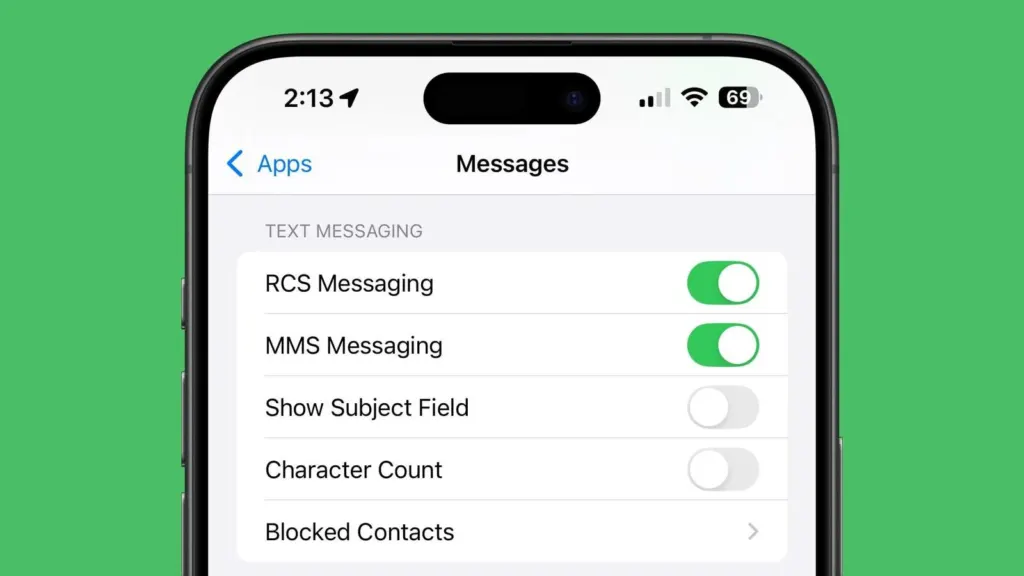
If the toggle is missing instead of just off, your carrier or plan doesn’t offer RCS on iPhone, and the carrier check below confirms it. After switching it on, wait a bit: there can be a short delay before chats with Android contacts upgrade.
Check That RCS Is Working
Open a chat with an Android contact: RCS shows as a label, and the chat bubbles stay green.
- Open Messages and start or open a conversation with an Android contact.
- Look at the conversation header or the text field. An RCS chat says Text Message • RCS, while plain SMS says Text Message.
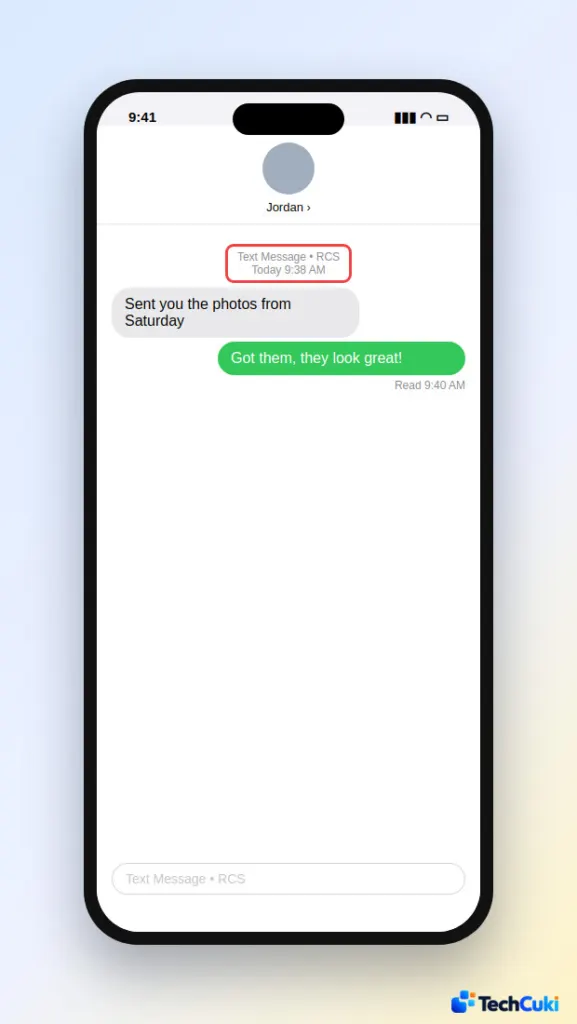
Green bubbles are normal here. RCS, SMS and MMS all show green on iPhone, and only iMessage between Apple devices is blue. RCS also runs over Wi-Fi as well as cellular data.
Confirm Your Carrier Supports RCS
The line under Carrier in About spells it out, and it is the quickest way to tell a carrier limit from a settings problem.
- Open Settings, tap General, then tap About.
- Tap Carrier, the line under Network, to show the IMS Status.
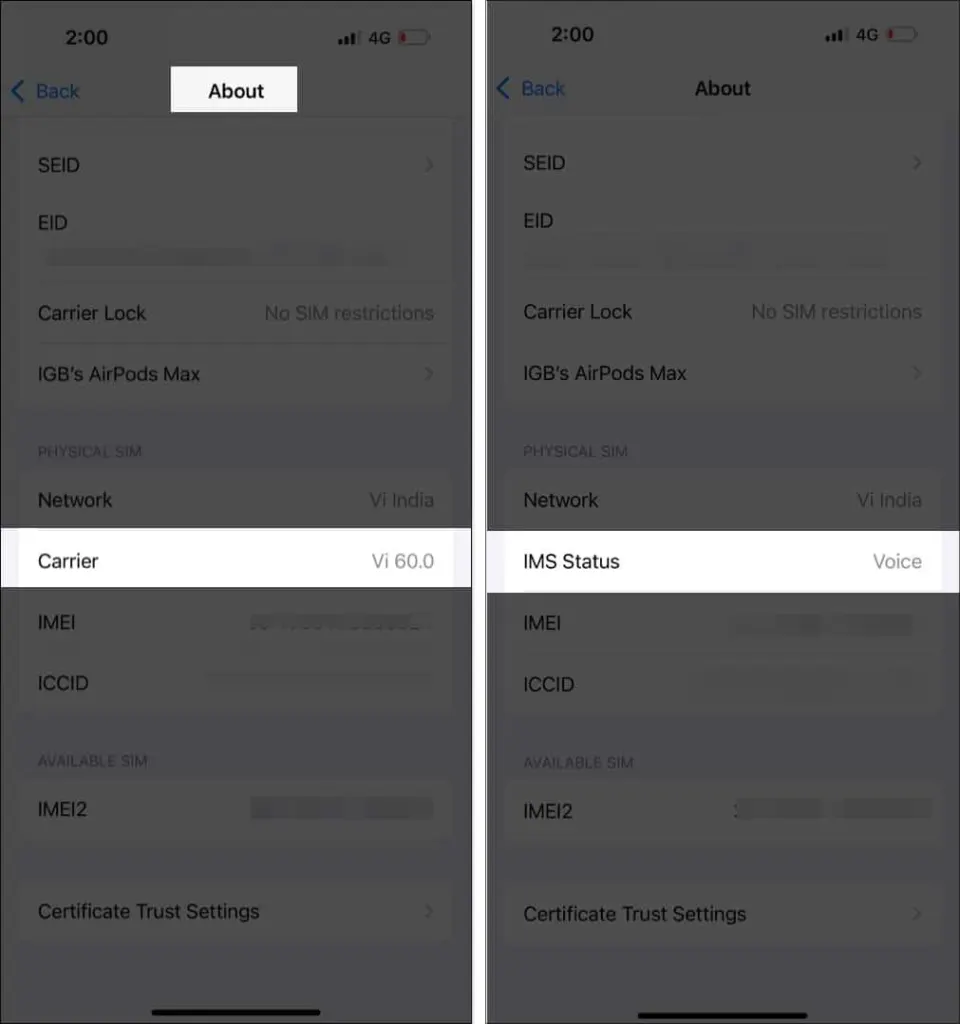
- Look for Voice, SMS, RCS. If you only see Voice & SMS, RCS isn’t available on your carrier or plan, and no iPhone setting will change that.
Can’t Turn On RCS on iPhone? Work Through These
If the toggle is on but chats still say Text Message, the cause is usually the other person’s phone, your data connection or an old iOS version.
- Ask the Android contact to turn on RCS chats in their Messages settings. RCS needs both sides, and chats fall back to SMS when the other phone doesn’t have it.
- Update iOS if you’re behind. Our guide to updating your iPhone covers the steps.
- Restart your iPhone.
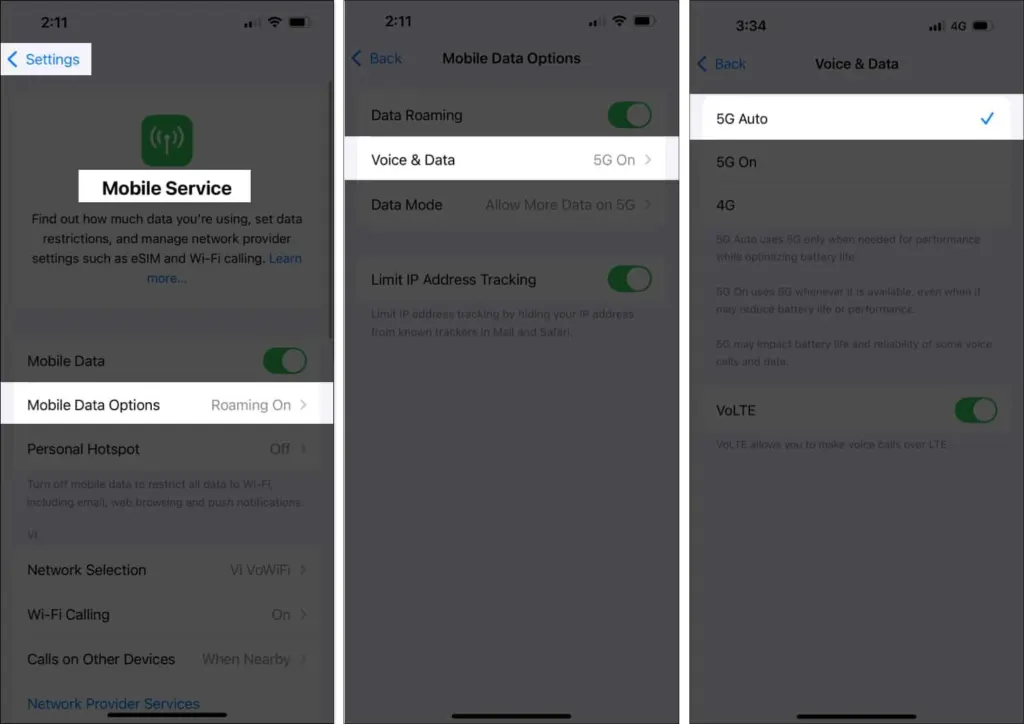
- Go to Settings, tap Cellular, then tap Cellular Data Options. Make sure Voice & Data is set to 5G Auto or LTE, so there is a working data connection for RCS.
- If RCS still won’t turn on, reset network settings as a last resort. It also wipes saved Wi-Fi passwords. If that changes nothing, contact your carrier.
Switch Between RCS and SMS
To go back to plain texting, turn the same toggle off.
- Open Settings, tap Apps, then tap Messages and RCS Messaging.
- Turn off the RCS Messaging toggle.
Texts to Android then go as SMS or MMS, and your iPhone also drops to SMS on its own whenever RCS isn’t available. For picture messages in that mode, see our guide to enabling MMS on iPhone.
Other RCS Settings on iOS 26
In iOS 26 you can choose which app handles SMS, MMS and RCS text messages. On the same Apps screen, RCS Business Messages has its own switch, so you can stop order and delivery alerts that businesses send over RCS. Junk can be reported straight from a conversation with Report Junk. In iOS 26.5, an End-to-End Encryption (Beta) switch appears. It is on by default and works with supported carriers.
RCS vs. iMessage on iPhone
Between Apple devices, iMessage still goes first, and RCS takes over when iMessage isn’t in use. RCS works with non-Apple phones. Read receipts and typing indicators come with RCS, so if you’d rather not send read receipts, see how to turn off read receipts on iPhone.
Richer messaging is a small change that makes everyday chats with Android users feel much closer to iMessage. Availability depends on your carrier and region, so contact your carrier if the option never appears.


