
You click the power button, and the desktop still takes forever to show up, or apps stall the moment you open them. Small things that build up over time are common culprits, and you don’t need to reinstall Windows to speed up Windows 11. Thirteen free fixes are covered here, from quick changes to the hardware upgrades that make the biggest difference.
Table of Contents
- Restart Your PC to Speed Up Windows 11
- Install Windows Updates and Driver Updates
- Disable Startup Apps to Speed Up Windows 11
- Close Background Apps and Heavy Processes
- Uninstall Apps You Don’t Use
- Free Up Disk Space With Storage Sense
- Set Power Mode to Best Performance
- Adjust Visual Effects for Best Performance
- Turn Off Notifications and Tips
- Scan for Malware
- Turn Off Search Indexing on Slower PCs (Optional)
- Turn On Game Mode if You Play Games
- Add More RAM or Switch to an SSD
1. Restart Your PC to Speed Up Windows 11
A restart is the simplest fix, and it works because it clears memory and closes stuck processes.
- Click Start, then select Power.
- Select Restart.
Wondering how to clear RAM cache in Windows 11? A restart clears memory, and closing heavy apps (see fix 4) frees up memory without rebooting. Many people only put their PC to sleep for weeks, so a full restart is worth doing.
2. Install Windows Updates and Driver Updates
Installing the latest Windows and driver updates is one of Microsoft’s recommended ways to improve PC performance.
- Open Settings and select Windows Update.
- Select Check for updates, then install all available updates.
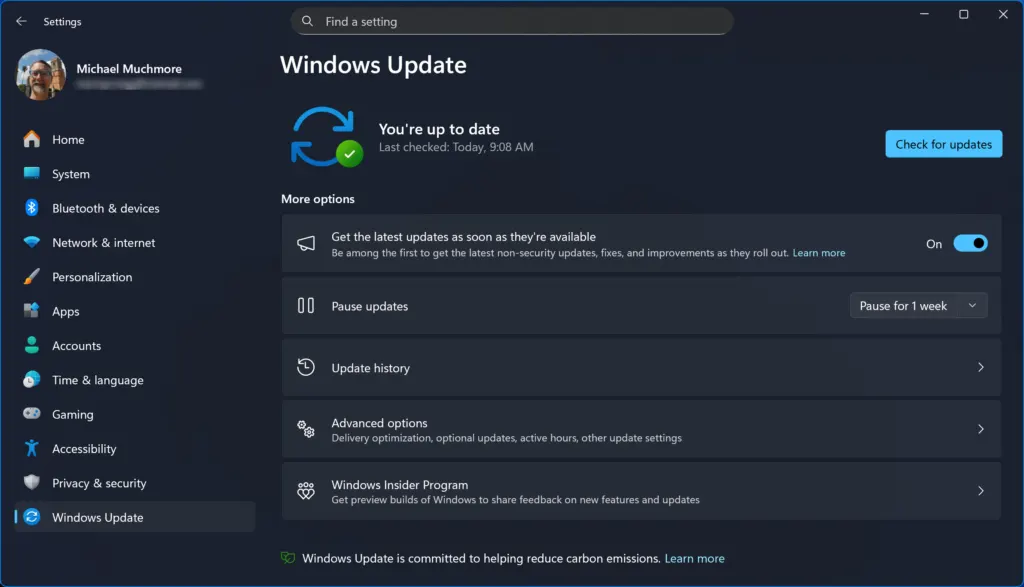
- Go to Advanced options, then select Optional updates.
- Install any driver updates listed there.
3. Disable Startup Apps to Speed Up Windows 11
Apps that launch at startup can slow down boot time, so turn off the ones with a high startup impact.
- Press
Ctrl+Shift+Escto open Task Manager, then select the Startup apps tab. - Select an app with High startup impact, then click Disable.
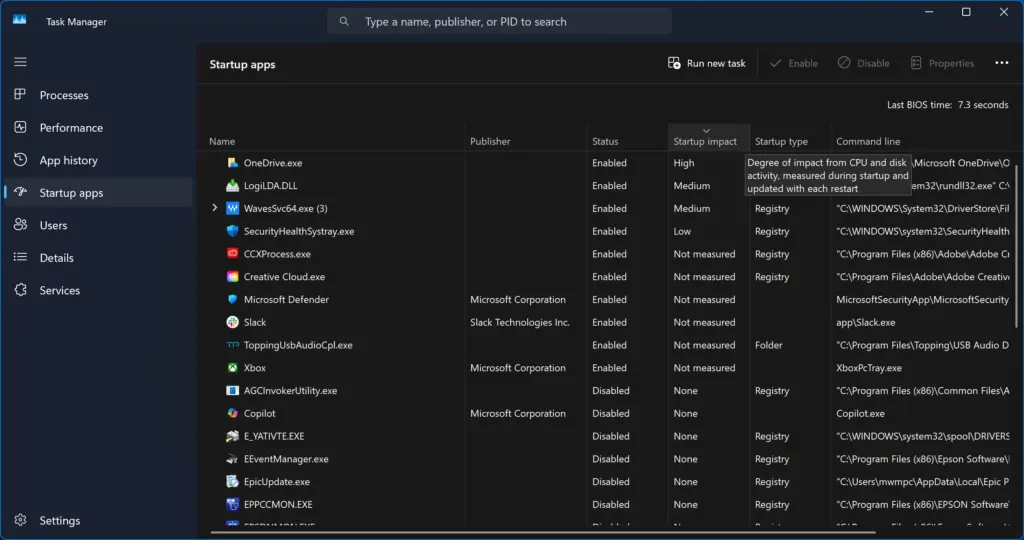
- You can also turn off startup apps in Settings > Apps > Startup.
4. Close Background Apps and Heavy Processes
Ending apps you do not need frees up memory and processor power for the rest of your PC.
- Press
Ctrl+Shift+Escto open Task Manager, then select the Processes tab. - Click the CPU or Memory column header to sort processes by usage.
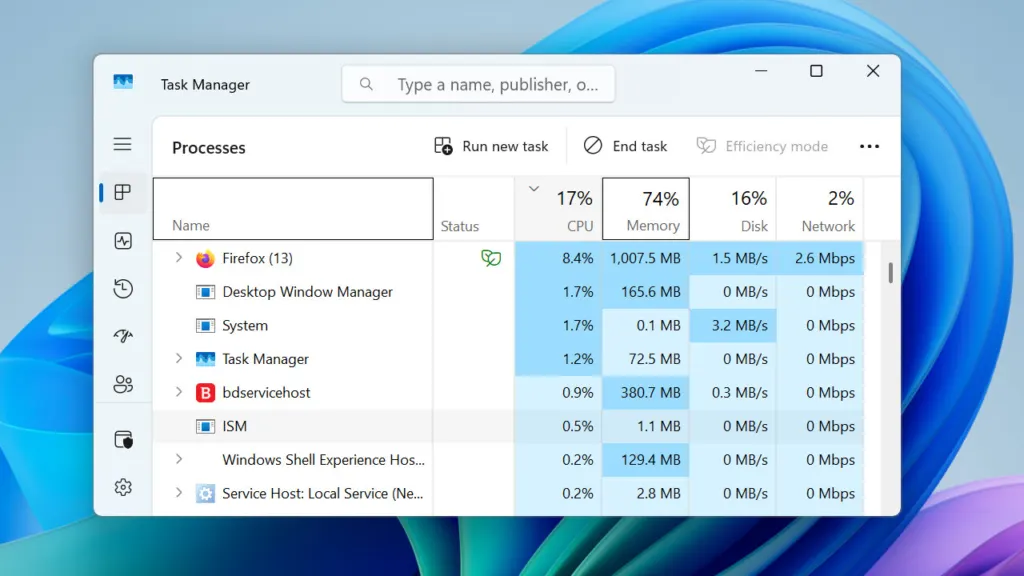
- Select an app you don’t need, then click End task.
- Do not end Windows processes.
For more ways to reduce background activity, see our guide to close background apps on Windows 11.
5. Uninstall Apps You Don’t Use
Removing apps you never use, including preinstalled bloatware, frees up storage and is one of the simplest ways to clean up a PC.
- Open Settings and go to Apps > Installed apps.
- Click the three dots next to an app you don’t use.
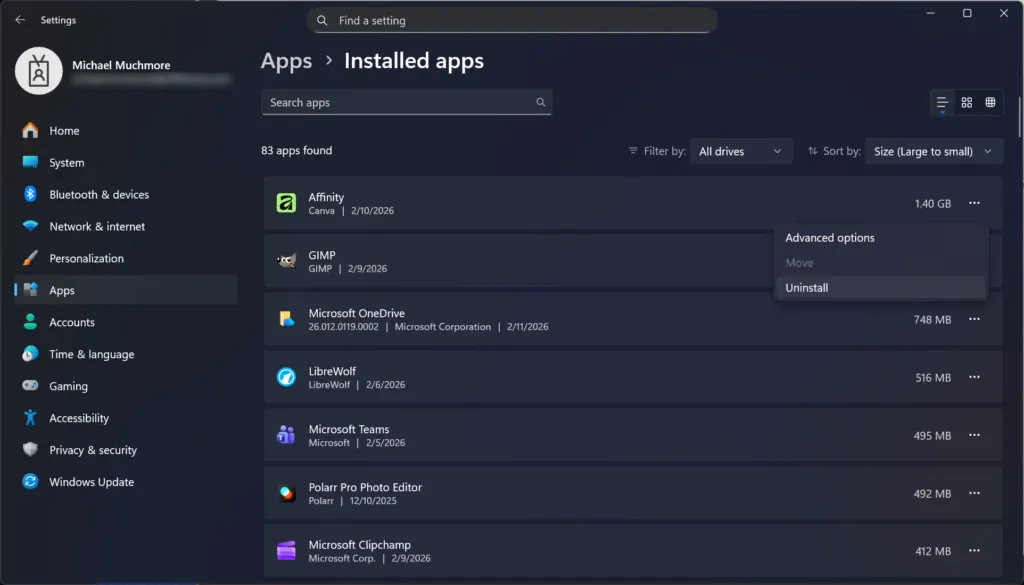
- Select Uninstall and follow the prompts.
6. Free Up Disk Space With Storage Sense
Storage Sense can automatically clean up temporary files, the Recycle Bin, and your Downloads folder.
- Open Settings > System > Storage.
- Turn on Storage Sense, then open it to choose cleanup for temporary files, the Recycle Bin, and Downloads.
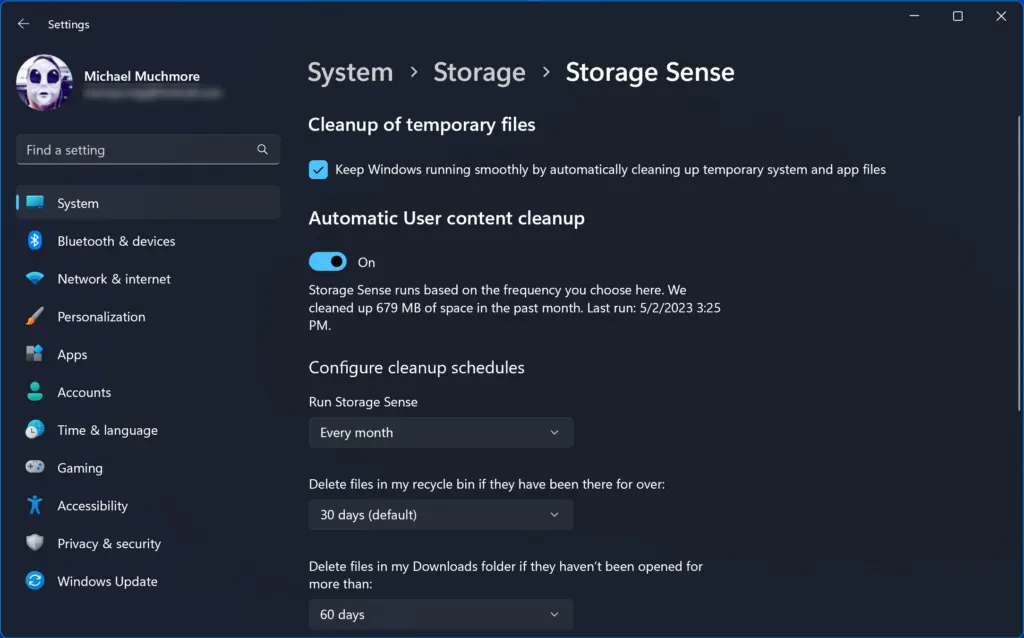
- Click Run Storage Sense now.
- To delete temporary files right away, go to Settings > System > Storage > Temporary files.
- Then search for Defragment and Optimize Drives, select your drive and click Optimize. Windows trims SSDs and defragments hard drives (HDDs) automatically.
7. Set Power Mode to Best Performance
Power mode controls how much performance Windows delivers, and Best performance gives you the most speed.
- Open Settings > System > Power & battery.
- Next to Power mode, open the dropdown and select Best performance.
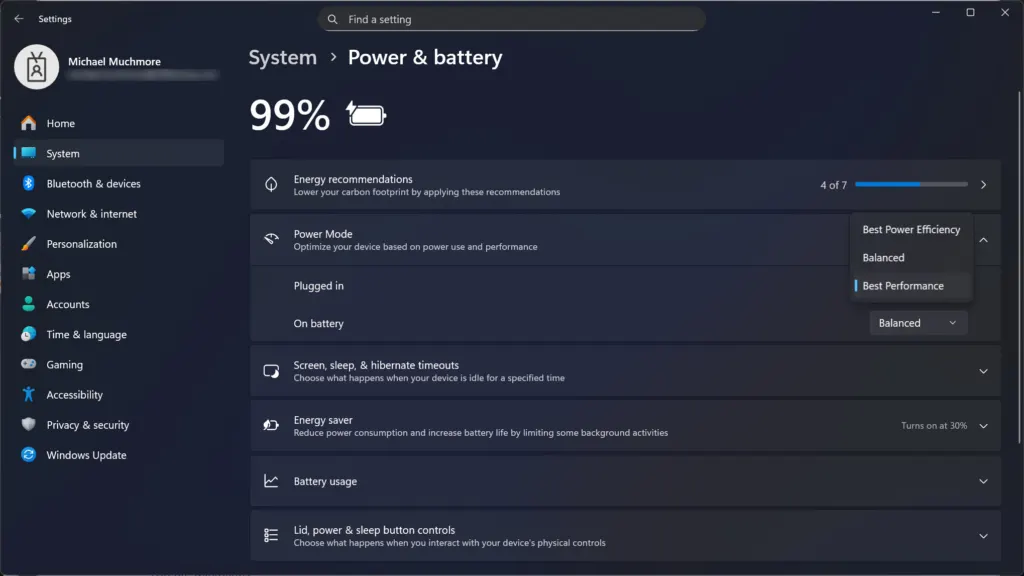
This setting uses more battery on laptops.
8. Adjust Visual Effects for Best Performance
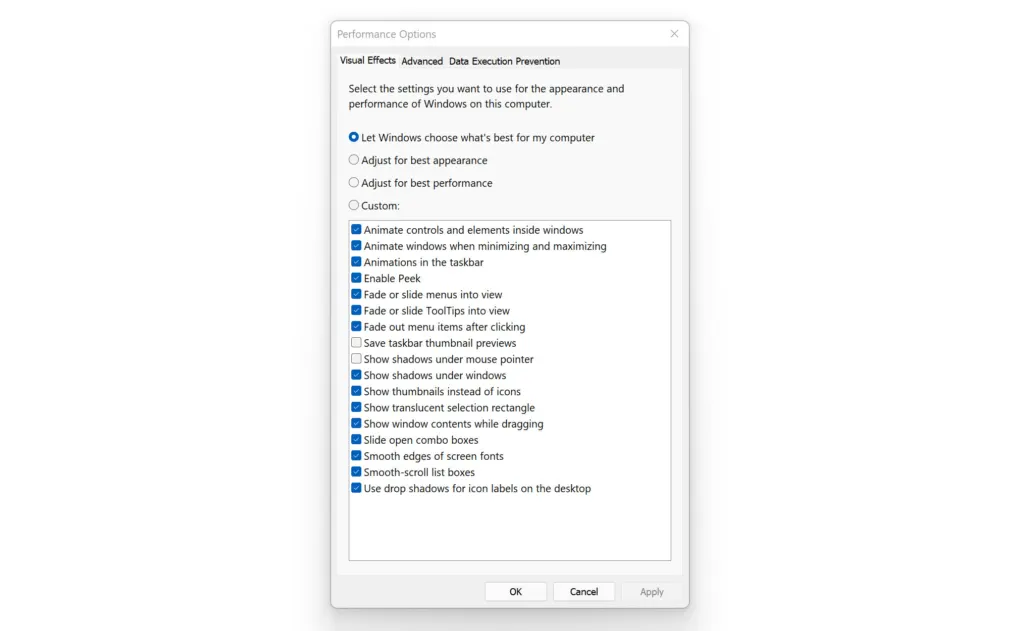
Windows uses animations and other visual effects, and you can reduce them to free up resources.
- Press Start, type Adjust the appearance and performance of Windows, and open it.
- Select Adjust for best performance, then click OK. To keep text looking good, keep Show thumbnails instead of icons and Smooth edges of screen fonts checked.
9. Turn Off Notifications and Tips
Turning off nonessential notifications and tips keeps Windows quieter and cuts down on distractions.
- Open Settings > System > Notifications.
- Turn off notifications for apps you don’t need.
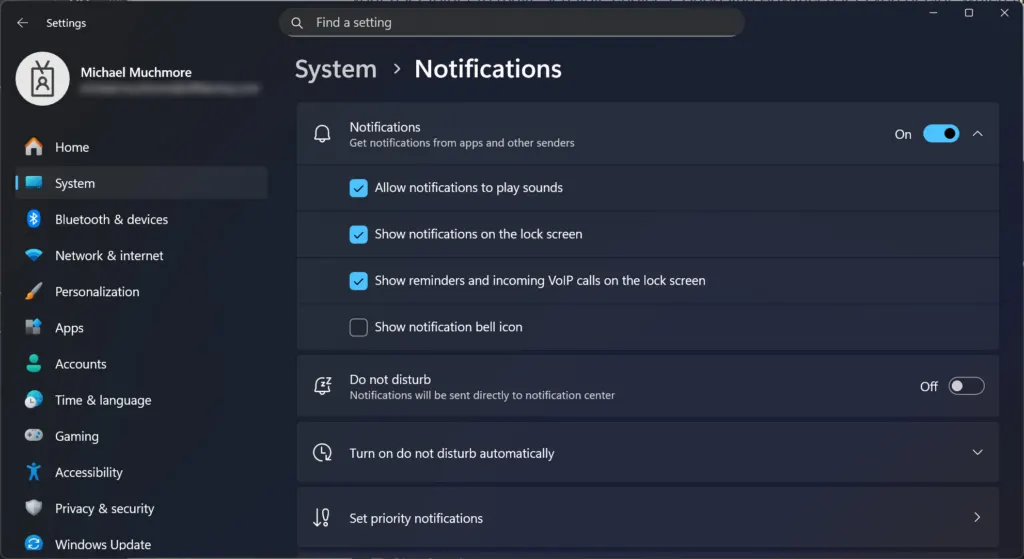
- Scroll down to Additional settings and uncheck Get tips and suggestions when using Windows.
10. Scan for Malware
Malware can slow a PC down, so running a scan with Windows Security is a good step.
- Open Windows Security and select Virus & threat protection.
- Click Quick scan.
- For a deeper check, select Scan options, then choose Microsoft Defender Antivirus (offline scan).
For more troubleshooting options, see our guide on how to boot into Safe Mode in Windows 11.
11. Turn Off Search Indexing on Slower PCs (Optional)
Search indexing helps Windows find files quickly, so turn it off only if your PC is slow and you are comfortable with slower searches.
- Search for and open Indexing Options.
- Click Modify, then uncheck the locations you don’t search often.
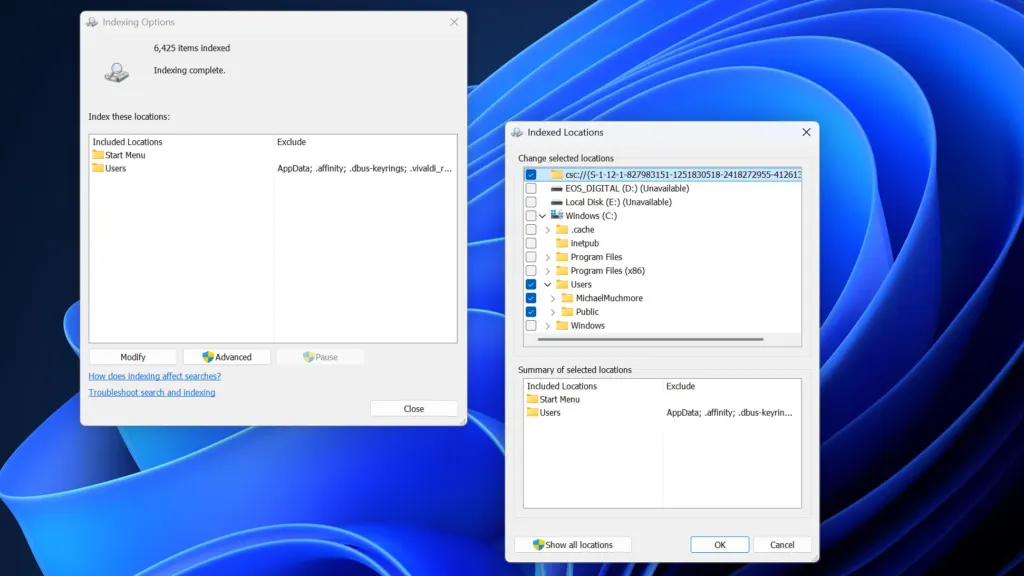
- To turn off indexing entirely, you can turn off the Windows Search service.
Searching for files becomes slower afterward.
12. Turn On Game Mode if You Play Games
Game Mode gives priority to the game you are playing.
- Open Settings and select Gaming.
- Select Game Mode, then set it to On.
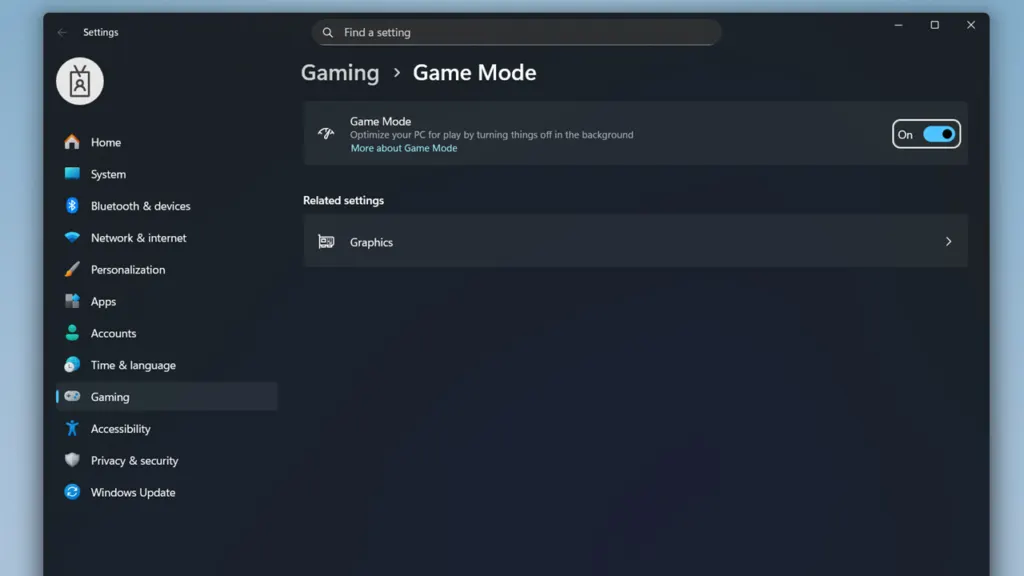
While you play, Game Mode also stops Windows Update from installing drivers or sending restart notifications. To hold off updates for longer, see how to stop Windows 11 updates.
13. Add More RAM or Switch to an SSD
More RAM helps when you run many tabs and apps, and an SSD gives the biggest boost to boot and app loading.
- Press
Ctrl+Shift+Escto open Task Manager, select the Performance tab, and click Memory to check your RAM. - If your PC has 8 GB of RAM or less, adding RAM helps the most when you run many tabs and apps.
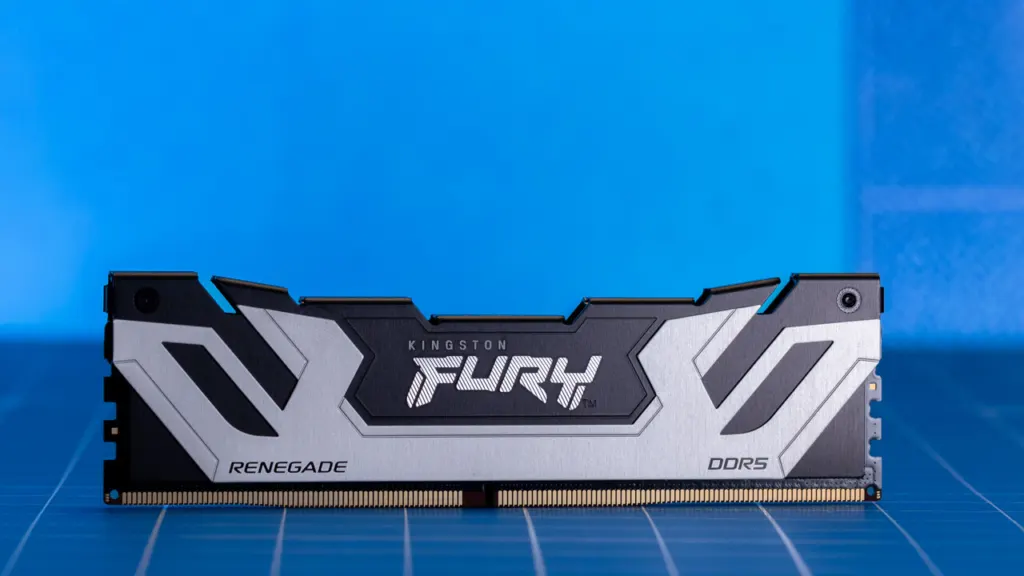
- If your PC still uses a hard drive (HDD), replacing it with an SSD is the biggest speed boost for boot and app loading.
Most of these changes cost nothing and are easy to undo, so you can work through them at your own pace. If the PC still drags after the free options, hardware is the next place to look.


