
Few boot messages feel as risky as a prompt that wants a quick Y or N answer before Windows even loads. The fTPM NV corrupted message usually appears after a hardware or firmware change, though it can also show up out of the blue, and the choice you make affects your sign-in and your encrypted data. The sections below explain what the message means, how to decide safely, and how to keep it from coming back.
Table of Contents
What the fTPM NV Corrupted Message Means
The board found that the TPM data stored for the old setup no longer matches the current processor or firmware, and it wants you to choose what happens to that data.
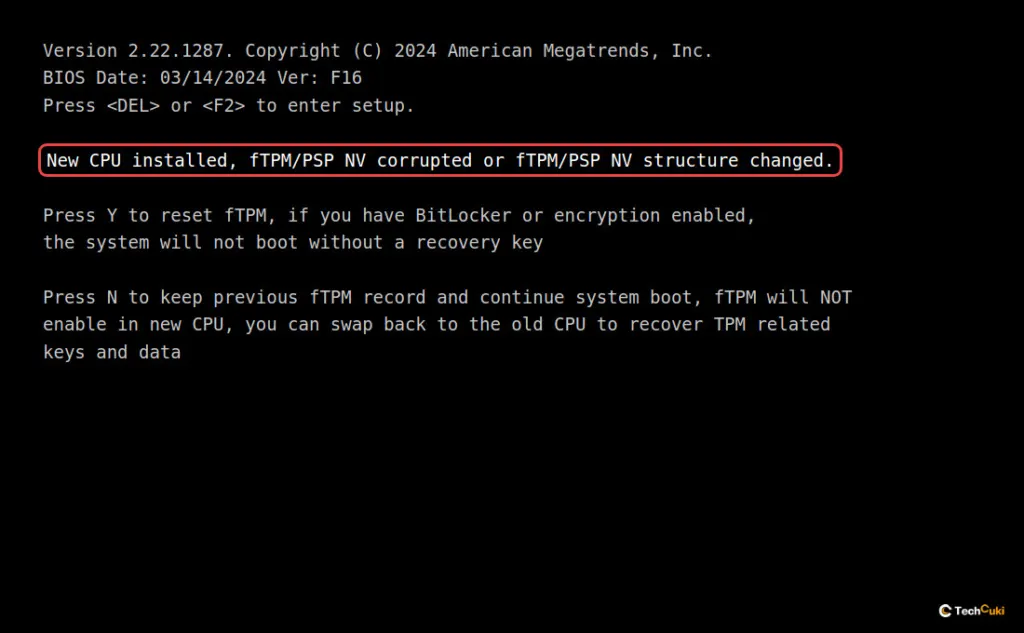
The full text reads: “New CPU installed, fTPM/PSP NV corrupted or fTPM/PSP NV structure changed. Press Y to reset fTPM, if you have BitLocker or encryption enabled, the system will not boot without a recovery key. Press N to keep previous fTPM record and continue system boot, fTPM will NOT enable in new CPU, you can swap back to the old CPU to recover TPM related keys and data.”
- Y clears the keys stored in the fTPM. Anything sealed in the TPM is lost: the BitLocker or device encryption protector (so Windows asks for the recovery key), your Windows Hello PIN, face or fingerprint sign-in, and some saved passkeys.
- N keeps the old record and boots with the fTPM disabled for that session. The message usually comes back on the next boot, and Windows 11 may report that the TPM is missing.
You may see the message even when no new CPU went in. One Microsoft Q&A case was an ASUS Strix G15 laptop with no processor change, and pressing Y after confirming BitLocker was off cleared it.
Should You Press Y or N?
The only thing that matters is whether the drive is encrypted.
- Brand-new build with no operating system yet: press Y and keep installing. There is nothing to lose.
- Windows installed, encryption confirmed off: press Y.
- Encryption on, or you are not sure: press N, sign in to Windows (use your account password if the PIN fails), then follow the steps below to suspend protection before pressing Y on a later boot.
1. Check Whether BitLocker Is On
Open Command Prompt as administrator and run manage-bde -status C:.
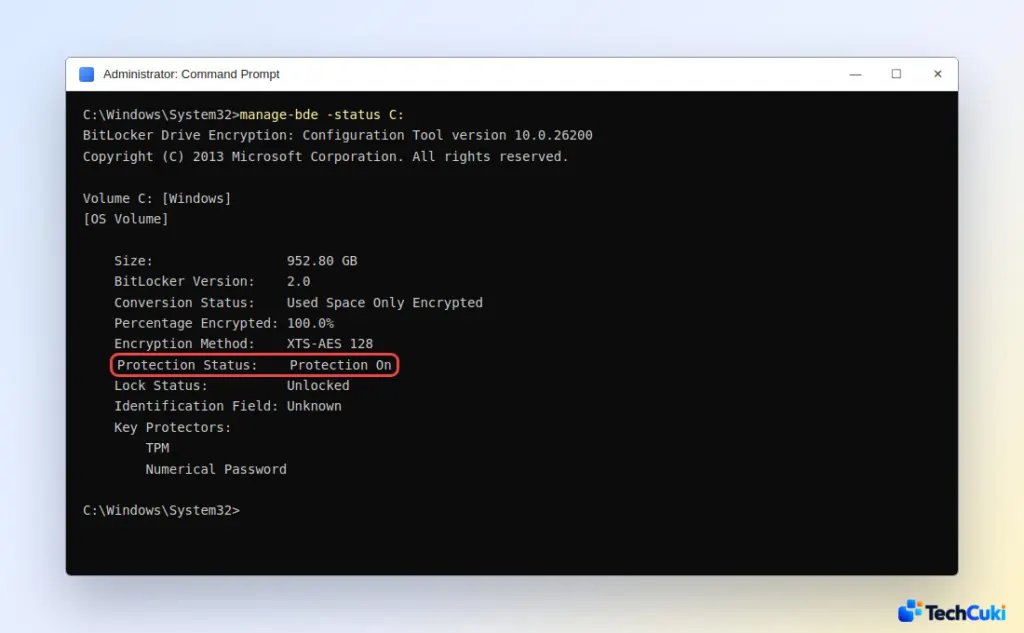
“Protection On” means BitLocker or device encryption is active. “Protection Off” together with “Fully Decrypted” means it is safe to press Y. On Home editions you can also look under Settings > Privacy & security > Device encryption.
If protection is on, back up the recovery key before going further. Our guide to finding your BitLocker recovery key in Windows 11 shows where it is stored.
2. Suspend BitLocker Before You Press Y
Suspending is safer than fully decrypting the drive, because Windows stores a clear key on the disk and the next boot no longer needs the TPM.
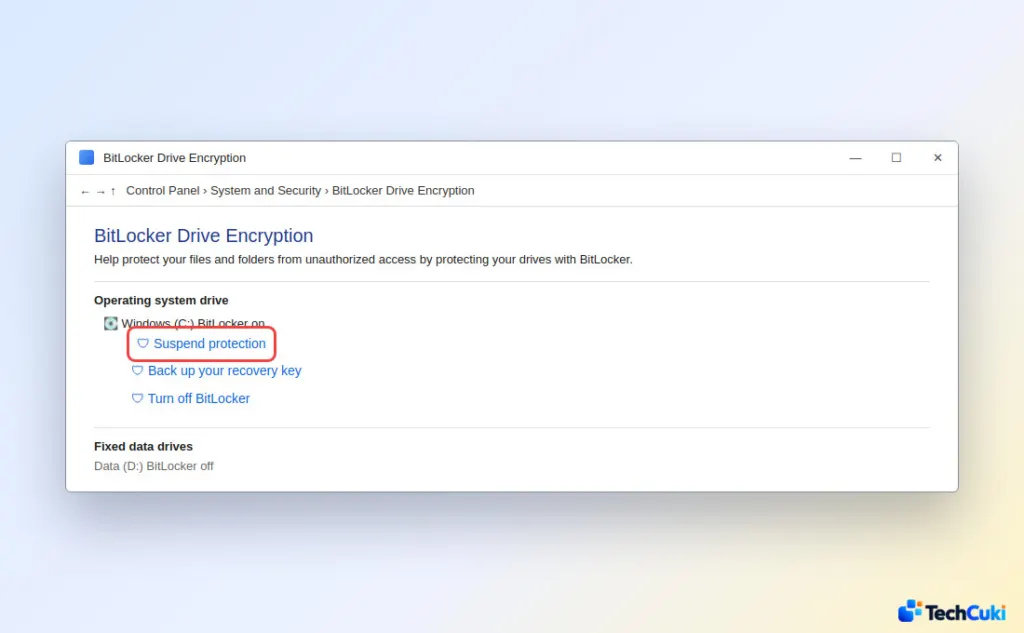
- Open Control Panel > BitLocker Drive Encryption and select Suspend protection next to the Windows drive.
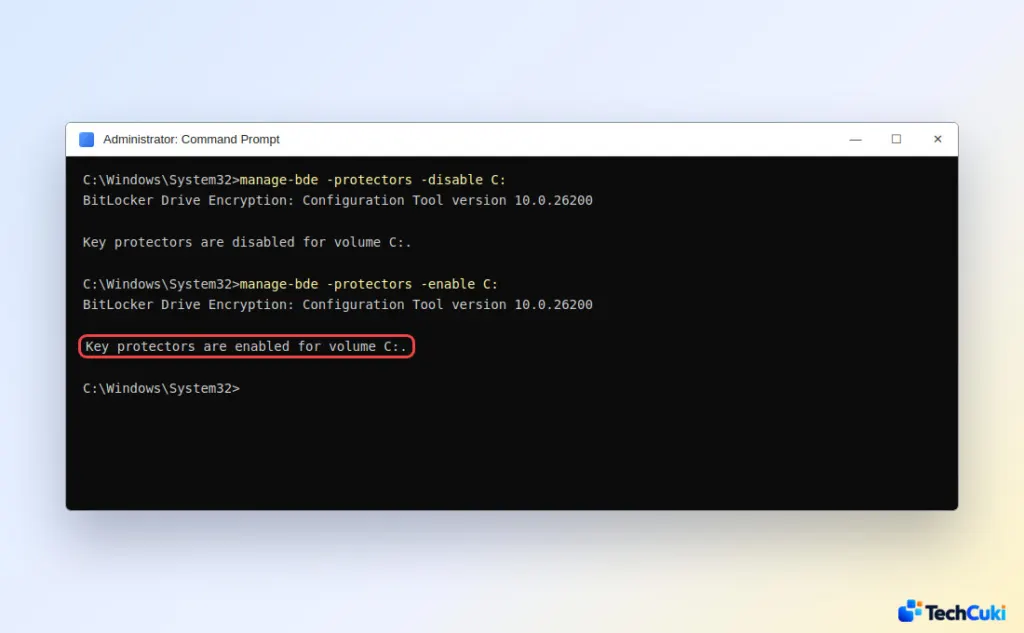
- Or, from an administrator Command Prompt, run
manage-bde -protectors -disable C:. Without the-RebootCountoption, protection stays suspended until you resume it yourself.
- Restart the PC and press Y at the message (next section).
- Once Windows loads, resume protection with
manage-bde -protectors -enable C:or choose Resume protection in Control Panel.
If you would rather turn encryption off entirely, see our guide to turning off BitLocker in Windows 11.
3. Press Y to Reset the fTPM
With protection suspended or confirmed off, press Y at the prompt and let the PC boot.
Windows should start normally. Expect to sign in with your account password and set up your Windows Hello PIN again, because the old PIN was sealed in the cleared fTPM. If Windows 11 still complains about the TPM afterward, see what to do when Windows 11 does not detect the TPM.
4. If Windows Asks for a BitLocker Recovery Key
This happens when you pressed Y while protection was still on, and on some boards even after pressing N, because the TPM is unavailable for that boot. Enter the 48-digit key from your Microsoft account or wherever you saved it, and Windows will start.
Our guides on finding the recovery key and on a BitLocker recovery key that is not working cover the lookup. Without the key, the encrypted data cannot be recovered, and the only way forward is a reset or clean install.
5. Stop the fTPM NV Corrupted Message From Coming Back
If the prompt returns on every boot, the firmware is the usual suspect.
- Update the motherboard BIOS from the maker’s support page, since newer AMD AGESA firmware fixes fTPM problems. Our guide to opening the BIOS in Windows 11 shows how to get into the setup screen.
- Load the BIOS defaults, then check that the fTPM is enabled again.
- On an older desktop, replace a weak CMOS battery. One that loses power resets the BIOS and can trigger the prompt.
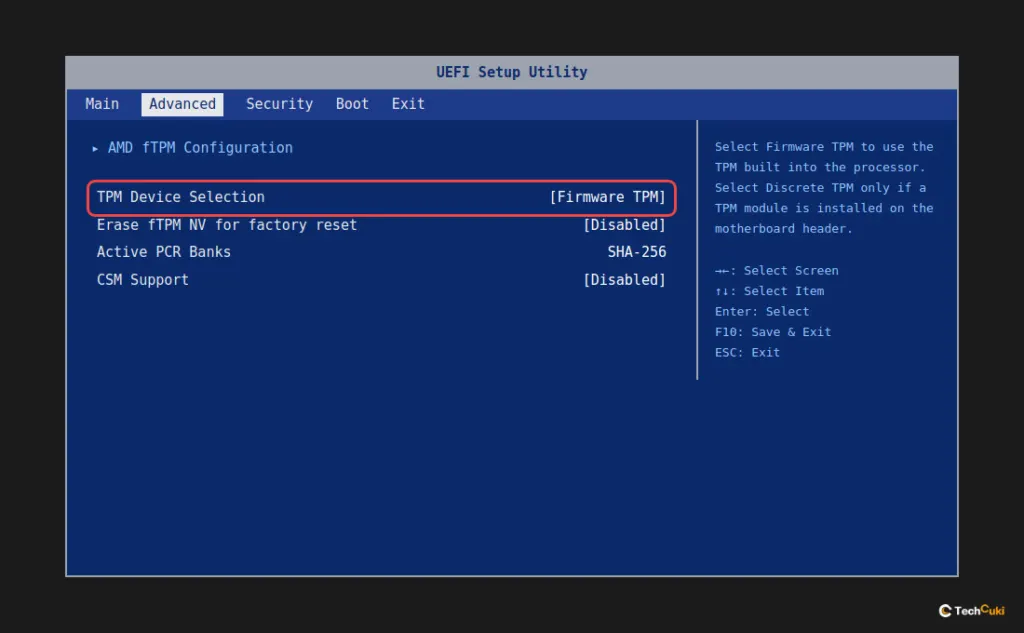
As a last resort, some guides turn the fTPM off in the BIOS (ASRock: CPU Configuration > AMD fTPM switch; Gigabyte: Settings > Miscellaneous > AMD CPU fTPM; MSI: Advanced > Trusted Computing > Security Device Support). Avoid that if you can. Windows 11 requires TPM 2.0, and disabling it also breaks BitLocker and Windows Hello. To undo it, see how to enable TPM 2.0 for Windows 11.
Taking a minute to check your protection status before answering the prompt can save you from a locked drive and a long recovery. Keep your recovery details somewhere off the PC, because this kind of prompt can return after future firmware changes.


