
A PC that crawls while the disk sits at 100% in Task Manager is hard to ignore, even when you are not doing much. Windows 11 100% disk usage can come from a background process, a software setting or the drive itself, and it can happen on both older and newer storage. Seven fixes follow, ordered so you can find the real cause first and stop as soon as things settle.
Table of Contents
- Is Windows 11 100% Disk Usage a Real Problem?
- Find What Is Hammering the Disk
- Restart and Let Updates and Scans Finish
- Stop the SysMain Service
- Limit Windows Search Indexing
- Check Drive Health and File System Errors
- Scan for Malware and Rule Out Drivers
- Upgrade to an SSD if Windows 11 100% Disk Usage Persists
Is Windows 11 100% Disk Usage a Real Problem?
Only if it lasts. A short spike after startup or during an update is normal, but a drive that stays at 100% keeps apps slow and the PC stuttering. Use the table to pick where to start.
| What you see | Try first |
|---|---|
| Spike only for the first 15–30 minutes after a restart or update | Wait it out (fix 2) |
| A named service tops the Disk column | Fix 3 for SysMain, fix 4 for Search Indexer, or the antivirus note in fix 1 |
| “System” tops the list and memory is nearly full | Free up memory, see fix 1 |
| Nothing stands out, and usage drops in Safe Mode | Software or driver cause: fixes 4 and 6 |
| Still 100% in Safe Mode, or freezes of a second or two | Drive problem: fix 5, then fix 7 |
1. Find What Is Hammering the Disk
Sorting by the Disk column names the process behind the spike, and that decides which fix is worth your time.
- Press
Ctrl + Shift + Escto open Task Manager. - Go to the Processes tab, then click the Disk column to put the highest usage first.
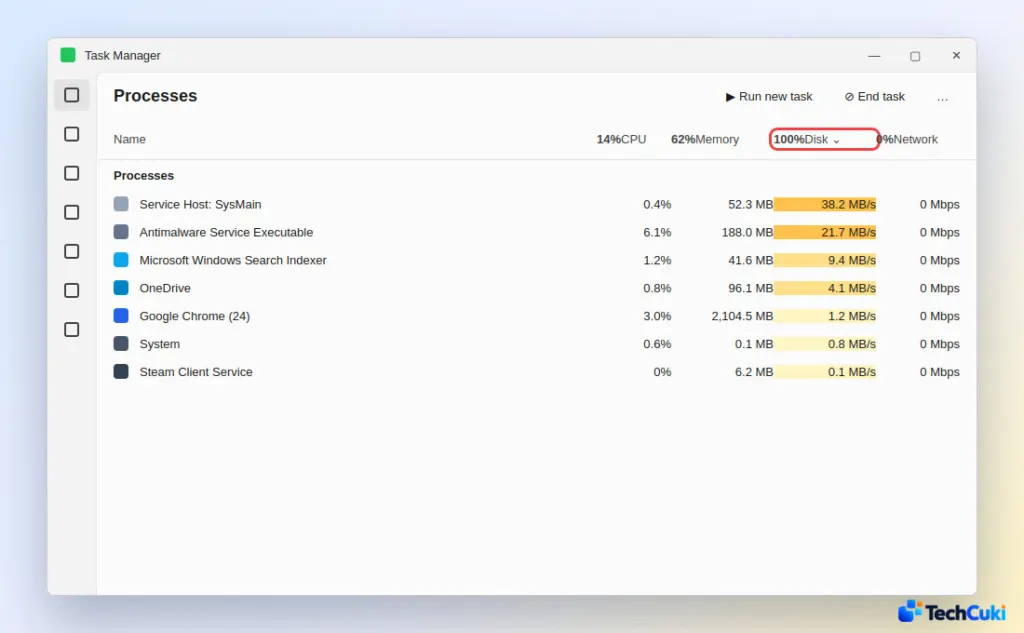
Frequent culprits are SysMain, Antimalware Service Executable (Microsoft Defender scanning), Windows Search Indexer, OneDrive syncing, Windows Update and browsers. If the culprit is a third-party antivirus (a Vipre service called SBAMSvc.exe has shown up this way), pause it briefly to see whether the disk calms down, then change its scan schedule or exclusions rather than leaving it off.
For file-level detail, open Resource Monitor from the three-dot menu in Task Manager, select the Disk tab and click the Total (B/sec) column to see which files are being read and written. If “System” does most of the I/O, check how much memory is free, because a memory-starved PC pushes more data to the page file. Programs you do not need can be closed too, as described in how to close background apps on Windows 11.
2. Restart and Let Updates and Scans Finish
After a restart or a big update, Windows indexes files and scans for malware for a while, so judge the result only after that settles.
- Restart the PC.
- Wait 15–30 minutes, then check Task Manager again.
3. Stop the SysMain Service
SysMain preloads frequently used apps into memory. That helps on a hard drive but keeps it busy, and its role on an SSD is negligible, so stopping it is a safe test.
- Press
Windows + R, typeservices.mscand press Enter. - Right-click SysMain and select Stop.
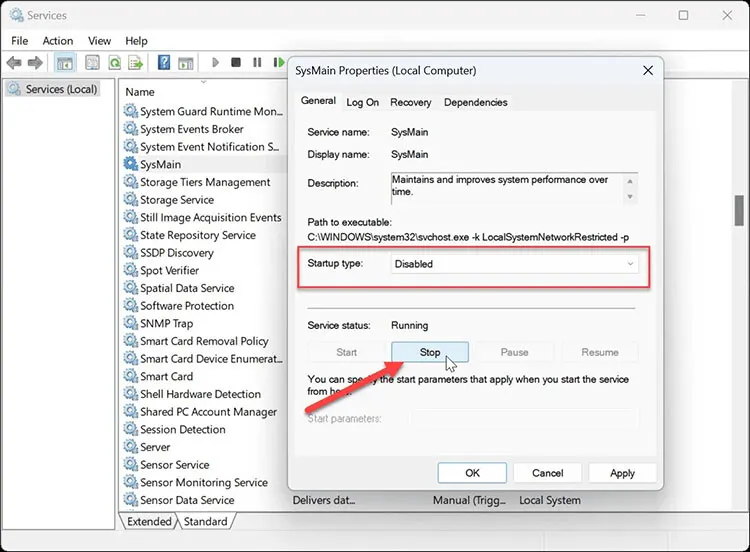
- To keep it off, double-click SysMain, set Startup type to Disabled and click OK.
Disk usage should fall within a minute or two if SysMain was the cause. If nothing changes, set it back to Automatic.
4. Limit Windows Search Indexing
When Windows Search Indexer tops the list, let the first index finish, or make it cover fewer folders by switching search from Enhanced to Classic.
- Open Settings > Privacy & security > Searching Windows.
- Select Classic instead of Enhanced.
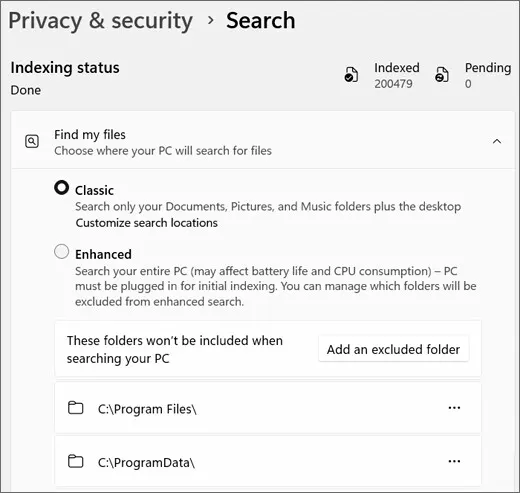
Classic mode indexes fewer folders, so some files may take longer to show up in search. If search misbehaves after the change, see our guide to fixing Windows 11 search not working.
5. Check Drive Health and File System Errors
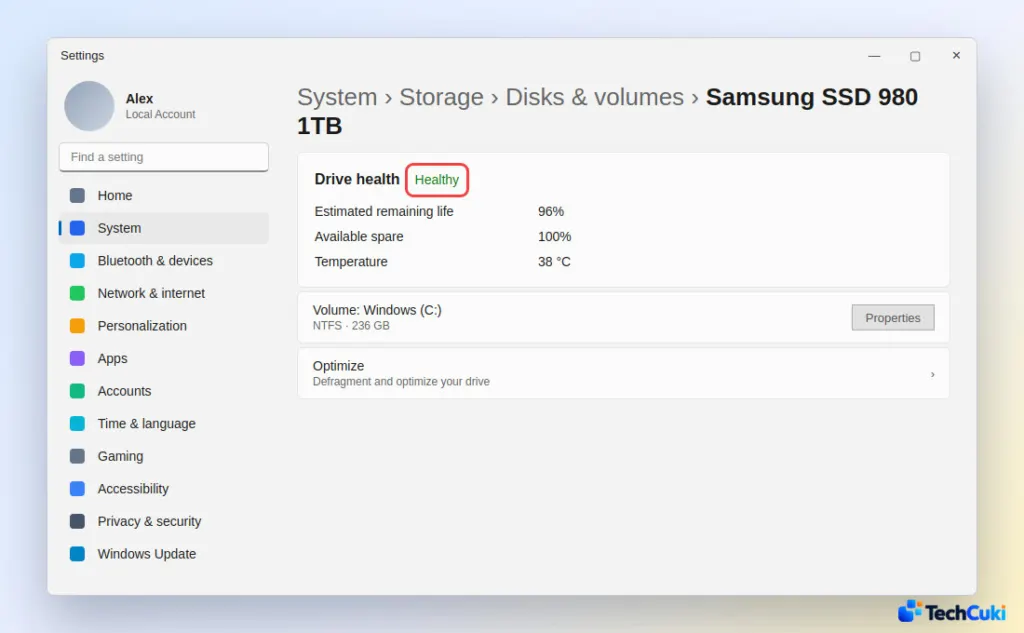
If no single process explains the load, the drive itself may be failing, and a failing drive often shows as freezes of a second or two. Start with the built-in health report.
- Go to Settings > System > Storage > Advanced storage settings > Disks & volumes, select the drive and open Properties. For NVMe SSDs, Drive health shows estimated remaining life, available spare and temperature, and warns you if the drive is failing.
- Open Command Prompt as administrator and run
chkdsk C: /scan. It is an online scan, so you can keep working while it runs.
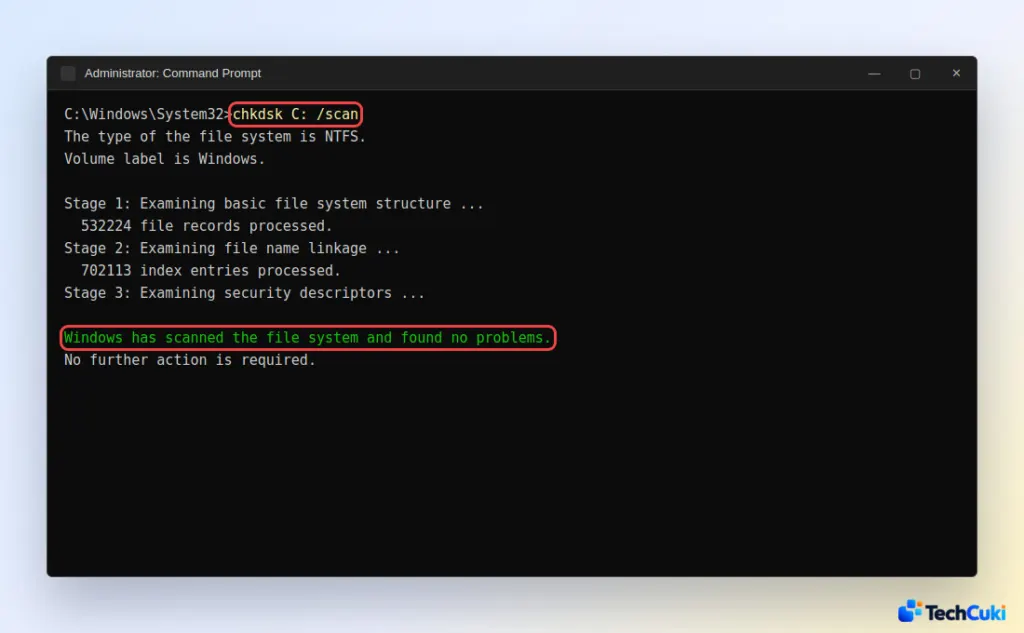
A free tool such as CrystalDiskInfo can also read the drive’s health status, which helps when the Settings page shows nothing. If any check reports problems, back up your files right away.
6. Scan for Malware and Rule Out Drivers
Malware can read and write to the disk constantly, so a scan is worth running early.
- Open Windows Security.
- Run a Quick scan and wait for it to finish.
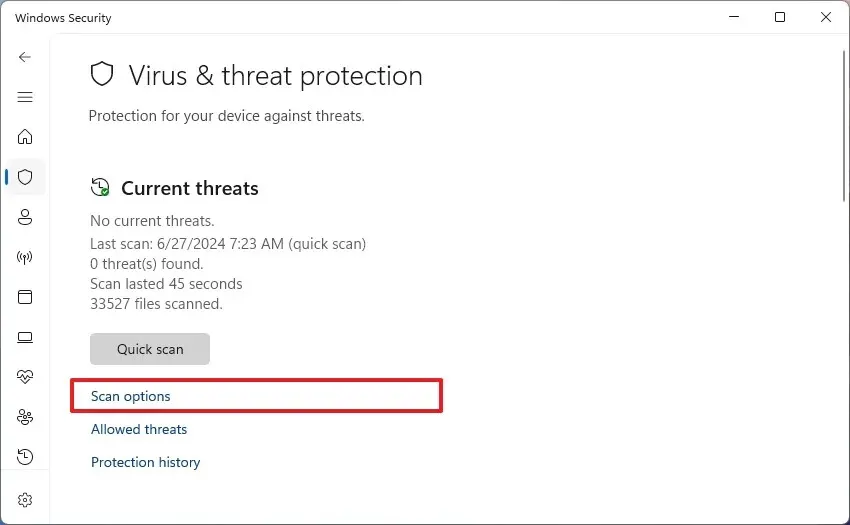
To tell software from hardware, boot into Safe Mode and watch Task Manager. If the disk is no longer at 100% there, a driver or startup program is responsible, so update the BIOS and drivers through your PC maker’s own update utility. If it still crawls in Safe Mode, suspect the drive or the connection to it.
7. Upgrade to an SSD if Windows 11 100% Disk Usage Persists
If the PC still boots from a hard drive, an SSD is the most effective long-term fix. Until then, you can defrag a hard drive in Windows 11 to help a little. If the PC already has an SSD and the health checks come back clean, the practical next steps are updating the BIOS and drivers from the maker, or using Reset this PC.
Most cases can be sorted out without new hardware, so it pays to find the cause before changing anything. If the slowdown never goes away, the drive itself may be ageing, and its maker or a technician can confirm that.


