
Seeing your memory bar sit high in Task Manager can be worrying, especially when apps start to lag. A high number is not always a problem, since Windows uses spare memory on purpose, and a real shortage usually comes down to a heavy app, a background process or too little RAM. The sections below explain what is normal, which signs point to trouble and six fixes for Windows 11 high memory usage.
Table of Contents
Is Windows 11 High Memory Usage Actually a Problem?
Cached memory is handed back the moment another app asks for it, so a high percentage with a smooth PC is Windows doing its job. “RAM cleaner” tools that only push the number down often make Windows reload the same data a moment later.
| What you see | What it usually means |
|---|---|
| High percentage, apps open quickly | Normal caching. Leave it alone. |
| 85–90% on an 8 GB PC, plus stutter or slow app launches | Not enough headroom. Windows leans on memory compression and the page file. Work through the fixes below. |
| One app or browser tab holding several GB | Poor optimization or a memory leak in that app. Close or restart it. |
| Idle usage that keeps climbing through the day, and the Processes list does not add up | Often a driver problem. See the driver section below. |
A PC with plenty of RAM can sit at 90% with many browser tabs, photo editing or virtual machines and feel fine. If the drive is pegged too, our guide to fixing 100% disk usage in Windows 11 covers that side.
1. Find the Apps Using the Most Memory
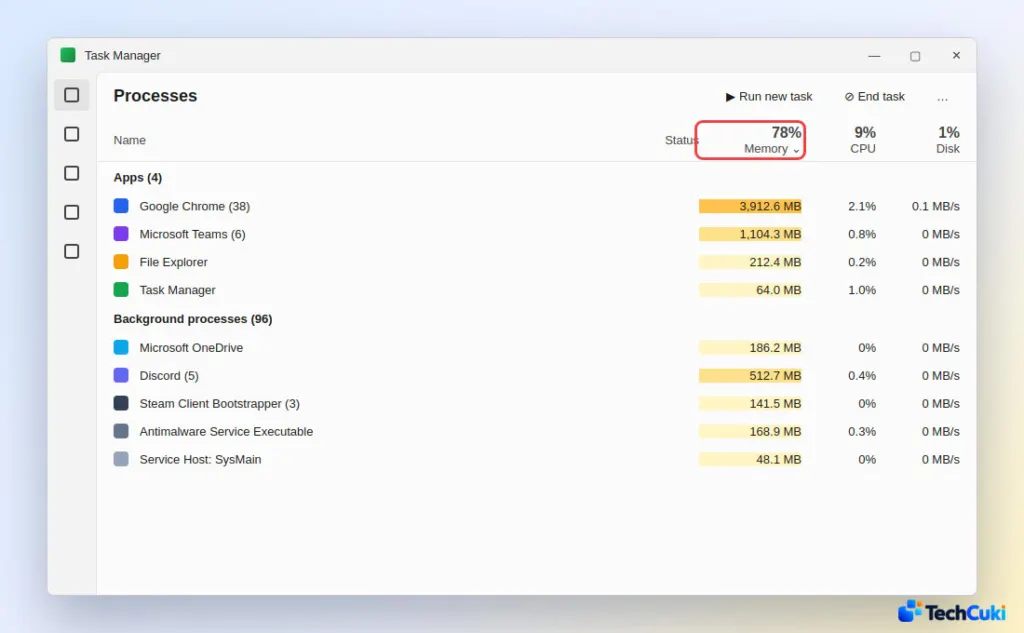
Sorting Task Manager by memory shows the biggest user in seconds, and it is the quickest way to spot a single leaking app. If you need help, here is how to open Task Manager in Windows 11.
- Press
Ctrl + Shift + Escto open Task Manager. - On the Processes page, click the Memory column header so the highest users sit at the top.
2. End Memory-Hungry Apps and Extra Browser Tabs
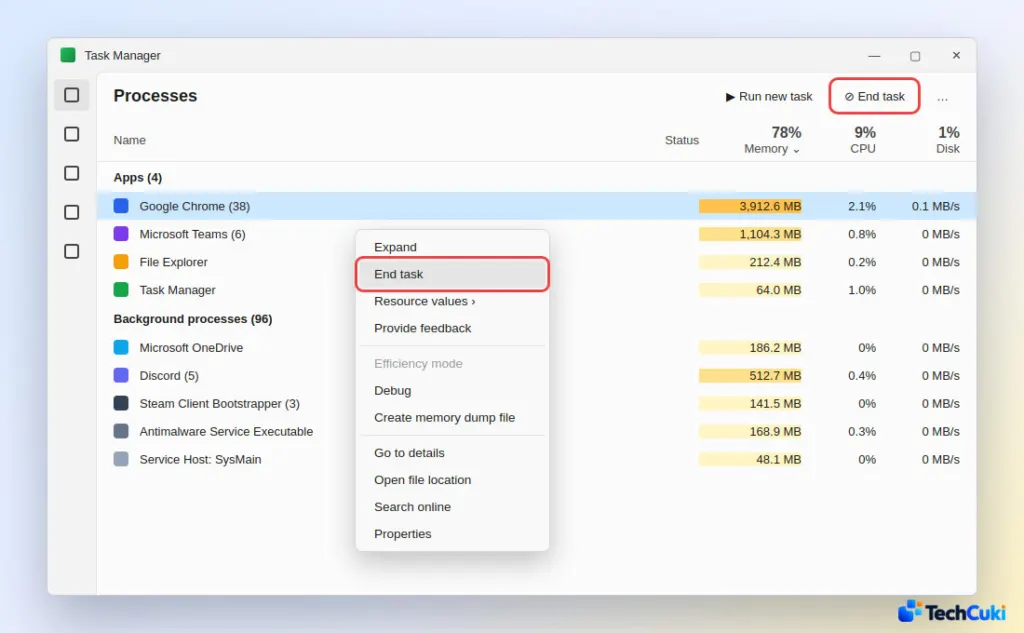
Ending the top process frees its RAM immediately, and browsers with dozens of tabs are the usual offenders.
- Save your work, then right-click the memory-heavy app (or select it) and choose End task.
Close the tabs you do not need. If one app grows again after you reopen it, restart the PC to clear memory held by apps that leak, or close background apps on Windows 11 without rebooting.
3. Turn Off Startup Apps
Apps that launch at sign-in sit in memory all day. Chat and container tools such as Slack and Docker are typical examples, and several small ones add up quickly even when each looks harmless.
- Open Settings > Apps > Startup.
- Sort by Startup impact, then switch off what you do not need at sign-in.
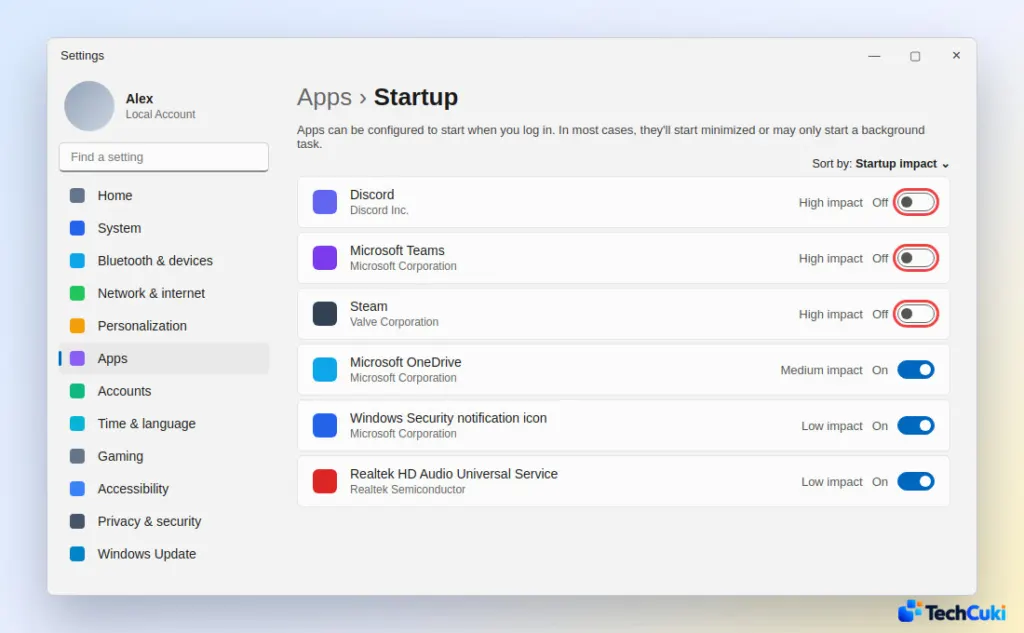
The changes apply from the next sign-in. Switching an app back on later is the same toggle.
4. Memory in Use but No App to Blame
If Task Manager shows many GB in use while the Processes list adds up to far less, or usage creeps up from roughly 4 GB at boot to 10 GB by evening with nothing open, suspect a driver leak rather than an app. Graphics drivers are the first thing Microsoft support suggests updating or reinstalling in these cases.
If that does not help, an in-place repair upgrade replaces Windows system files while keeping your files and apps: run the Media Creation Tool, choose Upgrade this PC now, and on the Ready to Install screen click Change what to keep and select Keep personal files and apps. When the jump began right after a cumulative update, a restore point from before it (search for Create a restore point, then System Restore) is the way back if the update turns out to be the trigger.
5. Scan for Malware
Hidden malware processes can hold memory quietly, so scan if usage stays high with nothing obvious open.
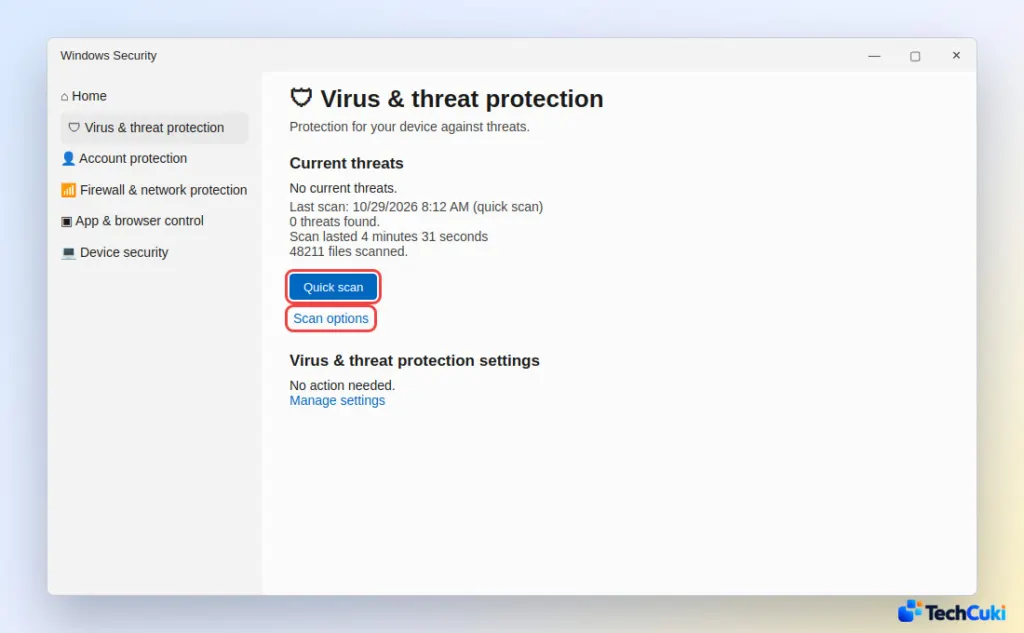
- Open Windows Security > Virus & threat protection.
- Click Quick scan, or open Scan options and run a Full scan for a deeper check.
6. Let Windows Manage the Page File
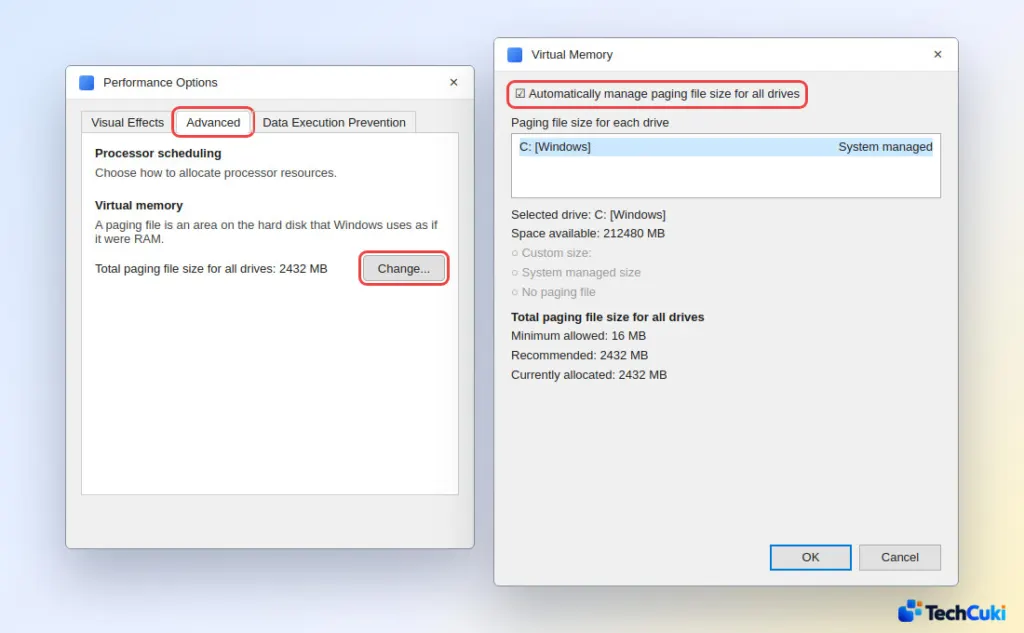
An automatic page file lets Windows grow it when memory runs low. Do not choose “No paging file”, because turning it off can cause trouble exactly when memory is tight.
- Press
Windows + R, typesysdm.cpland press Enter. On the Advanced tab, under Performance, click Settings. - Open the Advanced tab, then under Virtual memory click Change.
- Check Automatically manage paging file size for all drives, click OK and restart.
7. Add More RAM If Windows 11 High Memory Usage Persists
If usage stays high with only your normal apps open and the PC still lags, it simply needs more memory. 8 GB is tight for modern multitasking, and 16 GB is comfortable for most people.
In Task Manager, go to Performance > Memory and check Slots used to see whether a slot is free. Many thin laptops have soldered RAM that cannot be upgraded, so confirm your model first. Our guide to checking RAM speed and slots in Windows 11 shows what is installed. Microsoft PC Manager’s Boost button is only worth a click right before a heavy job such as a demanding game or a 4K render, not as a daily habit.
The percentage matters less than how the PC actually feels, so act only when you notice slowdowns. If it still crawls after the steps above, our guide to speeding up Windows 11 covers the wider picture.


